Guides · PRACTICAL GUIDE
Nintendo Switch App screenshots disappear after 30 days: save the right copy before the 100-file window rolls over
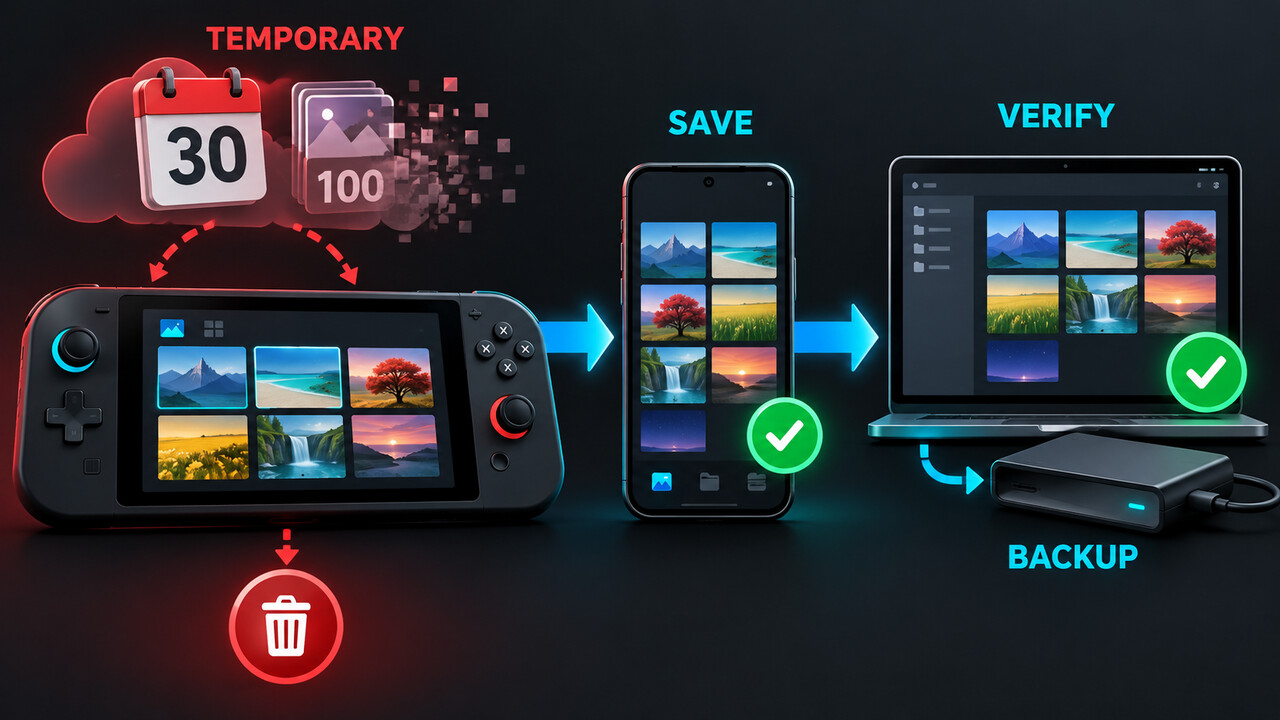
Switch 2 uploads are a transfer window, not a permanent photo backup. Separate the console Album, Nintendo’s temporary server copy and the file actually saved to your phone.
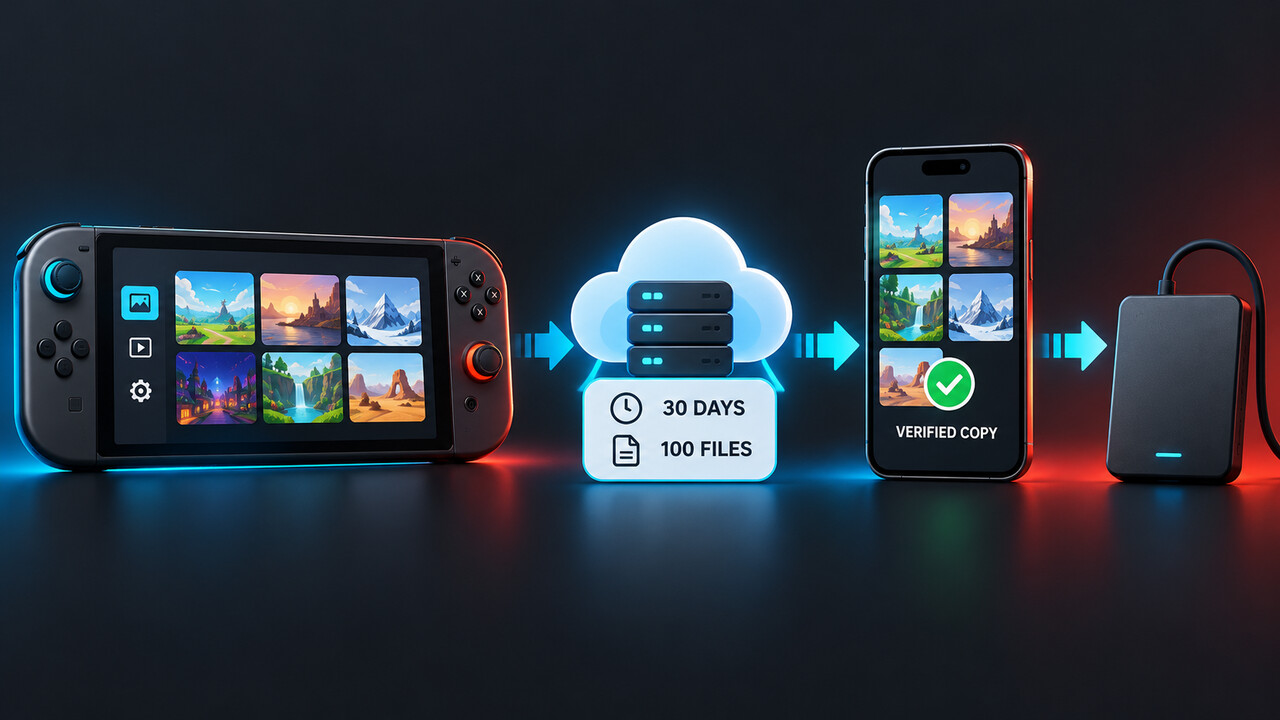
A screenshot disappearing from the Nintendo Switch App does not automatically mean it disappeared from your Switch 2. The app shows a temporary server copy: Nintendo says uploads last 30 days and only 100 files can be stored per Nintendo Account. Your console Album and a file you actually saved to your phone are different copies, with different deletion rules.
Start with the three-copy test
Before changing settings or deleting anything, check three places separately: the Switch 2 Album, the Album tab inside the Nintendo Switch App, and the phone’s own Photos or Gallery library. Record whether the same capture opens in each place. A thumbnail in the app is a server upload; it is not proof that the file has been saved permanently to the phone.
Use the capture date, game and visible scene to match files rather than relying only on upload order. Nintendo says the app lists uploads newest first and can show the remaining storage period. If the console copy still opens, preserve it while you diagnose the temporary app copy.
Work out why the app copy is missing
First confirm that the app and console user are linked to the same Nintendo Account. Then check the console Album’s upload settings and whether that capture was uploaded manually or by automatic upload. A file that was never uploaded will not appear merely because the phone app is installed.
If the file appeared before, compare two limits. Nintendo deletes a server upload after 30 days. It also caps storage at 100 files per Nintendo Account and deletes older uploads first when new ones push the account past that cap. Those routes look alike in the app, but neither one by itself deletes the copy still stored on the console.
Save an app upload to the phone, then prove the save
In the Nintendo Switch App, open Album, select the capture and choose Save. Nintendo’s current instructions allow one file or a selection of up to ten at a time. Repeat in counted batches if you have more. A successful share is not the same as a saved local file, so use Save for the archive copy.
Leave the app and open the phone’s Photos or Gallery app. Find the new file, open it at full size, and check its capture date or filename. For an important batch, compare the number selected with the number visible in the phone library, then copy a sample to another device or backed-up folder and open it there. Only that independent check establishes a durable copy outside Nintendo’s temporary window.
Keep the console original until the outside copy passes
Nintendo explicitly says expiry from its server does not delete data stored on the console, and a surviving console capture can be uploaded again. Do not delete the Album original merely because you tapped Save on the phone. Keep it until the phone copy and at least one second backup have passed your count and open tests.
Switch 2 console storage has its own controls. Nintendo’s current management page separates system memory, microSD Express storage, USB copy and app upload. It also warns that a capture deleted from the console cannot be recovered. Treat console cleanup as the last step, not part of the download step.
Use the current server-delete control carefully
The current App Store version history says the Nintendo Switch App added the ability to delete uploaded screenshots and videos from the server. That addresses an older visible user complaint about waiting 30 days for an accidental duplicate to disappear. App availability and wording can vary by version, so update the app and confirm the control on the exact item before relying on it.
Deleting a temporary server upload is useful for duplicates or privacy, but do it only after proving which other copies exist. Do not assume an app-side delete also frees console storage, and do not delete the console original while trying to clean the server list. Recheck the three-copy inventory after every deletion.
If the app upload is already gone
Return to the Switch 2 Album. If the original is still there, upload it again, save it to the phone and perform the same independent verification. Nintendo says console data remains after the 30-day server period as long as you did not delete it from the console.
If the console original is also gone, the temporary app window is not a recovery archive. Check a phone photo library, computer imports, USB copies, microSD Express backups and ordinary cloud-photo backups that you previously enabled. Do not promise recovery from Nintendo’s expired server storage; the reviewed support material does not provide such a route.
Build a routine that cannot be defeated by day 30 or file 101
Once a week or after a long play session, review recent uploads, save the keepers to the phone in counted batches, and let the phone’s normal backup finish. Once a month, copy the archive to a computer or another independent destination and open random samples. A server list of 100 is a transfer queue, not the size of your permanent collection.
Keep a short log with the newest exported capture date, the number saved and the second destination used. Before selling, resetting or repairing the console, export the Album by a supported route and compare counts. This turns a disappearing app thumbnail into a diagnosable temporary-copy issue instead of an irreversible loss.