Technology · PRACTICAL GUIDE
Alexa Routines Missing From the App but Still Running? Try These Safe Recovery Steps
If Alexa routines vanished from the app but still run, clear saved filters, verify the account and country, refresh the app safely, and stop before rebuilding or resetting devices.
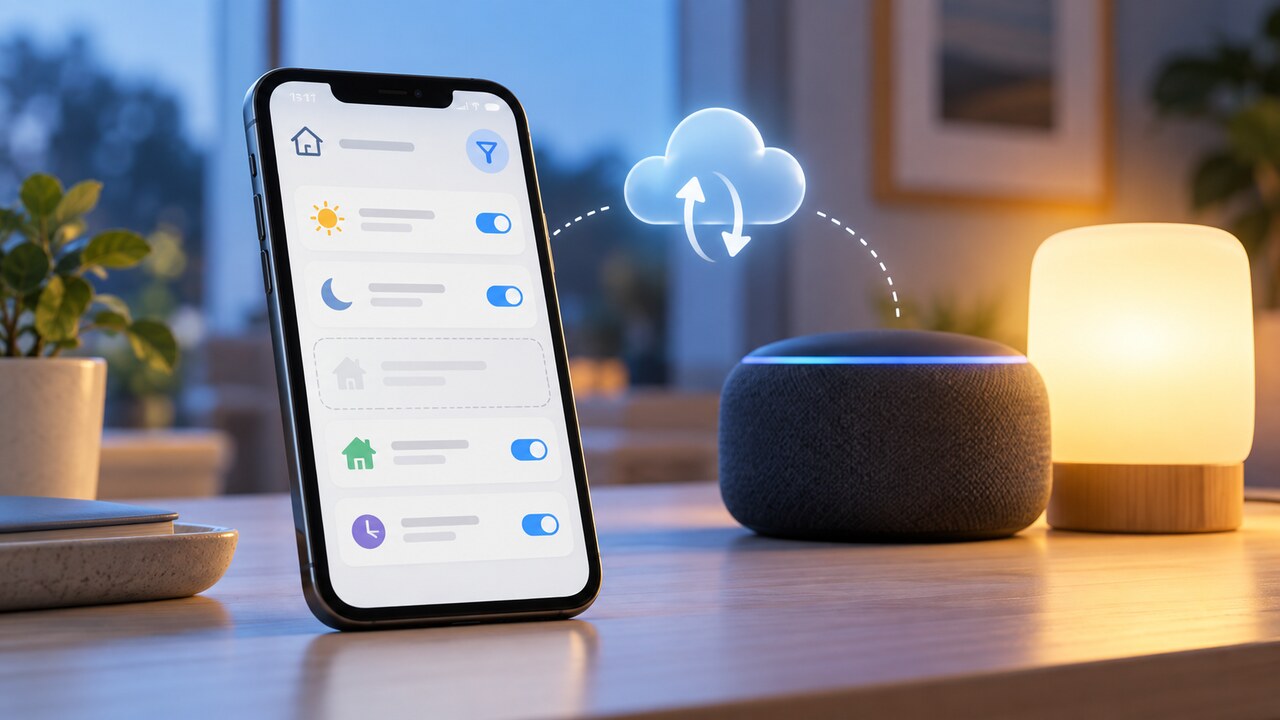
If your Alexa routines disappeared from the app but still run on schedule or by voice, do not recreate them or factory-reset your Echo devices yet. First clear the Routines screen’s saved filters, verify that the app is using the Amazon account and country where the routines were created, and then refresh the app session. When the correct Amazon account still shows your Echo devices on the web but the mobile app shows an empty home, reinstalling the app is a reasonable local-app recovery step. If a hidden routine still cannot be found, disable it by voice when you know its name or contact Amazon support before creating a duplicate.
These steps reflect Amazon help available in the United States on October 2, 2026. Labels can differ by app version, country, and Alexa/Alexa+ rollout.
Preserve what still works
A routine that still turns on lights, makes an announcement, or runs on schedule has not necessarily been deleted. Record what it does, its trigger/time/device, last run, remembered name, expected Amazon login, and country. Do not delete devices, unlink skills, change country, or reset an Echo yet.
1. Clear the saved list view
Open More > Routines > Your Routines. If Filter/Sort appears, remove every device filter and use an unfiltered or alphabetical view. The app can remember a filter and hide a valid routine. Confirm you are not on Featured/Gallery or Activity. If the routine appears, inspect its trigger/actions/output device, save a harmless edit if needed, and test once. If visible but not running, confirm Enabled; Amazon also recommends toggling it off/on and checking every involved device is online. Stop if the list is restored.
2. Verify the account before rebuilding
Compare the actual Alexa sign-in email/phone with the account that registered the Echo devices. In a web browser, open Amazon Manage Your Content and Devices and check for the expected Echo devices. - Devices missing on the web: likely wrong account or marketplace. Sign into the original account; do not re-add everything to a new one. - Devices present on the web but mobile app empty: account data still exists; continue to local-app refresh. - Devices present in Alexa but only routines missing: clear filters again, verify the intended household/profile, then inspect country only if there is a real clue. Amazon says a routine can be for the whole home or an individual Alexa Profile. Multiple adults/profiles should check who created it rather than assume every sign-in shows the same list.
3. Refresh the app in low-risk order
1. Update Alexa from the official app store. 2. Sign out, restart the phone, and sign back into the verified Amazon account. 3. Reopen Your Routines and clear Filter/Sort again. 4. If web still shows the devices but the app shows an empty home, remove Alexa and install a fresh official copy, then sign into the verified account. Reinstall is not an official guarantee. It is supported by a current user case where routines/reminders kept running, web devices remained, and reinstalling iOS restored the home. Wait a few minutes for data to load. Do not create replacements while old routines still fire.
4. Treat country changes as a special case
Inspect Country/Region Settings only if you moved, the app switched language, you used another marketplace, or features changed after a transfer. Go to Manage Your Content and Devices > Preferences > Country/Region Settings and compare the country/default address. Do not change country as an experiment. Amazon warns it can take up to 24 hours and may require devices, skills, routines, lists, and alarms to be reconfigured; linked third parties may be signed out. If country is correct, leave it alone.
5. Stop a hidden routine safely
If you know its name, say “Alexa, disable [routine name] routine,” guidance supplied by Amazon staff for an invisible routine. If available, check the Routines Activity tab and note time/device. Do not create a duplicate trigger until the old routine is disabled. If the name is unknown or voice cannot locate it, give Amazon support: account identifier (never password), country/marketplace, phone/OS/app version, Alexa+ status, device name, exact trigger/action/time, screenshots of empty Your Routines with filters cleared, and whether devices remain on Amazon web. Ask support to locate/disable the server-side routine.
Do not do these first
Do not factory-reset an Echo for an empty app list; reset removes local setup but does not prove the app will expose an automation under another account/profile/marketplace/server record. Do not delete visible routines hoping hidden ones appear. Do not change country, unlink all skills, or deregister everything without matching evidence.
Completion and failure path
Recovery is complete only when the expected routine appears, opens for editing, has the right trigger/actions, passes one controlled test exactly once, and no ghost duplicate fires. If visible but failing, use Amazon’s enabled toggle and online-device checks. If invisible and still firing, recovery is incomplete: disable by known name or have Amazon support locate it before rebuilding.