Technology · PRACTICAL GUIDE
Changing Phones: Transfer and Test Passkeys and Authenticator Access
A phone backup does not prove every sign-in factor will follow you. Inventory where your passkeys and verification codes live, add an independent fallback, and prove your most important accounts work on the replacement phone before you erase or trade in the old one.

A new phone can look fully restored while the credentials that unlock your accounts are still trapped on the old one. Passkeys may sync through a password manager, one-time codes may live only inside an authenticator app, and work accounts may require an administrator to register the new device. The safest migration is therefore a testable workflow, not a blind backup-and-erase sequence. Use the checklist below before you mail a trade-in, reset a damaged phone, or hand the old device to someone else.
## Bottom line The migration is complete only when the new phone can pass fresh sign-in tests and the old phone is no longer a single point of failure. Treat backups as inputs, not proof. Inventory the factors, verify their storage, add an independent fallback, test the replacement, and only then erase the old device.
1. Make a factor inventory, account by account
Start with the accounts whose loss would block everything else: your primary email, password manager, Apple or Google account, mobile carrier, bank, workplace or school, cloud storage, and any account that stores recovery codes for other services. For each account, write down which sign-in factors it accepts: a passkey and the password manager or device that stores it; a six-digit code from Google Authenticator, Microsoft Authenticator, Authy, 1Password, or another app; a push approval sent to the old phone; SMS or a call to a trusted number; a hardware security key; a printed or securely stored recovery code; an already trusted browser or device; or a help desk or administrator reset for work and school accounts. Do not record passwords, private keys, authenticator seeds, or recovery codes in the checklist itself. Record only the factor type and where the protected backup is stored.
2. Verify where each factor actually lives
Do not assume every authenticator app behaves the same way. Google says Authenticator codes synchronize across devices when the app is signed in to a Google Account. If the app is used without an account, the codes stay on the device and must be transferred from the old phone by QR export and import. That difference matters: an unsynchronized phone that is lost before transfer can force you to recover every enrolled account separately.
Microsoft Authenticator has different restore limits. Its current support guidance says backup and restore stay within the same device type, so an iPhone backup cannot be restored to Android. Third-party one-time codes can restore, but passwordless personal accounts and work or school accounts may restore only the account name and require a fresh sign-in or re-registration.
Apple’s iCloud Keychain can synchronize passwords and passkeys across approved Apple devices. A new device may still need approval, a security code, access to a trusted phone number, or another recovery method. Confirm that Keychain is enabled and that you know which trusted device or number will approve the replacement.
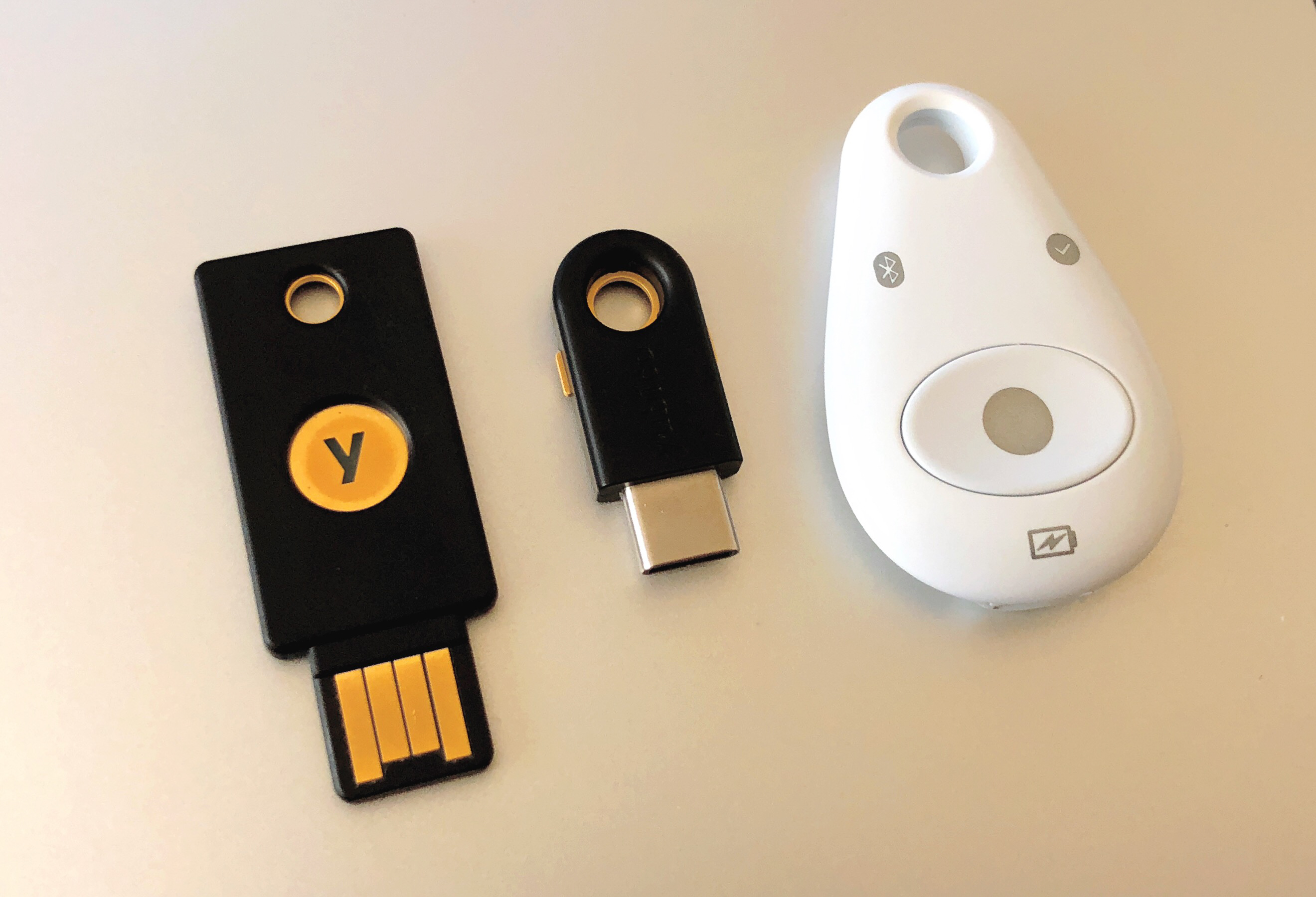
For a passkey stored on a hardware security key or in a password manager that does not sync to the new platform, plan a separate enrollment. “I have a passkey” is not enough; you need to know which provider holds it and whether that provider works on the replacement phone.
3. Add one independent fallback before moving anything
Each critical account should have at least one recovery path that does not depend on the phone being replaced. Useful fallbacks include a hardware security key kept somewhere safe, a recovery code stored off the phone, an alternate trusted number you control, another signed-in device, or a second passkey stored through a different approved device. For a work or school account, confirm the support desk or administrator process before the old phone is gone.
Avoid creating a circular recovery chain. If your email recovery code is stored only in a password manager that itself requires approval from the old phone, you do not yet have an independent fallback.
4. Set up the replacement, then perform real sign-in tests
Complete the normal device and app migration, but keep the old phone intact. Then open a private or signed-out browser session on the new phone and sign in to the accounts from your inventory. A good test proves more than app access: Enter the account through a fresh sign-in, not an already restored session. Use the passkey, authenticator code, push approval, or hardware key that you expect to rely on. Confirm that any recovery-code store can be reached without the old phone. For work or school accounts, complete any device registration or administrator approval. Repeat the test for the primary email and password manager last, after confirming their backup factors separately.
If a code appears in an authenticator app, wait for it to rotate once and test a fresh code. If a push notification still arrives only on the old phone, add or register the new device before erasing anything.
5. Know the failure branch before you need it
If the old phone is already lost or broken, stop trying random recovery paths. Use an existing signed-in device, an independent backup factor, the provider’s account-recovery flow, or the workplace administrator. Google’s current help guidance lists options such as another signed-in phone, an alternate number, a backup code, a security key, a passkey on another device, a trusted device, carrier number transfer, or account recovery. Google also says account recovery can take several business days. Once access is restored, remove the lost phone or passkey and replace any exposed backup codes.
For an unsynchronized authenticator, expect to revisit each enrolled service and remove or re-enroll the old factor. Do not pay a third party that promises to bypass multifactor authentication, and do not disable stronger authentication merely to make the migration faster.
6. Erase the old phone only after every critical test passes
Before factory-resetting or shipping the old device, confirm all of the following: the replacement phone can complete a fresh sign-in to primary email; the password manager opens and can authenticate without the old phone; synced passkeys appear where expected, and non-synced passkeys have a replacement enrollment; authenticator codes are present and accepted; push approvals reach the replacement phone; at least one independent recovery factor works; recovery codes are stored securely off the phone; work and school accounts are registered or the administrator process is confirmed; and the old phone can now be removed from trusted-device and active-session lists.
Then sign out the old device where the provider recommends it, revoke its trusted status, and erase it. If a trade-in deadline is approaching but a critical account still fails, request an extension or choose a different return method rather than surrendering the only working factor.