Guides · PRACTICAL GUIDE
Steam screenshots missing on a new PC? Separate local captures from uploads before you copy
Your old captures may be local files, Steam profile uploads, or files the new client no longer indexes. Preserve the old data first, then prove which copy you actually have.
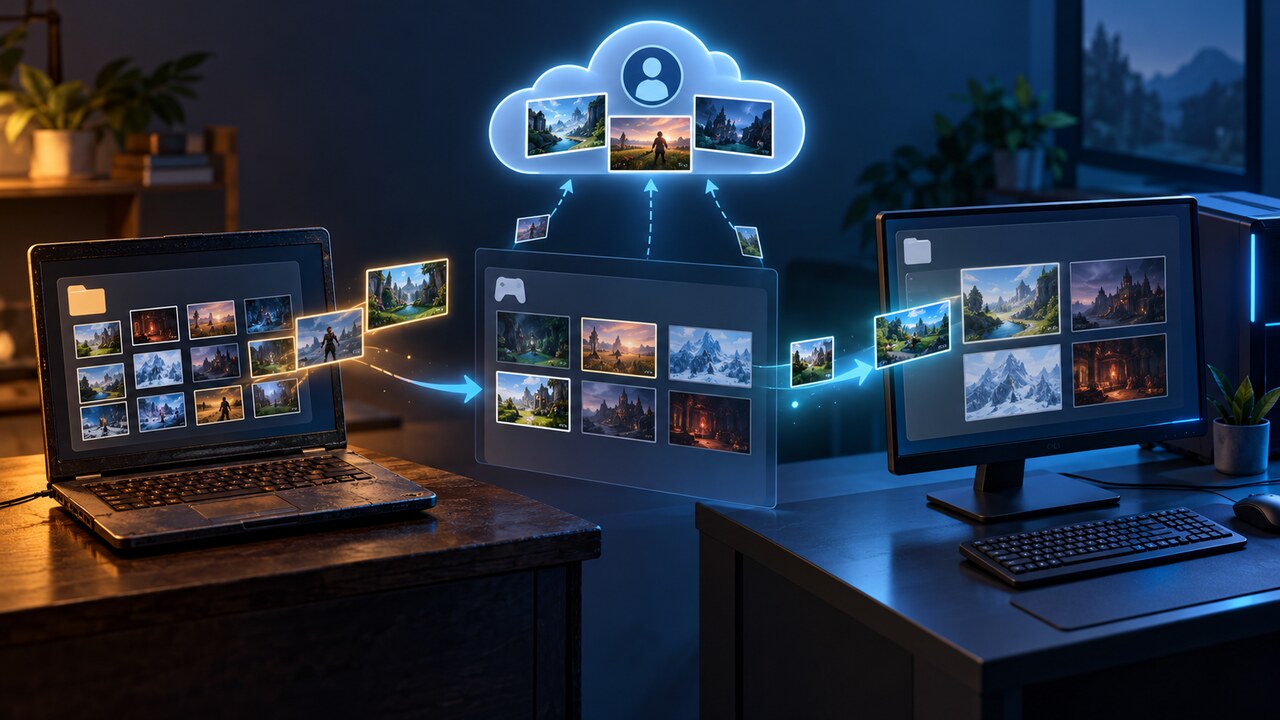
A new PC can make years of Steam screenshots look as if they vanished even when some of the image files still exist. The confusion comes from treating three different things as one: local capture files, the Steam client's local library metadata, and screenshots you deliberately uploaded to your Steam profile. They do not have the same recovery path.
First, identify which copy you are missing
Start with the Steam client on the old computer if it is still available. Open the screenshot library and note which games have captures, then compare that list with the files on disk and with screenshots visible on your public or private Steam profile. Valve describes the screenshot library as local and the Screenshot Uploader as a separate action, so signing into the same account on a new computer does not by itself prove that every old local capture will arrive.
Use a simple three-column inventory: local file found, visible in the old Steam library, and uploaded to the profile. A screenshot can be present in one column and absent from the others. This prevents a profile upload from being mistaken for a complete backup, and it prevents a missing library thumbnail from being mistaken for a missing JPEG.
Preserve the old userdata tree before reinstalling or cleaning
Do not uninstall Steam, run a cleanup tool, or overwrite the old drive until you have copied the evidence. On a default Windows installation, look beneath the Steam folder for userdata, then your numeric account folder, 760, remote, a numeric app folder, and screenshots. On macOS and Linux, the Steam data root is normally inside the user's application-data or local-share folder, but the exact root can differ by installation. Search for the account-specific userdata/760 tree instead of assuming one hard-coded path.
Copy the entire account-specific 760 folder to a neutral backup location, not just the first screenshots folder you find. Keep the original directory names. Then count the image files, open a sample from several games, and record the copied folder's size. If more than one numeric account folder exists, inventory each one before deciding which belongs to you.
Treat readable image files as a successful recovery
If the JPEGs or other image files open normally outside Steam, preserve them as the primary recovered originals. Copy them again to a photo archive or another backed-up folder before trying to make the Steam client display them. The client library is useful, but it should not be the only definition of success.
A copied file may remain invisible in the new Steam screenshot library because the library also relies on local metadata. A Steam Community report describes exactly that split: files had been copied, yet the client did not list them. Do not edit undocumented index files or invent metadata in place. That can turn a recoverable folder into a harder forensic problem.
Move to the new PC without overwriting either side
Install and sign in to Steam on the new PC, close Steam completely, and back up the new account-specific userdata/760 folder before adding anything. Keep the old copy and the new copy in separate dated folders. Never drag the old userdata folder over the new one with a blind replace-all operation.
For archiving, place the recovered images in a normal pictures folder and verify them there. If you also want Steam library visibility, use only current client-supported controls and keep expectations modest: raw files that were never uploaded may not be recreated as fully indexed library entries by a simple copy. The goal is to preserve the images first, not to sacrifice the only good copy in pursuit of thumbnails.
Check uploaded screenshots and Steam Cloud separately
Open your Steam profile's screenshot area in a browser or the client and download any images you intentionally uploaded. Those server-side copies can help when the old disk is gone, but they may be resized or incomplete, and they are not evidence that every local capture was uploaded.
Do not confuse Steam Cloud game data with the Screenshot Uploader. Steam Cloud can synchronize supported game and platform files, while Valve's screenshot documentation presents uploading as a separate workflow. Confirm what is actually visible online rather than assuming a game's cloud status includes its screenshots.
If the old files are gone, minimize further loss
Check ordinary backups, old drive images, synced picture folders, the operating system's trash or recycle bin, and any profile uploads before using recovery software. If deletion is recent, stop writing new data to the affected drive; new downloads and reinstalls can overwrite recoverable blocks. Recover to a different drive, never back onto the source.
For the future, upload only the screenshots you want on your profile and keep a separate backup of the account-specific userdata/760 tree or the exported image archive. After each major PC move, verify file counts and open samples before retiring the old machine. That small audit is more reliable than assuming the client interface represents every copy.