Technology · PRACTICAL GUIDE
SSH agent refused operation? Prove the socket, key and sign path before resetting anything
This error means the client reached an agent and the agent would not complete a signature. Identify the active socket, match the offered key, test signing locally, and verify the SSH client's actual route before changing permissions, deleting keys or forwarding an agent.
“Agent refused operation” is narrower than a generic public-key failure. The SSH client contacted an authentication agent, selected a public key, asked the agent to sign the authentication challenge, and did not receive a usable signature. That can happen because the shell points at the wrong agent, the key is not the one you think it is, a provider requires approval or a PIN, a forwarded socket is being shadowed, or the agent can list a key but cannot currently use it.
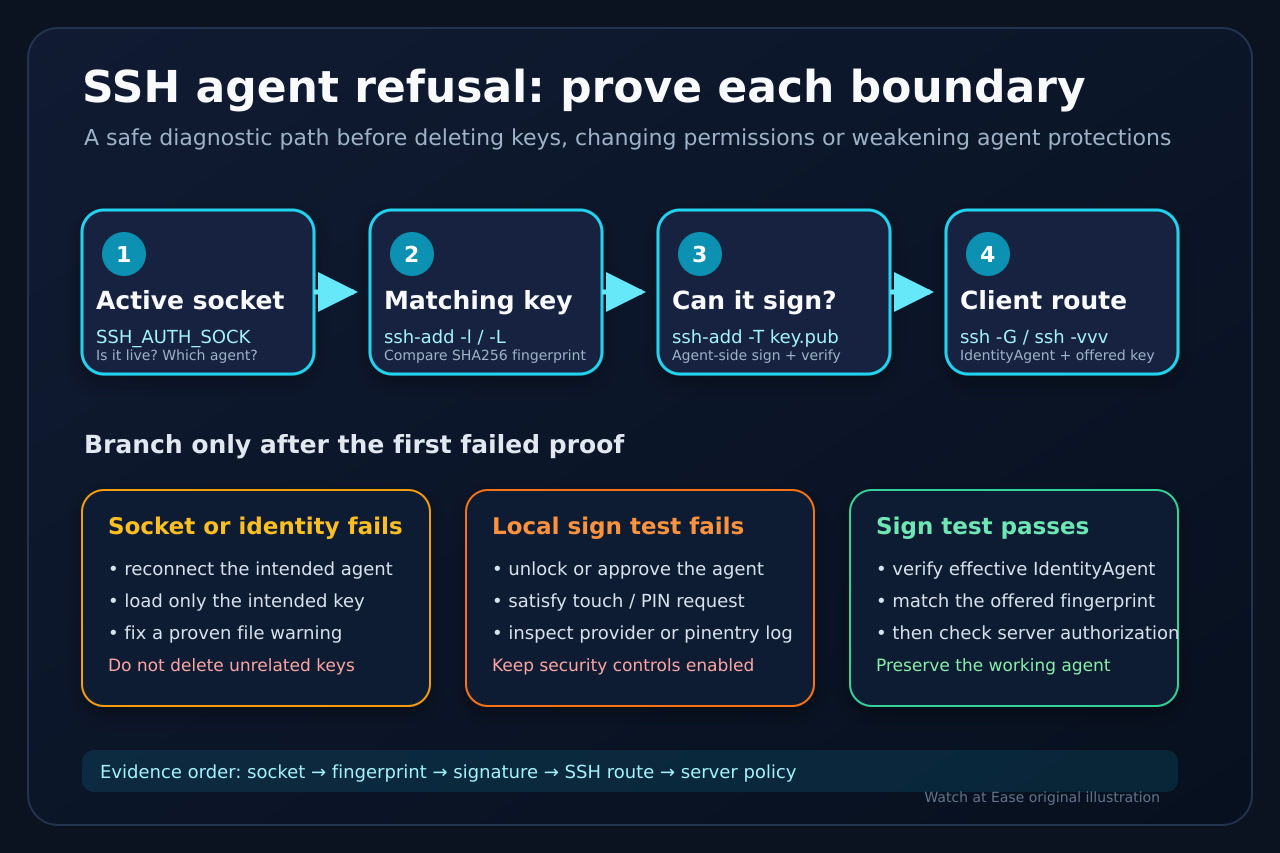
Do not start by deleting package or key files, turning off agent protections, copying a private key to a remote host, or enabling ForwardAgent for every host. Preserve the failing terminal and collect the evidence below. Each step answers a different question, so stop at the first failed boundary.
1. Freeze the failing context and identify the agent
Run the checks in the same terminal, IDE shell or remote session that produced the error. A different terminal may inherit a different socket. Record the host alias you used, whether this is a local shell or an SSH-forwarded shell, and the exact key label printed immediately before “agent refused operation.”
Print the socket path and confirm it is a Unix-domain socket: `printf '%s\n' "$SSH_AUTH_SOCK"` followed by `test -n "$SSH_AUTH_SOCK" && test -S "$SSH_AUTH_SOCK" && echo agent-socket-present`. An empty value means ordinary ssh-add cannot find an agent. A present socket still may belong to OpenSSH, GNOME Keyring, gpg-agent, 1Password, KeePassXC, a hardware-token agent, or a forwarded session.
Ask that socket what it represents: `ssh-add -l` lists fingerprints and `ssh-add -L` prints public keys. Exit status 2 from ssh-add means the tool could not contact the agent; that is a socket/session problem, not proof that the private key or server is wrong.
2. Match the offered key, then prove it can sign
Do not rely on a friendly key comment. Compare fingerprints. For a public-key file, run `ssh-keygen -lf ~/.ssh/id_ed25519.pub`; for an agent identity, use `ssh-add -l -E sha256`. If the fingerprint that SSH offered is absent from the agent list, fix agent loading or provider eligibility before touching the server's authorized_keys.
If the fingerprint is present, test the signature boundary directly with `ssh-add -T ~/.ssh/id_ed25519.pub`. Current OpenSSH asks the connected agent to sign and then verifies the result. A zero exit status proves that this socket can use the matching private key now. A failure here keeps the investigation on the client-agent side: unlock or approve the provider, satisfy touch or PIN requirements, repair the provider/pinentry path, or remove and re-add only the affected identity according to that agent's documentation.
Some older ssh-add versions do not implement -T, and third-party agents may implement only part of the protocol. An unsupported option is not a failed signature. Record `ssh -V`, identify the agent product, and use its documented sign test or logs rather than guessing.
3. Prove what the SSH client actually selects
A healthy agent can be bypassed or shadowed by client configuration. Inspect the effective configuration for the exact host alias: `ssh -G your-host | grep -Ei '^(identityagent|identityfile|identitiesonly|forwardagent) '`. Host, Match and included configuration blocks can make the result different from the line you remember editing.
Then run one verbose attempt: `ssh -vvv user@your-host`. Locate the lines that name the agent socket or identity, the fingerprint offered, and the line that reports the refusal. If the fingerprint differs from the one that passed ssh-add -T, constrain that host to the intended public key and agent rather than deleting unrelated identities.
When IdentityAgent is configured, it can take precedence over SSH_AUTH_SOCK. This matters inside a forwarded shell: a local third-party-agent setting on the remote workstation can shadow the socket forwarded from your laptop. Correct the host- or session-specific routing; do not enable global forwarding or copy the private key to the remote machine.
4. Branch on the first failed boundary
No socket or ssh-add cannot contact it: start or reconnect the intended agent in this session, then re-check the path. Do not export a socket copied from another login unless that socket is live and owned by the same user.
Key missing from ssh-add -l: load the intended file-backed key with that agent's supported method, or make the key eligible in the third-party agent. For file-backed OpenSSH, overly broad private-key permissions can make ssh-add ignore the file; change only the private key after confirming the warning. Public keys and directories have different appropriate modes, so a blanket chmod is not a diagnostic.
Key listed but ssh-add -T fails: the agent knows the public identity but cannot or will not sign now. Check whether the agent is locked, an approval dialog is hidden, pinentry cannot open, a hardware token needs touch/PIN, a provider library is unavailable, or the token is busy. Use the agent/provider log from the same timestamp.
ssh-add -T succeeds but ssh -vvv still shows an agent refusal: compare the offered fingerprint and effective IdentityAgent. For forwarded or destination-constrained keys, verify that the current hop and destination are permitted. For approval-based agents, approve the actual terminal or IDE process making the request.
The intended key signs and SSH offers it, but the server ends with Permission denied (publickey): the agent-signing problem is resolved. Move to server authorization—username, authorized_keys, certificate principals and server policy—without undoing the working client setup.
5. Handle forwarding and hardware-backed keys without weakening them
Agent forwarding exposes signing ability through a socket; it does not copy the private key. Limit ForwardAgent to specific trusted hosts. In a forwarded session, verify SSH_AUTH_SOCK and ssh-add -l there, then approve the request on the machine that actually owns the key.
For FIDO or PKCS#11 keys, a refusal can be an intentional security boundary. OpenSSH agents restrict some remote provider operations and FIDO application strings. A touch, PIN, middleware provider or destination constraint may be required. Do not disable web-safety restrictions or load a remote provider merely to make the error disappear; first prove that the requested operation is the legitimate SSH authentication you intended.
After the repair, repeat the same local sign test and the same verbose SSH command. Record the working socket, fingerprint and effective client settings. That evidence is more durable than a one-time restart and prevents the next terminal, IDE or forwarded session from silently selecting a different agent.
Decision table
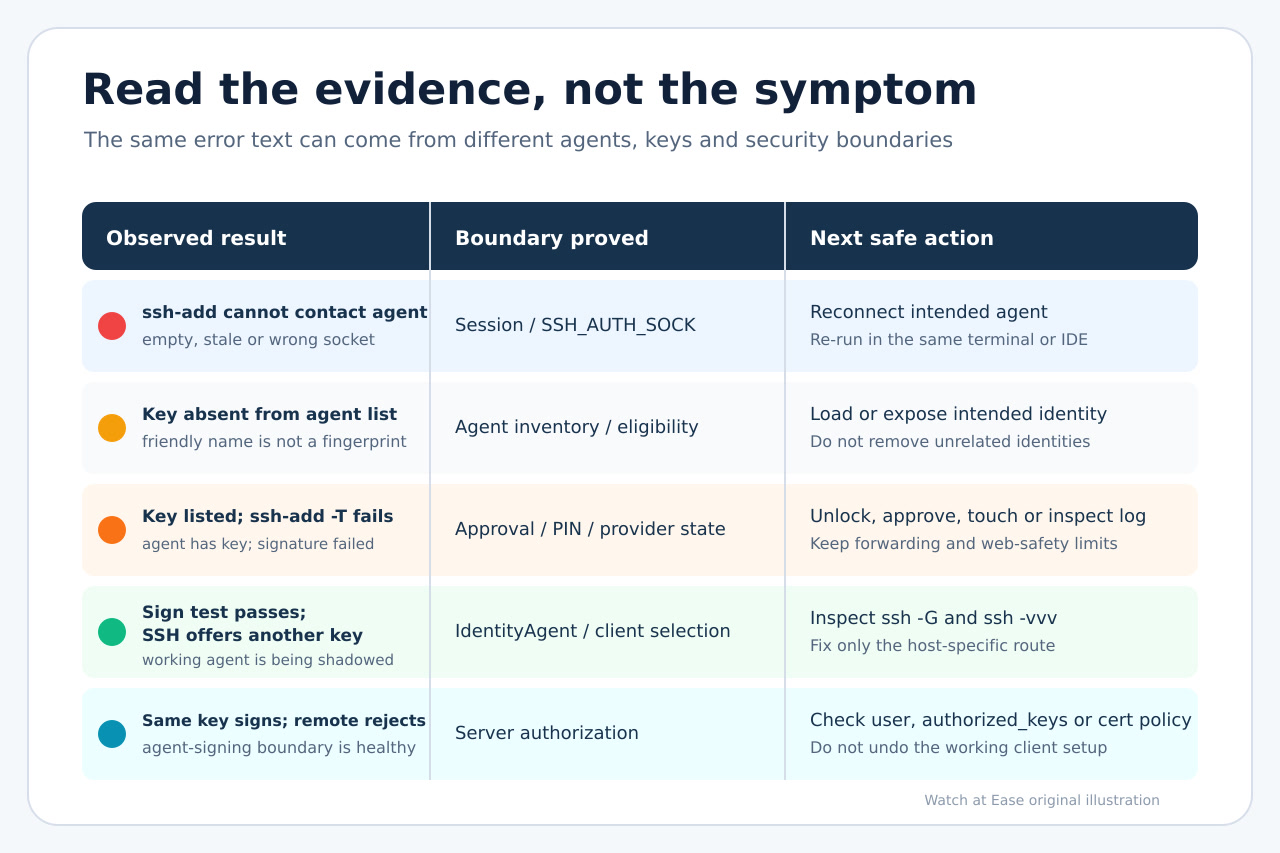
ssh-add cannot contact agent — Socket/session failure. Start or reconnect intended agent; re-check SSH_AUTH_SOCK
Key absent from ssh-add -l — Wrong agent or key not eligible. Load/configure only intended identity
Key listed; ssh-add -T fails — Agent/provider cannot sign now. Unlock/approve/touch/PIN; inspect provider logs
ssh-add -T passes; SSH offers another key — Client routing mismatch. Inspect ssh -G and ssh -vvv; fix host-specific IdentityAgent/IdentityFile
ssh-add -T passes; same key offered; server rejects — Server authorization branch. Check user, authorized_keys/cert principals and server policy