Technology · PRACTICAL GUIDE
SSH says “REMOTE HOST IDENTIFICATION HAS CHANGED”? Verify the endpoint and fingerprint before removing the old key
Do not delete known_hosts or disable checking just to make the warning disappear. Identify the hostname, address, port, jump path and trust file SSH used; obtain the expected fingerprint through a separate trusted channel; then remove only the stale record after the fingerprints match.
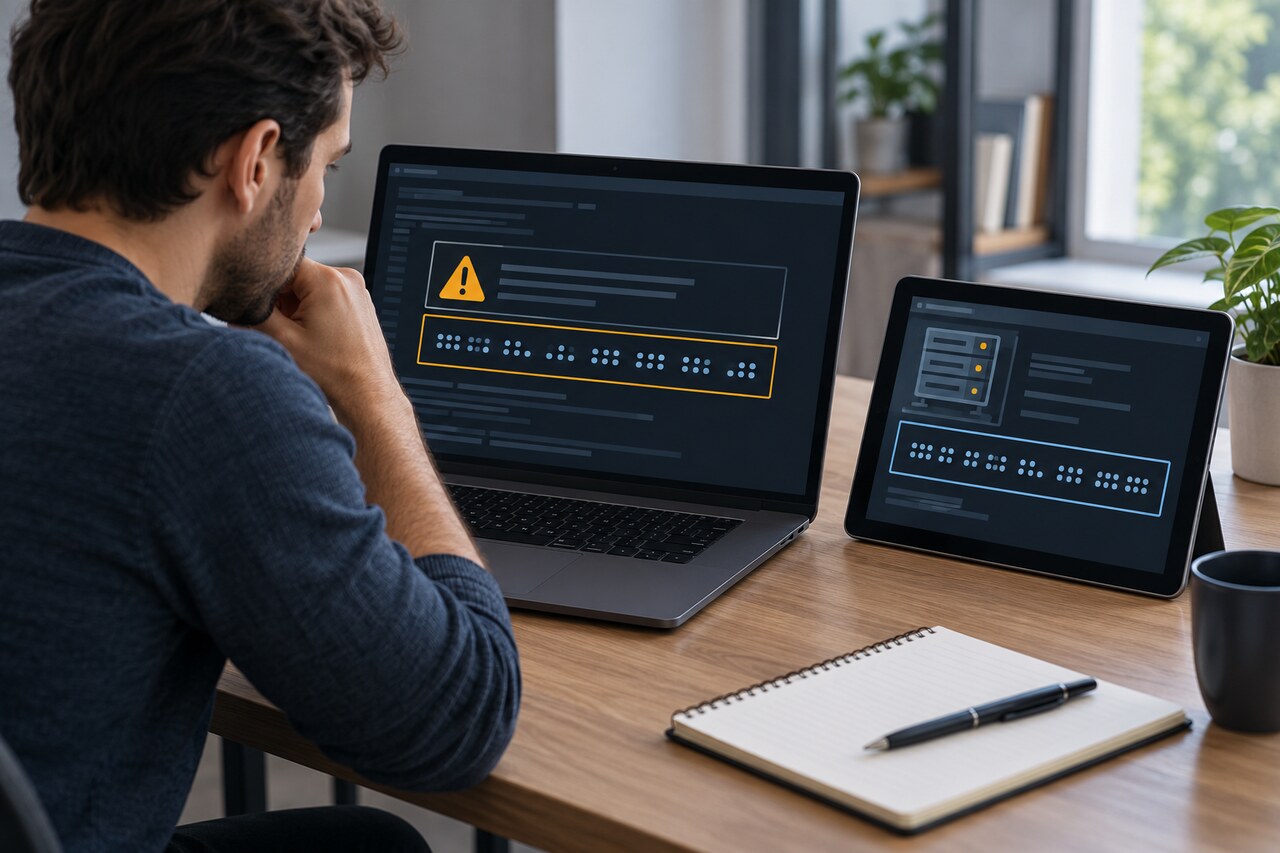
An SSH host-key warning is an identity failure, not a connectivity error. Prove which server you reached and what key it should present before changing local trust.
Treat the warning as evidence, not an obstacle
OpenSSH remembers a server’s public host key in a known-hosts file. When the same endpoint presents a different key, the default strict-checking policy refuses the connection because it cannot know whether the server was rebuilt, rotated its key, moved, or was replaced or intercepted. Check identity before cleanup.
Preserve the complete warning: hostname, IP address, port, key type, SHA256 fingerprint, file and line. A wrapper such as VS Code Remote SSH, Git, rsync or an IDE may use another config, port, jump host or trust file.
1. Identify the endpoint SSH actually reached
Inspect `ssh -G host`, especially `hostname`, `port`, `proxyjump`, `proxycommand`, `userknownhostsfile` and `globalknownhostsfile`. An alias may target another DNS name, a private address through a bastion or a nonstandard port.
Resolve the effective hostname through the normal network path and compare it with the warning, inventory, cloud console or administrator record. VPN split DNS, load balancers, recycled cloud addresses and jump hosts can redirect a familiar alias. If the route is unexplained, stop.
Also check `hostkeyalias`: when configured, it replaces the real hostname for host-key database lookup. Use the identity and file actually named by SSH, rather than assuming the command-line nickname is the stored name.
2. Obtain the expected fingerprint out of band
Use an independent channel: an authenticated provider console, serial or recovery console, configuration-management record, or verified administrator. On the server console, an administrator can run `ssh-keygen -lf /etc/ssh/ssh_host_ed25519_key.pub` and equivalent commands for other enabled host keys.
Ask for the algorithm and complete SHA256 fingerprint. A maintenance notice may explain rotation, but the fingerprint is still needed. `ssh-keyscan` shows what the current route presents; it is observation, not independent proof.
3. Compare like with like
Compare ED25519 with ED25519, RSA with RSA, and ECDSA with ECDSA. A server may rotate one algorithm while another stored key remains valid, so confirm which host key the client negotiated.
Proceed only when the endpoint is accounted for and the presented fingerprint exactly matches the independently obtained value. If it differs, contact the owner and preserve the old record. A line number is diagnostic information, not permission to trust a replacement.
4. Locate the precise known_hosts record
Back up the named file. Query `ssh-keygen -F host`; for a nonstandard port use `ssh-keygen -F '[host]:2222'`. Repeat for the resolved IP if stored. The lookup works with hashed hostnames, so unrelated lines need not be exposed or deleted.
If another trust file is in use, add `-f /path/to/file`. A system-wide file may require an administrator. With a jump host, determine whether the warning belongs to the bastion or final target before removing anything.
5. Remove only the verified stale endpoint
After the match and legitimate cause are confirmed, run `ssh-keygen -R host`; for a nonstandard port use `ssh-keygen -R '[host]:2222'`. Add `-f /path/to/file` where required. Verify hostname and IP records separately.
Keep the backup until verification is complete. Do not delete `~/.ssh/known_hosts`, remove broad groups of lines, or set `StrictHostKeyChecking=no`. Those shortcuts erase evidence and weaken unrelated connections.
`ssh-keygen -R` removes all keys for that exact hostname or [hostname]:port in the selected file, not just the one changed algorithm. Inspect every matching record first. Ask an administrator to handle managed or multiple-algorithm records if their validity is unclear.
6. Reconnect once and verify the new decision
Reconnect interactively. Confirm the endpoint and algorithm, then compare the displayed fingerprint with the trusted value once more before accepting it. Record the cause, trusted source, old and new fingerprints, time and approver.
Stop if the key changes again, different backends present unexplained keys, or only one client or network warns. These patterns can expose inconsistent DNS, an uncoordinated load balancer, an unexpected proxy, different trust files or a security incident.
Legitimate changes and escalation triggers
A rebuilt virtual machine that retained a static IP, documented rotation, restored image, replacement appliance or moved alias can legitimately change the key. The owner must still confirm endpoint and fingerprint; a familiar address may now belong to another machine.
Escalate when nobody expected a change, the owner cannot produce a fingerprint from a trusted console, DNS or routing changed unexpectedly, fingerprints differ or the key keeps changing. Do not enter credentials while identity remains unresolved.