Technology · PRACTICAL GUIDE
VS Code Remote SSH keeps downloading the server? Audit the install loop before deleting anything
A download loop is a boundary failure, not proof that every server install is disposable. Preserve one complete log, bind it to the exact VS Code commit, test download, unpack, startup and tunnel separately, then repair only the boundary you can prove is broken.
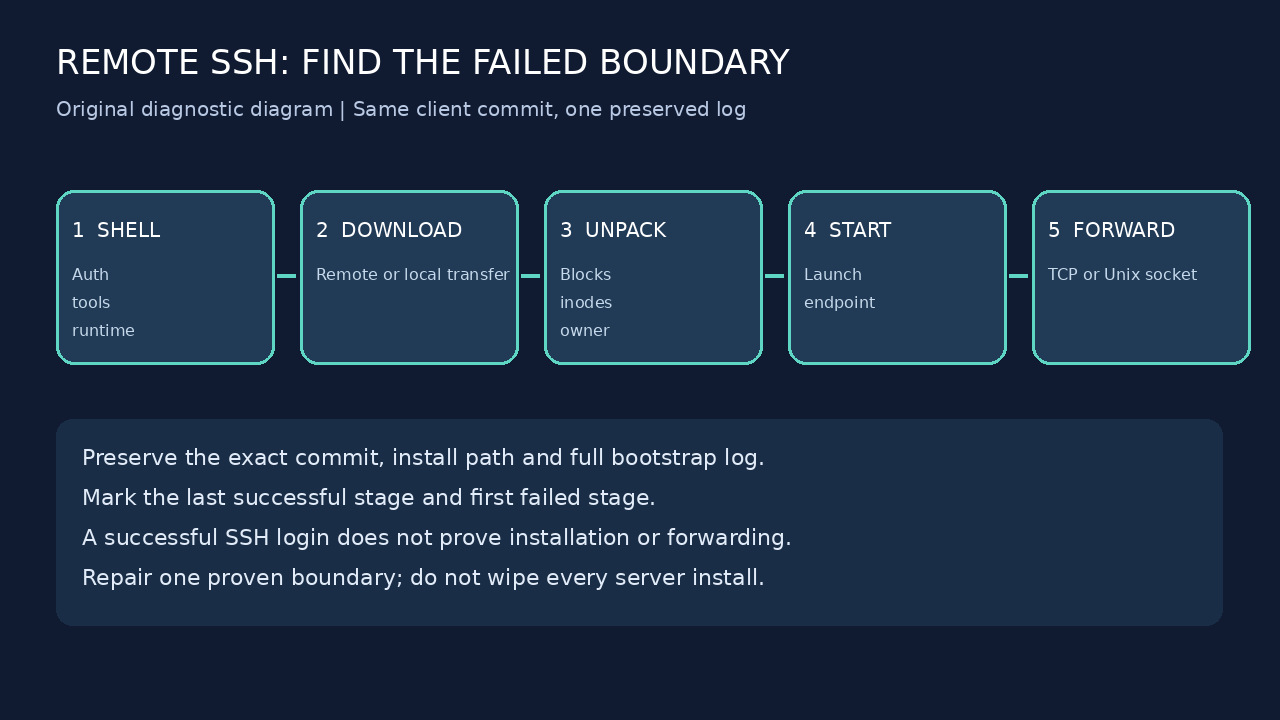
When Remote-SSH downloads the VS Code Server again and again, the tempting fix is to wipe the remote install directory. That can erase the very log and known-good commit that would show whether the failure is network access, a missing tool, full storage, ownership, extraction, startup output or SSH forwarding. Repetition tells you only that the client did not accept the previous bootstrap; it does not identify the failed boundary.
Use one controlled connection attempt as an audit. Record the client commit and the remote path printed in the Remote-SSH log, preserve that evidence, and move through the bootstrap in order. A repair is justified only after the last successful boundary and first failed boundary are both visible.
Freeze one attempt before changing anything
Open the Remote-SSH output channel, enable the login terminal if prompts may be hidden, and make one connection attempt. Save the complete output before retrying. Record the host alias, local VS Code version and commit, Remote-SSH extension version, reported remote platform and architecture, server install path, download route, archive or commit name, and the final error. A screenshot of the last line is not enough because the useful transition may be much earlier.
Treat the commit as part of the identity. A client update may legitimately request a different server build, while repeated downloads for the same commit indicate that installation or acceptance never completed. Issue #11269 documents the cost of this distinction on slow links and shows why a generic folder wipe can turn a diagnosable loop into another full transfer.
Before touching the server tree, take a read-only inventory. Use the exact path printed by the log when available. Commands such as `df -h "$HOME"`, `df -i "$HOME"`, `id`, and `find ~/.vscode-server -maxdepth 4 -type d -print 2>/dev/null` can reveal full blocks, exhausted inodes, unexpected ownership and multiple commit-scoped installs without altering them.
Boundary 1: prove the shell and prerequisites
Run a non-interactive test through the same SSH target, not merely an interactive login that may source different startup files: `ssh your-host 'printf "shell-ok\n"; command -v bash; command -v tar; command -v curl || command -v wget; uname -s; uname -m; getconf GNU_LIBC_VERSION 2>/dev/null || true'`. Keep the output with the connection log. Missing Bash, tar, both download tools, or an unsupported runtime is a prerequisite failure, not a reason to redownload the same archive.
Check that non-interactive startup files do not print banners, debug text or errors before the bootstrap markers. The long-running Stack Overflow port-parsing question demonstrates that ordinary SSH can work while Remote-SSH still cannot parse the server's structured startup output. Guard decorative output so it appears only for an interactive shell, then repeat the single controlled attempt.
If the shell and tools pass, do not change them again. Mark the boundary as proven and continue. A useful audit narrows the search; it does not accumulate unrelated tweaks.
Boundary 2: choose and prove the download route
The official guide says the remote host needs outbound HTTPS access to `update.code.visualstudio.com` and `vscode.download.prss.microsoft.com` when it downloads the server itself. Test DNS and TLS from the remote host using the available tool, but interpret the HTTP status carefully: the purpose is to prove name resolution, routing and certificate negotiation, not to assume that a bare site URL is the archive URL.
If remote egress is blocked but the local computer can download, set `"remote.SSH.localServerDownload": "always"` in the local VS Code User settings to select local download and transfer. This is an extension-level setting; record and restore its previous value, since it can affect other SSH targets. If the log already shows local transfer, inspect that transfer and its destination instead of changing a remote proxy. When remote downloading works, forcing transfer adds another boundary.
Do not count progress percentages as installation. Record whether the archive download completed, its destination exists, and the log advanced to extraction. A repeated download with no later extraction marker is a download or transfer boundary; a completed download followed by failure belongs to the next boundary.
Boundary 3: verify storage, ownership and unpacking
A home directory can have free gigabytes and still have no free inodes. Check both `df -h` and `df -i`, then inspect ownership on the parent server directory and the exact commit-scoped path. Do not recursively change ownership across the account. Correct only a path that is demonstrably owned by the wrong account and first determine how that mismatch was created.
If the archive exists, verify that `tar` runs and that the log's extraction target is writable. Preserve partial directories until their commit and failure are documented. The directory layout has changed across Remote-SSH generations, so use the path emitted by the current log rather than assuming every host uses the same `bin/<commit>` layout.
An unpack error after a successful transfer is not cured by downloading again. Fix the proven storage, inode, permission or tar problem, then retry once with the same commit. The expected transition is from archive present to a populated server tree and a launch command.
Boundary 4: separate server startup from port forwarding
Once extraction succeeds, find the launch line and the server's structured output. If a process exits before reporting a listening endpoint, capture its exit status and nearby stderr. Check the remote environment it actually receives, including temporary-directory permissions and any startup script output. Do not label this a network tunnel failure until the server has demonstrably started.
If the server reports a listening endpoint but the client cannot use it, move to SSH forwarding. The official troubleshooting guide identifies AllowTcpForwarding for TCP mode and AllowStreamLocalForwarding for Unix-socket mode. Have the administrator inspect the policy for the actual endpoint mode. `remote.SSH.useLocalServer: false` is a diagnostic comparison when the local-server path hides the useful error; it does not grant forwarding permission.
A 'failed to parse remote port' message is a classification clue, not a universal root cause. Compare the saved output with the expected startup markers: stray shell text, an early server exit and a blocked tunnel require different repairs.
Use the smallest repair you can defend
Prefer reversible changes. Restore the missing prerequisite; select the working download route; free verified unnecessary space; repair the exact ownership error; correct non-interactive shell output; or ask for the required forwarding policy. After each change, run one attempt and record whether the first failed boundary moved.
The official 'Kill VS Code Server on Host' command is useful when a server instance is genuinely wedged, but it is a broad recovery action, not a substitute for diagnosis. Before using it, preserve the full output and identify whether a working sibling commit would also be removed.
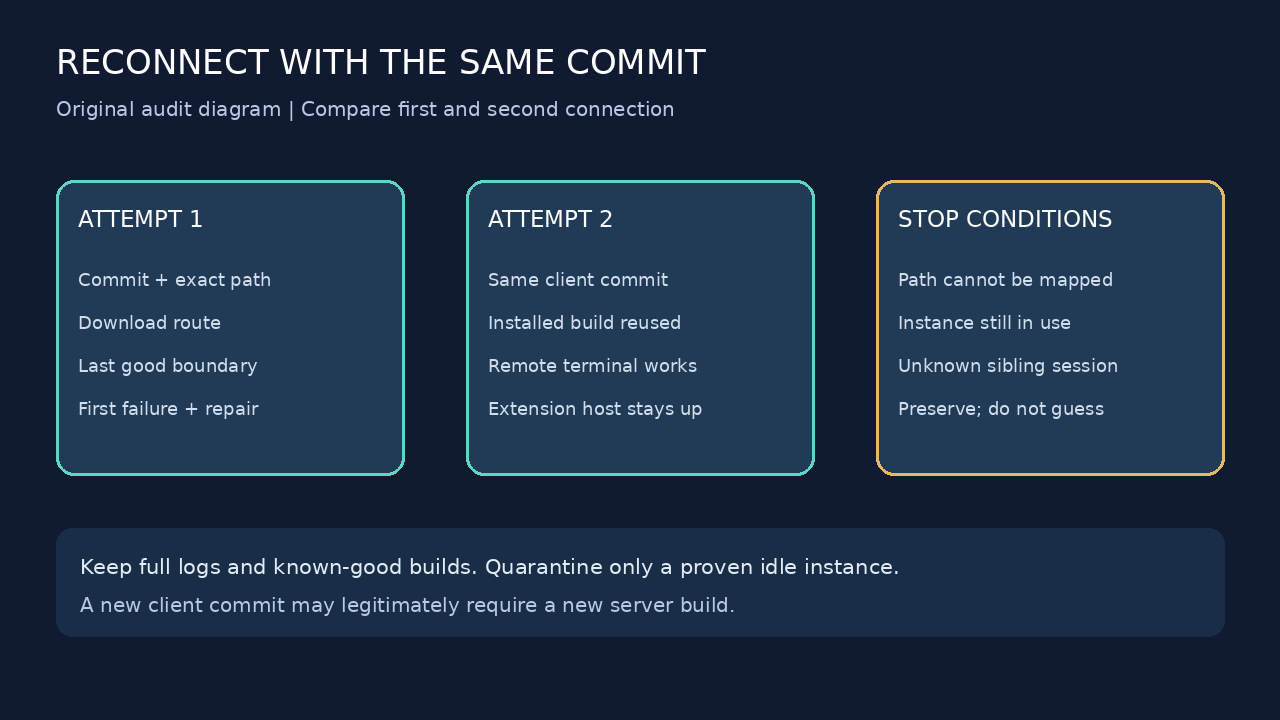
If one commit-scoped install is proven incomplete, first close the related remote windows and establish that no server process or other session is using that exact instance. Preserve its logs, then quarantine only the precisely mapped directory instead of deleting the entire `.vscode-server` tree. Reconnect once with the same client commit and confirm the new install. Keep the quarantine until the working state and logs are secured. An ambiguous path or an active sibling session is a stop condition.
Define completion so the loop cannot hide
A single successful window is not enough. Disconnect and reconnect with the same local client commit. The second connection should reuse the installed server rather than transfer the full archive again. Open a remote terminal, run a harmless command, and confirm that the remote extension host remains connected.
Keep an audit row with the timestamp, client commit, remote platform and architecture, chosen download route, install path, available blocks and inodes, prerequisite versions, last successful boundary, repair, first and second connection results, and whether another full download occurred. This turns a future recurrence into a comparison instead of another wipe-and-retry cycle.
Escalate with the preserved full log when the same commit still loops after all observable boundaries pass. Include the smallest reproducible host configuration and redact secrets. Do not publish hostnames, usernames, tokens or private paths that are not needed to show the boundary.