Technology · PRACTICAL GUIDE
pip says installed, but the command is missing? Locate the script before editing PATH
Prove which Python installed the package, which command it exposes, and which scripts directory the current process searches before reinstalling or changing PATH.
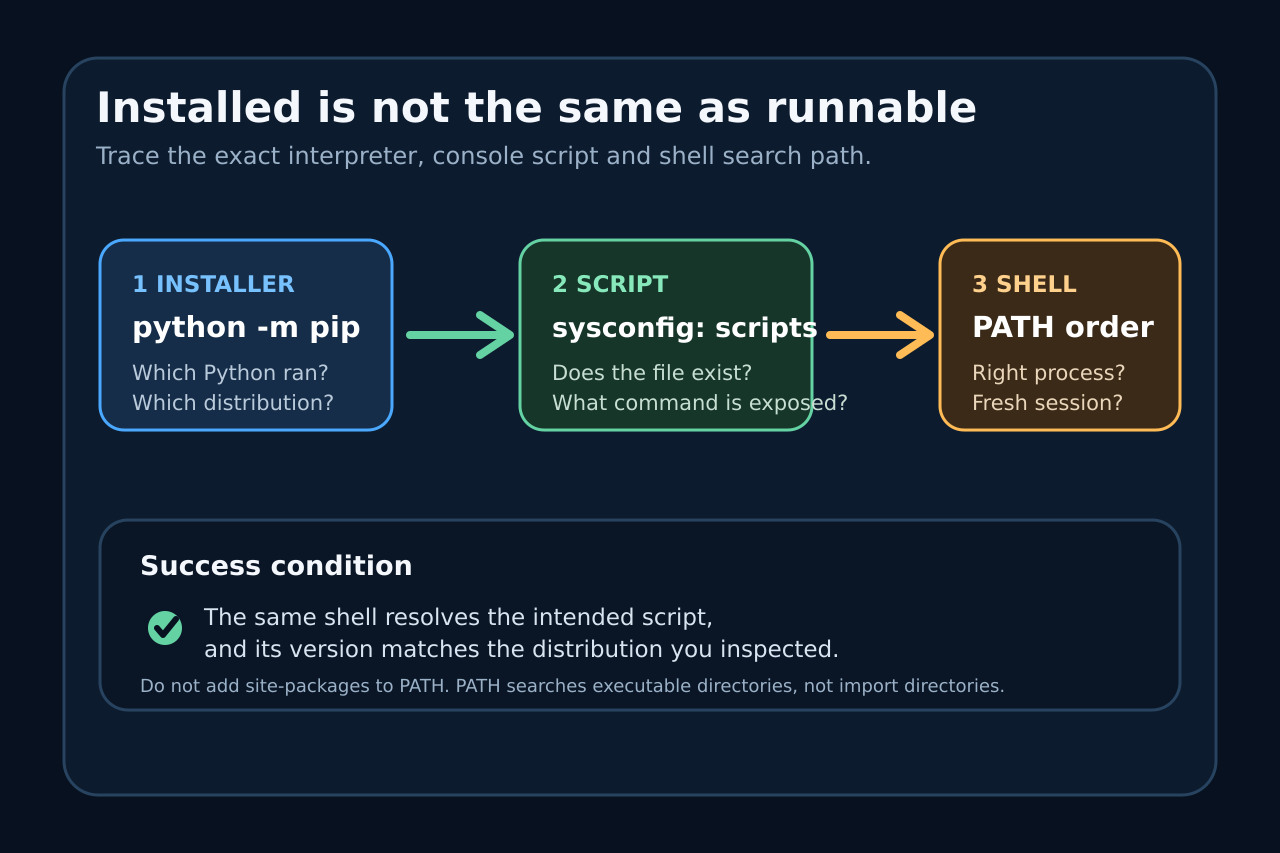
A successful pip install proves that one Python environment accepted a distribution. It does not prove that the package exposes the command name you typed, that its script landed in a directory your shell searches, or that the shell is using the same Python.
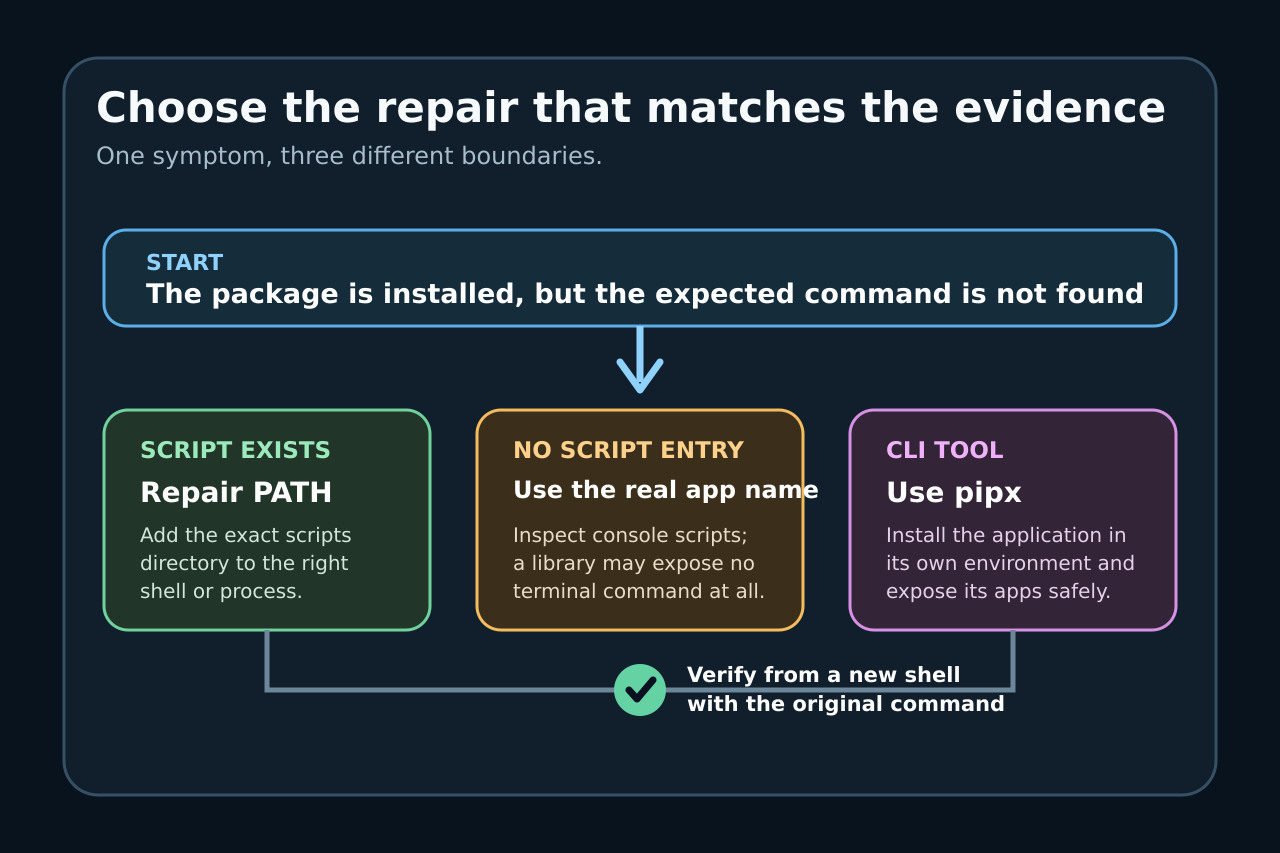
Start with the exact interpreter that performed the install. Enumerate its console scripts, compute its scripts directory, and compare that literal directory with the PATH of the process that will run the command. Only then choose a PATH repair, the correct app name, or an isolated pipx install.
Freeze the installer and command evidence
Record the failed command, the install command, the current working directory, the shell or service that will run it, and the output of python --version plus python -m pip --version. The latter identifies both pip and the Python environment it belongs to.
Do not start with sudo, a blanket reinstall or a guessed PATH edit. Those moves can install a second copy, change ownership, or hide which environment produced the missing command.
Prove the distribution and its console-script name
Run python -m pip show PACKAGE and confirm its Location belongs to the interpreter you intend to use. Then inspect the distribution’s console_scripts entry points with Python metadata; the command may differ from the package name, and an empty result means there is no CLI entry point to find.
A module that can be imported is not automatically a terminal application. If the project documents python -m MODULE, use that supported entry; do not invent a wrapper or add site-packages to PATH.
Compute the exact scripts directory
Ask the same interpreter for its active scheme and scripts path: python -c "import sys,sysconfig; print(sys.executable); print(sysconfig.get_path(\"scripts\"))". For a user install, python -m site --user-base also reveals the base from which platform-specific script paths are derived.
Check whether the expected executable actually exists in that literal directory. If it does not, stop: PATH cannot discover a file that was never created. Recheck the exposed entry-point name, install environment and any install warning.
Compare PATH in the process that fails
Print PATH from the same shell, IDE terminal, service, scheduled task or container that reports command not found. Compare normalized literal directories in order; a tilde inside PATH may not be expanded by every program, and another shell can read a different startup file.
If the script exists and its directory is absent, add that exact directory in the appropriate user or service configuration, then start a new process. Do not overwrite the existing PATH, and do not add a broad parent directory that exposes unrelated executables.
Choose the bounded repair and verify it
For an existing plain-pip install, repair only the proven PATH entry or use the documented python -m MODULE form. For a standalone CLI you want available across projects, install it with pipx, run pipx ensurepath, open a new terminal, and confirm the app appears in pipx list.
Verification is complete when the same failing process resolves the intended executable and its --version output matches the inspected distribution. If resolution points to another copy, stop and correct PATH order or the selected interpreter before uninstalling anything.