Tech · PRACTICAL GUIDE
Moved your mpv videos on Linux? Recover matching resume records
Build a separate recovery set from a watch_later backup, inspect unmatched mappings, and test playback without consuming your only saved record.
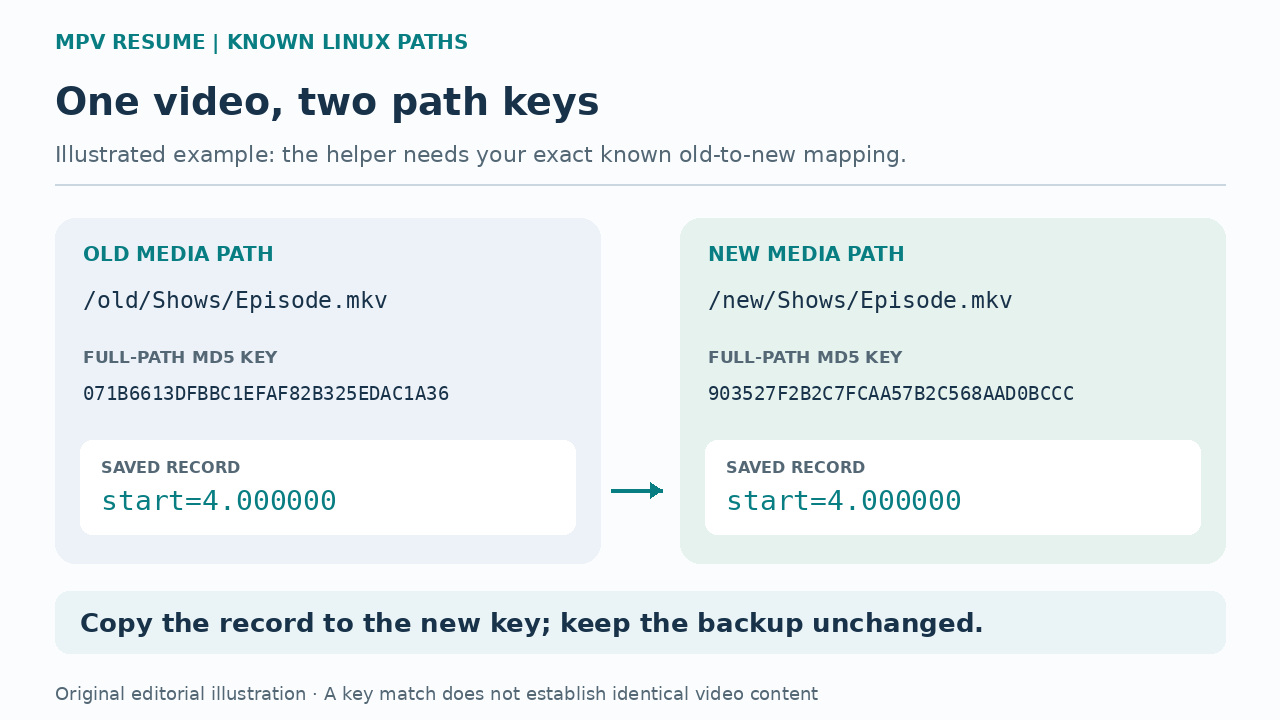
A saved mpv position can remain in your backup after the video moves, yet no longer be found when you open the new path. For ordinary full-path records, the lookup name depends on the media path. If you know the old and new locations, the helper in this guide can match those records in a batch and copy them into a separate recovery directory.
This is a limited Linux recovery procedure, verified with mpv 0.41.0 and Python 3.12.14; the helper requires Python 3.9 or newer and refuses other operating systems. You need a preserved watch_later directory and a trustworthy mapping to the same videos. Unknown old names, deleted recordings and different edits of a video remain unresolved.
1. Check whether the path actually changed
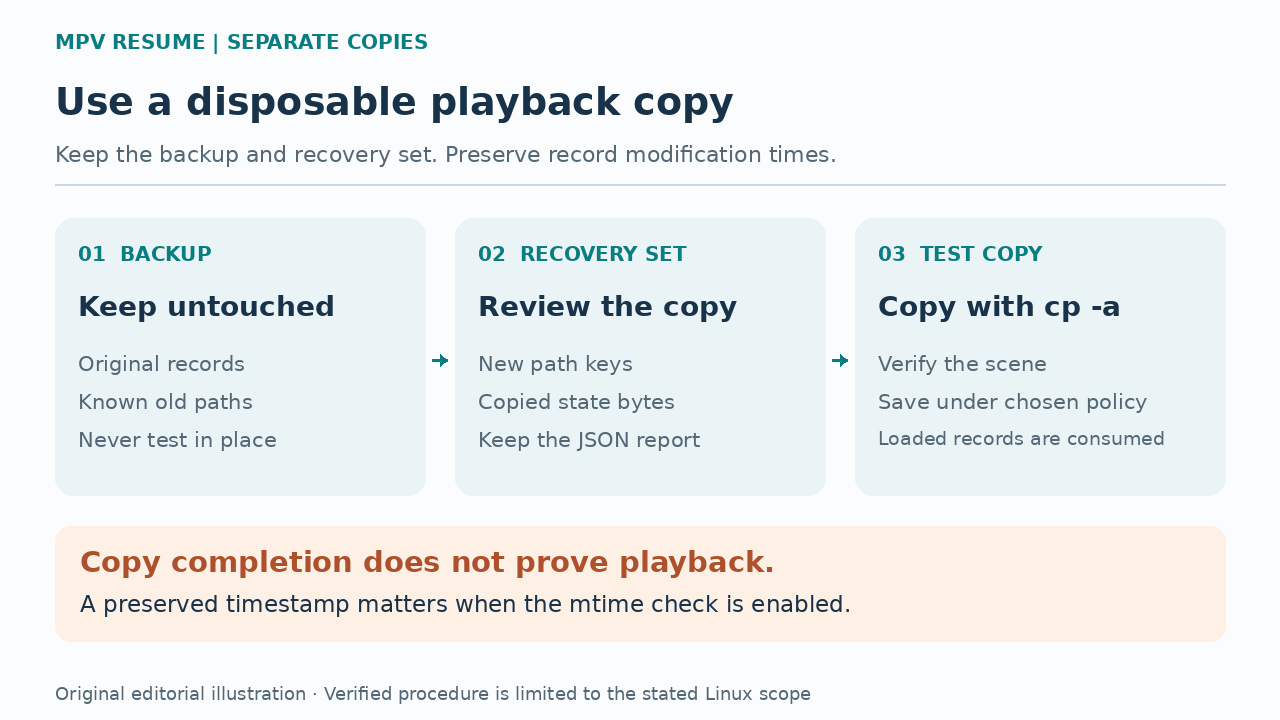
With mpv closed, copy the whole original watch_later directory to a new backup location while preserving file modification times. Use the cp -a pattern in step 7, with a new backup destination; an ordinary copy that resets times can change the later mtime check. Use the directory from your actual configuration, including any --watch-later-directory override. Current Linux documentation places state under ~/.local/state/mpv/watch_later by default; older installations may have it under ~/.config/mpv/watch_later. An empty directory on the new installation does not prove that the old records are gone.
If the media still has exactly the same path, first check that resume playback is enabled and that mpv is reading the copied directory. An IINA support case was resolved through copying and configuration; it is not evidence that every reinstall needs rekeying. The procedure below is for a known move or rename, after you have preserved the original records. Do not switch to basename-only storage as a migration shortcut: it does not convert existing full-path keys, and different videos with the same filename can share a key.
2. Establish the old-to-new mapping
For an unchanged directory tree, record the exact old media root and the new root. For example, /media/old-drive/Shows may now be /mnt/media/Shows, with every filename and subdirectory preserved. The old root need not still exist, but its spelling must be known. Use the path as mpv saw it, including case and any symbolic-link spelling; a guessed mount name is not a reliable mapping.
The helper accepts clean absolute Linux paths without ./, ../, repeated separators, NUL, carriage returns or line feeds. It does not infer older-version normalization, reverse anonymous hashes or find a renamed movie by its contents. Knowing that a path produces a stored hash is necessary, but you must also know that the mapped file is the same recording and cut. If a title was replaced or edited, an old time position may no longer mean the same scene.
3. Save and inspect the complete helper
Open a terminal in a new working folder and check python3 --version. Use Python 3.9 or newer on Linux. The following command downloads the complete source without running it; if curl is unavailable, save the same address with your browser as recover-mpv-watch-later-v1.py.
curl --fail --location "https://watchatease.com/guide-tools/recover-mpv-watch-later-v1.py" --output "recover-mpv-watch-later-v1.py"
Read the source, then run sha256sum "recover-mpv-watch-later-v1.py". For this version the SHA-256 must be e9b71043f6e0f1600387cf3b4760c84c1df673b866e62725ec5f5b93331d1d78. A different hash means this guide has not verified those bytes; stop and check the download. The helper does not launch mpv or edit the backup.
4. Preview a moved tree or explicit renames
Replace all example paths below with your own. The backup is your preserved state copy; recovered-state is a new, nonexistent directory outside it. Create the output’s parent directory first, but leave recovered-state absent. Keep the backup and current media unchanged while planning and copying. This root-mode command enumerates the current tree and constructs the corresponding old paths; without --write it only prints a JSON report. In the verified Python runtime, the automatic tree scan does not descend into directory symlinks; use explicit mappings for known files reached through those directories.
python3 "recover-mpv-watch-later-v1.py" --backup "/home/you/mpv-backup/watch_later" --output "/home/you/mpv-recovery/recovered-state" --old-root "/media/old-drive/Shows" --new-root "/mnt/media/Shows"
For actual renames, create a UTF-8 file named mapping.json containing an array such as [{"oldPath":"/media/old-drive/Shows/old-name.mkv","newPath":"/mnt/media/Shows/new-name.mkv"}]. Add one object for each known mapping, with normal JSON escaping where necessary. Use the alternative invocation below; --mapping cannot be combined with either root argument.
python3 "recover-mpv-watch-later-v1.py" --backup "/home/you/mpv-backup/watch_later" --output "/home/you/mpv-recovery/recovered-state" --mapping "mapping.json"
5. Read the report before applying it
A ready row means that the old path matched a regular UTF-8 state file containing one finite, nonnegative start value. Check its oldPath, newPath and position. no-matching-position-record means that no usable position record matched; current-media-missing means an explicit mapping points to a file that is absent. unmatchedBackupHashNames lists other hash-named records, some of which may be directory or playlist redirect markers. Do not interpret every unmatched name as a lost video.
Read mtimeGateWouldMatch as a separate, optional policy check. mpv defaults --resume-playback-check-mtime to no; a record saved under that default need not carry the media file’s modification time. Therefore false does not by itself mean damage or a bad move. The helper preserves the record’s existing time and will copy a ready row even when this field is false. It does not change the media’s time to manufacture a match.
Choose the playback policy before testing. If your established workflow uses mtime checking, retain yes and require the check to pass; a false result pauses that normal recovery path. Only after independently establishing the same unedited video may you use no on another disposable copy to diagnose the saved position. That does not repair time consistency or make a later yes session work. The default no branch below also requires the known-media condition from step 2. Repeated sources, competing destination keys, malformed inputs and unsupported state entries require reviewing the error or unmatched row, not choosing a convenient record.
6. Write one separate recovery set
Once the preview describes the intended mappings, repeat the same invocation with --write added. Keep the same paths and mapping choice. For the root-mode example:
python3 "recover-mpv-watch-later-v1.py" --backup "/home/you/mpv-backup/watch_later" --output "/home/you/mpv-recovery/recovered-state" --old-root "/media/old-drive/Shows" --new-root "/mnt/media/Shows" --write
A successful run reports APPLIED_TO_NEW_DIRECTORY and writes recovery-report.json beside the copied records. It preserves each accepted record’s bytes and modification time. If there are no usable records, an existing output directory or a preflight error, it stops. An I/O failure while copying can leave a partial new directory; retain the error and use another unused destination for a corrected run. Do not merge partial results or treat a folder’s mere existence as completion.
7. Test with a disposable copy, then save fresh state
Make a separate copy of recovered-state named resume-test using the command below, which preserves modification times; that destination must not already exist. Preserve modification times in every later working or test copy too. Keep recovered-state and the original backup untouched. The mpv command below uses the default no-mtime branch from step 5, after you have established the same unedited video. If your workflow uses mtime checking, change that option to yes and require it to pass. The test disables your ordinary configuration and automatic script loading and explicitly enables resume. Replace all example paths.
cp -a -- "/home/you/mpv-recovery/recovered-state" "/home/you/mpv-recovery/resume-test"
mpv --no-config --load-scripts=no --ytdl=no --resume-playback=yes --resume-playback-check-mtime=no --watch-later-directory="/home/you/mpv-recovery/resume-test" "/mnt/media/Shows/episode.mkv"
Check that this is the intended recording and that it resumes at the expected scene. Include representative renamed files and same-named files in different directories. mpv consumes a loaded resume record while playback initializes, so a second test needs another copy or a newly saved position. When your chosen branch succeeds, use Shift+Q to save fresh state under that same policy; ordinary quitting is not the same operation unless saving on quit is configured.
After the controlled check succeeds, test a working copy with your normal mpv configuration and an explicit --watch-later-directory pointing to that copy. Retain the chosen mtime policy: saving with no does not prepare that record for a future yes session. Configuration, scripts and saved options can affect normal playback. Keep the recovery report and original backup until the positions you need have been checked and fresh saves work. This procedure does not automatically merge the result into an existing live state directory.
8. Know when to stop and what the tests establish
If playback starts at zero, first compare the tested path, chosen state directory, report and modification-time result. A changed path spelling or an enabled mtime gate can explain a miss; a mismatch does not prove the backup is corrupt. Unknown old paths, basename-mode records, missing start values and changed edits remain outside this helper’s recovery claim. Its copied old filename comments and other saved options are not rewritten, so it does not restore watch-history menus, g-w selections, playlist order or external subtitle paths.
We ran the exact helper on Linux with a third-party binary reporting mpv 0.41.0, not an officially endorsed mpv package. A native-generated record resumed a known renamed video at four seconds. A separate two-file fixture used synthetic saved positions of two and eight seconds; both same-named videos resumed at their respective positions. All 13 helper assertions passed, including dry-run behavior, conflicts, an occupied output and unchanged backup hashes. A separate 12-assertion player test checked lookup, mtime and record consumption. These are controlled tests with generated media, not a recreation of an original user’s installation or a Windows/macOS compatibility claim.