Technology · PRACTICAL GUIDE
Keep Only the Latest File History Versions on Linux
Create a latest-only copy of a readable Windows File History folder on Linux, choosing by saved UTC timestamps and keeping different files separate.
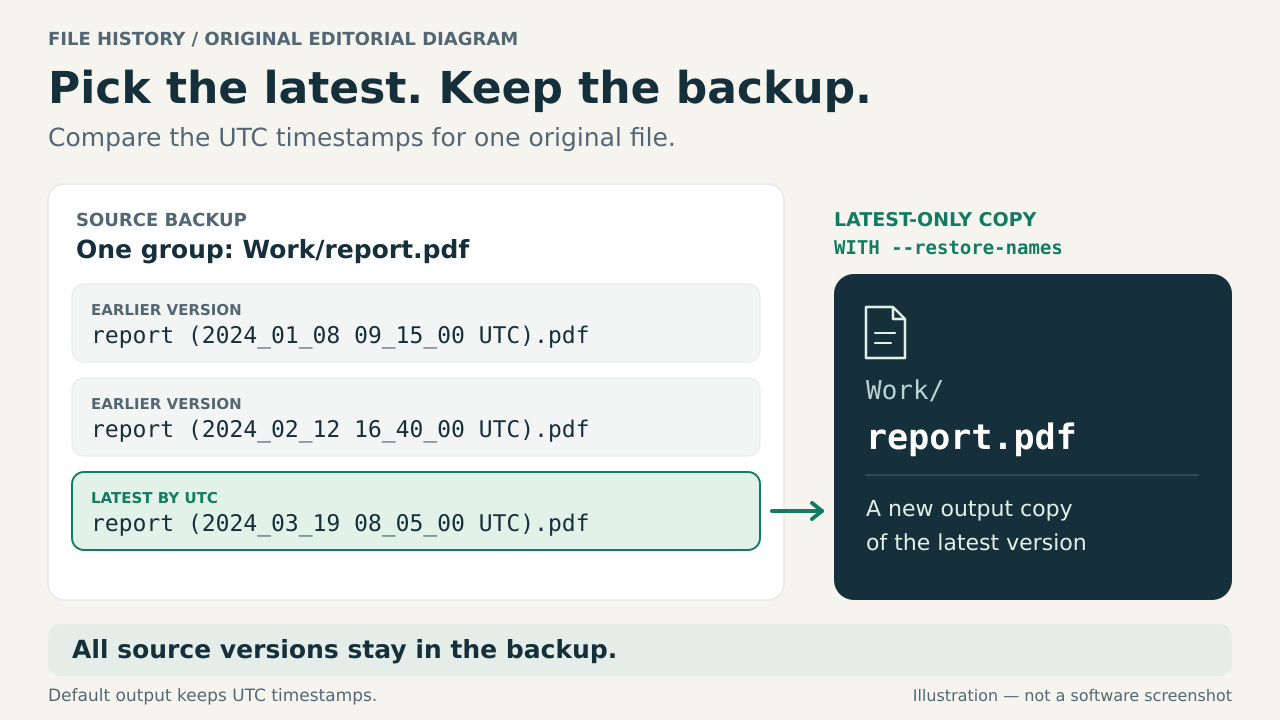
A Windows File History folder can contain several saved copies of the same document, each with a UTC timestamp added to its name. To keep the latest copy of each file, group the versions by their original directory and complete filename, then compare those saved timestamps. The order in which Linux lists the files is not a reliable substitute.
The helper below creates a separate latest-only copy. It does not rewrite or delete source files, and its default preview creates no output files. Applying the selection copies the chosen files into a new output directory; it does not delete older versions from the backup or free the space they occupy.
Check what you actually have
Start with a readable folder containing the saved files themselves. A supported example is Report (2024_05_03 09_30_00 UTC).docx. A later Report (2024_05_08 16_15_00 UTC).docx in the same directory belongs to the same group. Point the helper at the subtree you want to process, rather than assuming that every folder called FileHistory contains this visible naming pattern.
Keep the original backup intact. Browse several files and confirm that they open before processing a large tree. If the disk cannot be mounted, files cannot be read, or the filenames are opaque identifiers, this helper is not the next recovery step. It cannot reconstruct original paths from a File History catalog or recover file content that is missing.
Do not combine backups from different users or computers into one folder merely because the names look alike. Choose the intended readable subtree, preserve its directories, and handle another backup separately. Nothing here establishes that two identically named documents from different backups are the same original file.
Understand which version will win
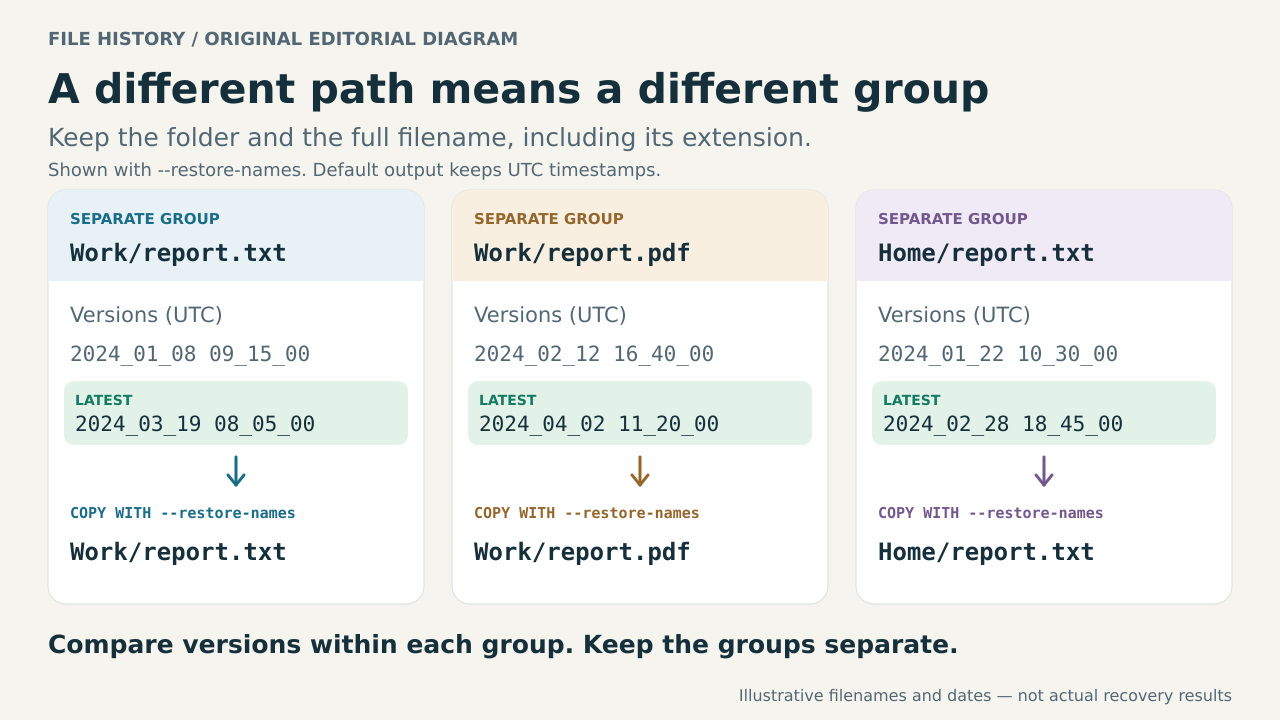
Within one directory, the helper compares the parsed UTC timestamps attached to versions of the same complete original filename. Report.docx and Report.pdf are separate groups. Documents/Report.docx and Archive/Report.docx are also separate groups. A name’s extension and directory are part of its identity.
Copying files to another disk can change filesystem timestamps. Those timestamps do not determine the selection. Nor does whichever version happens to appear last during a directory scan: Python’s documentation says that directory traversal lists are not necessarily sorted. The intended result is the greatest saved UTC value present in each supported group.
Download the helper and choose your paths
Open a terminal on Linux and check your Python version:
python3 --version
Use Python 3.10 or newer. Save filehistory-latest-v1.py in a working folder, then open your terminal in that folder. You can download the source file with the following command if curl is installed. This command saves the script; it does not run it.
curl --fail --location "https://watchatease.com/guide-tools/filehistory-latest-v1.py" --output "filehistory-latest-v1.py"
In the examples below, FileHistory-copy/Documents is your source subtree and latest-documents is a new output folder beside FileHistory-copy. Replace the source with your actual path. Keep quotation marks around paths containing spaces. The output directory must not already exist, and the source and output must not overlap: do not put the output inside the source.
Preview the selection before copying
Pause any backup job that writes to this source subtree, and avoid changing its files from the preview through the end of copying. The process does not capture all files at one instant. Run the command without --apply first:
python3 "filehistory-latest-v1.py" --source "./FileHistory-copy/Documents" --output "./latest-documents"
The helper prints a JSON preview in the terminal without creating the output directory. It does not read or hash file contents, so a successful preview does not guarantee that every file can later be copied. Read the paths and selection information before proceeding. Check a familiar file with several saved versions, two files with the same stem but different extensions, and any same-named files in separate directories.
Ordinary files that do not match the supported timestamp pattern are reported as skipped. They are not copied into the latest-only result. A skipped file may still matter to you, so inspect those entries and preserve or copy them separately as appropriate; do not treat the result as a copy of everything under the source.
An invalid UTC timestamp, a symbolic link, a special file or a read failure blocks the run. An ambiguous tie for the latest timestamp also needs review. Investigate the reported path instead of editing an unfamiliar date to make it pass or choosing an arbitrary tied file. A run with no supported files is blocked too: check that you selected the data subtree containing the timestamped files.
Copy the latest versions into a new directory
Once the preview describes the files you intend to collect, repeat the same command with --apply:
python3 "filehistory-latest-v1.py" --source "./FileHistory-copy/Documents" --output "./latest-documents" --apply
The output contains a files directory, manifest.csv and summary.json. The selected files keep their relative directory structure. By default they also keep their saved timestamped filenames, which lets you see which version was chosen. The original backup still contains its older versions. The helper copies file contents, not original permissions, ACLs or filesystem timestamps.
If you prefer original filenames in the result, add --restore-names. This is a naming convenience; it does not change which timestamp wins. Preview that choice using another unused output path before applying it:
python3 "filehistory-latest-v1.py" --source "./FileHistory-copy/Documents" --output "./latest-documents-original-names" --restore-names
python3 "filehistory-latest-v1.py" --source "./FileHistory-copy/Documents" --output "./latest-documents-original-names" --restore-names --apply
Check the result before relying on it
Read summary.json and inspect manifest.csv with a text editor or spreadsheet viewer. A completed copy has status complete and no _INCOMPLETE.txt marker. In the manifest, use source_relative_path and output_relative_path to trace each copied file, version_utc to inspect its selected date, and sha256 for its recorded content hash. Compare the copied, older_version and unmatched entries with the totals and any reported errors.
The helper checks copied file content with SHA-256 hashes. A matching hash supports that the copied bytes match the selected source file. It does not prove that the selected file was a complete or healthy original, or that the backup included every document you expected.
Open several output documents, images or other files in their normal applications. Include an important file, a file with multiple versions and files from separate directories. Compare a known group’s chosen timestamp with the available source versions. If anything is missing or unexpected, return to the preview and source files before treating the result as complete.
If your purpose was to reclaim disk space, remember that this process has not cleaned the original backup. Verify the latest-only copy first, then make a separate decision about retaining the backup and its older versions. Those versions may be useful later; do not delete them simply because a new folder was created.
If the command does not finish
If Python cannot find the script, check the terminal’s current folder or give the script’s full path. If it cannot find the source, use the location where the readable backup is actually mounted. A Windows drive letter is not automatically a usable Linux path.
If the output already exists, choose a different unused output directory. Do not point another run at a populated result and expect an update or merge. Keep the options from the preview when applying, including --restore-names if you selected it. If restoring names would make a file collide with a directory, review that layout or use the default timestamped output names.
A preview or preflight failure returns an error without creating the output directory. A failure during copying can leave partial output with _INCOMPLETE.txt and a failed or in_progress summary. If writing the reports also fails, summary.json or manifest.csv may be missing. Treat a terminal error, an incomplete marker or missing completion evidence as an unsuccessful run. Correct the reported cause, preview again and apply to another new output directory.
Keep the incomplete directory separate while investigating; the helper does not automatically erase it. Do not combine its files with a later run and call the mixture verified. Use the manifest and summary belonging to one completed run, then open and inspect its files before deciding what to retain.
Know what a latest-only collection cannot tell you
Each group contributes its latest available saved version, and those versions can come from different dates. The collection is therefore not a snapshot of the computer at one particular moment. A file deleted from the original computer may still have a saved copy in the backup and may appear in this result.
Missing older versions, filenames that do not match the supported pattern, catalog-only information and opaque stored paths are outside this selection process. The helper does not infer deletion history, reconstruct those paths or decide that an unrecognized file is disposable.
If you can use Windows and need File History’s date-by-date restoration, Microsoft documents that native route. For a different existing approach, WindowsFileHistoryCleaner already provides latest-version selection and a preview mode. Mono supports a broad .NET surface, but this guide does not claim to have verified that specific project’s Linux setup. The workflow here is deliberately limited to the readable timestamped files described above.