Technology · PRACTICAL GUIDE
Linux says “Read-only file system”? Diagnose the cause before you remount
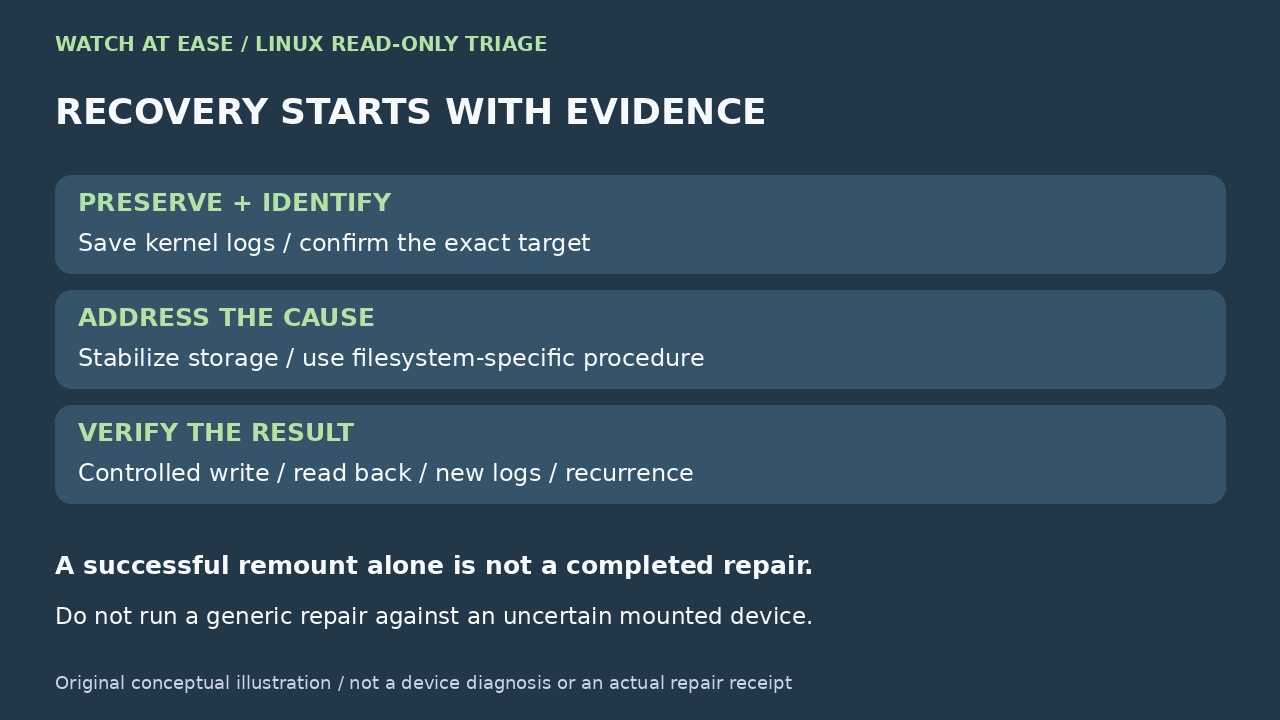
The error may come from an intentional mount rule, a protective filesystem state, or a failing storage path. Identify the exact mount and preserve the evidence before you try to make it writable.
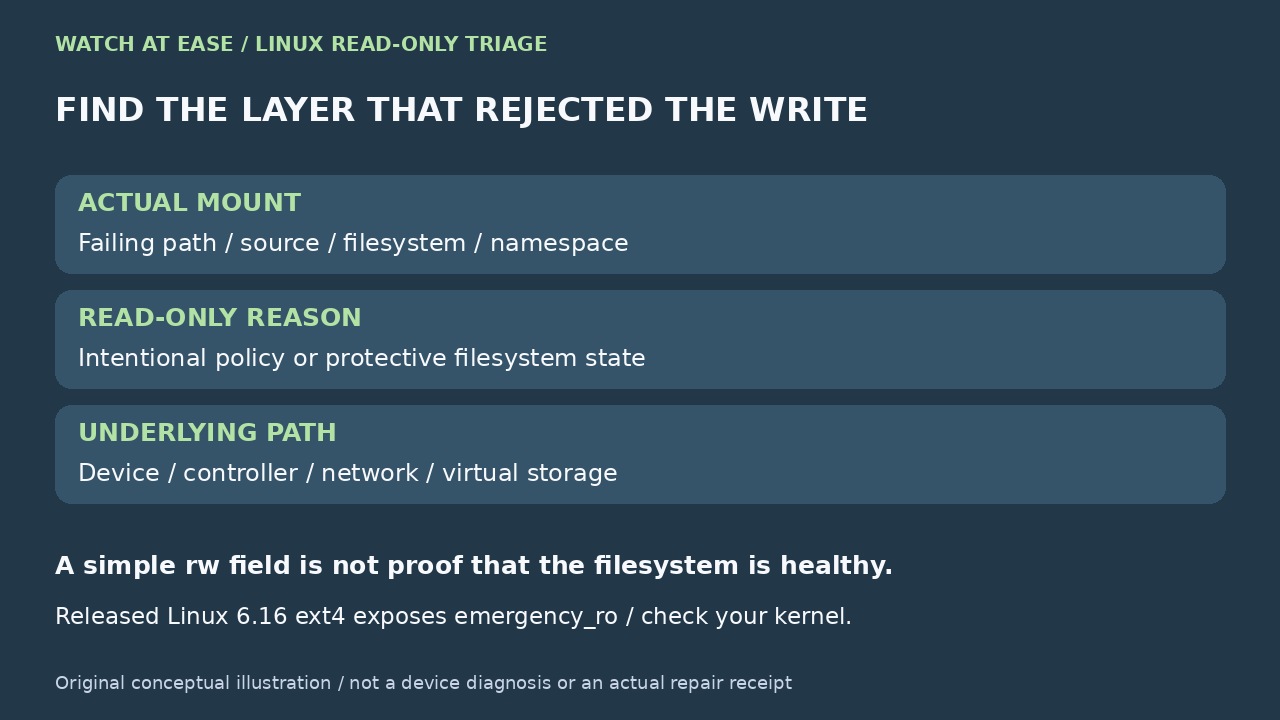
A Linux “Read-only file system” error is not a permission error. chmod, chown and sudo cannot make a read-only mount writable. The important question is which layer refused the write: the mount you actually reached, the filesystem after an error, or the block or network storage underneath it.
Do not begin with a forced remount. A read-only transition may be the kernel’s way of limiting further damage, and a reboot can erase the most useful log context. Start by mapping the failing path to its real mount, save the current evidence, and then choose the recovery branch that matches the filesystem and cause.
1. Identify the filesystem behind the failing path
Use the path that produced EROFS, not a guessed disk name: `findmnt --target /path/that/failed -o TARGET,SOURCE,FSTYPE,OPTIONS`. The util-linux manual says --target accepts any file or directory and reports the filesystem for that path. Record TARGET, SOURCE, FSTYPE and OPTIONS exactly. If the command fails or the target is uncertain, resolve an existing parent path in the same namespace and confirm the mount before choosing any repair device.
This step catches misleading cases. The path may be inside a read-only bind mount while the original path is writable, inside a container with a different mount namespace, on a network filesystem, or on a read-only snapshot. If the failure occurred in a container or service, run the same inspection in that namespace when you have legitimate administrative access; the host view may not be the view that rejected the write.
If SOURCE is a remote export, a loop device, device-mapper volume or snapshot, keep that identity. Repairing an unrelated physical partition because its name looks familiar can make the incident worse.
2. Preserve the evidence before changing state
Capture the mount record and recent kernel messages while the failure is still present. Useful read-only commands include `findmnt --target /path/that/failed -o TARGET,SOURCE,FSTYPE,OPTIONS`, `journalctl -k -b --no-pager`, and, where permitted, `dmesg`. Redact hostnames, serial numbers and sensitive paths before sharing the output. On a system without systemd, use its available kernel-log facility instead. Human-readable dmesg -T timestamps can be inaccurate after suspend/resume, so preserve the original output rather than inventing a precise wall-clock sequence.
Search the saved log for the first relevant error, not only the later cascade of “read-only” messages. Terms such as I/O error, journal abort, EXT4-fs error, device reset, link down, multipath failure or write-protected point to different causes. Red Hat documents one real case where all storage paths failed, the journal aborted and the filesystem was then remounted read-only.
If the machine is still serving important data, stop nonessential writers and arrange a backup or failover before experimenting. Repeated remount attempts are not evidence that the underlying path is healthy.
3. Decide which read-only branch you are in
Intentional policy: OPTIONS includes ro, the media or snapshot is designed to be immutable, /etc/fstab requests ro, a bind mount is read-only, or a remote server exported the share read-only. Fix the policy at the layer that owns it; a local remount may be temporary, rejected or inappropriate.
Protective filesystem state: the logs show filesystem or journal errors. The ext4 documentation describes `errors=remount-ro` as switching to read-only on an error. Released upstream Linux 6.16 code sets an emergency read-only flag without setting the normal SB_RDONLY flag, and displays `emergency_ro` among ext4 options. Check your installed kernel's behavior; a simple rw field, or the absence of that newer marker, is not proof that writes are safe. Treat the log and actual failure as evidence.
Underlying storage protection or failure: the remount reports write-protected, or logs show device, bus, controller, cable, multipath or media errors. Fix or replace the failing path first. A filesystem check may repair metadata damage caused by the incident, but it cannot repair a disappearing SAN path, bad cable or controller reset.
Remote or virtual layer: NFS, CIFS, FUSE, a cloud volume, a container mount or an immutable image can return EROFS for reasons outside the local disk filesystem. Follow that layer’s health and policy evidence instead of applying an ext4 recipe.
4. Repair offline with the checker for the detected filesystem
If the evidence points to filesystem damage, plan downtime, fail over, or boot a rescue environment so the target can be unmounted. Confirm the device again after unmounting. For ext2, ext3 or ext4, the e2fsck manual says it is generally unsafe to run e2fsck on a mounted filesystem; even a nominally read-only check can report invalid results while the filesystem is mounted.
Do not translate “run fsck” into “run fsck -y on whatever device looks right.” The generic fsck front end delegates to filesystem-specific tools, and families have different recovery models. For Btrfs, the checker documentation recommends unmounting first and warns not to use --repair unless advised by an experienced developer or user. Consult the current manual for the exact FSTYPE you recorded, take a backup when possible, and understand whether the chosen operation modifies metadata.
If logs show a storage-path problem, stabilize that path before metadata repair. Otherwise a repaired filesystem can become damaged again as soon as writes resume.
5. Remount only after the cause is addressed, then verify
When the mount was unintentionally read-only and the underlying cause has been corrected, use the exact TARGET you recorded and follow the filesystem or platform procedure for making it writable. A typical local remount is `mount -o remount,rw /exact/mountpoint`, but it is not a universal repair command and may be wrong for remote, bind, container, snapshot or managed-volume cases.
Verify in layers. Re-run findmnt for the same failing path. Make one controlled test write in a designated safe directory, read it back and remove it. Check the kernel journal again for fresh filesystem or I/O errors. Then observe the normal workload long enough to catch recurrence.
Call the incident complete only when the intended mount is writable, the test survives a sync or application round trip, no new storage or filesystem errors appear, and the read-only state does not return. If it returns, stop treating remounting as the fix and escalate the device, controller, network path or platform issue with the evidence you saved.