Technology · PRACTICAL GUIDE
Linux says “No space left on device” but df shows free space? Check the exact failing path first
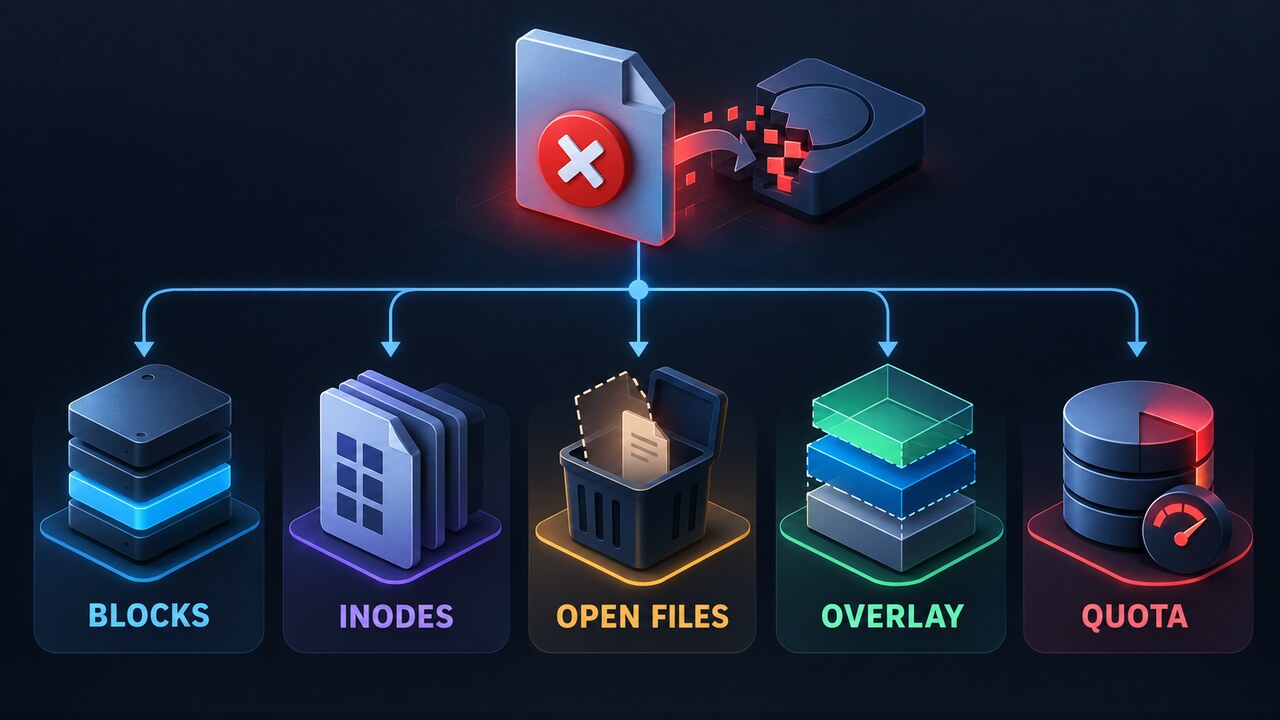
ENOSPC does not prove the filesystem you inspected is full. Bind the failed pathname to its real mount and storage backend, then test blocks, inodes, deleted-open files, quotas, overlays and filesystem-specific limits.
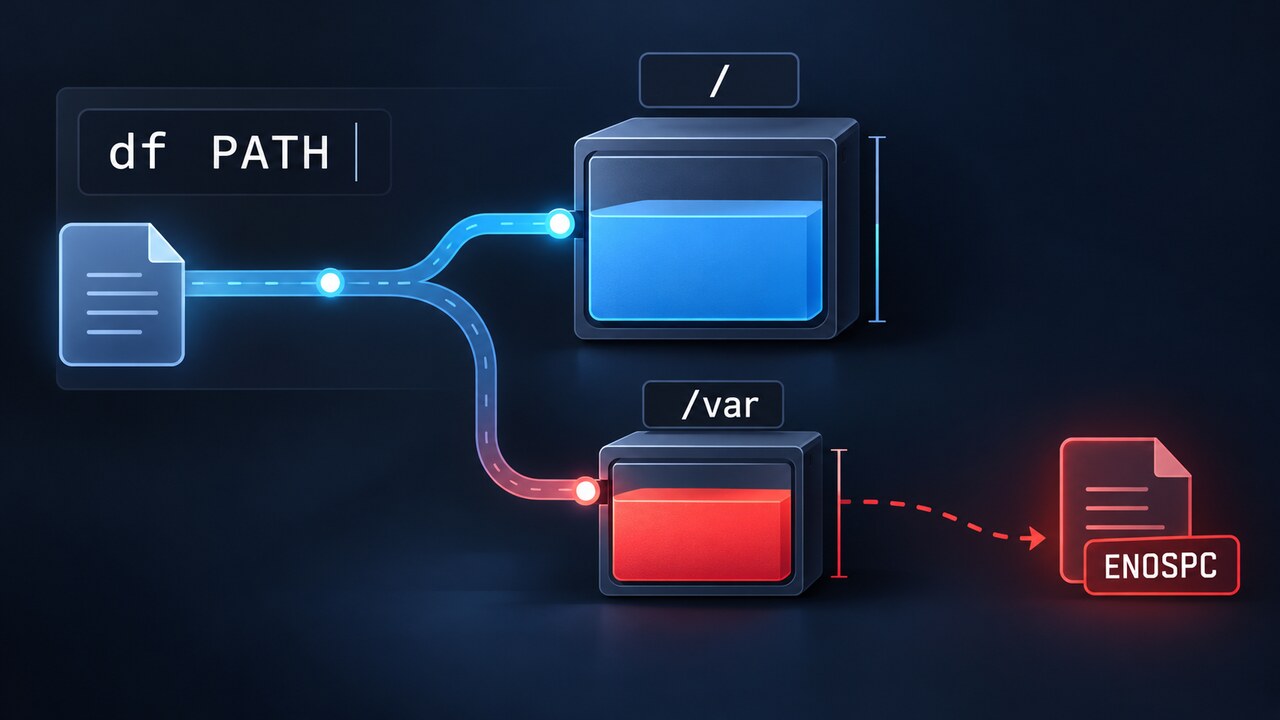
“No space left on device” is the error returned by one failed operation. It does not prove that the filesystem shown by a bare df command is the filesystem that failed, or that free bytes are the only resource involved.
Preserve the exact failing pathname and identify the mount, filesystem type and storage boundary that contain it. Check blocks and inodes on that same path, then follow evidence into deleted-open files, hidden mounts, quotas, container layers or filesystem-specific allocation.
Capture the failed pathname before cleanup
Save the complete error, command, timestamp and destination pathname. If the application hides the path, increase its normal diagnostic logging or trace one bounded reproduction; do not start by deleting files or restarting the process.
Record whether the write happens on the host, in a container, across a bind mount, inside a CI workspace or through another storage service. The same visible directory name can resolve to a different backing filesystem across those boundaries.
Ask df about that exact path
Run df against the failing path or its existing parent, then record the Filesystem, Type, Size, Avail and Mounted on fields. Repeat with inode reporting for the same path. This converts a generic server-capacity question into evidence about the actual target mount.
If the path does not exist yet, walk upward to the nearest existing parent. Also capture findmnt or the equivalent mount view so a separate /var, bind mount, overlay or network filesystem is not mistaken for the root filesystem.
Separate block capacity from inode capacity
When available blocks are exhausted, identify the largest consumers on that filesystem only and confirm retention or ownership before removal. Do not cross other mounts during size scans unless that is deliberate and documented.
When inode availability is exhausted but blocks remain, count entries within the affected filesystem and find the directory fan-out that creates millions of small files. Expanding byte capacity alone may not add usable inodes on every filesystem.
Explain df and du disagreement without losing evidence
If df shows more allocated space than directory scans can account for, inspect deleted files still held open by processes. Record process ID, service, file descriptor and size before deciding whether a controlled restart, reload or truncation is safe.
Also check whether a later mount hides files written underneath a mount point. Unmounting a production filesystem only to inspect hidden data can interrupt service, so use a maintenance window or a safe alternate namespace when the platform supports it.
Check quotas, containers and filesystem-specific limits
If blocks and inodes are healthy, inspect user, group or project quotas and reserved allocation for the exact writer. For containers, capture the engine storage root, storage driver, writable-layer use and the host filesystem that backs them before pruning.
Then use filesystem-specific health and allocation tools for metadata, snapshots, copy-on-write reservations or pool capacity. A command appropriate for ext4 may not answer an XFS, Btrfs, ZFS, LVM-thin or remote-storage question.
Repair one proven branch and verify the same write
Choose the smallest reversible action that addresses the proven resource: expire approved data, rotate logs, release a known open file, increase the correct volume, adjust a justified quota or relocate a container store with a documented migration. Preserve backups and rollback steps.
Repeat the original write once, then confirm capacity, inode or quota headroom on the same target path. Monitor growth long enough to distinguish durable recovery from a temporary dip created by restart or cleanup.