Guides · PRACTICAL GUIDE
Google Drive files missing on a new computer? Separate My Drive, Computers, mirrored folders and stream cache first
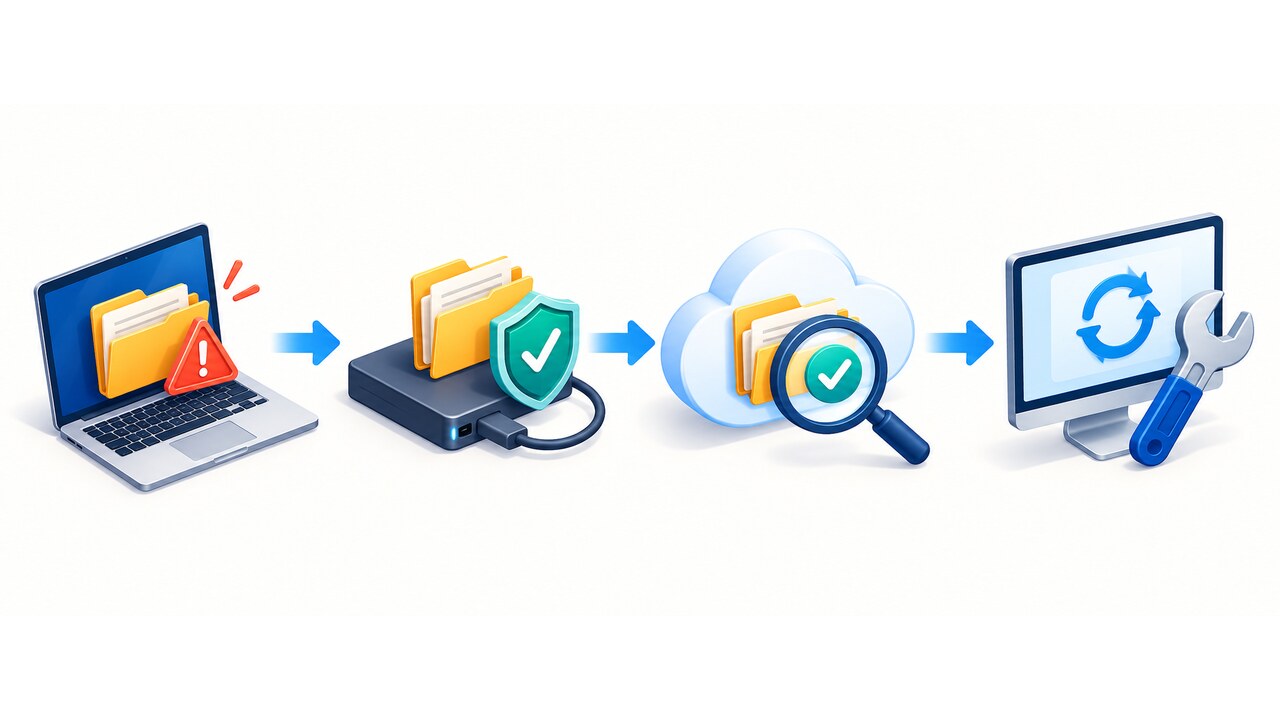
An empty desktop view is not proof of deletion. Inventory the web copy, My Drive, Computers, Shared drives, mirrored folders and unsynced local data before you reconnect or reinstall anything.
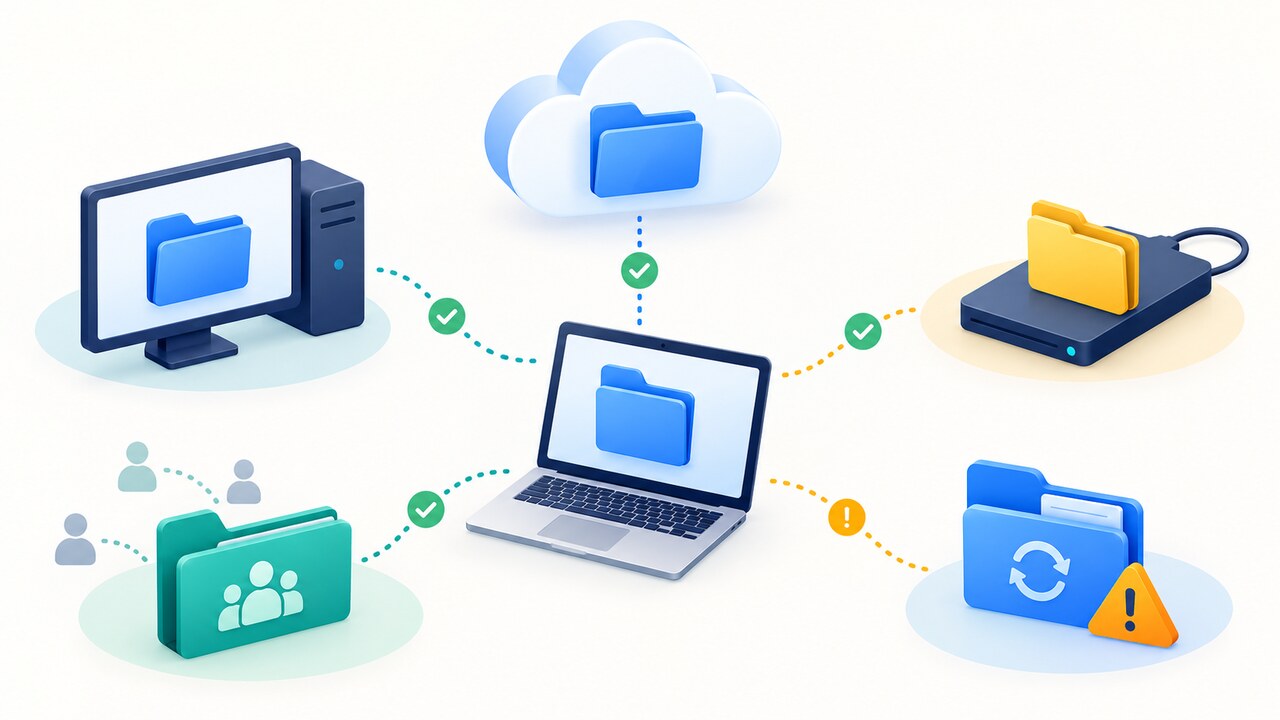
When files seem to vanish after you set up Google Drive for desktop on a new computer, the first task is not to reinstall the app. It is to identify which copy you expected to see. Google Drive can expose cloud-first streamed files, fully mirrored My Drive files, backed-up folders listed under Computers, Shared drives, and local work that has not finished syncing. Those locations do not have the same path or recovery rules.
Freeze the situation before you try a fix
Do not disconnect the Google account, uninstall Drive for desktop, delete its app-data folders, run a system cleaner, or erase the old computer yet. Take screenshots of the account shown in Drive for desktop, the sync status, any error message and the folder path where the file was last seen. If the old computer still starts, disconnect it from the network only if new sync activity could overwrite evidence, then copy unique local work to an ordinary folder or external drive without moving the original.
Google specifically warns that files which failed to sync may be moved to Lost & Found and that this folder is deleted when you disconnect the account. Copy anything in Lost & Found to a safe location first. This warning makes disconnect-and-reconnect a later repair step, not a harmless first test.
Prove what exists in the cloud from a browser
Open drive.google.com in a private browser window and sign in to the exact Google account shown in the desktop app. Search for several missing filenames, not just one. Check My Drive, Shared with me, Shared drives, Trash and the activity around the last known edit. For an organization account, confirm that the Shared drive still appears and that your membership has not changed.
A file that opens on the web but not in the desktop mount is not currently lost from Google Drive; the failure is in the desktop view, account, permission or local client state. A current user discussion documents Shared drives remaining visible on the web and mobile while disappearing from Drive for desktop. Treat that pattern as a diagnostic clue, not proof that every desktop-only failure has the same cause.
Map the four places people call “Google Drive”
First, My Drive is your ordinary cloud file tree. In Stream files mode, the cloud is the primary store and the computer keeps downloaded or offline-marked data as needed. In Mirror files mode, My Drive is stored both in the cloud and in a local folder. The same filename can therefore have very different local durability depending on the selected mode.
Second, folders backed up from a computer can appear under Computers rather than inside My Drive. A fully read user question shows the common surprise: local folders were present in Drive but listed under Computers, so looking only in My Drive made them seem missing. Third, Shared drives are organization-owned spaces and Google says they are streamed rather than mirrored. Fourth, a local folder chosen for mirroring or backup can contain edits that have not yet reached the cloud. Write down which of these four locations held each missing item before changing settings.
Compare the old computer, the new computer and the web copy
On the old computer, record the Drive for desktop mode and the exact local path. If My Drive was mirrored, copy the relevant folder to a neutral backup location and open a sample of files from that copy. If files were streamed, do not assume every visible placeholder contains full local bytes; test whether important files open while the machine is offline only after you have preserved the current state.
On the new computer, verify the account first, then use Drive for desktop’s own Open Google Drive command instead of a remembered shortcut. Compare filenames, counts, sizes and recent modification dates among the browser, old machine backup and new mount. Google advises letting sync complete before deleting or moving folders during stream/mirror changes. A green or current-looking folder is not enough; open representative documents, photos and large files from each claimed copy.
Protect pending and failed sync data
Open Drive for desktop’s sync activity and inspect every error or pending item. Copy the underlying local source files, Lost & Found contents and any unsynced working folder to storage outside the Google Drive mount. Keep filenames and relative paths intact so you can later compare them with the browser copy. If you have thousands of files, save a directory listing and totals before attempting a repair.
The risk is not theoretical: a Super User question describes a large transfer that appeared to sync but left hundreds of files absent both locally and online, while another respondent reported large batches stalling. That old report does not establish a current Google bug, but it demonstrates why “I dropped it into the Drive folder” is not proof of cloud upload. Preservation and verification must come before cleanup.
Repair the desktop client only after the copies are safe
If the browser copy is intact and all unique local data is backed up, quit and reopen Drive for desktop and use Google’s current troubleshooting steps for the exact error. If the app cannot locate a moved or renamed Drive folder, use its Locate action rather than creating a second empty folder. Recheck the signed-in account and the selected stream or mirror location.
Disconnecting and signing in again, or reinstalling the current app, are official later-stage options. Before either one, recheck Lost & Found and your neutral backup. After repair, point the app at the intended location, wait for sync to settle, and repeat the browser-versus-desktop sample test. Do not delete the backup merely because filenames reappear; verify that the files open and that recent edits match.
Do not apply the 2023 cache-recovery recipe to every case
Google’s late-2023 Drive for desktop incident involved a specific version-84 sync problem, followed by a version-85 recovery workflow that depended on preserved local account data or a system backup. Independent coverage from that event is useful when identifying the historical pattern, but it is not a universal recovery command for a current new-computer migration.
If your case does not match that incident and the relevant cache has already been erased, do not promise that old instructions will recreate the files. Preserve the app version, logs, account identity, old device or disk image, and a list of missing paths. For a Workspace account, involve the administrator; otherwise use Google support with this evidence. A clear inventory lets support distinguish a cloud deletion, access change, incomplete upload and desktop-view failure.
Finish with a copy you can independently verify
Recovery is complete only when the important files exist in at least two independent places and open outside the state you just repaired. For example, keep the verified Drive web copy plus an ordinary external-disk export, or a mirrored local copy plus a separate versioned backup. Synchronization is not the same as backup: a deletion or bad change can propagate to every synced device.
Record the number of recovered files, the newest modification date checked, any unresolved paths and the date of the second backup. Then reconnect remaining devices one at a time and watch for unexpected deletes or uploads. This turns a vague “Drive is empty” report into an auditable outcome: cloud copy found, local-only copy preserved, permission restored, or a precisely bounded loss ready for escalation.