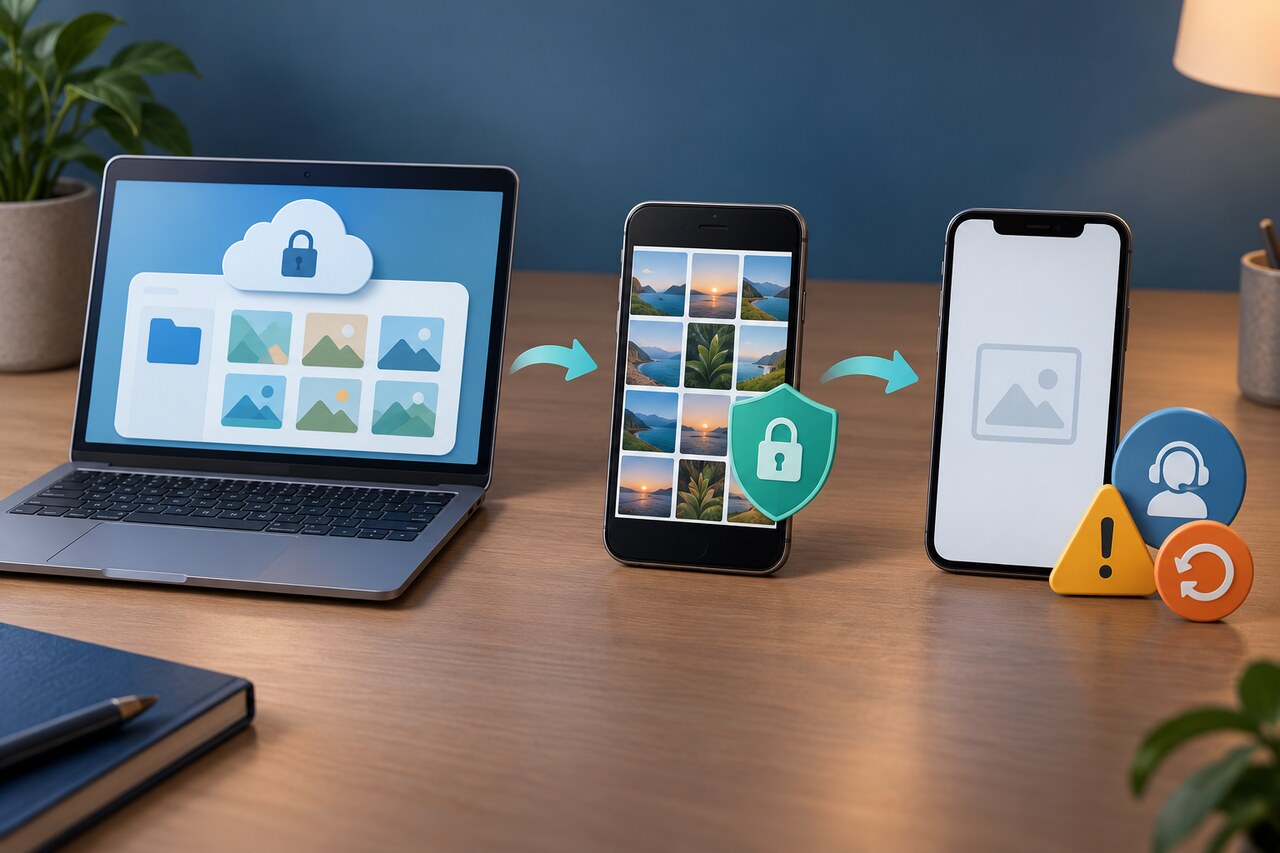
Technology · PRACTICAL GUIDE
Google Photos Locked Folder Empty on a New Phone? Check This Before You Reset Anything
If Locked Folder is empty after a phone switch even though backup seemed enabled, verify the web copy first, preserve the old phone, and use this three-state recovery path before uninstalling or resetting anything.
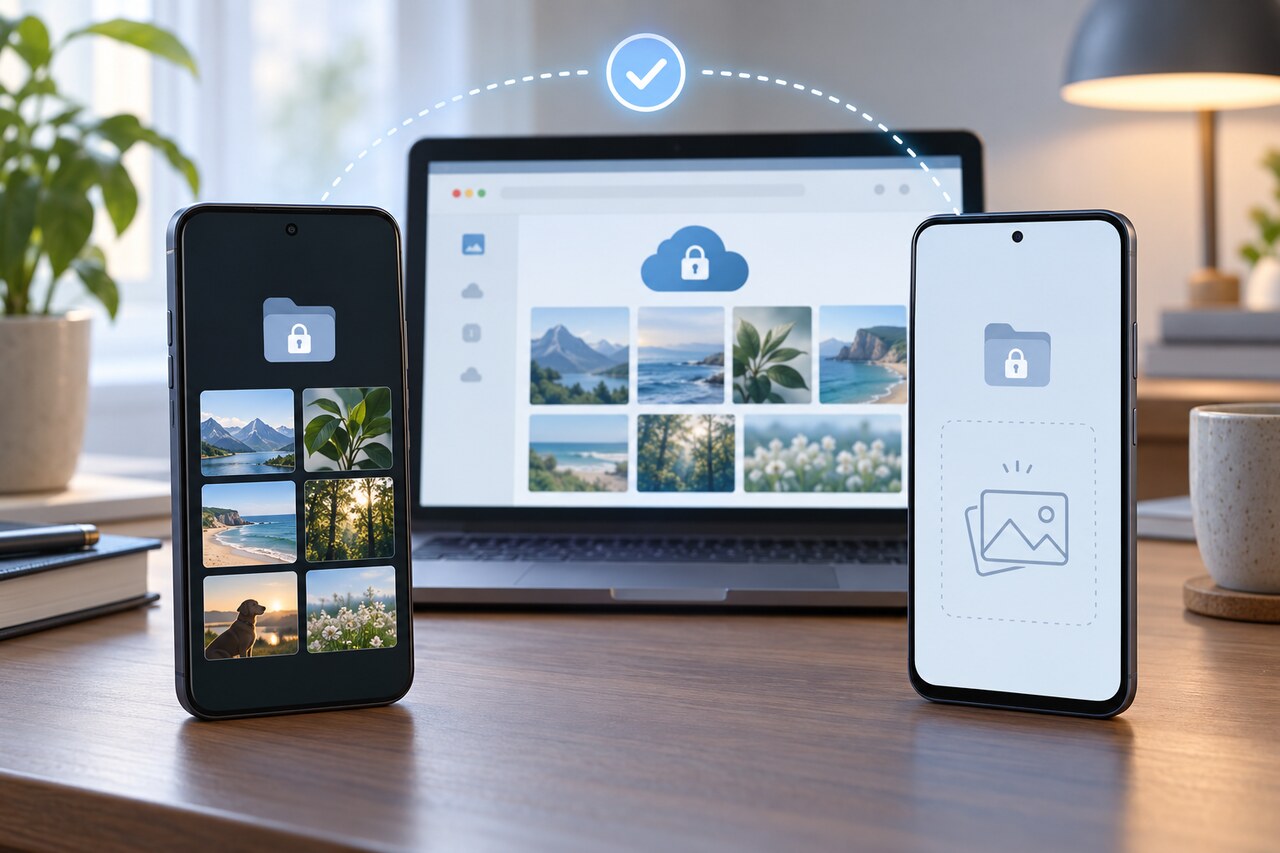
If Google Photos Locked Folder is empty on your new phone, do not uninstall Photos, clear its app data, factory-reset either phone or trade in the old phone yet. First sign in to the same Google Account at photos.google.com/lockedfolder. That check separates a cloud copy that exists from files that may still live only on the old device.
Google says Locked Folder backup is separate from ordinary Google Photos backup. A normal “backup complete” message for the photo library does not, by itself, prove every Locked Folder item reached the cloud. Backed-up Locked Folder items should be available on other signed-in devices; unbacked items remain device-only.
The safe path depends on three states: the photos exist on the web; the web folder is empty but the old phone still has them; or neither the web nor old-device copy is available. Do not use a generic recovery-app promise as proof that private app data or a missing cloud copy can be restored.
1. Start with the web copy, not the new-phone app
On a computer or the new phone’s browser, open photos.google.com/lockedfolder, confirm the Google Account address matches the old phone, unlock the folder and check several expected items. Keep the old phone powered on and unchanged until you know which state applies. Do not use the normal Photos grid, albums, search or Memories as the test because Locked Folder items are intentionally hidden there.
2. If the photos appear on the web
A visible web copy confirms the cloud items exist. On the new phone, update Google Photos, sign in to the same account, open Collections > Locked and complete setup. Leave the phone on reliable Wi-Fi and power while Photos finishes loading. Community reports describe delays after an app rebuild, but Google publishes no guaranteed wait time. If the web folder is complete and the app remains empty after the main library finishes loading, use Photos > profile picture > Help & feedback and include the device, operating system, Photos version and account. Completion means the same expected items open on the web and new phone.
3. If the web folder is empty but the old phone still has the items
Treat the old phone as the only confirmed copy. Do not reset it, uninstall Photos, clear Photos storage, remove its screen lock or hand it over. On the old phone, open Collections > Locked, then Photos settings > Backup > Back up Locked Folder. Turn the separate backup on if needed and use the per-item Back up command for irreplaceable items when available. Wait and recheck the web folder from another device. The decisive test is seeing the items on the web; a switch being on does not prove older items finished uploading.
4. Preserve an alternate copy before changing the old phone
If the old phone opens the items but they still do not appear on the web, move only the irreplaceable items out of Locked Folder to a private backed-up location you control before changing the app. Moving them out exposes them in the normal library, so do this privately and verify the alternate backup before deleting any local copy. Ordinary USB or cloud migration does not transfer device-only Locked Folder items when its backup is off. Completion means every irreplaceable item is visible either in the web Locked Folder or in a separately verified backup before the old phone is erased.
5. If the web folder is empty and the old-phone copy is gone
If the old phone was reset, lost or damaged, or Photos app data was cleared before the items were confirmed on the web, there may be no user-accessible copy. Use Help & feedback and state that Locked Folder-specific backup had been enabled, with approximate dates, device models, account and whether anything was ever visible on the web. Ask Google to check the account-side backup state. Do not pay for a generic recovery app on the assumption that it can read private app storage or recreate a missing cloud copy. If neither place contains the items, recovery is not confirmed.
6. Know what “backup was on” actually proves
Ordinary Photos backup, Locked Folder backup and successful upload of each specific Locked Folder item are three different facts. Only the third establishes that the cloud copy should exist. Before the next phone switch, verify a sample of old and recent items in the web Locked Folder and keep the old phone until the new phone opens the same content. As of October 2, 2026, Google places Locked Folder under Collections > Locked and supports automatic or per-item backup; menu labels can vary by platform and app version.