Technology · PRACTICAL GUIDE
Audacity AUP3 recovery: preserve matching WAL files before trying repairs
Identify the real project, protect surviving files and check the newest audio before calling a recovery successful.
An .aup3-wal file is not a complete Audacity project with an inconvenient filename. Renaming it to .aup3 does not reconstruct the database. A real April 2026 forum question describes that exact attempt and a “not a database” error.
This checklist covers Audacity 3 .aup3 projects. Audacity 4 saves .aup4 files and can open AUP3; its menus and recovery features differ. Do not apply old commands to a different format merely because both applications are called Audacity.
1. Is the project still open and responsive?
If Audacity 3 still works, use its Save Project and Backup Project controls, wait for saving to finish, and export important audio to a separate WAV or AIFF copy. Do not move, rename or copy an open project with the file manager. Close it normally before making a file-level copy.
2. After a crash, preserve the matching set
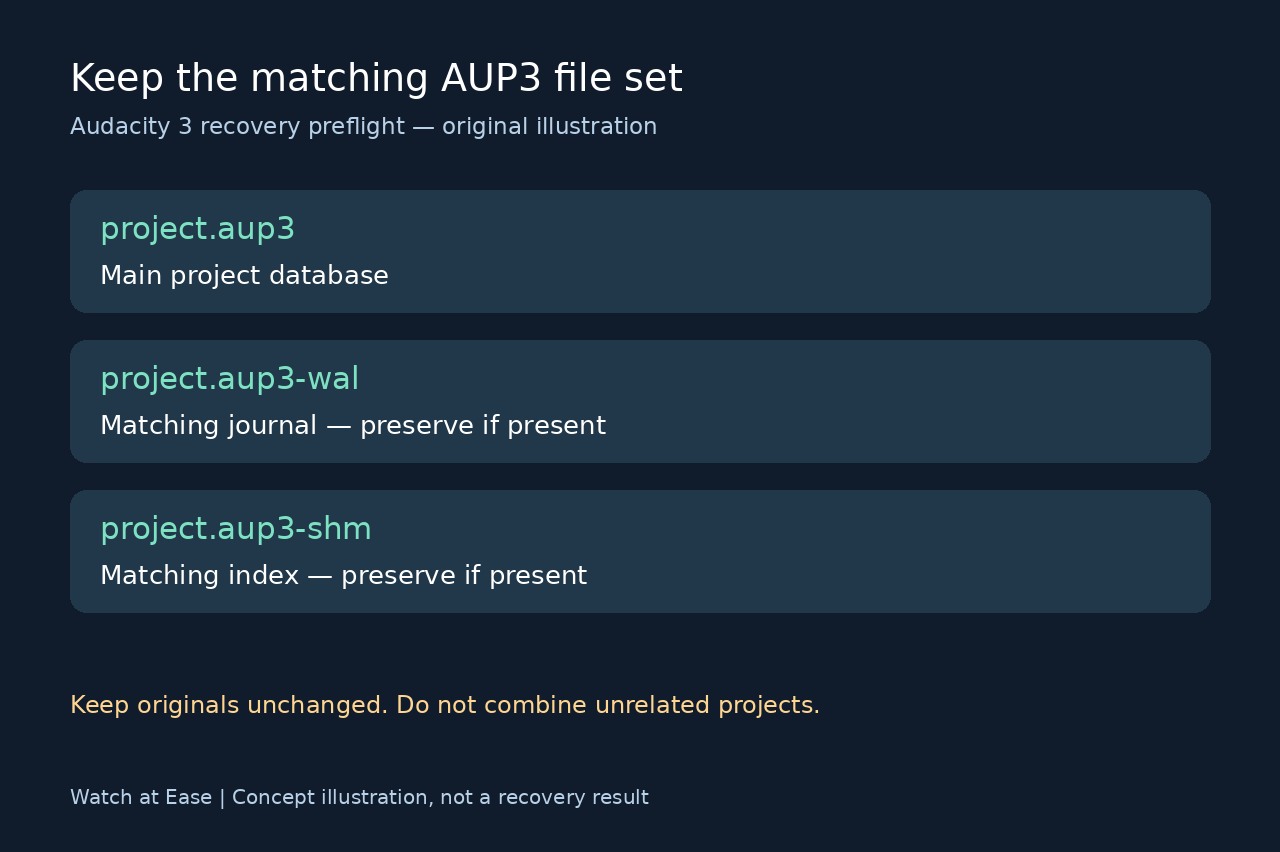
Before another repair attempt, with Audacity no longer running, copy the surviving project folder to a separate location. Keep the original unchanged. Preserve the .aup3 and any same-basename .aup3-wal or .aup3-shm companions together, with their names intact; their absence alone does not establish whether recovery is possible.
SQLite explains that a WAL can contain committed changes not yet written into the main database. Separating it from that database can lose changes or corrupt the copied state. This is why this guide recommends preserving a matching set rather than deleting “temporary” files.
3. Choose a branch before choosing a command
If you have a real AUP3, try documented automatic recovery on the working copy while retaining the untouched backup. If repair is still needed, follow the linked official Audacity 3 recovery instructions. The guide estimates free space at roughly four times the AUP3 size and currently supplies Windows and Linux steps, not a macOS workflow.
The project-tools README says -drop_autosave removes the autosave table, while -recover_project substitutes silence for missing blocks. A database integrity check does not establish that the audio is complete. These are salvage operations, not a promise to restore every recent edit.
If only a WAL remains, stop renaming it or inventing a replacement project. Look for the original AUP3, its backup and the configured temporary directory. Ask the Audacity support forum about the surviving set, giving version, operating system, exact filenames, sizes and errors. Do not mix files from unrelated projects.
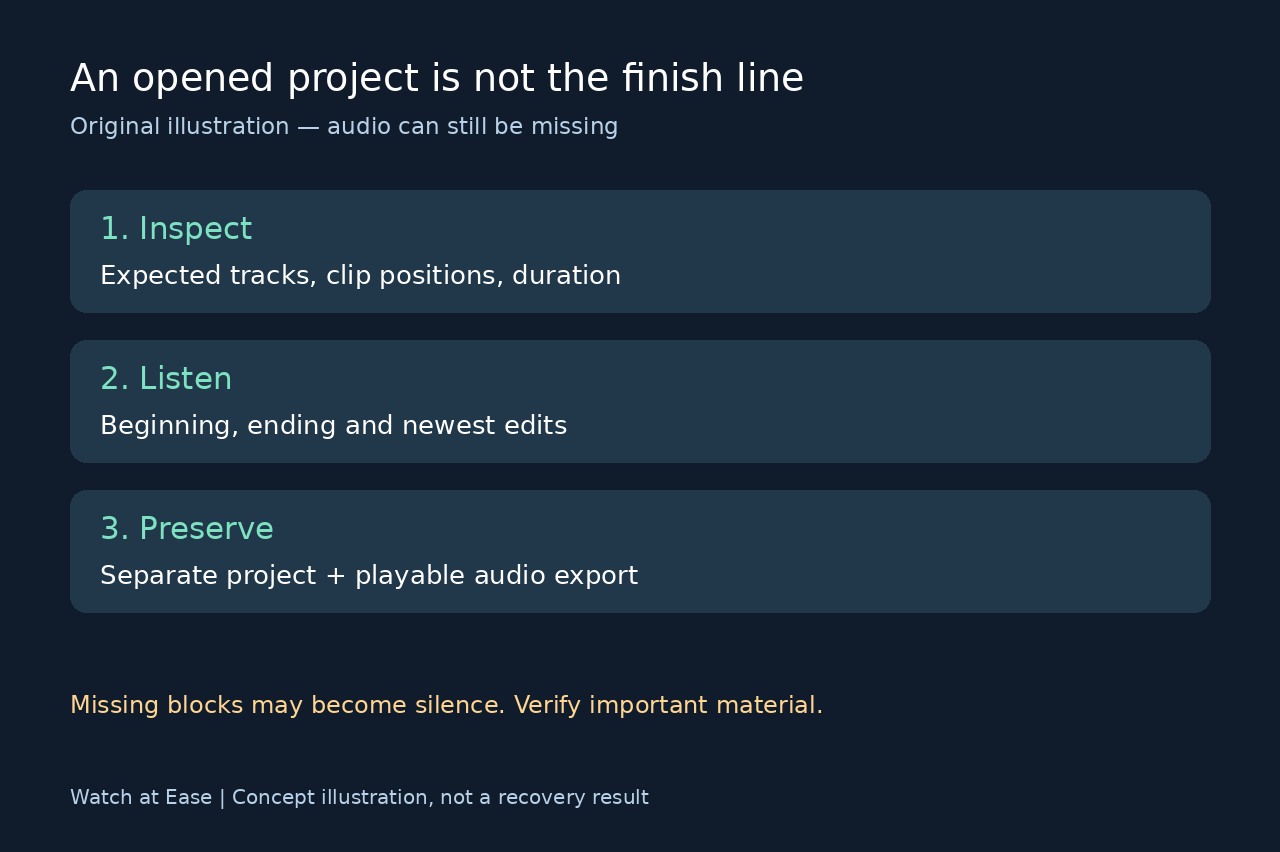
4. Verify the recording, not just the opened window
Open the recovered output separately and inspect expected tracks, clip positions and duration. Listen to the beginning, end and most recent edits, then check any reported missing blocks for silence. Compare with a known export when available. Save a separately named recovered project and a playable audio export; retain the original set until the important material is verified. This checklist cannot recover bytes that are no longer available.