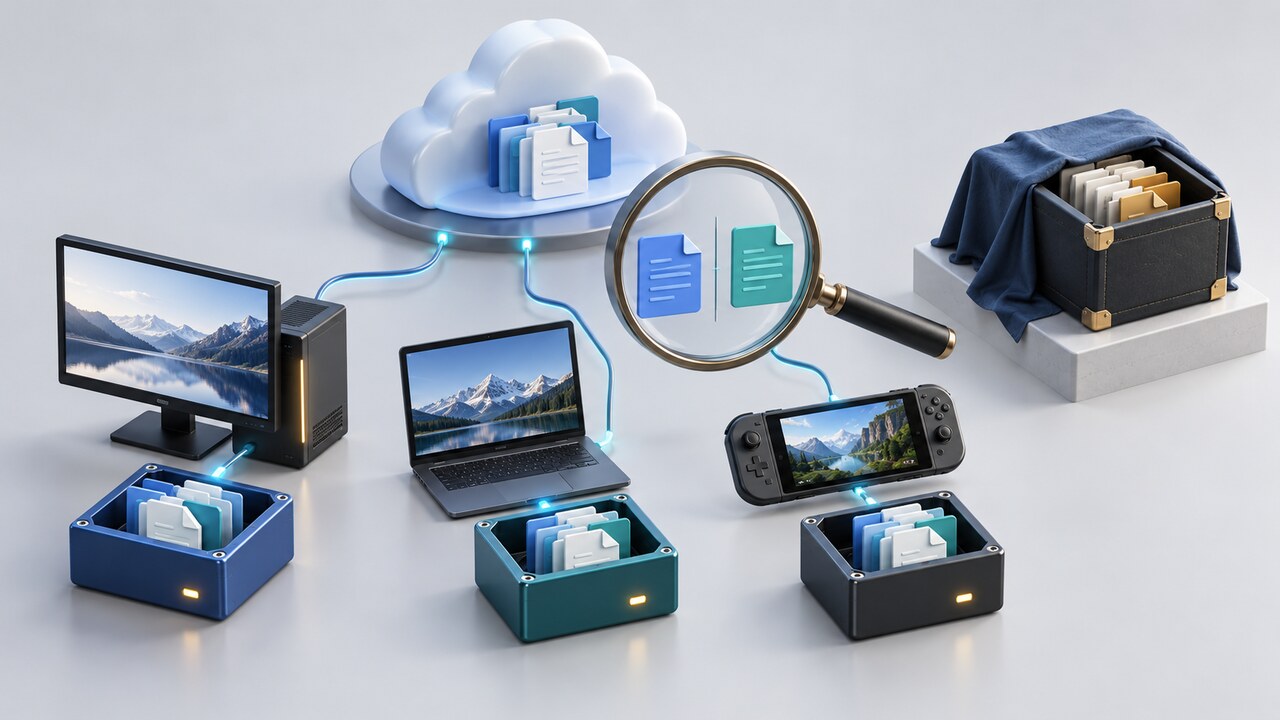
Tech · PRACTICAL GUIDE
Steam Says Cloud Is Up to Date but Your Save Is Missing? Preserve Both Devices Before You Launch Again
Up to date means Steam finished the sync job it knows about. It does not prove the game uploaded the file you expected, that both systems use the same save root, or that the newest copy won a previous conflict.
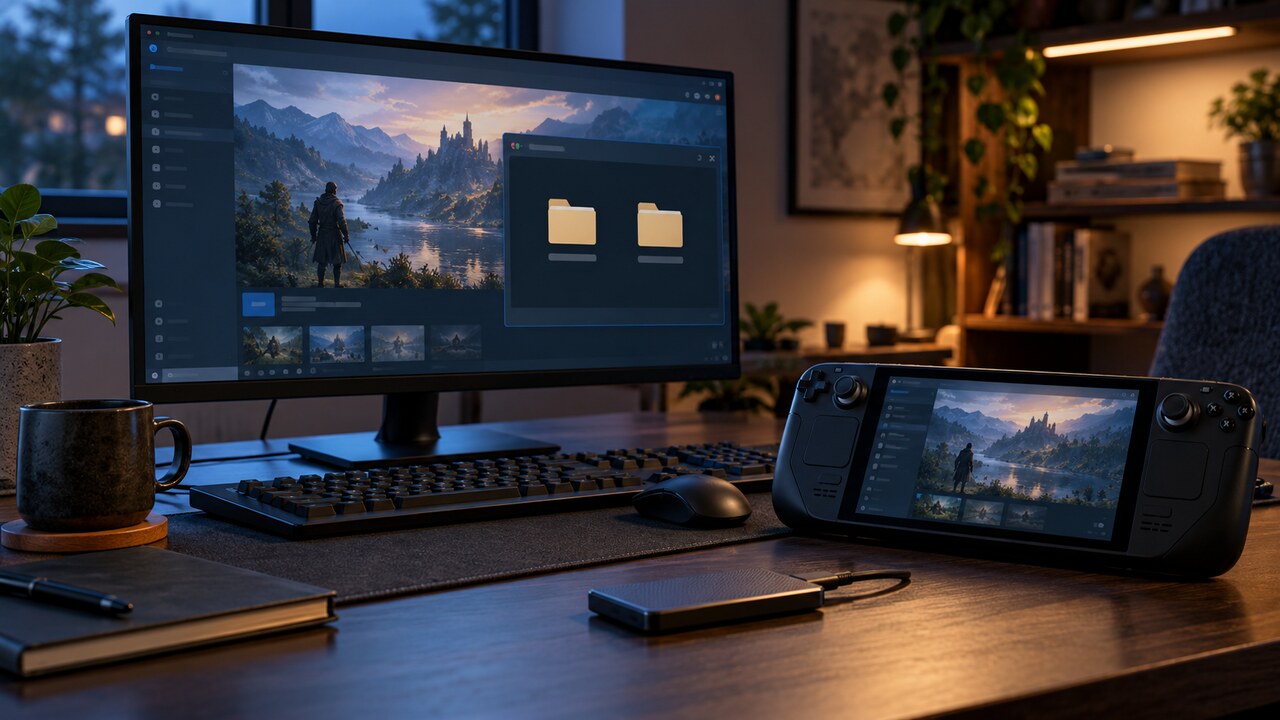
If Steam Cloud says it is up to date but the game opens an empty or older save, stop launching the game on every device. Preserve each local save location, the Steam userdata copy, cloud_log.txt, and any files visible in Steam Remote Storage before testing a repair.
Do not begin with a reinstall, file verification, Proton change, conflict choice, or reconnecting an offline device. Those actions can create a newer empty save or make the wrong copy the next synchronized state.
Why up to date can coexist with a missing save
Steam can synchronize only files the game or developer configured for Steam Cloud. A successful sync proves that the configured transfer completed; it does not prove the game wrote progress to one of those paths. Achievements and playtime can remain visible even if the save file was never uploaded.
The same game can use different roots on Windows, native Linux, macOS, or a Proton prefix. Steamworks also allows developers to separate or override platform roots. A desktop and Steam Deck may each report a clean sync while reading different locations. A second account, demo, beta branch, or AppID can cause the same symptom.
1. Identify the exact account, build, and AppID
On each device, record the signed-in Steam account, AppID, branch or beta, operating system, and whether Linux or Steam Deck runs a native build or Proton. Confirm the global and per-game Steam Cloud status, but do not toggle it yet.
Use publisher documentation or the game's PCGamingWiki page to identify the real save location. If devices use different builds or AppIDs, confirm compatibility before moving files; a valid save can be ignored by another build or profile.
2. Preserve every candidate copy, not only userdata
Copy the actual save directory from every device. On Windows it may be under Documents, Saved Games, AppData, the installation, or a publisher folder. On Linux it may be in a native configuration directory. A Windows game under Proton commonly stores Windows-style data below steamapps/compatdata/<AppID>/pfx, but the exact path is game-specific.
Also copy the matching Steam userdata area. Valve points to userdata and cloud_log.txt for Cloud troubleshooting, but userdata may be a staging area or cache rather than the folder the game reads while running. Preserve both and do not assume either is authoritative.
3. Inventory the remote copy without overwriting local evidence
Open Steam Remote Storage for the game and download every available file into a new evidence folder. Record names, sizes, and modification times. The newest timestamp is not automatically the best save: an empty save created after the loss can be newer than the wanted progress.
If the game exposes slot numbers, character names, or internal save times, use them as additional comparison points. Keep the original downloads unchanged and test only duplicates.
4. Use cloud_log.txt as a transfer record, not proof of progress
With Steam fully closed, inspect the copied cloud_log.txt around the last known good session and the first missing-progress session. Look for AppID, paths, uploads, downloads, conflict handling, and errors. This can reveal an unexpected path or a skipped file.
The log cannot prove a transferred file contains the expected in-game progress. Pair it with preserved files and one controlled offline test with Cloud disabled.
5. Choose the recovery branch that matches the evidence
Good save on the old device: keep it offline, make another backup, disable Cloud for the game on the test device, place a duplicate in the confirmed live path, and verify that the correct slot loads.
Good file only in Remote Storage: preserve the download, restore a duplicate with Cloud disabled, and test it. If ignored, recheck account, build, AppID, platform path, filename, and companion index or profile files.
Steam shows a conflict: do not choose by timestamp alone. Preserve both candidates when possible, compare them with offline backups, and select only a copy that loads correctly in a controlled test.
No good source remains: stop destructive experiments. Keep all folders, downloads, and logs; contact the developer or Steam Support with the AppID, account, device, system, times, and missing slot. Valve notes that deleted or overwritten Cloud data may not be recoverable.
6. Verify completion before re-enabling Cloud
With Cloud disabled and the network disconnected when practical, launch once from a duplicate. Confirm the profile, slot, checkpoint, inventory, or playtime inside the game. Exit normally, verify that the expected live files changed, and make another backup.
Reconnect and re-enable Steam Cloud on one device only. Watch for a conflict and a clean sync. Verify the recovered progress again on that device before bringing a second device online. Keep the originals until both devices load the same verified state.
What not to do
Do not keep launching on both devices hoping the save returns, and do not assume a newer timestamp means more progress.
Do not paste a Windows save into a Proton or native Linux path without confirming the build and live location. Do not delete userdata, compatdata, or save folders before byte-for-byte copies, and do not treat achievements or playtime as proof the save was uploaded.