Technology · PRACTICAL GUIDE
SCP says “Received message too long”? Capture the stray bytes before changing SSH
The number is often the first four unexpected bytes misread as an SFTP packet length. Reproduce the exact account and path, capture non-interactive output, then separate startup-file noise, subsystem failure and bounded legacy compatibility.
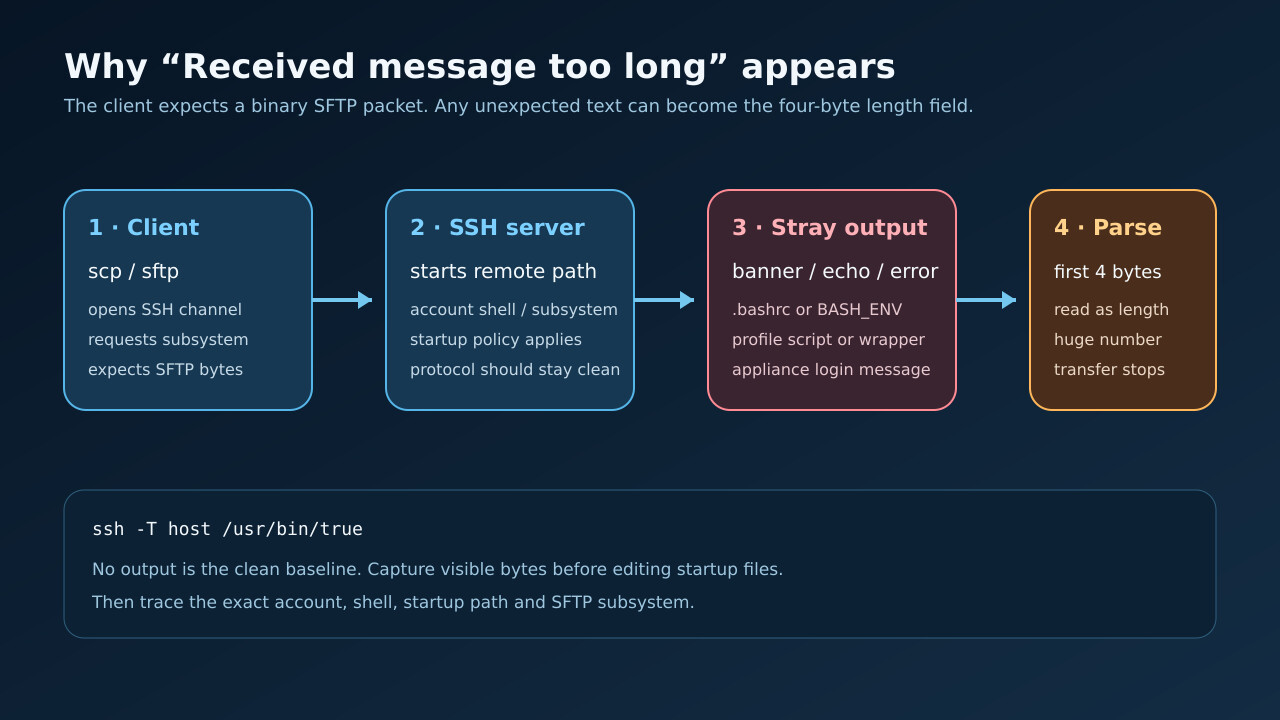
“Received message too long” is usually a protocol symptom, not proof that the file is large. Modern scp speaks SFTP by default, so unexpected remote output can be mistaken for a binary packet length before the transfer starts.
Build a small evidence ledger from the exact account and route: capture the bytes, identify the startup or subsystem layer, make one narrow change, then verify both file transfer and interactive login.
Reproduce the exact failing path before editing anything
Save the complete client error, command, host alias, username, port, jump host and authentication method. Run the same transfer with verbose logging, but redact keys and tokens. Do not assume an interactive ssh login proves that the SFTP subsystem is clean: it may start a different command path.
With the same account and SSH configuration, run a non-interactive no-op such as ssh -T host /usr/bin/true. The clean baseline is no stdout. Capture any visible bytes exactly. A banner, debug echo, missing-command message or startup error before the protocol is evidence, not noise to discard.
Use the number as a clue to the first stray bytes
An SFTP packet begins with a four-byte length. If text arrives first, a client can interpret those four characters as a huge decimal length and stop with “Received message too long.” Convert the reported decimal value to hexadecimal and ASCII only as a clue, then confirm it against captured output. Do not treat the conversion alone as proof.
If the first characters spell part of a filename, banner or error, trace that exact producer. The macOS case read for this guide decoded the value to “.bas” and then confirmed .bashrc output. Your value can point somewhere else, so preserve the bytes before editing files.
Trace the startup file that actually runs
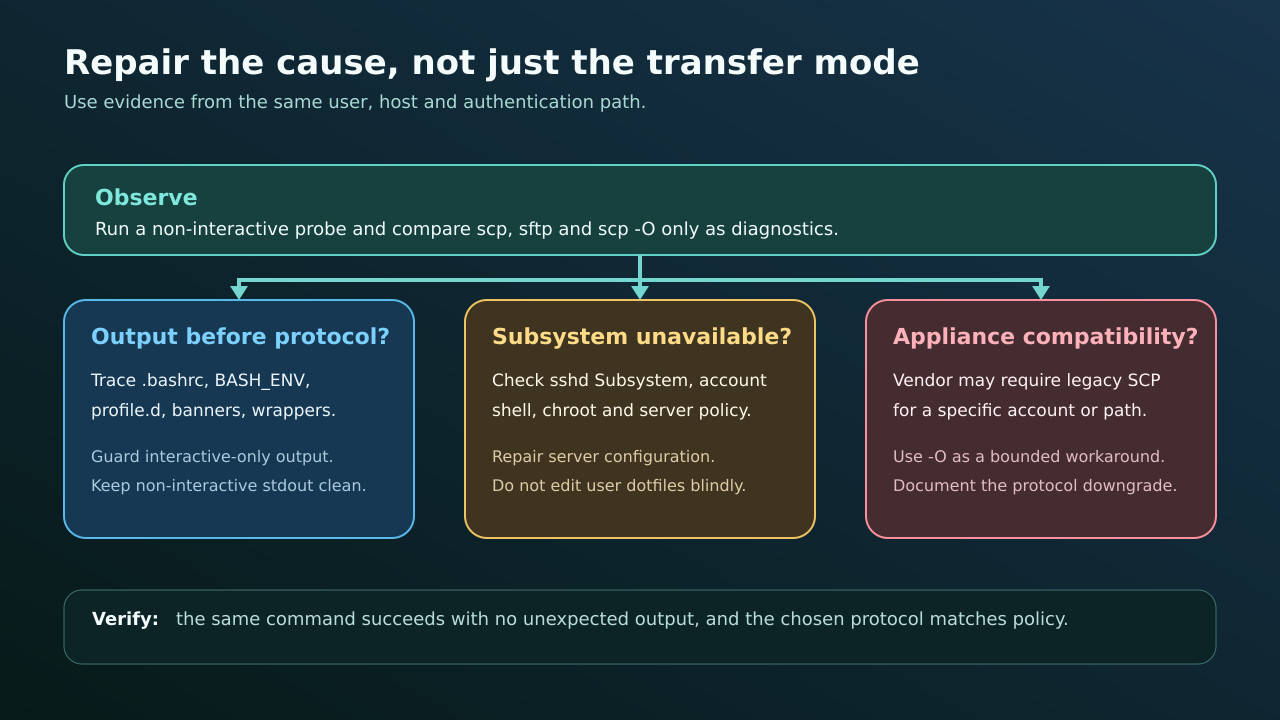
For Bash, inspect whether the sshd-invoked non-interactive path reads ~/.bashrc, whether BASH_ENV names another file, and whether system profile scripts or wrappers add output. Other shells have different startup rules. Test the exact remote account; do not edit the administrator’s dotfiles when the transfer uses a service user.
Move greetings, status commands and diagnostics behind a proven interactive-shell guard or send them through a channel that cannot corrupt the protocol. Keep required environment setup, and retest login plus the non-interactive no-op. A blanket return at the top of a startup file can skip variables that automated jobs actually need.
Separate startup noise from a missing subsystem
If the no-op path is silent but SFTP still fails, inspect the server’s Subsystem sftp configuration, account shell, chroot, forced command and policy logs. internal-sftp can avoid an external server program and some shell startup paths, but changing sshd_config is a server-wide action that requires configuration validation and a safe rollback path.
Do not restart sshd blindly from the only active session. Validate the configuration, keep a second administrative session open where policy permits, and test the same account. A custom or restricted shell may need an explicit SFTP design rather than a global shell replacement.
Use legacy SCP only as a bounded compatibility test
Modern OpenSSH scp uses SFTP by default. The -O option selects the legacy SCP protocol for servers without SFTP or specific old path and wildcard behavior. If scp -O works while default scp fails, record that difference; it narrows the fault but does not prove the server is correctly configured.
Treat -O as a documented exception for a known appliance, account or path—not a universal permanent fix. The legacy mode executes the remote shell for parts of its behavior and has different quoting rules. Prefer repairing the supported SFTP subsystem or startup output when you control the server.
Verify both the transfer and the login boundary
Repeat the original command with the same account and path. Confirm a zero exit status, file size and checksum where available, and no unexpected stdout from the non-interactive probe. Then verify that an interactive login still loads the intended prompt and environment.
Record the exact producer, file or subsystem changed, the protocol used, and why. For automation, add a smoke test that fails when the remote no-op emits bytes. That turns a future “message too long” incident into a precise regression instead of another round of dotfile guesswork.