Tech · PRACTICAL GUIDE
Roku Keeps Rejecting the Correct AirPlay Code? Reset the Pairing Before Resetting the Player
If your Roku appears in AirPlay and shows a code but refuses the correct entry, isolate the sender, saved pairing, network, and receiver before erasing the player.
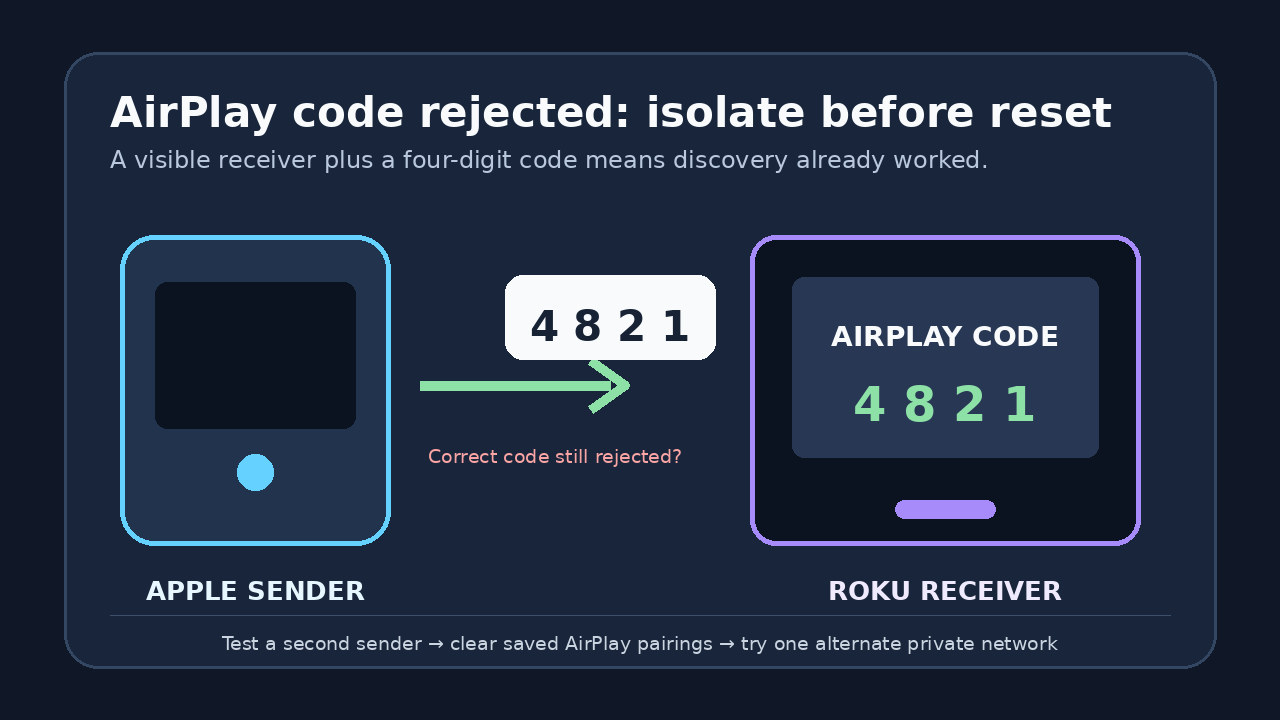
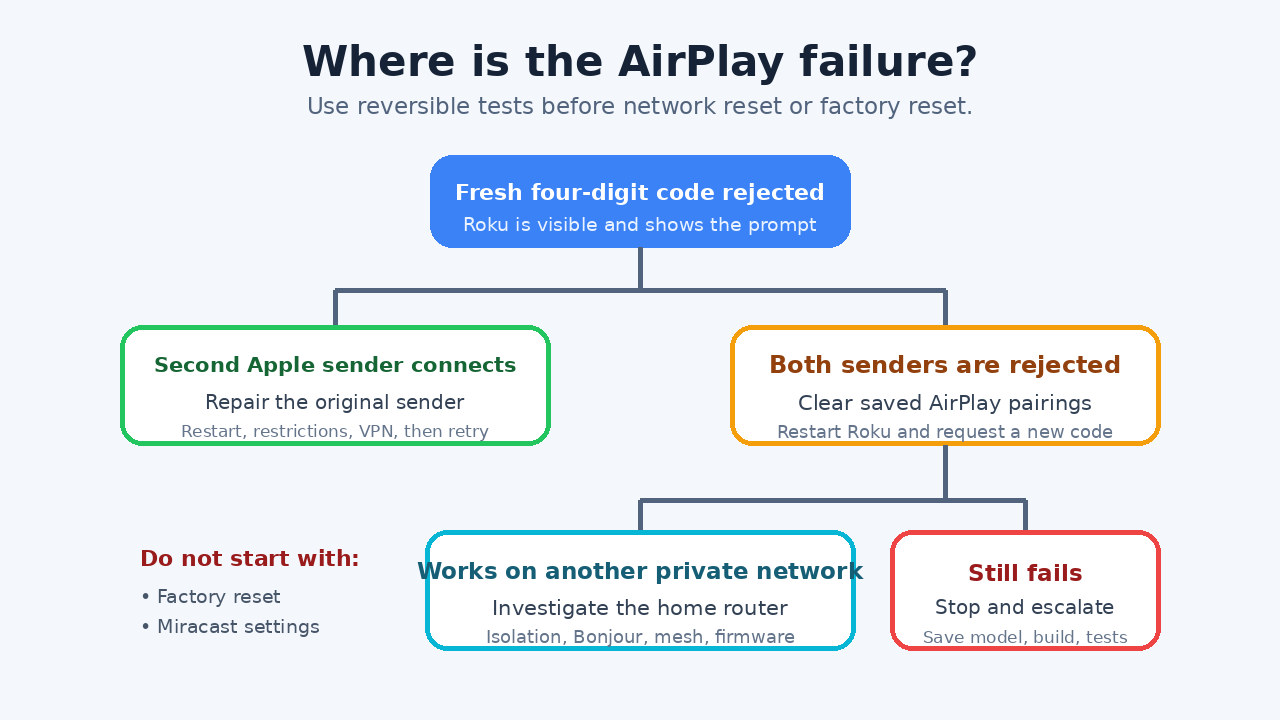
Do not factory-reset the Roku first. If the Roku is visible in the AirPlay picker and displays a four-digit code, but the correct code is rejected or the prompt immediately returns, treat this as a pairing or authentication failure—not a discovery failure. Confirm that you are entering the four-digit AirPlay session code, not the separate eight-digit HomeKit setup code. Then verify support, current software, and the same private Wi-Fi network; test a second updated Apple device; reset only the Roku’s saved AirPlay pairings; restart the Roku; and request a fresh code.
The result of those tests tells you where to work. If a second Apple device connects, repair the original sender. If both fail on the Roku but work on another receiver or private network, investigate the Roku or home network. Stop before a factory reset if two updated senders still fail after a pairing reset and controlled network test; collect the Roku model, software build, sender versions, and exact failure sequence for support.
First, confirm this is the right failure
This guide applies only when the Roku is listed as an AirPlay destination and the television displays a code, yet the iPhone, iPad, or Mac says the code is incorrect or immediately asks again. If the Roku never appears, solve discovery, model support, AirPlay enablement, or network visibility first.
Use the code shown for the current AirPlay session. Roku’s HomeKit setup is a separate process that can display an eight-digit code. An eight-digit HomeKit code is not a replacement for the four-digit AirPlay prompt. Request a fresh AirPlay session rather than reusing an older code or typing a device PIN from another menu.
Verify the supported path before clearing anything
Open Settings > System > About on the Roku and record the exact model and software version. Compare the model with Roku’s current AirPlay compatibility list. Install available Roku and Apple-device updates, then make sure AirPlay is enabled in Settings > Apple AirPlay and HomeKit.
Connect the Roku and Apple sender to the same private Wi-Fi network. Avoid guest networks, hotel or campus client-isolation networks, and a VPN during this test. Do not change Roku’s Screen Mirroring controls: that menu is for a different casting path and does not repair AirPlay authentication.
Use a neutral test, not protected app video
Start with Screen Mirroring or a photo or video you own, not a subscription title that may block AirPlay because of app or rights restrictions. If neutral local content connects but one streaming app does not, the passcode path is working; troubleshoot that app, account, or content restriction instead.
A successful connection to the neutral test is more useful than repeatedly trying the same protected title because it separates AirPlay authentication from app-level playback policy.
Split a sender problem from a Roku problem
Keep the Roku and network unchanged and try one other updated iPhone, iPad, or Mac. Use a different Apple ID if one is readily available, but do not sign out of your primary account just for this test.
If the second sender connects, the Roku and local network can complete AirPlay authentication. Restart the original sender, check its AirPlay receiving or Home restrictions, disable its VPN temporarily, and retry. If both senders reach the code screen and both are rejected, continue with the Roku pairing reset.
Reset only the saved AirPlay pairings
On the Roku, open Settings > Apple AirPlay and HomeKit. Depending on the current Roku software, the reset control may appear under Require Code or as Reset Paired Devices. Remove only the saved AirPlay pairings, switch AirPlay off and back on if that control is available, and then use Settings > System > Power > System restart. On models without a Power submenu, System restart may appear directly under System.
After the Roku restarts, begin a new AirPlay session and enter the newly displayed code once. Do not reuse a code from before the restart. This reset is narrower than Reset network connection or a factory reset and should be tried first.
Run one controlled network test
If two senders still fail, move both the Roku and one sender to the same other private network. A spare router is ideal; a second phone’s hotspot can work if the Roku model supports that connection. Do not use the same phone as both hotspot and AirPlay sender.
If AirPlay accepts the code on the alternate network, the Roku pairing path is functional. Return to the home router and check guest-mode separation, wireless client isolation, multicast or Bonjour filtering, mesh handoff problems, and router firmware. If the same two senders fail on both private networks, the Roku side is the stronger suspect.
What not to reset
Do not factory-reset the Roku merely because the code loop persists. A factory reset removes accounts and local configuration without proving whether the sender, network, or receiver caused the failure. Do not repeatedly reset network settings on every Apple device either; first use the second-sender and alternate-network results.
Also avoid undocumented remote-button sequences or claims that a specific Roku build is defective unless Roku support confirms that diagnosis for your model and build.
Know when the repair is complete
The repair is complete only when the original Apple sender connects after a fresh code and can mirror or play a permitted local test on the original home network. A one-time success on a hotspot proves the devices can authenticate, but it does not finish the repair until the home-network condition is fixed.
After success, disconnect and reconnect once to confirm the pairing survives. Then test the intended app separately. If only that app fails, do not reopen the Roku pairing diagnosis.
Build a useful support handoff
Stop and contact Roku or Apple support if two updated Apple senders are rejected after the saved-pairing reset and the controlled network test. Record the Roku model, serial number only when requested through an official support channel, software version and build, sender models and OS versions, which networks were tested, whether a neutral local test failed, and whether the code was rejected or the prompt simply returned.
Include any Roku issue ID generated through Roku’s supported diagnostic path. Do not post serial numbers, Wi-Fi passwords, AirPlay codes, or account credentials in a public forum.