Travel · PRACTICAL GUIDE
Roku Hotel & Dorm Connect Not Showing the Login Page? Use This Decision Tree
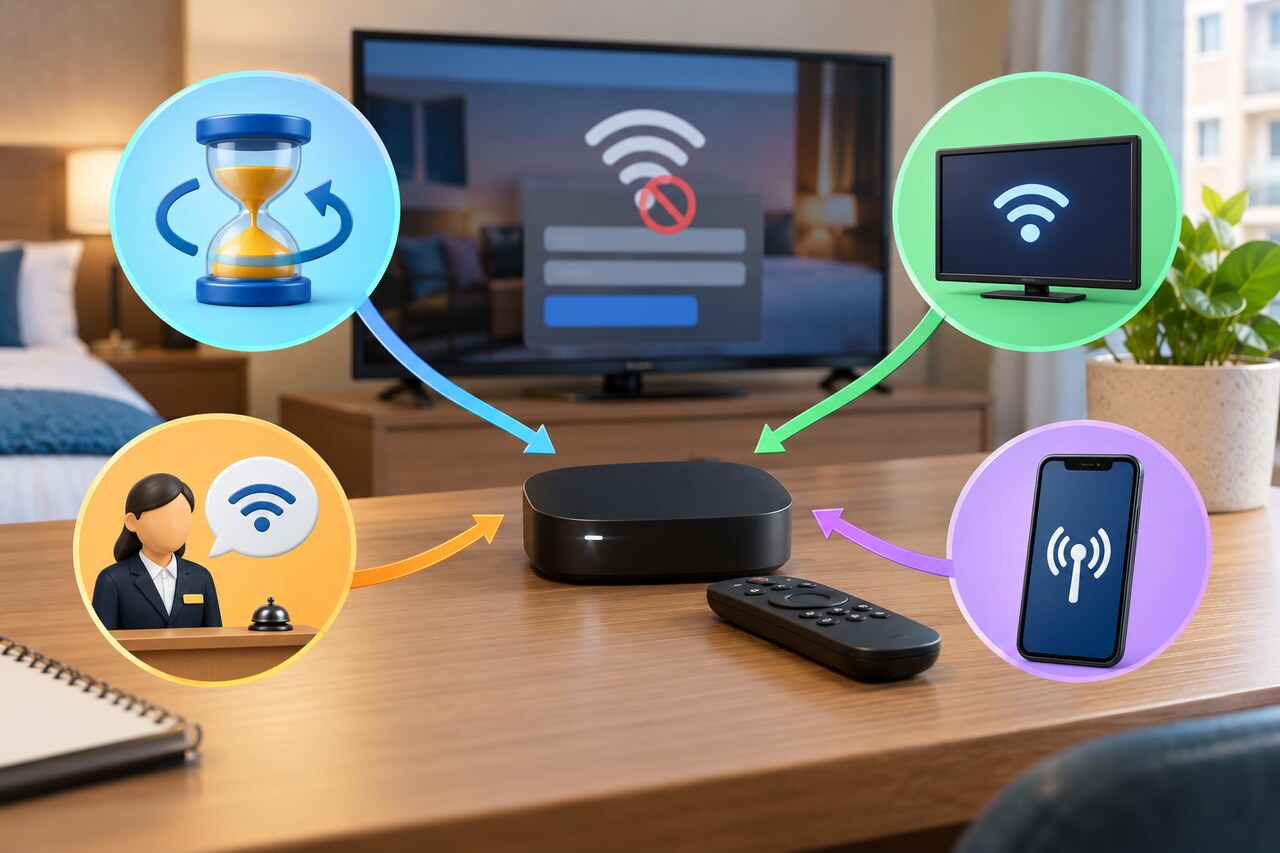
Start with Roku’s Hotel & Dorm Connect flow. If the browser handoff never appears, separate a simple timeout from a campus network that requires device registration, then use the venue’s supported fallback instead of repeatedly factory-resetting the player.
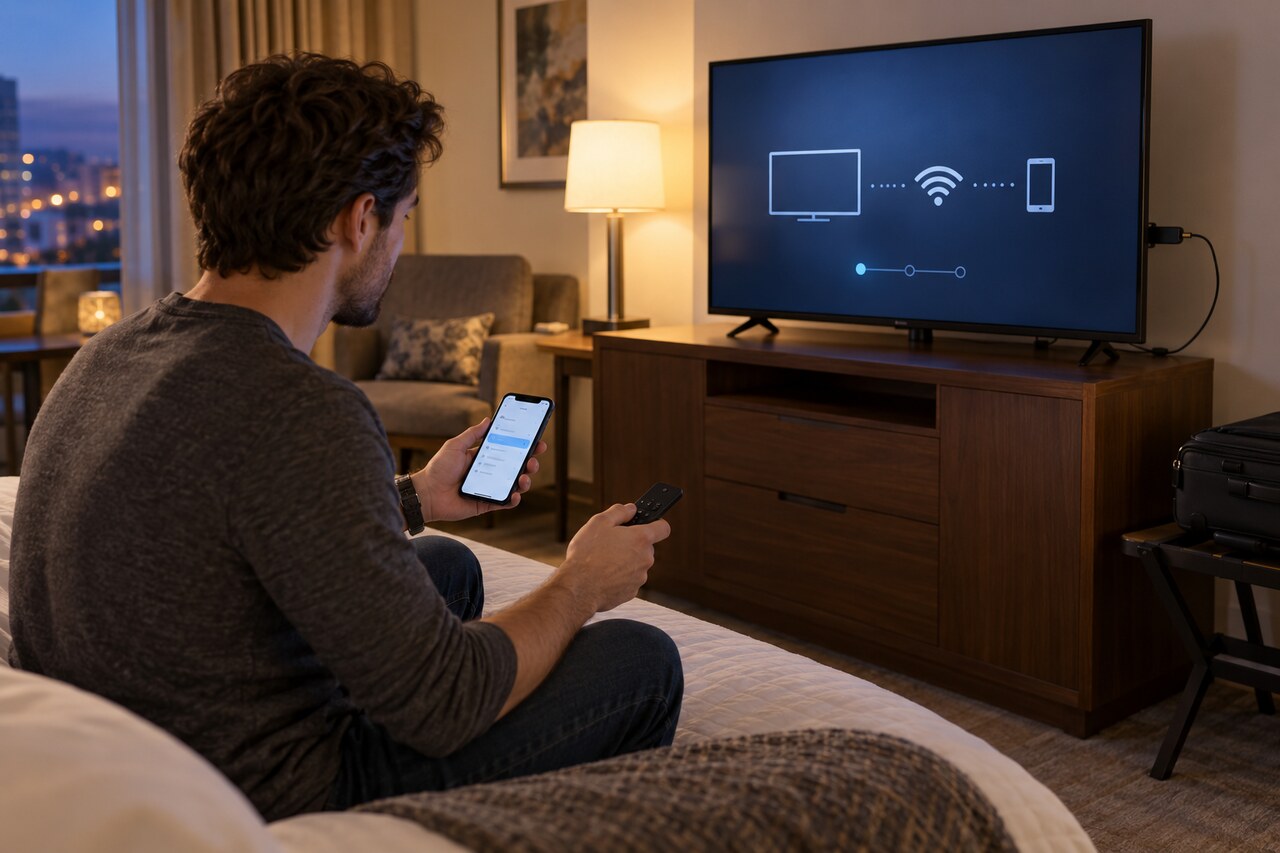
Use Roku’s Hotel & Dorm Connect flow first: Settings > Network > Set up new wireless connection, choose the venue network, then select ‘I am at a hotel or college dorm.’ Follow the TV’s temporary DIRECT-Roku network and browser instructions on a phone or computer. If authentication times out, choose Try again.
If the login page never appears at a dorm, ask campus IT whether streaming players must be registered on a dedicated IoT or open network. Many managed campuses require the player’s wireless MAC address before it can connect. Use the school’s own registration portal and instructions; do not copy or spoof another device’s address.
You are finished only when Roku’s Network screen shows the intended venue network and Status: Connected, and a channel actually loads. If the venue cannot support the device, use a permitted personal hotspot with attention to data limits, or stop and use another viewing method.
1. Identify which network path you have
Hotel & Dorm Connect is for a venue Wi-Fi network that normally asks a browser to sign in. A managed campus may instead put streaming players on a separate IoT or open SSID and require registration before connection. Ask the front desk or campus IT for the exact network name, whether browser sign-in is used, whether multiple devices are allowed and whether streaming devices need registration. Do not assume the guest network used by your phone is also the correct network for the player.
2. Run Roku’s official Hotel & Dorm Connect flow once
Before the trip, activate the player, update it on a working network and pack the power adapter and physical remote. At the venue go to Settings > Network > Set up new wireless connection, scan again if needed, choose the hotel or dorm network and select I am at a hotel or college dorm. On the phone or computer, follow the exact temporary network name and password shown on the TV, then complete the venue’s browser form. Stay on that temporary network even if the phone warns that it has no internet; its job is to pass the browser authentication to the Roku.
3. If the prompt appears but setup does not finish
Roku gives only several minutes to authenticate. If the TV returns to the network screen or the credentials expire, select Try again and repeat the on-screen handoff with the same phone or computer. Recheck the venue SSID and any room number, surname or access code. Do not declare success because the phone portal accepted the form: the Roku Network screen must return to the venue network and show Status: Connected, and a channel should load.
4. If the dorm login page never appears
Move to the managed-network branch instead of repeating factory resets. University of Minnesota and USNH instructions show that campuses can require Roku-class devices to be registered by their wireless MAC address before joining a dedicated IoT or open network. Open Settings > System > About and record the wireless MAC address, then use only the school’s official device-registration portal or ask IT to register or correct the device classification. Network names, waiting periods, passwords and renewal rules are campus-specific.
5. Choose a supported fallback
If the venue says the player is unsupported, ask whether it offers a dedicated IoT network, a wired option for your model or manual allow-listing. A personal hotspot can work when venue rules and your cellular plan allow it, but video can consume substantial data and hotspot performance varies. Do not clone another device’s MAC address, bypass access controls or install an unknown certificate. If no supported path exists, use content on the phone or laptop instead.
6. Know when the problem is actually resolved
Resolution requires three checks: the Roku Network screen names the intended hotel, dorm or approved IoT network; Status says Connected; and a channel loads without returning to the portal. Save the venue SSID and any registration confirmation for the stay. If the same device later stops working, check whether the campus registration expired or the venue changed its portal before resetting the player.