Technology · PRACTICAL GUIDE
Recover Clipchamp Projects That Stopped Loading After an Update
Preserve the project control file and source media first. Then use the recovery branch that matches your account, import a supported .clipchamp file, relink the originals, and verify the timeline before you reset or clear anything.
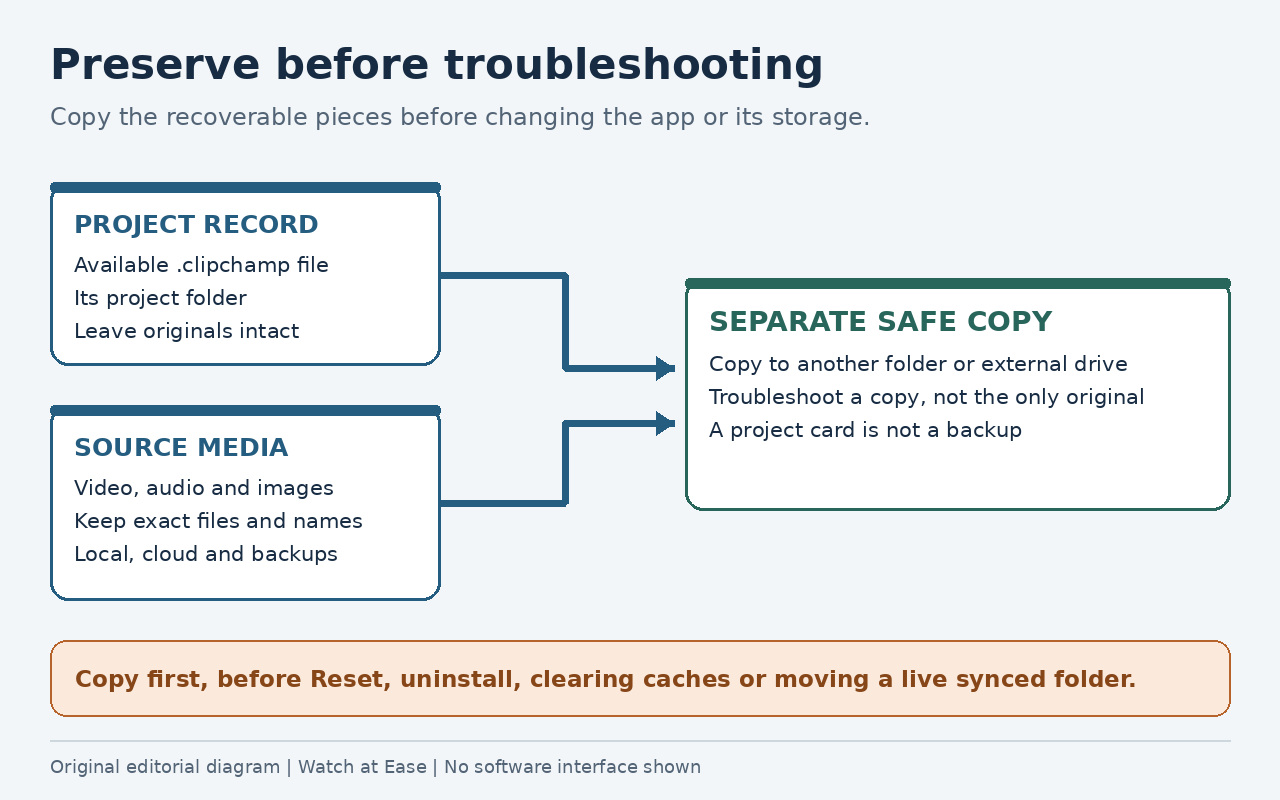
If a Clipchamp project vanished or stopped loading after the late-2025 storage changes, do not start with Reset, uninstall, cache deletion, or moving a live OneDrive folder. First copy every .clipchamp file, its project folder, and the original video, audio, and image files to a separate location. Then identify whether you use a personal Microsoft account or a work/school account, and follow the matching branch below.
A successful recovery means the editable timeline opens, every source plays from the expected point, and a short test export completes. A project thumbnail reappearing is not enough.
Preserve the recoverable pieces before troubleshooting
Close Clipchamp without resetting it. Search the project’s usual local folder, OneDrive and any backup for the project-name.clipchamp file. On Windows, also preserve the relevant Clipchamp project folder and the original videos, images and audio. Copy them to a separate folder or external drive; work only on copies.
Record the exact account, app surface and message: personal or work/school account; desktop app or Edge/Chrome; missing dashboard card, access denied, endless loading, missing media, or “legacy 21.” These are different failures. Microsoft warns that clearing the app or browser cache can force relinking and can leave a personal project unusable when the originals are unavailable.
Choose the account and storage branch
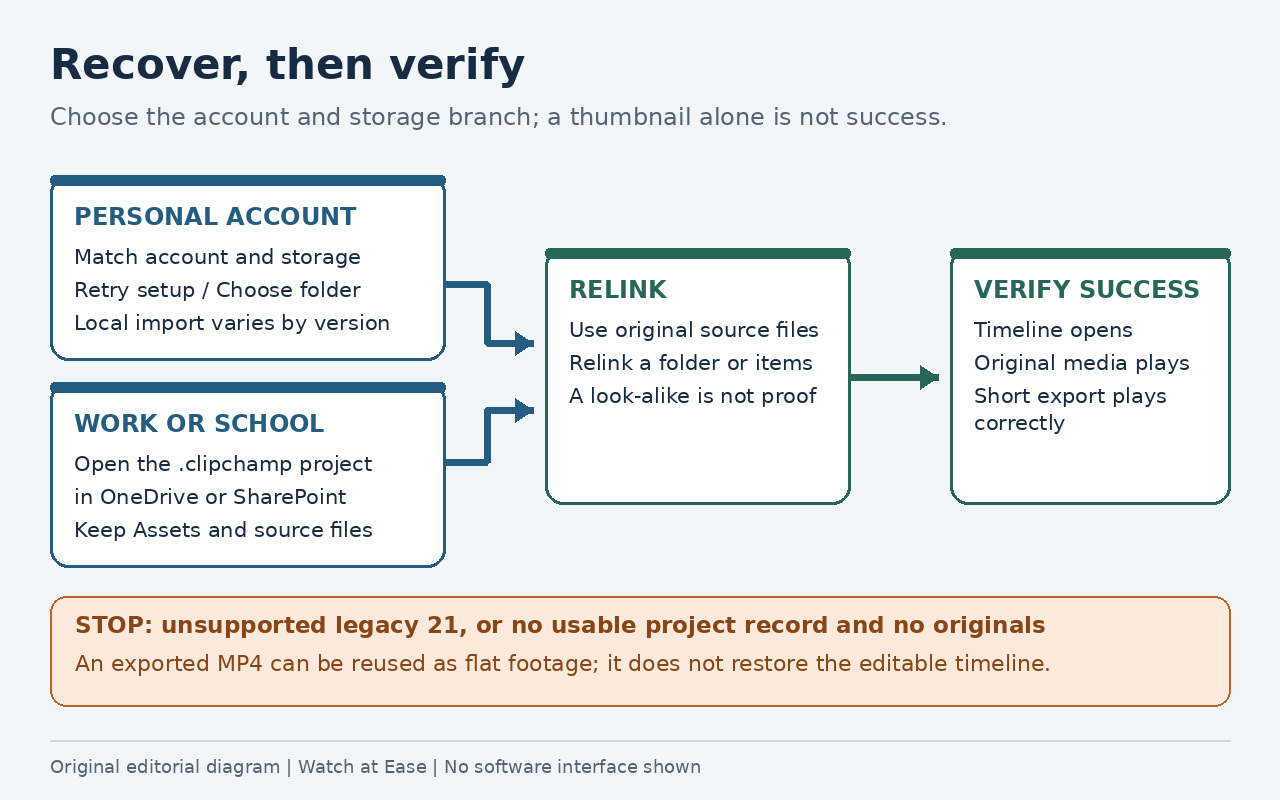
For a personal account, confirm that Clipchamp and OneDrive are signed in with the same Microsoft account that created the edit. If OneDrive was inactive, sign in to OneDrive to reactivate it, then reload Clipchamp. If the migration dashboard says it could not save projects to OneDrive, open Clipchamp Settings > OneDrive and use Retry setup first.
If Retry setup fails, Settings > OneDrive also offers Choose folder. Use it to choose where Clipchamp downloads local copies, then manually upload the saved project folders to OneDrive if needed. For a work or school account, open the project’s .clipchamp file from its OneDrive or SharePoint folder; its Assets folder should contain the media uploaded for that project.
Import a supported local .clipchamp file when the card is missing
If the dashboard card is missing but a recent local .clipchamp file still exists, use the Windows desktop app’s Settings > Import Project > Locate Project path and select the .clipchamp control file inside the preserved project folder. This is the project-import command, not the editor’s Import media button. The route was reproduced by several users after the storage update, but it is not a promise for every build or account.
If Import Project is absent, sends you only to OneDrive, or repeatedly requires the same import after restart, stop changing the preserved copy. Test the same account in the current desktop app and Edge/Chrome, then use Microsoft’s migration troubleshooting or Clipchamp Support. Do not move or rename OneDrive’s live project folders while sync is active.
Relink the original media, not look-alike replacements
When Clipchamp opens the timeline but reports missing media, use Relink entire folder and select the stable folder that contains the originals. If only some items match, reconnect them one by one. Keep file names, formats and contents unchanged during recovery; a different file with the same name is not proof of a correct relink.
Older personal projects that have not completed the move to OneDrive may still depend on local originals unless content backup was enabled. For a migrated project, also check its OneDrive project folder and stored media. Work/school projects keep the .clipchamp control file plus Assets and Exports folders in OneDrive or SharePoint. If Clipchamp cannot find a usable copy because the source was moved out of Assets, deleted locally, or never backed up, you must supply the original again. Under the current personal-account cloud-storage setup, a locally archived project must be uploaded back to OneDrive before future editing.
Verify the timeline before calling the recovery complete
Open every scene or major timeline segment, scrub the beginning, middle and end, and check that video, stills and audio point to the intended originals. Confirm titles, cuts, effects and timing rather than relying on the thumbnail. Then export the recovered project or a duplicate test copy and play representative sections outside Clipchamp.
Only after the editable timeline and test export both pass should you create a fresh backup and consider deleting old caches. If relinked files disappear again after refresh, or the app and web version fail on the same preserved copy, keep the copies unchanged and contact Clipchamp Support with the account type, exact error, project-file location and the steps already tried.
Know the two hard failure limits
If Clipchamp says the project uses the unsupported legacy 21 format, a Microsoft Q&A answer from external support staff says the current Windows app and web editor cannot open, migrate, or convert it. The stated fallback is to reuse a previously exported MP4 as a flat source or rebuild from the original media. The MP4 does not restore the editable timeline.
If no account project record or usable .clipchamp control file remains and the original media is also missing from local storage, OneDrive, SharePoint and backups, the reviewed sources provide no supported reconstruction path. Preserve any exported video, stop destructive cleanup, and ask Clipchamp Support whether the account still has a recoverable project record; do not promise that support can recreate absent source files.
What not to do during recovery
Do not reset or uninstall the app, clear browser site data, empty Clipchamp’s local storage, rename the original media, or reorganize the live OneDrive project folder before making copies. Do not treat Import media as project import, and do not overwrite the only .clipchamp file with a newly created project.
Broad troubleshooting lists often recommend cache clearing or Reset for a stuck app. Those steps may help only after the project file and originals are safe. In this problem, preservation comes first because a reset can remove the local state that still points to an otherwise recoverable edit.