Technology · PRACTICAL GUIDE
Changing Phones in the U.S.? Preserve DJI Fly Flight Records Before You Erase
Find the phone or controller that holds your flights, export a verifiable copy, and separate a safe archive from the unproven promise of restored DJI Fly totals.
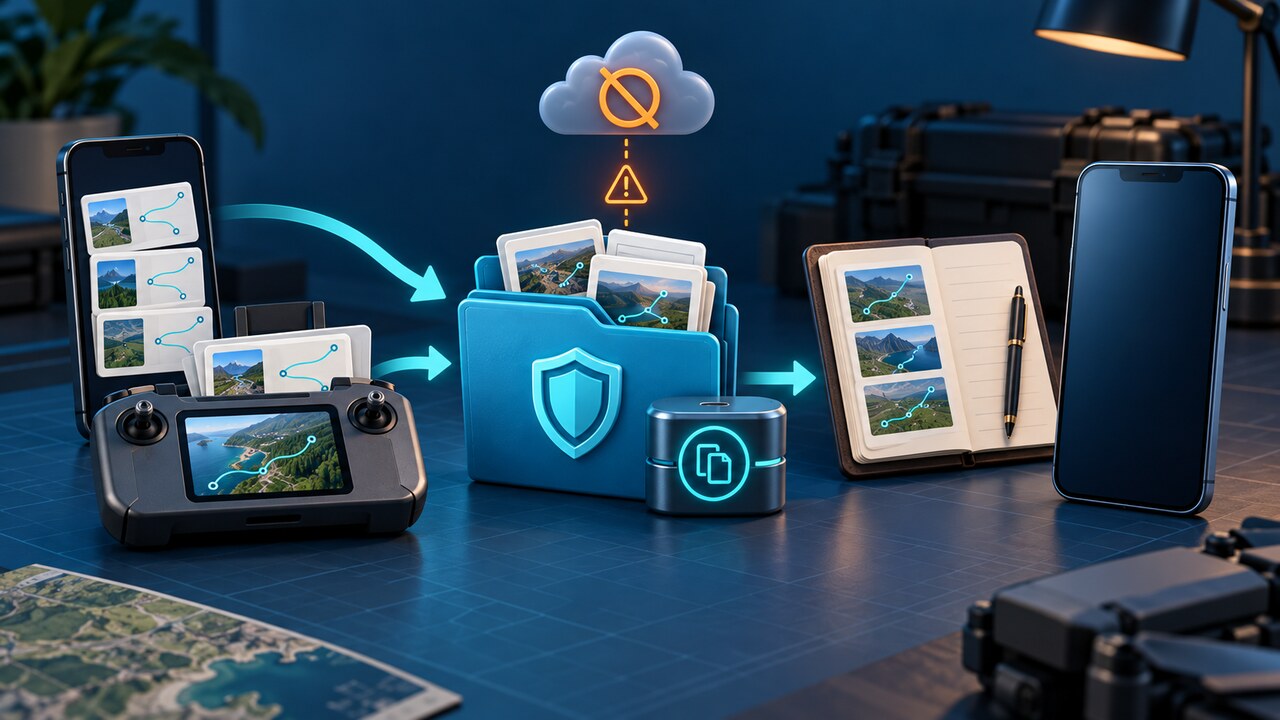
Before erasing an old phone or controller, copy the DJI Fly flight records from the device that actually recorded the flights. In the United States, signing into the same DJI account is not a dependable migration method: DJI stopped U.S. flight-record cloud synchronization in June 2024, and its current support notice also describes the withdrawal of stored-record downloads.
Keep file preservation, third-party logbook import and DJI Fly restoration separate. A verified copy preserves the files; importing those files into a third-party logbook makes them available there. Neither result, by itself, proves that the replacement phone will show the old flight history or totals inside DJI Fly. The official material reviewed for this guide does not provide a supported procedure guaranteeing that result.
Find the device that actually holds the flights
If you flew with a controller that uses a phone as its screen, start with that old phone. If you flew with a DJI RC or RC 2 with its own screen, start with the controller, not an unrelated phone that happens to use the same account. Check the flight list on each device before changing anything. A phone showing three old tests while the controller holds later flights is not proof those later files have vanished.
Goggles are a separate branch. DJI’s U.S. support notice says simplified goggles records may first need to be transferred to DJI Fly by connecting the goggles to the phone. Use the instructions for the exact goggles model; do not assume that pairing a different controller, transferring photos or changing account binding will reconstruct missing app history.
Export from an iPhone or iPad
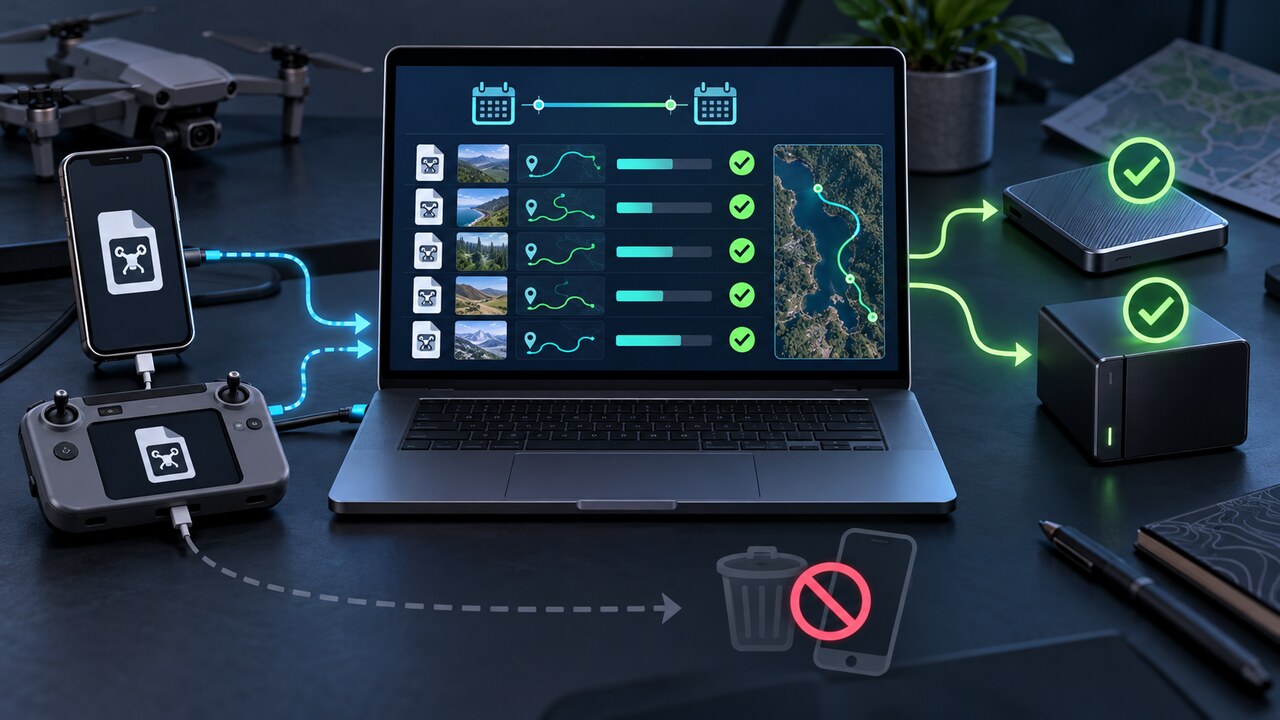
DJI’s export guide gives a direct route: open Files, choose On My iPhone (or the corresponding on-device location), open DJI Fly, then FlightRecords. Long-press the folder and choose Compress; share the resulting archive to a storage destination outside the app. Check that the destination contains a real archive, not only a shortcut. Do not delete or reinstall DJI Fly while looking for the folder.
When the folder is not exposed in Files, use the supported computer file-sharing route. On a Mac, connect the unlocked device, select it in Finder, open Files, expand DJI Fly and copy FlightRecords to the computer. On Windows, use the installed Apple device-management app’s file-sharing interface; DJI’s guide illustrates iTunes. Some third-party instructions say iOS cannot expose the folder directly, so prefer DJI’s Files route when it is actually present and use computer sharing as the fallback.
Export from Android, DJI RC or RC 2
For current DJI Fly layouts, check Internal shared storage/Android/data/dji.go.v5/files/FlightRecord after connecting the recording device to a computer over a data-capable USB cable and selecting file transfer where offered. On a Mac, AirData says an Android file-transfer application is needed to access RC/RC 2 storage; a controller not appearing in Finder is not proof its logs are missing. Copy, rather than move, the folder to a clearly named directory on the computer. Older installations can use DJI/dji.go.v5/FlightRecord. The singular Android folder and plural iOS folder are not interchangeable spelling errors.
AirData documents manual TXT export for DJI RC and RC 2 because its app cannot be installed on those locked controllers. Copy the TXT files to the computer before dragging them into an upload page. If the expected folder is empty, search the same recording device for DJIFlightRecord; some controller layouts place records elsewhere. Android storage restrictions can hide Android/data from a phone file manager. Do not grant unexplained debugging access, root the device or reset it merely to make a folder appear.
Check the archive before trusting it
Keep the original folder untouched and make a second copy on a different storage destination. Compare the file count and byte sizes between source and copies, preserving any subfolders. Look for the expected date range and recent flights, not just a large total size. These are practical copy checks, not a guarantee that every flight ever made was recorded or retained.
For a usability check, open a few copied flight-record TXT files in a compatible log viewer, including an older flight and a recent one. The .txt extension does not mean the file should be readable as ordinary prose. Keep app diagnostic Logs and aircraft or MCDatFlightRecords DAT files separate from this TXT check; they serve different purposes. A matching hash can prove an unchanged copy, but cannot prove the original log was complete.
Choose a logbook without promising DJI Fly restoration
An AirData upload is optional, not a prerequisite for a local archive. Its iOS instructions use permission to the DJI Fly folder and Sync Now; its RC/RC 2 instructions use a computer copy and manual TXT upload. Confirm the selected service actually lists the expected flights and can open them. Keep independent copies; do not make any logbook service your only backup. Before uploading, review its current retention, privacy and account limits, because flight logs can contain sensitive location information.
A successful upload, a successful DJI support Log Upload and a populated DJI Fly profile are three different outcomes. Do not delete the old device’s files because one service says the upload finished. If displaying the old totals inside DJI Fly on the replacement device is essential, ask DJI to confirm the supported path for your exact device and app version before erasing anything.
When the old device or expected files are missing
Check other devices actually used for those flights, existing computer or storage copies, and any logbook imports made earlier. Recheck the app family and folder rather than substituting DJI GO 4 or Pilot 2 instructions. If no usable copy remains, the sources reviewed here do not establish a recovery method; avoid promises that logging in, reinstalling or changing regions will bring deleted U.S. records back.
For an unresolved device-specific problem, contact DJI with the recording device model, DJI Fly version, approximate missing dates, where records are still visible, folders checked and an example filename. Its support Log Upload flow can send available records for diagnosis; it does not revive files that are absent. Share logs privately with the intended support service, not in a public post. Keep the old device unchanged until preservation and any essential in-app restoration goal have been separately checked.