Technology · PRACTICAL GUIDE
PDF text is selectable but Find misses words? Check text mapping and the reader before OCR
Highlighting is not proof of usable text. Compare one affected page, extracted characters and a second reader; neither a font’s uni=yes nor uni=no flag settles the diagnosis.
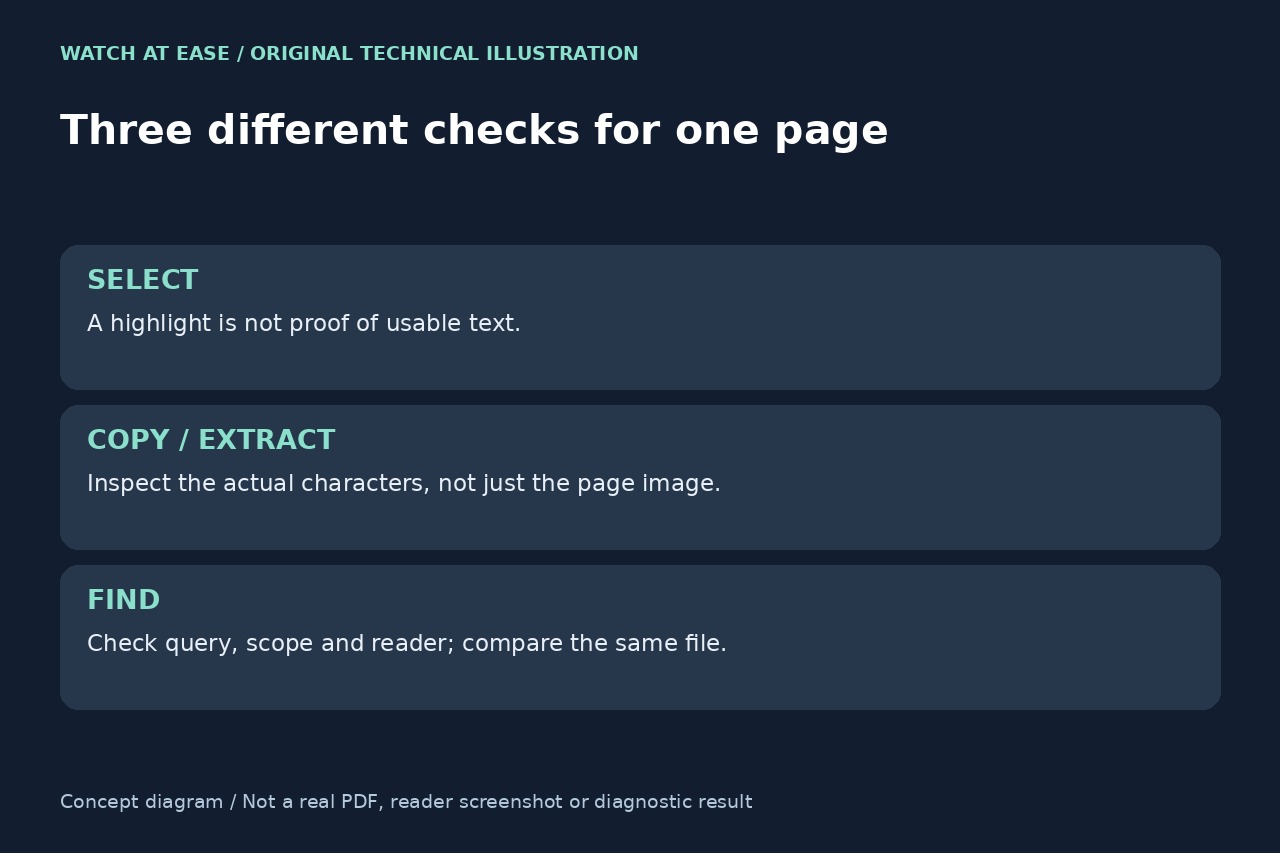
A PDF can look correct and allow selection while its search results are wrong. First establish whether copying or extraction yields the characters you see, and whether the same file fails in more than one reader. Running OCR or printing a replacement before that comparison can hide the original cause.
Record a small, reproducible search case
Keep the original PDF and work on a separate copy. Record the viewer/version, physical page number, visible short word and search options. In Acrobat’s current-document Find toolbar, check whether Whole words or Case sensitive is filtering the match; searching a cloud library or catalog is a different scope.
Try both typing the visible word and pasting a short selection into Find. Also paste into a private plain-text editor and inspect what the characters actually became. A highlight, correct page appearance or successful search elsewhere does not establish that this page’s text is usable.
Inspect one page without rewriting the PDF
If Poppler tools are available, pdffonts -f 1 -l 1 "document.pdf" lists fonts on the first page; replace both page numbers with the affected physical page. Its uni column says whether an explicit ToUnicode map exists. The manual warns that no does not necessarily mean conversion is impossible; yes likewise establishes presence, not accurate mappings.
Use pdftotext -f 1 -l 1 "document.pdf" - to send that page’s extracted text to the local terminal without rewriting the PDF. Keep private content local. Inspect output and error status: a permission or file-opening error is not an empty-text diagnosis. Default extraction and optional -layout can order text differently, so a broken phrase alone does not identify a broken character map.
Choose the branch supported by the comparison
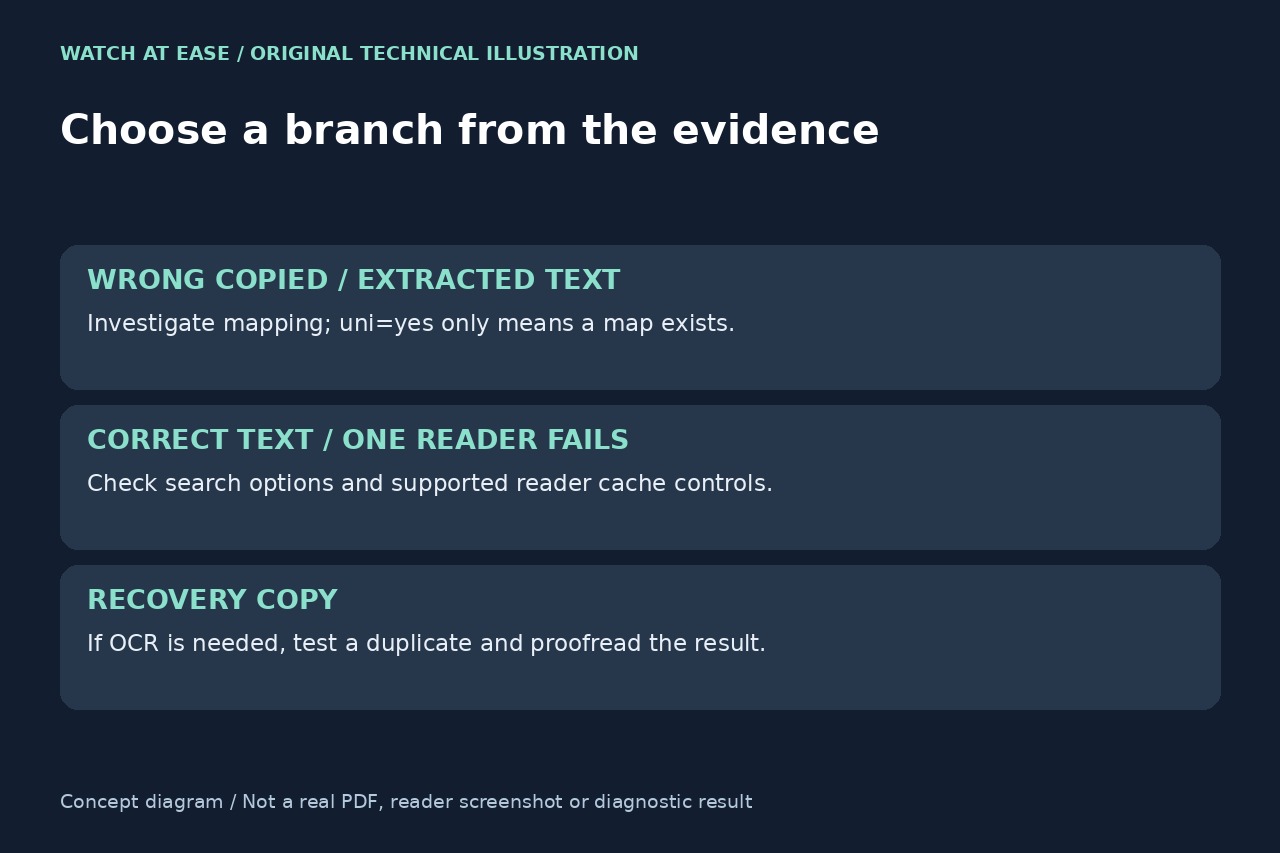
If selected text becomes wrong characters in both copying and extraction, a text-mapping problem is plausible. If the exact word extracts correctly but only one reader misses it, investigate that reader’s search settings or cache before remaking the document. Neither comparison identifies a unique cause by itself.
Adobe documents a Fast Find search-information cache and a Purge Cache Contents control in Search preferences. Use such a supported cache action only for the reader-specific branch and retest the same file and query. Do not edit PDF IDs or internal CMaps based on a historical forum fix; give the producer or support team the reproducible case instead.
Use OCR as a scoped recovery, then check the result
For image-only pages, or pages whose damaged text cannot be recovered from an available source, OCR may provide a working searchable copy. Adobe’s Scan & OCR instructions let you choose page range and language, then create a searchable layer. Test an affected sample on a duplicate first rather than rasterizing the entire original by default.
After any re-export or OCR, compare known words, numbers and names with the visible page, then check other needed features such as links, forms and annotations. Keep the source and original PDF. A search hit is not proof of complete or accurate recognition, and this guide has not diagnosed the reader’s file or tested every Acrobat version.