Tech · PRACTICAL GUIDE
Turn a Clockify CSV into a monthly timesheet PDF without swapping dates
Use Clockify’s existing monthly layout, import day and month in the right order, and carry your selected hours and report note into a checked PDF.
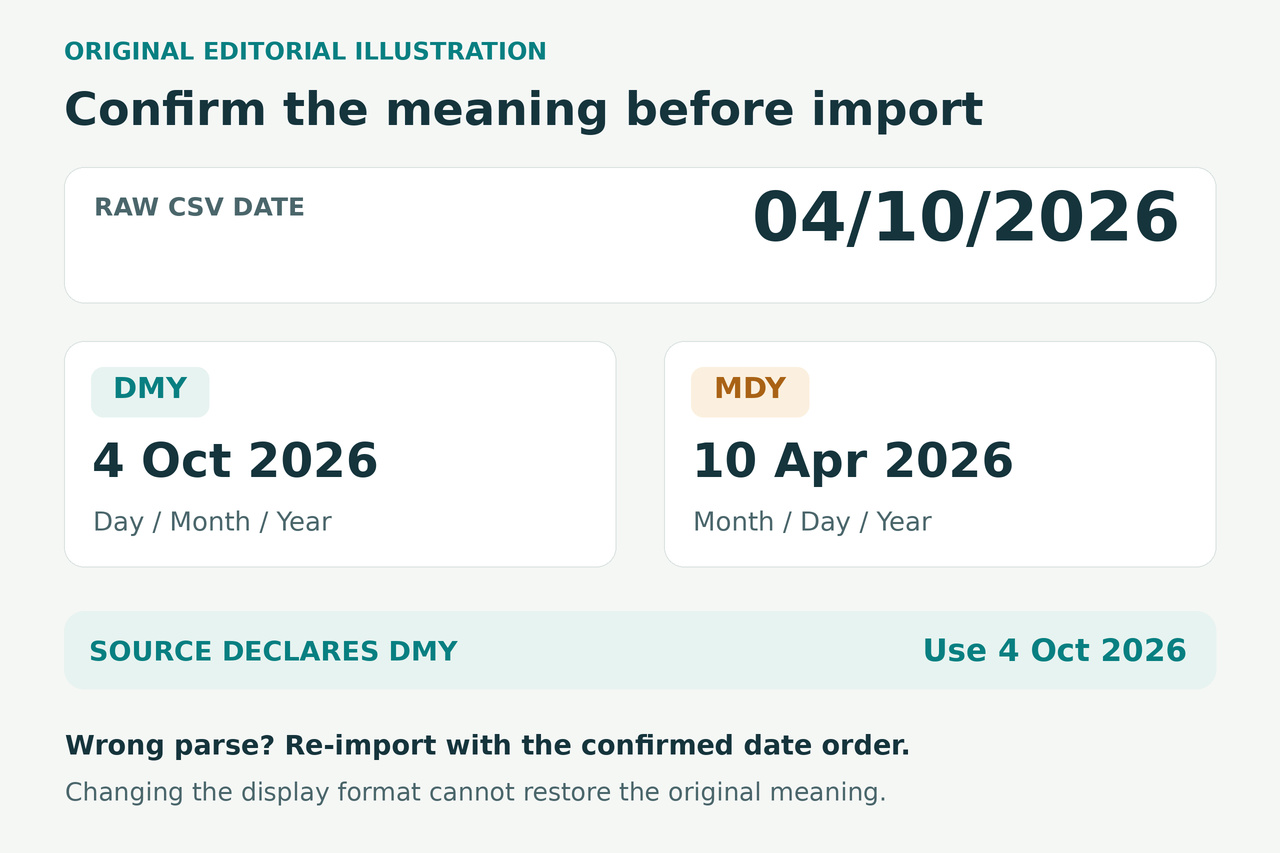
You need a customer timesheet with daily hours across a whole month, but your Clockify CSV opens in Excel with some days and months reversed. Changing how those cells look can leave the wrong dates underneath. Start again from the original export, establish what its dates mean, and control their conversion before building the monthly report.
Clockify already provides a monthly PivotTable example. The workflow below uses that arrangement and connects it to a fresh CSV import, your chosen report settings, and a printable footer. It uses desktop Excel with Power Query. CSV and Excel exports require Clockify Basic or higher, or an eligible trial; the Free plan provides PDF export. Report rounding is a separate Standard, Pro, or Enterprise feature.
1. Export the month and settings you intend to deliver
Open Clockify’s Detailed report and select the complete calendar month you need. Apply the intended user, project, task, and other available filters. If you use report rounding, select the agreed setting before exporting. Keep a reference to the date range, filters, rounding state, and displayed total so you can compare the workbook against the same report later.
Export the Detailed report as CSV and keep that original file unchanged. Save the exact report note separately: its wording will need to be entered again in Excel. Do not assume the CSV’s Description field contains the PDF note; descriptions belong to individual entries, while the Notes option supplies report footer text.
2. Establish what the original dates mean
Inspect Start Date in the original CSV with a text editor and compare a row with the corresponding known entry in Clockify. For slash-separated dates, 13/04/2026 establishes day/month/year, while 04/13/2026 establishes month/day/year. The computer’s region alone is not evidence of the export’s meaning. Check End Date too if it is present.
Also identify an ambiguous value, such as 04/05/2026, and confirm its actual day and month against the source entry. If the export contains no day above 12, use known source entries to establish the order; do not guess from the numbers. If the two checks disagree, resolve that discrepancy before importing.
Work from the original text, not cells Excel has already interpreted. A date converted to April 5 will remain April 5 when its display changes to day/month/year. If you saved over the CSV after an incorrect conversion, obtain a fresh export rather than trying to reverse the mistake by formatting cells.
3. Import the text before applying date types
In a new Excel workbook, choose Data, From Text/CSV, and the untouched export. In the preview, choose Transform Data so you can inspect conversion steps before loading the worksheet. Confirm that the delimiter has produced separate columns with the expected headers, including Start Date and Duration (decimal).
In Power Query’s Applied Steps pane, look for an automatically added Changed Type step. For this fresh import, delete that step before applying your own date conversion: right-click it and choose Delete, or use the X beside it. Selecting an earlier preview alone does not remove the later conversion. If Query Settings is hidden, show it from View.
Select Start Date, choose Change Type, then Using Locale. Set the data type to Date and select a locale matching the date order you verified. English (United Kingdom) suits verified day/month/year slash dates; English (United States) suits month/day/year. Apply the appropriate conversion to End Date as well. Do not merely change the type back to Text after an incorrect date conversion; return to the step before that conversion.
4. Check dates and retain the exported hours
Check the converted dates against both source examples: the unambiguous row, when available, and the ambiguous row. After loading the data into the worksheet, repeat this check using a month name or year-month-day display so the month is unmistakable. A successful conversion without error messages is not enough: a swapped date can still be a valid date.
Set Duration (decimal) to a numeric decimal type. If the text uses a decimal separator that differs from your Excel locale, use a matching numeric locale for that column too. These values represent hours, not clock times or Excel date fractions. Do not convert this column to a time-of-day type.
Keep those exported duration values unchanged. Clockify applies selected report rounding to its exports; subtracting Start Time from End Time would calculate a different measure. Resolve any conversion errors before loading. Choose Home, Close & Load to put the result into a worksheet table, then save the working workbook as an Excel Workbook, with an .xlsx extension.
5. Build the existing monthly layout on the new table
Click inside the newly imported table and choose Insert, PivotTable. Confirm that the source is the complete table, including every imported row. Build from this table rather than pasting new rows over the public example and assuming its fixed sample range will expand. Clockify’s example supplies the arrangement; your verified import supplies the data.
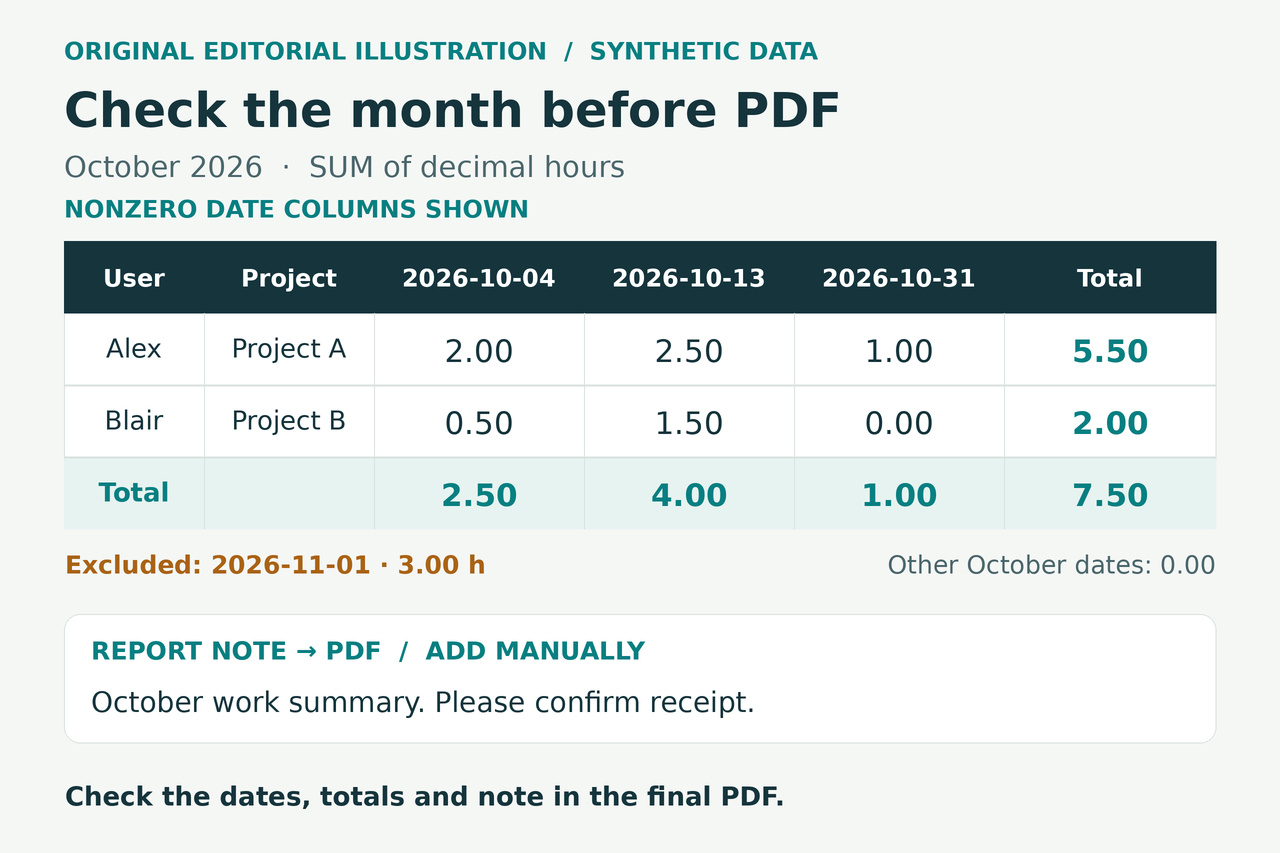
In Rows, place User first and Project second. In Columns, place Start Date. In Values, place Duration (decimal), then check its Value Field Settings: the calculation must be Sum. If Excel offers Count, inspect the source column for text or conversion errors and correct its numeric type before relying on the result.
If Excel groups dates into years, quarters, or months, right-click a grouped date and choose Ungroup to return to daily columns. Sort the dates chronologically and display them clearly. The resulting columns represent dates present in the data; an absent date is not automatically a verified zero-hour day. Save the workbook again.
6. Reconcile totals and inspect month boundaries
Compare the PivotTable grand total with a SUM of the imported Duration (decimal) column, using the stored numeric values. Spot-check a day containing several entries and a user or project subtotal. Then compare the workbook with your saved Clockify report reference. If totals differ, check filters, source rows, numeric types, and export precision before changing any hours.
This layout places each entry’s exported hours under its Start Date. Inspect entries crossing midnight and any start dates outside the intended month before hiding columns or removing rows. It does not divide an overnight entry between days. If your customer requires that allocation, resolve the affected entries and daily reporting rule in the source workflow, then make a new export; do not silently prorate already-rounded hours in this table.
7. Restore the note and make every page readable
Use Insert, Header & Footer in Excel and enter the saved Clockify note in the desired footer section. Add the month and useful filter context where needed so the customer can identify the report. In Excel footers, type two ampersands, &&, to print one literal ampersand. Check that the complete note appears in Print Preview.
Select the whole PivotTable and set it as the print area under Page Layout. Choose an orientation and page size that accommodate the date columns. Check margins and scaling; forcing the entire month onto one page can make it unreadable. If the report spans pages, use print titles to repeat the relevant date headings and identifying row labels.
Inspect every page in File, Print, including the last one. Look for clipped dates, missing projects, detached totals, footer overlap, and unexplained blank pages. Adjust the print area or pagination until the report is readable. Save the .xlsx workbook so the imported table, PivotTable, and print settings remain available for later checking.
8. Save the PDF and reopen the deliverable
Choose Save As and PDF as the file type, with the intended report sheet selected for output. Give the file a recognizable customer-and-month name. Keep the workbook as well: a CSV cannot retain the PivotTable, footer, or page layout, and the PDF is the finished report rather than the editable calculation file.
Open the saved PDF itself. Confirm the month and daily headings, the checked totals, the full note, and the readability of every page. Compare at least the ambiguous-date example with the original entry one last time. Deliver this reopened, checked file; a correct worksheet preview alone does not establish that the final PDF contains all the intended pages.