Technology · PRACTICAL GUIDE
OBS microphone missing after remux? Compare the original MKV and MP4 first
Keep both files, inventory every audio stream and listen before changing recording settings or blaming the remux.
A microphone that seems to disappear after an OBS recording is remuxed may still be present on another audio stream. A player usually plays one stream at a time. Keep the original MKV and the remuxed MP4 until you have compared both.
This guide checks a recording that has finished writing. It separates three questions: what streams each file contains, what those streams actually sound like, and what the destination editor imports. Changing OBS routing now cannot add sound that was never captured.
1. Preserve the two files and identify the comparison
Keep the stopped original and output under different filenames. Record the OBS version, original container, audio codec, remux tool and editor version. Do not overwrite the original during a retry. If recording is still active or you cannot identify the matching output, resolve that first.
Do not follow an old forum reply claiming MP4 is limited to one stereo audio track. Our controlled MP4 retained two separate AAC streams. Current OBS documentation also distinguishes regular MP4 from fragmented and Hybrid MP4/MOV; old blanket format advice does not describe every current output.
2. Inventory all audio streams, then listen
With a trusted FFmpeg installation, run ffprobe -version first. Run this read-only inventory command on your stopped-file copy; replace the quoted filename with its actual path: ffprobe -v error -select_streams a -show_entries stream=index,codec_name,channels,channel_layout:stream_tags=title,language -of json "recording.mkv"
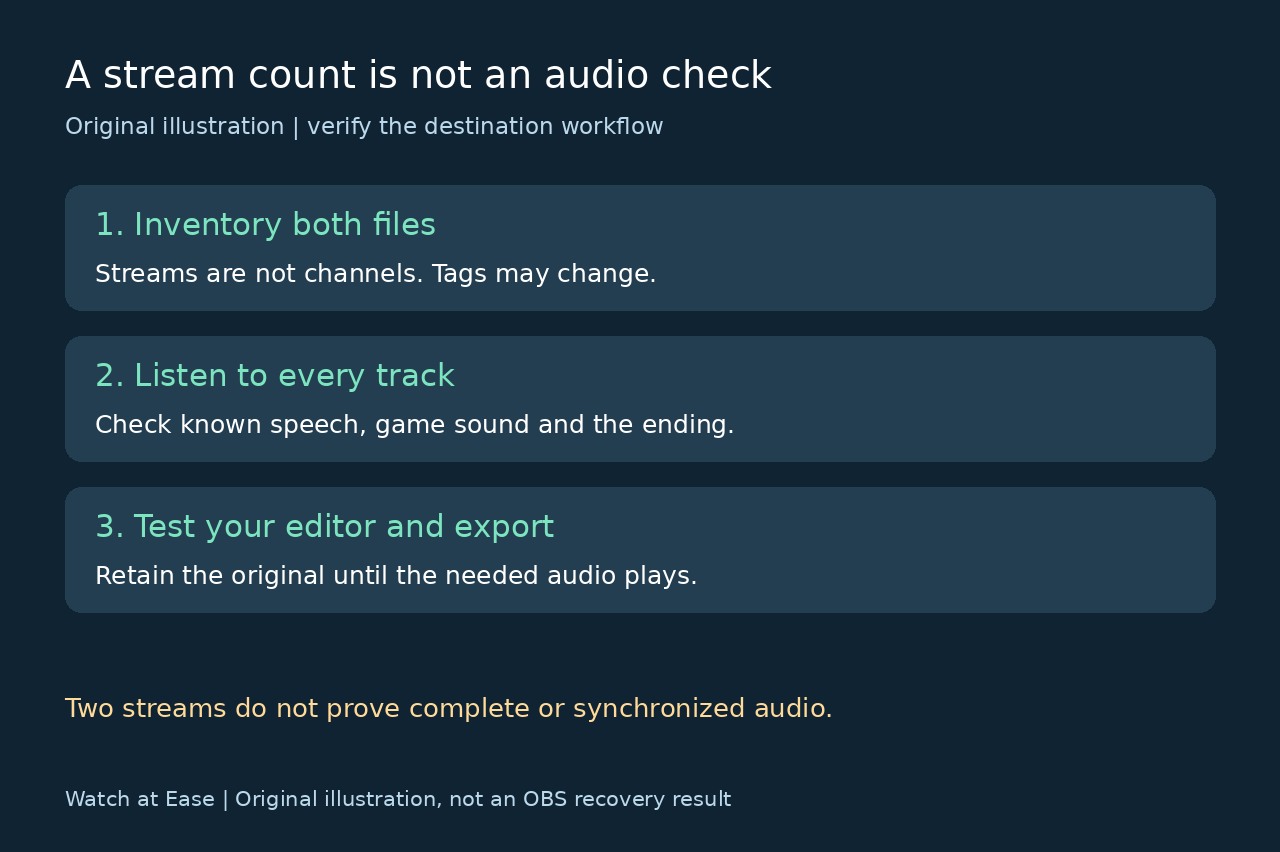
Run it again with the matching MP4 filename. Count objects in the streams list, not the channels value: two channels describe one stereo stream. The index is a container stream index, not necessarily the OBS track number. Tags may be absent or change, so a title is a clue rather than proof of identical audio.
In VLC or another player that exposes audio-track selection, select each available track in each file and listen. Check a known spoken moment, game sound and the ending. A stream entry alone cannot prove the microphone is audible or complete. If probing fails, retain the error; unreadable input or an unsupported setup is not a successful inventory.
3. Use the result to choose the next step
If the microphone plays in both files, troubleshoot the player selection or editor import mapping rather than declaring the recording lost. Test the actual editor and a short export. Some editors expose only the first stream by default; the 2026 forum follow-up found streams in the file that were not added to its timeline.
If the original contains playable microphone audio but the MP4 does not, keep the original as the recovery source. Check the remux log and exact codec/container compatibility. Use the original directly only if your editor supports it, or make a fresh conversion to a new filename and repeat the same inventory and listening comparison. Do not assume a conversion succeeded because it produced a file.
If neither file contains the expected microphone audio on any accessible stream, new routing settings are a future-recording fix, not recovery of this session. Preserve both files and ask OBS support with the inventories, versions, assignments and exact errors. Do not claim absent audio can be reconstructed by remuxing.
4. What our small test proves—and what it does not
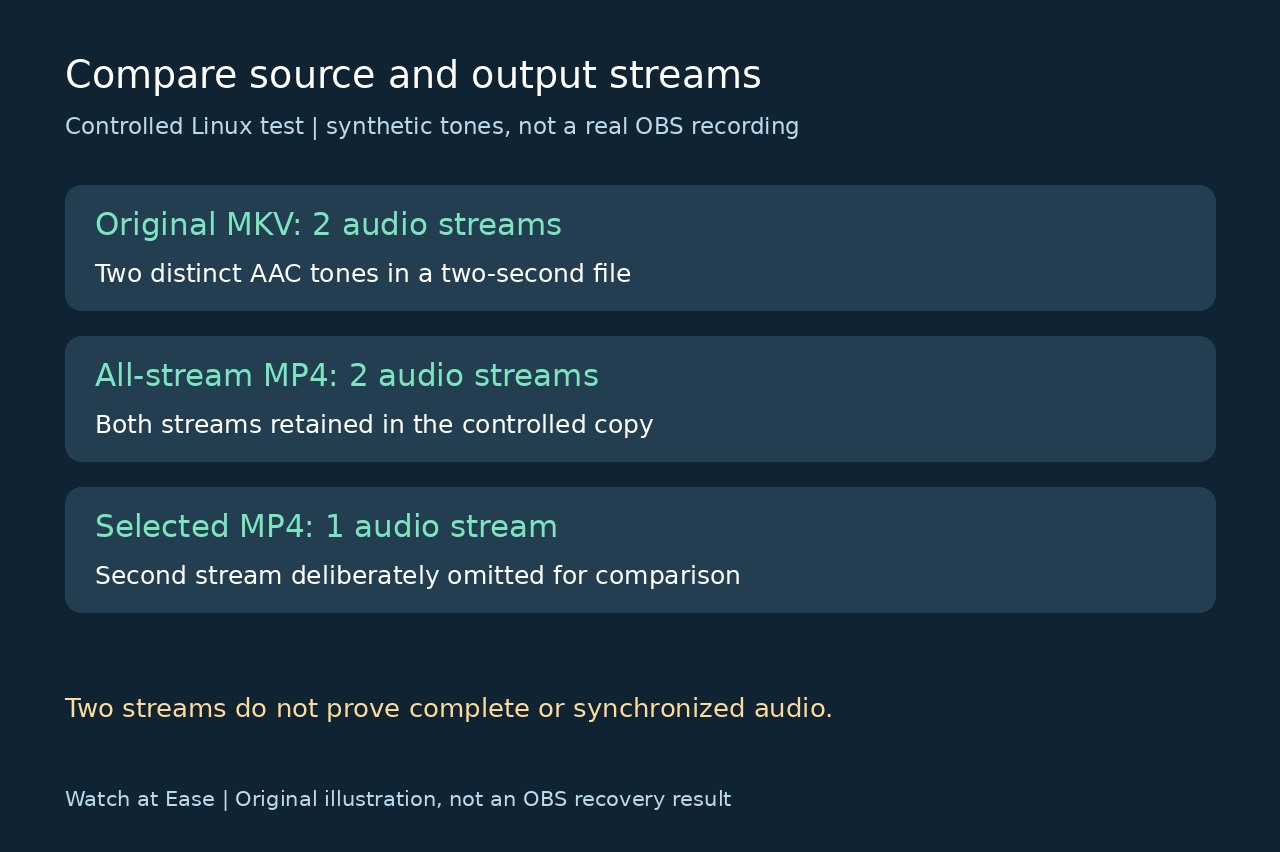
On Linux with FFmpeg/ffprobe 6.1.1, we created a two-second H.264/AAC MKV with two distinct synthetic tone streams. A controlled all-stream copy to MP4 retained two streams; a deliberately selected single-stream output contained one. The published inventory command distinguished these three files, and their input hashes stayed unchanged.
These are command and container checks, not an OBS bug reproduction, a Windows/macOS test or a test of your editor. We did not record a real microphone. Equal stream counts do not prove equal content, sync or complete speech. Accept the usable copy only after its intended audio plays in the destination workflow; retain the original until then.