Technology · PRACTICAL GUIDE
Firefox profile missing from about:profiles? Match the current folder first
The toolbar menu and classic manager can list different profiles. Identify the open window, preserve its data and verify your copy before changing anything.
A Firefox profile missing from about:profiles is not, by itself, proof that its data was deleted. Current Firefox has two layered profile services: the classic toolkit list and newer selectable profiles within a group. On Windows 11, start with the window whose data you recognize, then match its actual folder to the appropriate interface.
1. Identify the window before trusting a name
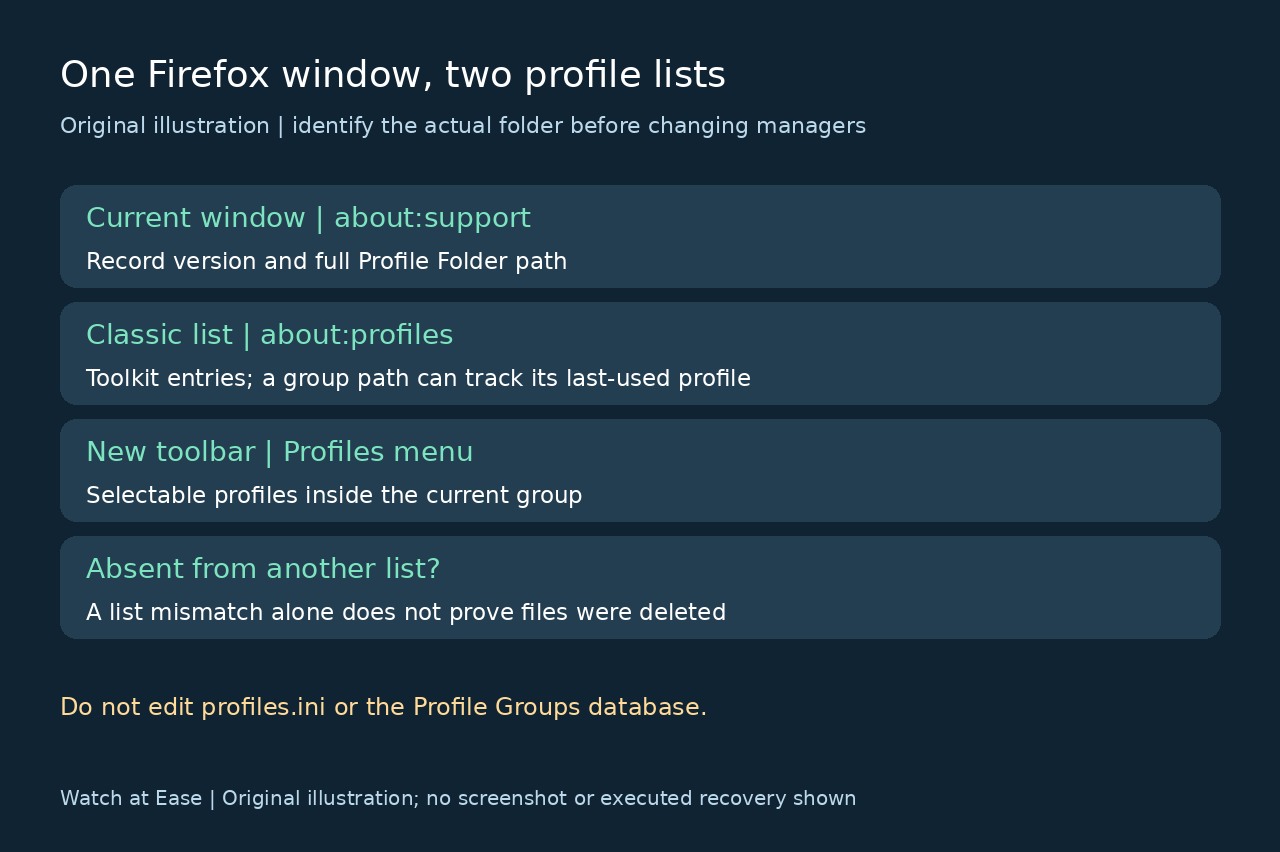
In that window, enter about:support. Under Application Basics, record the Firefox version and use Profile Folder → Open Folder. Save the full folder path privately. A familiar profile name or a default badge is not enough to establish which files this window uses.
Next compare both interfaces. about:profiles manages toolkit entries; the toolbar Profiles menu manages selectable profiles within the current group. The group’s toolkit path can follow its most recently used profile. This explains why the two lists need not match; it is not a reason to delete either list or manually edit profiles.ini or the Profile Groups database.
2. Preserve the root folder with Firefox closed
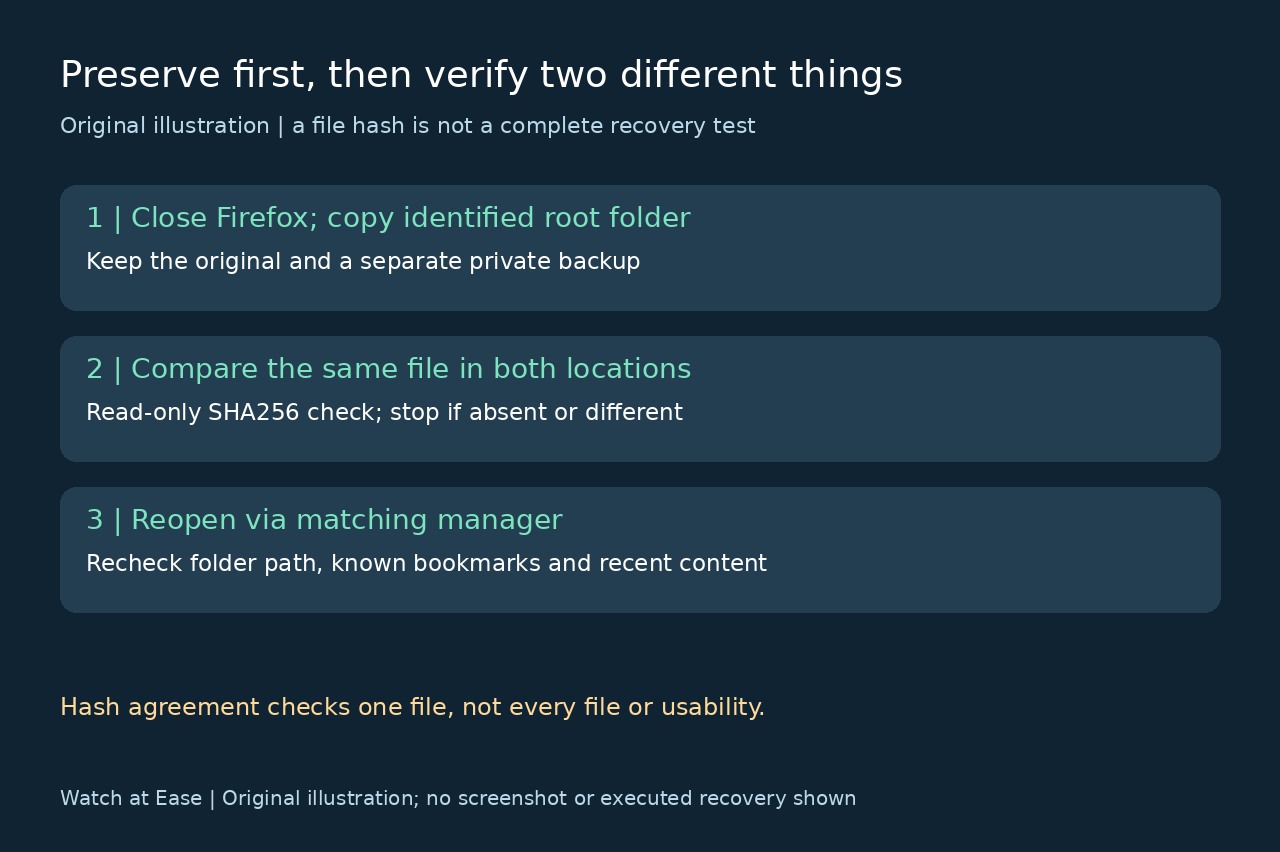
Keep the folder window open, then quit every Firefox window before copying the entire identified profile folder to a separate private backup location. Mozilla specifically requires closing Firefox for a manual folder backup. If Windows reports files in use, confirm that Firefox has exited before retrying; do not skip locked files and call the copy complete.
Use the identified persistent profile folder, not a similarly named Local Directory cache. Store builds and custom installations can use other paths, so the actual about:support path takes priority over a guessed AppData location. Keep this backup separate from any destination you later modify.
3. Check copied bytes without modifying them
Optional PowerShell checks can compare a specific file in the closed original and backup. Replace both example paths with your actual paths, including the filename: Get-FileHash -LiteralPath 'C:\OriginalProfile\places.sqlite' -Algorithm SHA256; then Get-FileHash -LiteralPath 'D:\PrivateBackup\places.sqlite' -Algorithm SHA256. Compare the Hash values for the same relative file. These commands read the files; they do not repair Firefox.
Equal SHA256 values support byte agreement for that checked file. They do not prove that you copied every profile file, selected the right profile, or recovered usable bookmarks. If a file is missing or differs, stop and reconcile the paths and copy first. This guide documents the commands; it does not claim a Windows execution or recovery test on personal data.
4. Open through the matching manager and verify
If the recognized profile is in the toolbar Profiles menu, open it there. If it is a classic entry, use about:profiles → Launch profile in new browser. In the opened window, repeat about:support and compare the full path, then verify several known bookmarks and a recent expected item. Set a classic profile as default only after that content check; setting a default does not copy or merge data.
If neither list exposes the expected profile, retain the backup and use Mozilla’s linked missing-data recovery instructions. A surviving folder may need re-association, but no list repair can recreate erased files. Newer Firefox documents profile copying from Settings beginning with version 147; use available supported controls only after identifying and preserving the source. Do not follow old forum SQL-insertion or delete-and-recreate recipes.