Technology · PRACTICAL GUIDE
Docker files disappeared after a mount? Prove which filesystem is hiding them
Render the Compose model, inspect the live mount graph, and compare an unmounted image baseline before rebuilding, copying, or deleting data.
A directory that looks empty after Docker starts rarely proves the image lost its files. The visible tree may be a bind source, a named volume, or a nested mount layered over the image path; Compose may also have resolved a relative source somewhere other than expected.
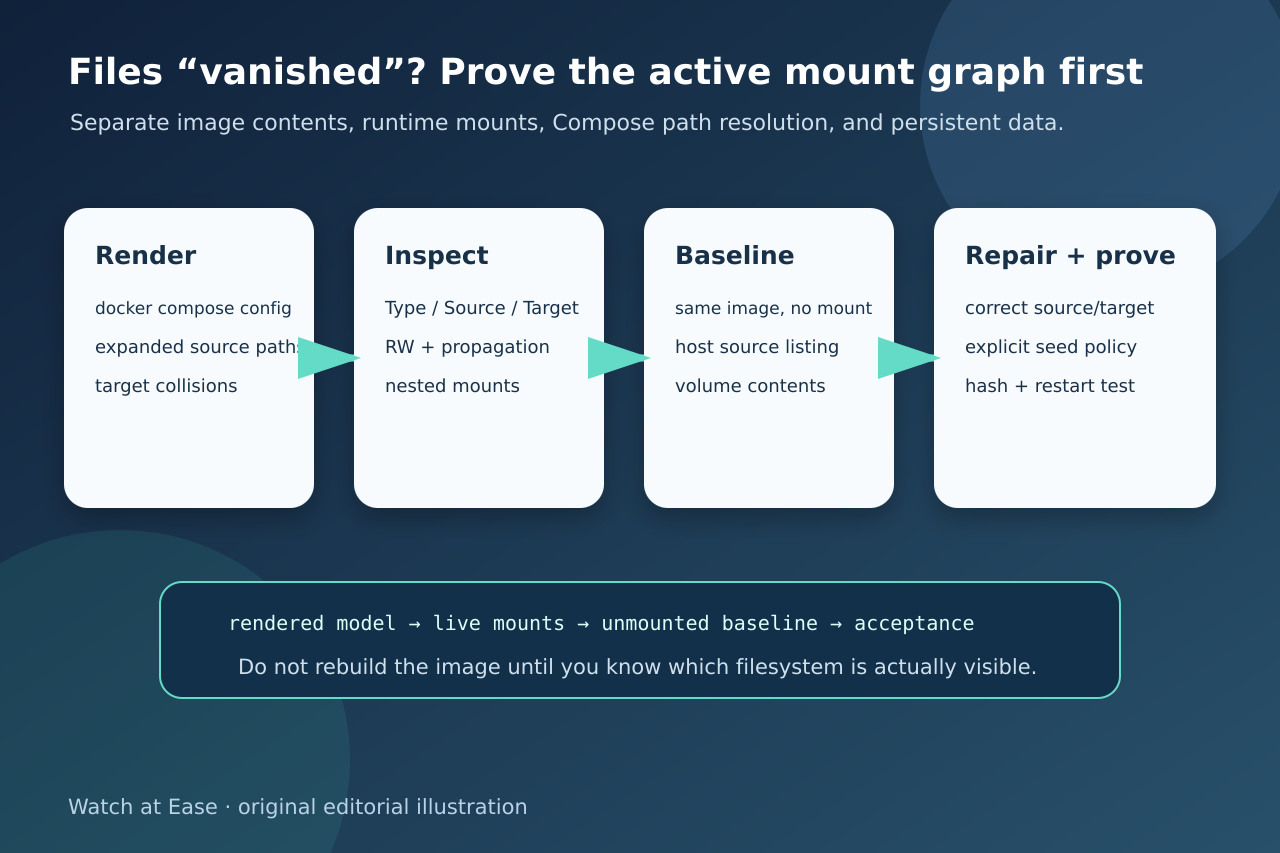
Preserve the data, render the applied model, inspect the live mount graph and compare the exact image without the suspect mount. Only then choose a cause-specific repair and verify it across recreation.
1. Freeze the model and data evidence
Before copying, deleting or rebuilding anything, save the Compose files, environment inputs, working directory, Docker context and exact image digest. List the suspected host directory or named volume read-only and record ownership, mode and representative hashes; do not turn a diagnostic into a migration.
Run docker compose config and save the rendered service volumes. Record every resolved source and target plus parent-child target relationships. The rendered model, not an assumed working directory or a short-syntax line viewed in isolation, is the configuration Docker Compose will apply.
2. Read the live mount graph
Use docker inspect on the running container and read each Mounts entry: Type, Source, Destination, RW and propagation. This distinguishes a bind source on the daemon host from a Docker-managed volume and exposes nested targets that can hide only part of a larger tree.
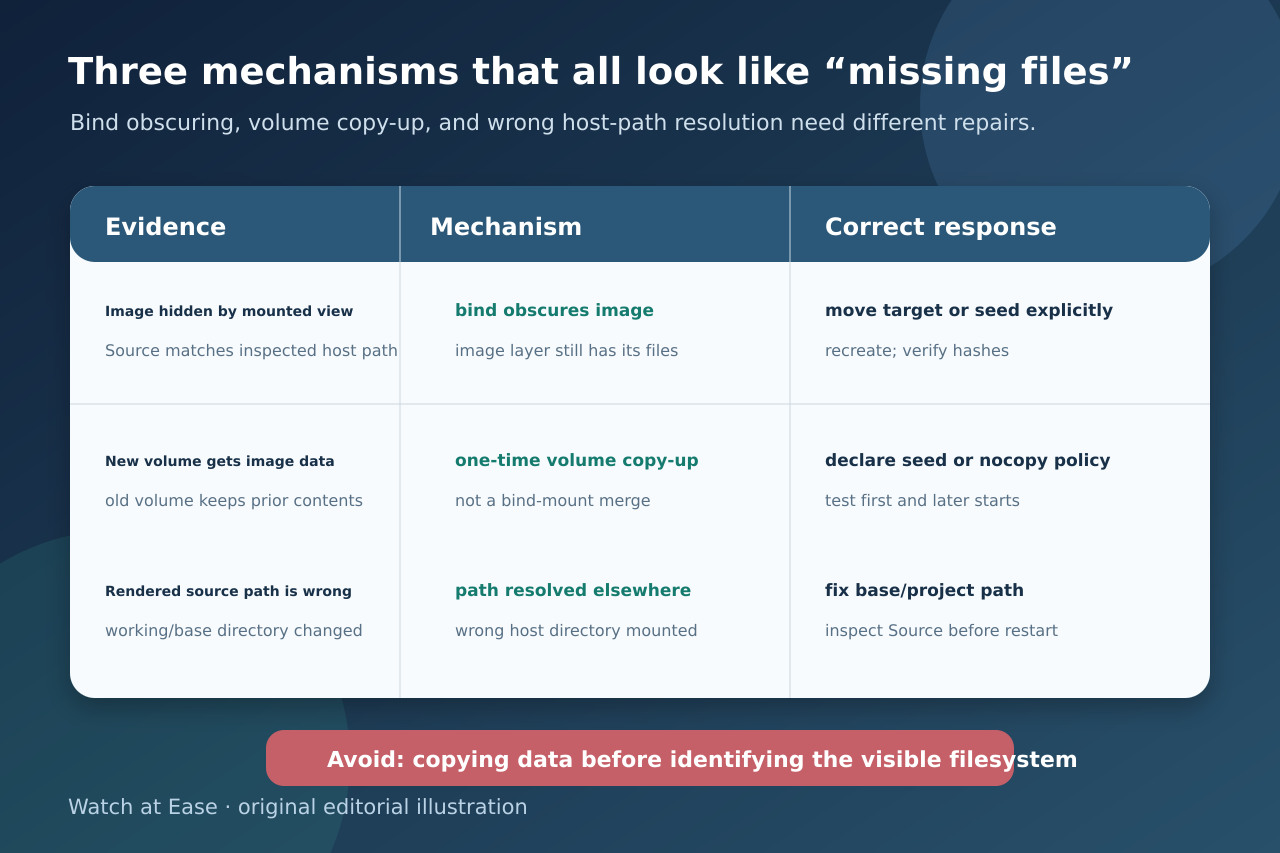
A bind mount points to the Docker daemon host, not necessarily the shell client. Also note the syntax difference: -v can create a missing host path as a directory, while --mount normally reports a missing bind source. An unexpectedly empty auto-created directory is evidence, not proof that the image lost files.
3. Compare the same image without the suspect mount
Create a disposable container from the exact image digest without the suspect mount and inspect the target path. If the expected files reappear, the image layer is intact and the live mount is obscuring it. Keep this baseline separate from the production container and do not write into production storage.
Then inspect the actual bind source or named volume. Compare filenames, hashes, ownership and mode with the no-mount baseline. Apply the same check to nested destinations because a child mount can hide a subdirectory even when the parent mount looks correct.
4. Classify the mechanism before repair
A bind mount overlays the destination; it does not merge or copy image files into the host directory. A new empty named volume normally receives the existing destination contents once, while a reused or non-empty volume obscures the image tree and retains its own lifecycle. volume-nocopy disables that initial propagation when that is the intended policy.
If docker compose config or docker inspect shows an unexpected Source, fix the base or project path rather than reseeding data. With multiple Compose files, relative paths are resolved from the documented base model; a remote daemon or desktop VM also changes which host filesystem the bind source names.
5. Repair deliberately and prove persistence
Prefer mounting persistent data at a dedicated data path outside the application install tree. If initialization is required, make it an explicit, idempotent, versioned migration with a backup and a conflict rule; never blindly copy an image directory over a database or an existing user volume.
Recreate the container with the corrected source and target. Acceptance requires the first start and a second restart or recreation, expected read-write behavior, stable representative hashes and ownership, persistence in the intended store, no writes in the wrong host path, and the unchanged no-mount image baseline.