Technology · PRACTICAL GUIDE
systemd says “start request repeated too quickly”? Find the first failure before resetting
The final start-limit message is usually the guardrail, not the defect. Preserve the effective unit and earliest failed attempt, then repair the evidence-backed branch before clearing counters or changing retry limits.

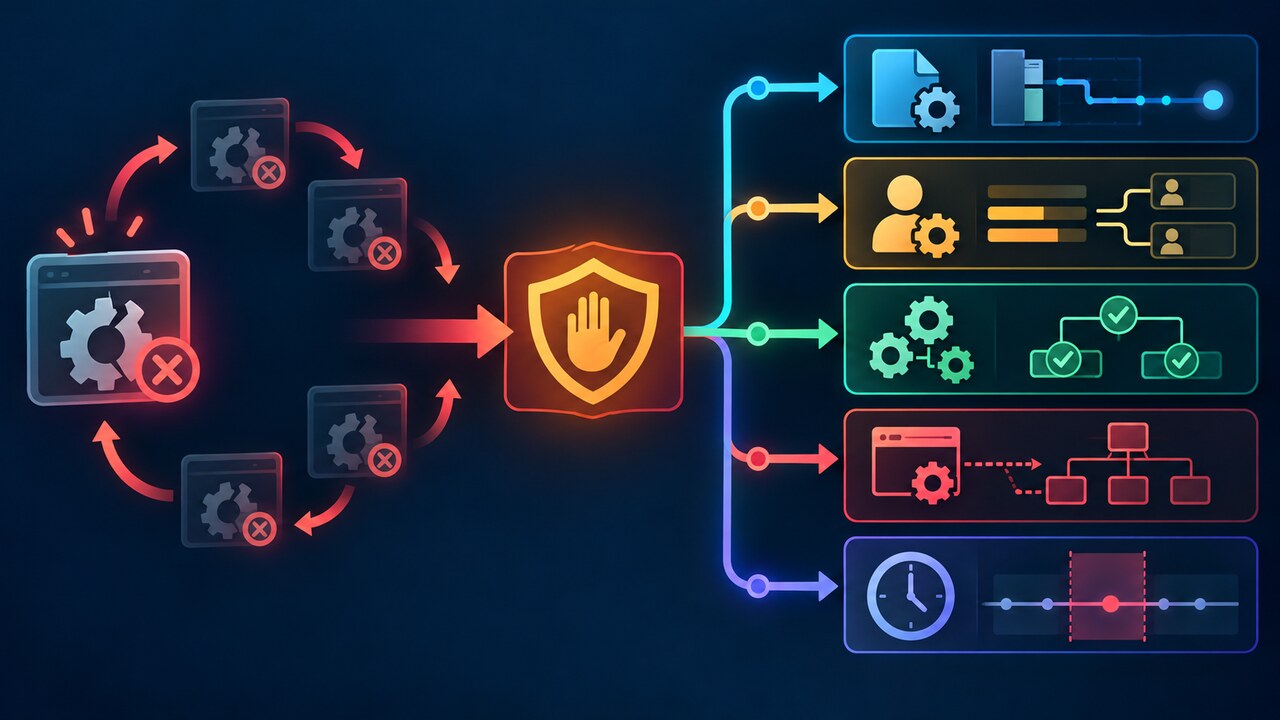
The message “start request repeated too quickly” means systemd has refused another start because the unit crossed its configured start-rate limit. The limiter is a guardrail after repeated attempts; it usually does not identify the defect that made the process fail first.
Preserve the effective unit and the earliest failing journal entry before you reset counters, widen limits or keep starting the service. The safest workflow separates the rate-limit state from the process, identity, path, dependency and unit-model evidence that caused the first unsuccessful start.
1. Read the refusal as a guardrail, not the root cause
systemd applies start-rate limiting to unit activations. Once starts exceed StartLimitBurst inside StartLimitIntervalSec, another activation is refused and the unit can show Result=start-limit-hit. Automatic restarts remain subject to the same boundary, so Restart=always cannot make a deterministic failure safe.
Do not begin by raising StartLimitBurst or setting StartLimitIntervalSec=0. That can turn a bounded failure into a tight crash loop. Also do not assume reset-failed repairs anything: it clears the failed state and rate counter so that a controlled retry is possible after the underlying problem has been corrected.
2. Freeze an evidence ledger before another start
Record whether the unit belongs to the system manager or a user manager, then save systemctl status UNIT, systemctl cat UNIT and systemctl show UNIT with FragmentPath, DropInPaths, User, Group, Type, ExecStart, WorkingDirectory, EnvironmentFiles, Restart, RestartUSec, StartLimitIntervalUSec, StartLimitBurst, NRestarts and Result. For a user unit, run the equivalent commands with --user in the affected login context.
Capture the journal around the first failed attempt, not only the newest refusal. Use journalctl -u UNIT with a narrow time window or the appropriate user journal, and retain monotonic timestamps when timing is disputed. Keep a copy before daemon-reload, package repair or editing drop-ins changes the evidence.
3. Find the first failure behind the restart loop
Read backward past messages such as “Scheduled restart job” and “Start request repeated too quickly.” Stop at the earliest concrete failure: an exit status, signal, executable error, missing path, permission denial, unknown user, dependency failure, readiness timeout or watchdog event. That line determines the next branch.
If the process exits immediately, compare the actual ExecStart command with the program’s intended foreground mode. Run only a safe diagnostic invocation as the configured service user and with the same working directory and required environment; a command succeeding in an administrator’s interactive shell does not prove it can run in the service context.
4. Branch on executable, identity, path and dependency evidence
For executable failures, verify the absolute path, execute bit, interpreter or loader, file ownership and mount policy. For identity failures, restore the intended user or group and its required directory access instead of switching the service to root. For missing configuration or environment files, confirm the effective paths from systemctl show and the unit’s WorkingDirectory.
For dependency failures, inspect the named prerequisite and ordering relationship rather than repeatedly starting the dependent unit. A healthy network target does not guarantee that a remote endpoint, mounted filesystem, socket or credential is ready. Preserve the dependency’s own journal and status so one failure is not misdiagnosed as a rate-limit problem in two units.
5. Check unit type, readiness and the time window
Match Type= to the process model. A program that stays in the foreground normally fits Type=simple or Type=exec; a program that forks must be paired with the correct model and, when needed, a reliable PIDFile. Type=notify requires a readiness notification. A mismatch can make systemd believe startup failed even when a child process briefly survives.
If the observed wall-clock starts appear fewer than the configured burst, inspect the effective properties and all drop-ins first. Then compare journal timestamps that include monotonic time. An upstream systemd case shows that suspend can make a monotonic start-limit window appear longer than wall-clock reasoning suggests; treat that as a narrow timing branch, not a universal explanation.
6. Repair once, reset once, and verify the original path
Make the smallest correction supported by the first failure. Run daemon-reload only when unit files or drop-ins changed. Then use systemctl reset-failed UNIT once, make one controlled start and watch status plus the new journal. Confirm that NRestarts is not climbing and that the service reaches its real readiness condition, not merely an active label for a few seconds.
Only after the service is stable should you tune RestartSec, StartLimitIntervalSec or StartLimitBurst for measured transient failures. Keep a bounded limit, document the reason, and consider OnFailure for evidence collection or alerting. If the controlled retry fails, preserve the new first error and continue from that branch instead of resetting repeatedly.