Apps & Software · PRACTICAL GUIDE
Zotero attachments missing after a move? Audit paths before relinking
Build a read-only attachment-path audit, separate linked files from stored copies, and test a small verified repair before changing Zotero paths in bulk.
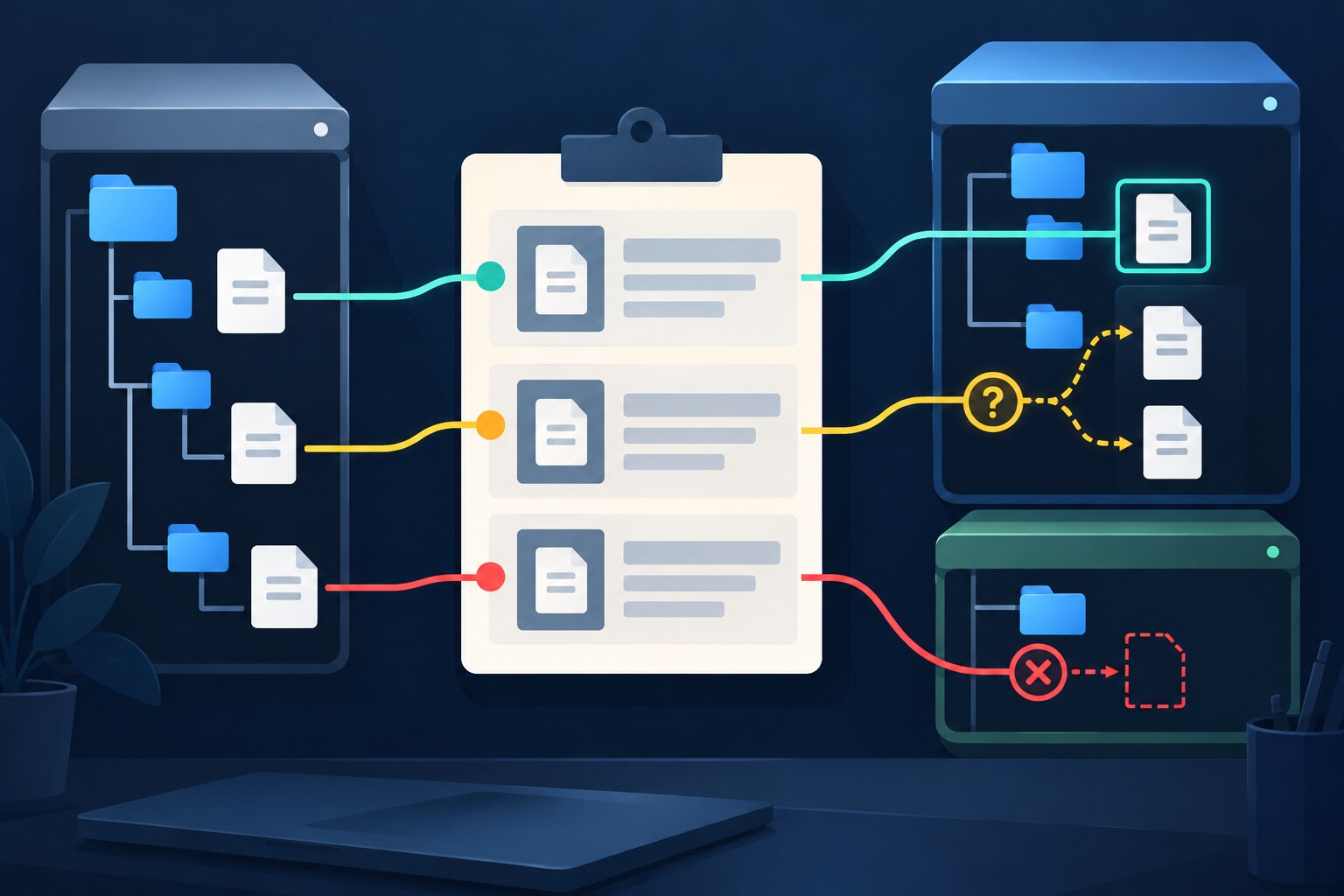
When Zotero loses attachments after a computer, folder, or drive move, the first job is preserving enough evidence to distinguish stored attachments, linked files, sync failures, and missing bytes.
This guide builds a read-only worksheet before any change. It keeps the old prefix, tests candidate roots with the original relative suffix, flags duplicate-name ambiguity, and assigns a bounded next action.
The workflow cannot recover deleted files. It is designed to prevent a second mistake: rewriting good records to the wrong files.
Preserve path evidence before making changes
A missing-file dialog proves that Zotero cannot resolve the current attachment record; it does not prove that the PDF is gone. Before changing the Linked Attachment Base Directory, accepting automatic relinking, or running a batch replacement, capture the paths you can still see and classify each attachment.
Do not edit zotero.sqlite or move another copy of the PDF tree during the audit. A premature change can erase the old prefix that explains what moved.
Separate stored attachments from linked files
Stored attachments live under the Zotero data directory and can use Zotero file syncing. Linked attachments point elsewhere on the computer and are not included in Zotero file syncing. The correct repair branch depends on this distinction.
Open several affected parent items and record stored, linked, or unknown. If another computer still opens a linked file, preserve that computer as the known-good reference before experimenting.
Build a read-only audit sheet
Use one row per attachment. Suggested columns are citation label, attachment title, attachment class, old full path, old root prefix, relative suffix, candidate new root, candidate full path, exact file exists, duplicate filename count, known-good device, audit status, and recommended action.
For a small set, copy paths manually. For a larger selected set, Zutilo provides View attachment paths and Copy attachment paths; its documentation says the latter copies full filesystem paths for file attachments. Treat the output as inventory, not as permission to modify paths.
Test candidate roots, not filenames
After identifying a repeated old root, keep the original path unchanged and join its relative suffix to each candidate root in a separate column. Test that exact path on disk.
Do not relink by filename alone. If two candidates share a filename, mark the row ambiguous and compare document identity, size, and date manually. The audit must never guess which PDF belongs to a citation.
Assign one of five statuses
Use recoverable-common-root when one prefix mapping works and every tested suffix exists. Use recoverable-individual for a small number of verified one-to-one destinations. Use ambiguous when several files or roots fit. Use sync-diagnosis for stored attachments whose device or web-library copies differ. Use missing-bytes when no verified copy exists.
Unknown is a valid audit result. Leaving a record unresolved is safer than silently linking the wrong document.
Choose the smallest verified repair
When linked files share one parent folder, configure the same Linked Attachment Base Directory on each computer and test a small sample. Zotero documents relative linked paths below that base and may offer automatic relinking after it finds a moved file.
When the sheet proves one unambiguous prefix replacement, Zutilo documents Modify attachment paths. Start with a small selected batch. This changes records; it does not verify file identity or move files.
If the original computer still opens the linked files and you want Zotero file syncing to manage them, Zotero provides Convert Linked Files to Stored Files. Confirm storage capacity and test a small batch first.
Keep sync failures on a separate branch
A missing stored attachment can be a file-sync problem, not a path migration problem. Check whether the file opens in the Zotero web library and on another synced computer. Do not apply linked-path tools to stored attachments.
Record device-by-device evidence. A file present on one device needs preservation and a sync decision before cleanup. A file absent everywhere cannot be restored by a path setting.
Require an exit test before batch repair
Proceed only when you know the attachment class, exact old prefix, exact candidate root, affected-row count, ambiguous-row count, and rollback source. Test a shallow path, a deep path, a filename with spaces, a duplicate filename, and a file from the largest affected folder.
After the test, open every attachment from Zotero, not merely from the file manager. If any record opens the wrong document or remains ambiguous, stop the batch operation and return those rows to manual review.