Tech · PRACTICAL GUIDE
Export Zotero annotations to CSV with one row per annotation
Build a research sheet from existing Zotero annotations, keeping quotes, comments, tags, page labels and source metadata together without confusing publication details with annotation dates.
You have highlighted passages in Zotero and want a spreadsheet for analysis: one annotation per row, with its comment, tags and enough source information to identify the quotation. A document containing all the annotations is useful for reading, but it is a different result from a table whose records you can filter and compare.
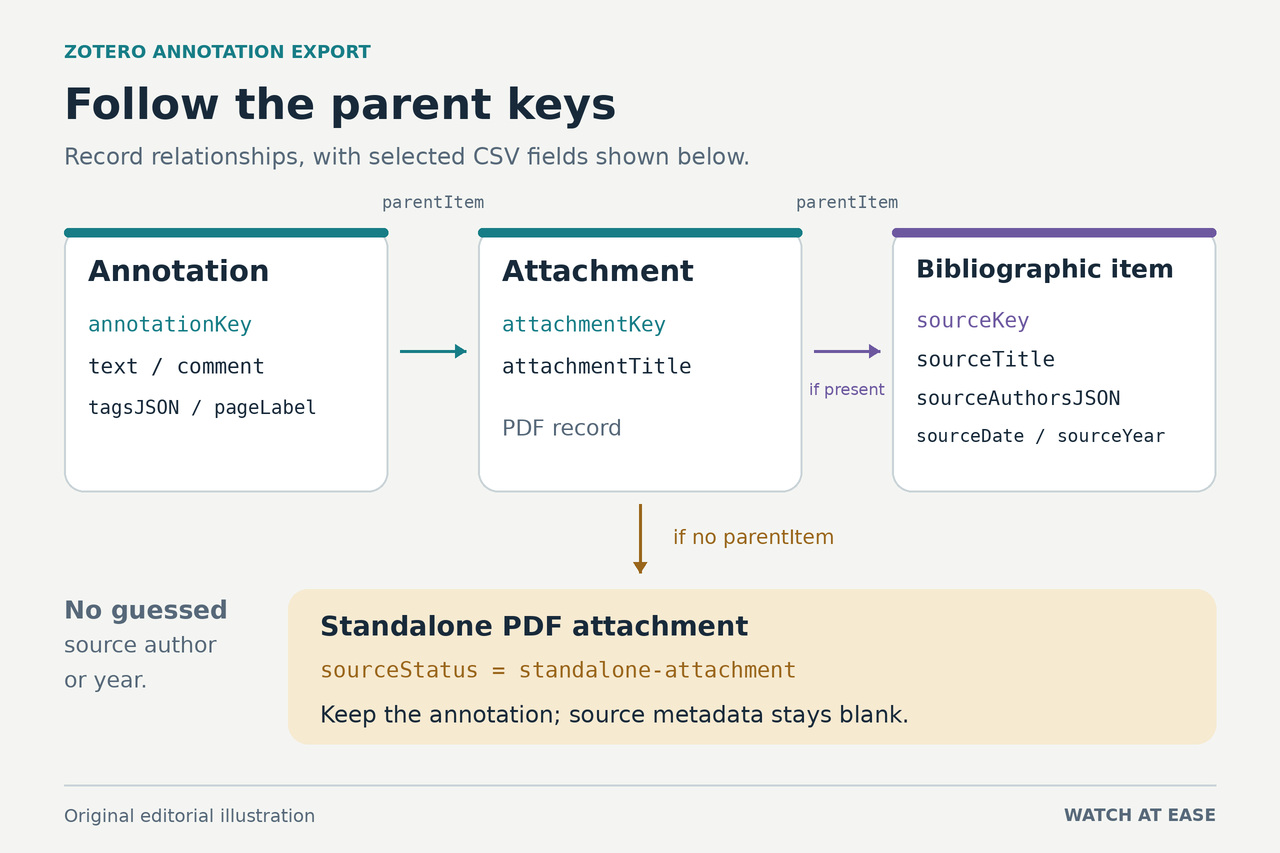
The local exporter below reads existing native annotation records from My Library and writes a new CSV. It follows each annotation to its attachment and, where present, the attachment’s bibliographic parent. Notes, Pyzotero and tools such as Highlight Collector offer related capabilities; this workflow supplies a complete, specific export and checking process. It does not convert old Extracted Annotations note HTML.
1. Confirm that this is the data you need
Start in the Zotero desktop application containing your research. This program reads native annotation items stored by Zotero, including annotations associated with PDFs, EPUBs and webpage snapshots. It does not scan attachment files for marks created in another PDF editor that have not been imported as native Zotero annotations. Nor does it split ordinary notes or legacy Extracted Annotations HTML into records.
The scope is all matching, non-trash annotations in My Library, accessed locally through users/0. Selecting a collection or several PDFs in Zotero does not narrow this export. Group-library annotations are outside this program’s scope. Use the resulting source and attachment fields to identify the material you intend to analyze, and retain an unchanged master CSV before making a filtered working copy.
Pick a few annotations to check afterward: a highlight with a comment, one with tags, and one with a page label you recognize. Include an independently stored attachment without a bibliographic parent if you have one. These examples will help distinguish a genuinely missing record from an intentionally blank field.
2. Enable local reading and keep the library still
In Zotero, open Settings, then Advanced, and enable “Allow other applications on this computer to communicate with Zotero”. Keep Zotero running. Its Local API allows read requests without an API key; this program does not need a zotero.org cloud key or authorization to change your library.
Run the program on the same computer as Zotero. It sends read-only requests to 127.0.0.1 on the usual local port, 23119. Do not forward that port, expose it externally or substitute a remote address. The exporter does not read your SQLite database directly, open PDFs, upload quotations or write changes back to Zotero.
Let any current sync finish, then keep editing and syncing paused throughout the run. You can disconnect the computer from the network to prevent another sync; the Local API works offline. Do not add annotations, change source metadata or restart Zotero until it finishes. The program checks counts, keys and version information, but those checks do not make the export a transaction snapshot: older Zotero Local APIs report synced versions that can remain unchanged after local edits.
3. Save the complete exporter as a plain-text file
Use a modern Node.js LTS release on the same computer. Open a terminal and run node --version to confirm Node is available. No npm or pip package installation is needed for this exporter. Create a working folder on an ordinary local disk that supports hard links, rather than assuming a network or special virtual filesystem will work.
Copy the complete program in the next paragraph into a plain-text editor and save it as export_zotero_annotations.mjs using UTF-8. Preserve straight quotation marks, backslashes and all punctuation. Check that the filename really ends in .mjs, not .mjs.txt. The code can appear as one long paragraph on this page; its whitespace-collapsed form was tested as well as the multiline version.
import {open,link,unlink} from 'node:fs/promises'; import {resolve} from 'node:path'; import {randomUUID} from 'node:crypto'; const fail=c=>{const e=new Error(c);e.code=c;throw e;}; const str=v=>{if(v==null)return '';if(typeof v!=='string')fail('INVALID_FIELD');return v;}; const key=v=>{if(typeof v!=='string'||!/^[A-Z0-9]{8}$/.test(v))fail('INVALID_KEY');return v;}; const item=o=>{if(!o||!o.data||key(o.key)!==key(o.data.key)||!str(o.data.itemType))fail('INVALID_ITEM');return o;}; const array=v=>{if(v==null)return [];if(!Array.isArray(v))fail('INVALID_ARRAY');return v;}; let temporary,handle,serverID,version,total,published=false; try { const port=process.env.ZOTERO_PORT||'23119'; if(!/^\d+$/.test(port)||1>Number(port)||Number(port)>65535)fail('INVALID_PORT'); if(process.argv.length>3)fail('USAGE'); const output=resolve(process.argv[2]||'zotero-annotations.csv'); const base='http://127.0.0.1:'+port+'/api/users/0/items'; async function get(suffix){ let r;try{r=await fetch(base+suffix,{method:'GET',redirect:'error',headers:{'Zotero-API-Version':'3',...(serverID?{'Zotero-Server-ID':serverID}:{})},signal:AbortSignal.timeout(30000)});}catch{fail('LOCAL_REQUEST_FAILED');} if(!r.ok)fail('HTTP_'+r.status); const id=r.headers.get('Zotero-Server-ID'); if(serverID!==undefined&&id!==serverID)fail('SERVER_CHANGED');serverID=id; const api=r.headers.get('Zotero-API-Version');if(api&&api!=='3')fail('API_VERSION'); let data;try{data=await r.json();}catch{fail('INVALID_JSON');} return {data,headers:r.headers}; } async function page(start,limit){ const r=await get('?format=json&itemType=annotation&sort=dateAdded&direction=asc&limit='+limit+'&start='+start); const n=r.headers.get('Total-Results');if(!n||!/^\d+$/.test(n)||!Number.isSafeInteger(Number(n)))fail('INVALID_TOTAL'); if(total!==undefined&&total!==Number(n))fail('TOTAL_CHANGED');total=Number(n); const v=r.headers.get('Last-Modified-Version');if(!v||!/^\d+$/.test(v)||!Number.isSafeInteger(Number(v)))fail('INVALID_VERSION');if(version!==undefined&&version!==v)fail('LIBRARY_CHANGED');version=v; if(!Array.isArray(r.data)||r.data.length!==Math.min(limit,Math.max(0,total-start)))fail('PAGE_COUNT_MISMATCH'); return r.data; } const annotations=[],seen=new Set(),cache=new Map(); do {const batch=await page(annotations.length,100);for(const o of batch){item(o);if(o.data.itemType!=='annotation'||!str(o.data.annotationType))fail('INVALID_ANNOTATION');if(seen.has(o.key))fail('DUPLICATE_KEY');seen.add(o.key);annotations.push(o);}} while(total>annotations.length); if(seen.size!==total)fail('COUNT_MISMATCH'); async function parent(k){key(k);if(!cache.has(k)){const o=item((await get('/'+k+'?format=json')).data);if(o.key!==k)fail('PARENT_KEY_MISMATCH');cache.set(k,o);}return cache.get(k);} const headers=['annotationKey','type','text','comment','tagsJSON','pageLabel','attachmentKey','attachmentTitle','sourceKey','sourceTitle','sourceCreatorsJSON','sourceAuthorsJSON','sourceDate','sourceParsedDate','sourceYear','sourceStatus','annotationAuthorName','annotationDateAdded','annotationDateModified']; const rows=[headers];let standalone=0,nontext=0; for(const o of annotations){ const a=o.data,p=await parent(a.parentItem),d=p.data;if(d.itemType!=='attachment')fail('PARENT_NOT_ATTACHMENT'); let source=null;if(d.parentItem)source=await parent(d.parentItem); if(source&&['attachment','annotation','note'].includes(source.data.itemType))fail('SOURCE_NOT_BIBLIOGRAPHIC'); const s=source?.data||{},parsed=str(source?.meta?.parsedDate),year=/^(?!0000)\d{4}(?:-\d{2}(?:-\d{2})?)?$/.test(parsed)?parsed.slice(0,4):''; const tags=array(a.tags),creators=array(s.creators);if(tags.some(t=>!t||typeof t.tag!=='string')||creators.some(c=>!c||typeof c.creatorType!=='string'))fail('INVALID_METADATA'); const textType=['highlight','underline'].includes(a.annotationType);if(!textType)nontext++;if(!source)standalone++; rows.push([o.key,a.annotationType,textType?str(a.annotationText):'',str(a.annotationComment),JSON.stringify(tags),str(a.annotationPageLabel),p.key,str(d.title),source?.key||'',str(s.title),source?JSON.stringify(creators):'',source?JSON.stringify(creators.filter(c=>c.creatorType==='author')):'',str(s.date),parsed,year,source?'bibliographic':'standalone-attachment',str(a.annotationAuthorName),str(a.dateAdded),str(a.dateModified)]); } const check=await page(0,1);if(check.length&&item(check[0]).key!==annotations[0].key)fail('LIBRARY_CHANGED'); const csv=rows.map(row=>row.map(v=>'"'+v.replaceAll('"','""')+'"').join(',')).join('\r\n')+'\r\n'; const pending=output+'.partial-'+randomUUID();handle=await open(pending,'wx',0o600);temporary=pending;await handle.writeFile(csv,'utf8');await handle.sync();await handle.close();handle=null;await link(temporary,output);published=true; console.log('Exported '+annotations.length+' annotation records to '+output);console.log('Standalone rows: '+standalone+'; non-text rows: '+nontext+'.'); } catch(e){console.error((published?'CSV published; reporting failed: ':'Export failed; no new completed CSV was published: ')+(e.code||'UNEXPECTED')+'.');process.exitCode=1;} finally {if(handle)await handle.close().catch(()=>{});if(temporary)await unlink(temporary).catch(e=>{if(e.code!=='ENOENT')console.error('Temporary-file cleanup failed: '+temporary);});}
Open your terminal in the folder containing the file and run the syntax check below. A successful check normally returns to the prompt without output. It checks the saved program’s syntax, not access to Zotero or the completeness of your library.
node --check export_zotero_annotations.mjs
4. Export to a new CSV filename
With Zotero open and unchanged, run this command from the same working folder. The quoted filename is the new file to create; it does not name an existing export to update.
node export_zotero_annotations.mjs "zotero-annotations.csv"
Wait for the terminal to report “Exported” followed by the number of annotation records and the output path. It also reports standalone rows and non-text rows. These are explanatory counts, not extra records to add to the export total. Keep the reported number for your spreadsheet check.
The program requests annotation records in batches, validates the responses and retrieves each referenced attachment and source. It then writes a temporary file beside the destination and creates the final filename only after the write is complete. It will not replace an existing destination. For another run, use a different name, such as zotero-annotations-2.csv. A leftover filename containing .partial is not the completed deliverable.
5. Understand the annotation and source columns
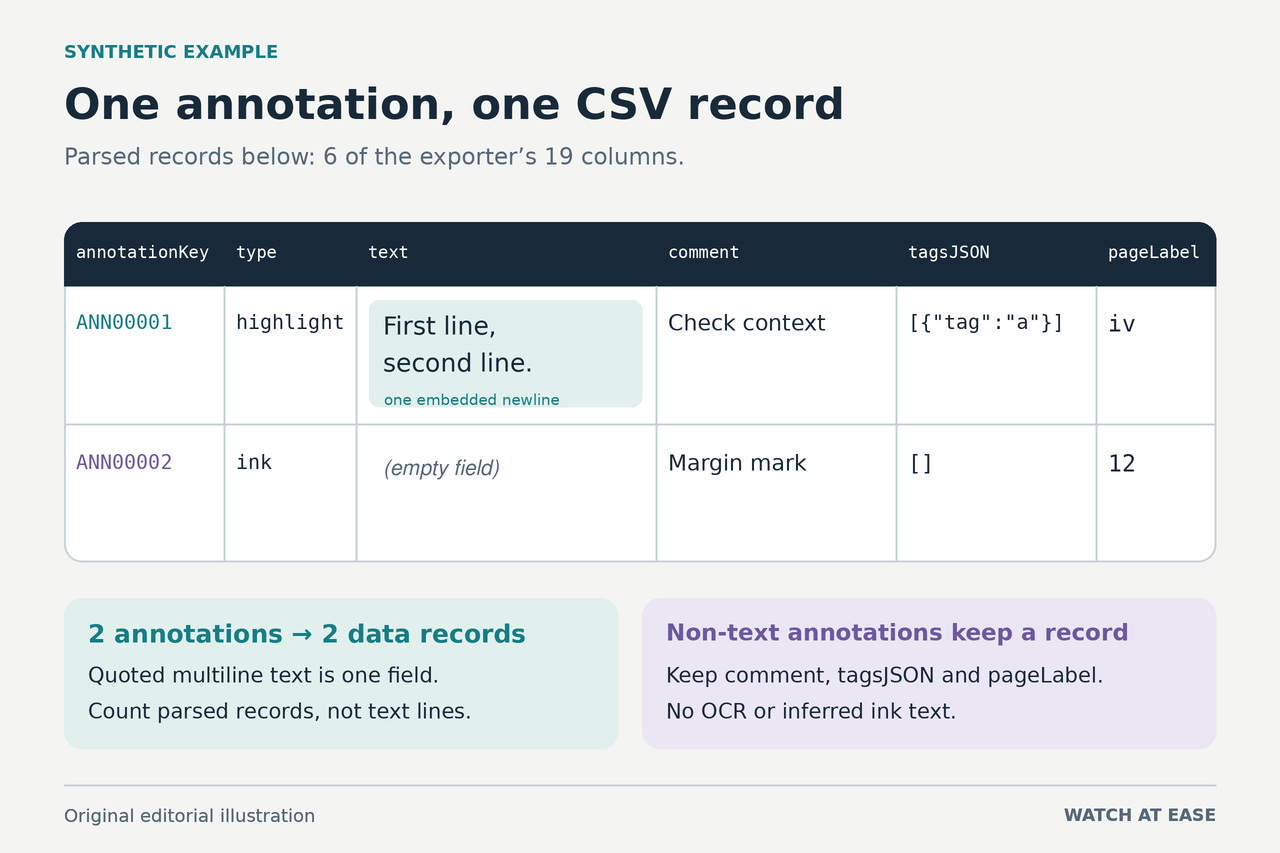
There are 19 columns. annotationKey identifies the annotation; type records its kind. text contains the passage for highlight and underline annotations, while comment preserves the annotation comment separately. tagsJSON keeps the annotation’s tag objects as JSON text, retaining their structure instead of flattening them into ambiguous comma-separated names.
pageLabel preserves Zotero’s annotation page label exactly. Do not substitute the attachment’s physical page index or assume a label must be a number: front matter and other document structures can use different labels. attachmentKey and attachmentTitle identify the attachment containing the annotation.
sourceKey and sourceTitle identify the bibliographic parent, when one exists. sourceCreatorsJSON preserves the source’s structured creator list and roles; sourceAuthorsJSON includes only creators whose role is author. An editor is not silently relabeled as an author, and an empty author list is not filled from the person who made the annotation.
sourceDate retains the source item’s original date string. sourceParsedDate contains Zotero’s parsed source date when supplied. sourceYear is taken only from a parsed value matching YYYY, YYYY-MM or YYYY-MM-DD, with a nonzero four-digit year. This is a limited extraction rule, not calendar validation; missing or differently shaped values stay blank instead of being guessed.
sourceStatus is bibliographic when that parent exists, or standalone-attachment when it does not. Standalone records keep their attachment information but leave source fields empty. Finally, annotationAuthorName, annotationDateAdded and annotationDateModified describe the annotation itself. None is used as a substitute for the publication’s author or date.
6. Keep non-text records and missing metadata visible
Image, ink, note and other types besides highlight or underline still receive a row, with their available comment, tags and identifying fields. Their text column is blank. The program does not recognize handwriting, convert image regions to quotations or export the image or ink itself. The non-text count tells you how many records need that distinction during analysis.
If a source author, publication date or page label is missing, inspect the corresponding record in Zotero before interpreting the blank. Correct source metadata there when appropriate, then run a fresh export after editing and sync have stopped. Do not replace missing publication dates with annotation dates just to make every spreadsheet cell look complete.
A successful zero-record export contains only the column header. It means no matching native annotation records were returned for this scope; it does not prove that your PDFs never contained highlights. Recheck whether the material is in a group library, exists only in old notes, or remains embedded in externally annotated files. This program does not convert those inputs.
7. Import the CSV as text and check the rows
Use your spreadsheet’s Text/CSV import process instead of relying on double-click opening. Choose UTF-8, a comma delimiter and a double-quote text qualifier, and set every column to Text before loading. Disable automatic conversion or formula interpretation where the import dialog offers it. If the preview has already changed a page label, date or quotation, cancel and import again with text handling.
The CSV quotes every field, doubles quotation marks inside fields and uses CRLF record separators. Original line breaks inside quotes and comments remain inside their cells. One record can therefore occupy several physical lines in a text editor. Compare parsed spreadsheet records, excluding the header, with the terminal’s annotation count; do not count lines in the raw file.
Check your chosen examples against Zotero. Confirm the exact quoted text, comment, tags, page label, attachment and bibliographic source. Check that a multiline comment remains one cell and a comma or quotation mark has not created an extra column. Verify a standalone record and a non-text record if present. Keep JSON columns intact in the master export even if you hide them in a presentation copy.
Save your analysis as a separate workbook or file. Preserve the original CSV and the reported count so you can trace later filtering back to the export. The file is ready for analysis or sharing once its record count and representative source associations agree with what you checked in Zotero.
8. Resolve failures without bypassing the checks
EEXIST means the output filename already exists: choose another new filename. For HTTP_403, check Zotero’s local-communication setting. For LOCAL_REQUEST_FAILED, check that Zotero is running on the same computer and reachable on its normal local port; a timeout or rejected redirect can produce the same code. Correct the cause and rerun, rather than changing the address to a cloud endpoint.
A changed count, duplicate key, changed library version or server identity means the program could not establish a consistent read under its checks. Stop editing and syncing, confirm the intended Zotero library is open, then start a new run. A missing parent, HTTP_404 or unexpected parent type means a referenced record could not be joined safely; the exporter stops instead of silently discarding that annotation.
INVALID_TOTAL, INVALID_VERSION, API_VERSION and invalid-field or schema errors mean the response does not meet this program’s expectations. Keep the library intact and retain the diagnostic code for investigation. Do not remove validation lines to force an apparently complete CSV. For filesystem errors, check folder permissions and hard-link support, then use a new destination on a suitable local disk.
9. Know what the supplied program was tested against
The exporter's original form passed 28 synthetic tests on Linux with Node 24.19.0 and Python 3.12.14. A mock Local API on a randomly chosen loopback port exercised 101 records across two pages, exactly 100 records, an empty result, missing parents, changing responses and attempts to overwrite an existing file. Python’s independent CSV reader checked the output fields, including Unicode, embedded quotations and line breaks.
The original multiline program and its whitespace-collapsed form produced identical CSV bytes for the same 101-record fixture. These checks did not use a real Zotero process, account, library or spreadsheet GUI, and they are not a Windows or macOS test. The program also builds the export in memory; no large-library capacity claim is made. Your own record-count and source checks remain the final step before using the CSV. The displayed code reverses the operands in two numeric comparisons without changing their meaning. In 13 additional synthetic cases, the original and displayed forms produced identical CSV bytes, messages and operation sequences using in-memory JavaScript doubles. That comparison used neither Node nor real filesystem or network operations; the original 28-test Node/Python suite was not rerun.