Tech · PRACTICAL GUIDE
YouTube TV Says Outside Your Home Area Even When Both Areas Match? Verify the Affected Screen Before Changing Home
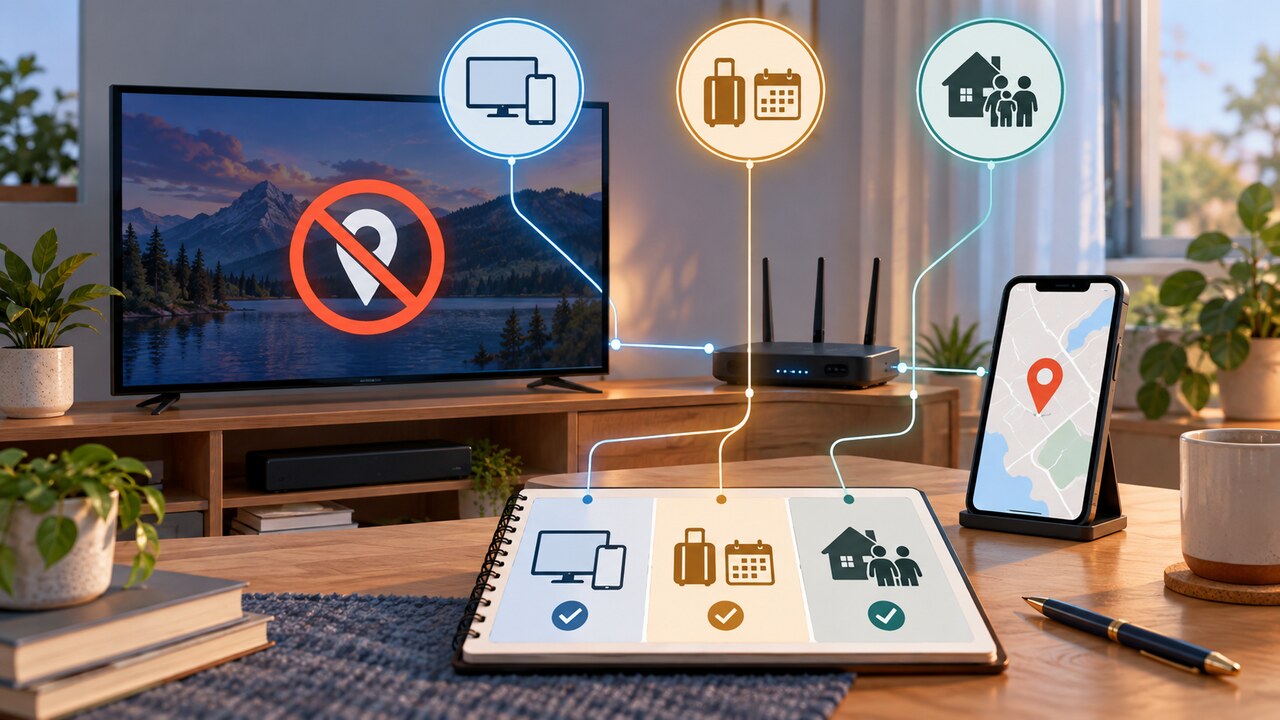
When both location labels are correct but one screen stays blocked, refresh that exact device with a location-enabled phone before changing Home area. Then separate a stale device check from travel, household, VPN, or IP-location restrictions.
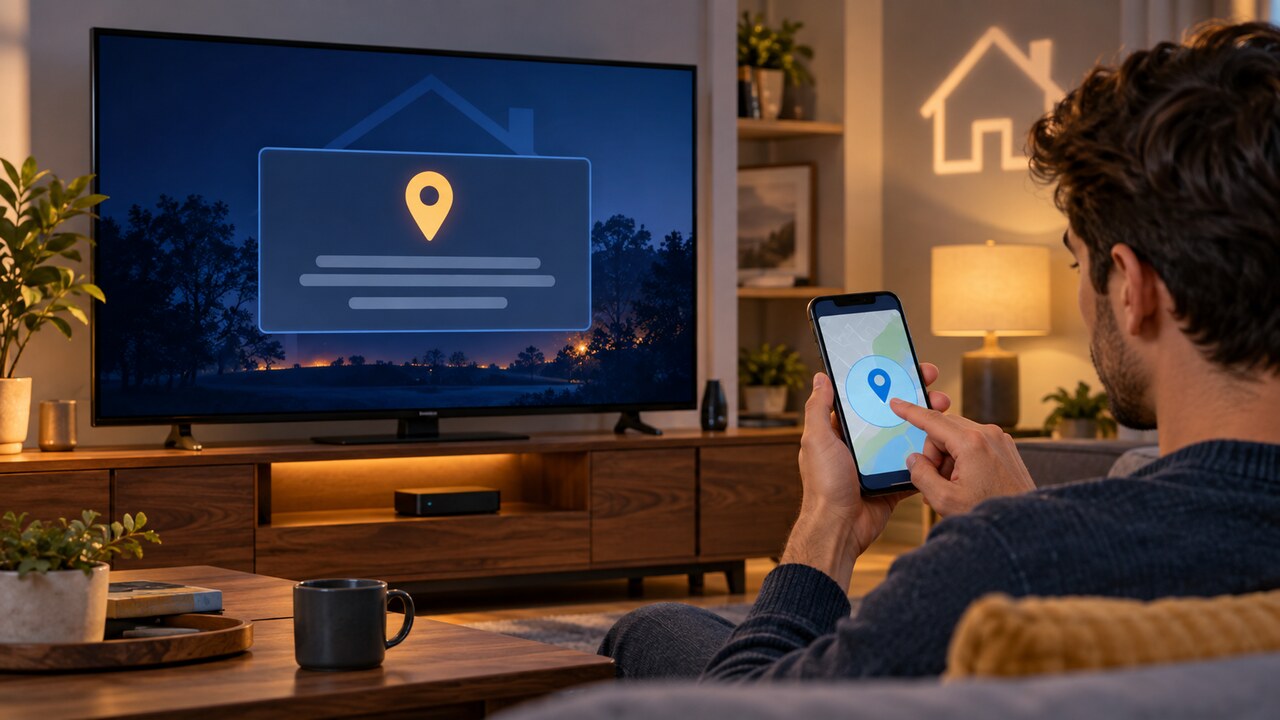
If YouTube TV says “Outside your home area” even though Home area and Current playback area show the same market, do not change Home area first. Start the location update on the screen that is actually blocked, finish its phone verification, and then test that same screen again.
Changing Home area solves a move, not a stale verification on one TV, browser, or profile. Google limits Home area changes to two in 12 months, so using one as a generic reset can consume a limited change without fixing the real branch.
First, separate Home area from Current playback area
Home area is the residential market attached to the membership. Current playback area is where the device is physically being used. They can display the same city while one device still has an incomplete or stale location check.
Use the account and profile that shows the warning. Record the Home area, Current playback area, exact warning, device type, and whether the account is the family manager or a family member. This prevents troubleshooting one profile while another remains blocked.
1. Refresh the affected screen, not only the phone
On the blocked smart TV or streaming device, open YouTube TV, select the profile photo, then Settings, Area, Current Playback Area, and Update. Leave that screen waiting for the mobile step.
On a phone with location access enabled, open tv.youtube.com/settings/area and allow the site to use the phone’s precise location. Complete the prompt for the same Google account, return to the affected screen, and wait for its area to refresh. Updating only the phone app does not prove that the TV or browser that raised the warning received a new verification.
2. Do not change Home area unless you actually moved
If the residential market is already correct, leave Home area unchanged. Google says a Home area change requires you to be physically in the new area and is limited to two changes in a 12-month period.
A traveler should normally refresh Current playback area. A permanent move is the branch for changing Home area. If the account is in a family group, only the family manager sets the home location.
3. Check location permission, VPN, and browser state
If the phone cannot verify the affected screen, confirm that location services and browser location permission are enabled for YouTube TV’s verification page. Google also recommends clearing cache and cookies when location detection fails.
Disable any VPN or proxy before repeating the official verification. Google says restricted YouTube TV content cannot stream through a VPN or proxy. If the same physical device repeatedly resolves to the wrong market after a clean verification, note the internet provider and the market shown; treat IP-location mismatch as a support clue, not a reason to spoof location.
4. Test the travel check-in branch
Frequent travelers must use YouTube TV in the home area at least once every three months. MLB viewers may need a home-area use at least once every 30 days to avoid game-related restrictions.
A successful Current playback update while away is not the same as a home-area check-in. If the timer expired, the supported path is to use the affected member’s own account while physically back in the home area. Do not ask another person to impersonate the traveler or bypass the household rule.
5. Check the family-member branch
YouTube TV family members must primarily live in the same household as the family manager and periodically use YouTube TV in that home location. The family manager controls the Home area; a family member cannot repair a household-eligibility problem by repeatedly changing Current playback area.
If the person does live in the household, verify with that member’s own Google account on the affected device and phone. If the person no longer meets the household requirement, there is no supported device reset that can make the membership eligible.
6. Distinguish one bad screen from an account-wide restriction
After verification, test the same channel or Library item on the affected screen, a mobile device, and a browser using the same profile. If only one screen fails, restart its YouTube TV app and device, then repeat the affected-screen pairing once. Reinstalling before you know whether the account works elsewhere can erase useful device state without resolving policy restrictions.
If every device on the same profile shows the same warning, stop treating it as a single-device cache problem. Recheck the travel timer, family role, VPN/proxy status, and whether the account is physically in the Home area.
7. Escalate with evidence when verification does not stick
Contact YouTube TV support if the Home and Current playback areas remain correct, official verification completes, and the warning returns on the same screen. Include the account role, device model, app or browser version, internet provider, both displayed areas, the verification time, and a screenshot of the warning with personal information hidden.
Ask support to determine whether the account’s home check-in, the affected device’s playback-area verification, or an IP-location mapping is failing. Do not keep changing Home area while the case is under review.
How to know the repair is complete
The repair is complete only when the previously blocked screen opens YouTube TV, shows the expected Current playback area, and plays an allowed channel or Library item without the warning after the app is restarted.
If access works only on a phone but not on the original TV, the affected-screen verification is not complete. If the account works at home but remains restricted after the documented travel window, the remaining issue is policy or account state rather than a local app fix.