Technology · PRACTICAL GUIDE
Downloaded tar.gz says ‘not in gzip format’? Check HTTP decoding and saved bytes
A successful download can save HTML, a decoded tar or a gzip artifact. Keep the response, identify its byte layer and verify the intended contents before changing extraction flags.
A .tar.gz name does not tell you what curl actually saved. The response might be a sign-in page, a regular tar after HTTP decoding, a compressed archive or damaged data. The gzip message identifies a format mismatch at that step; it does not establish which of those causes applies.
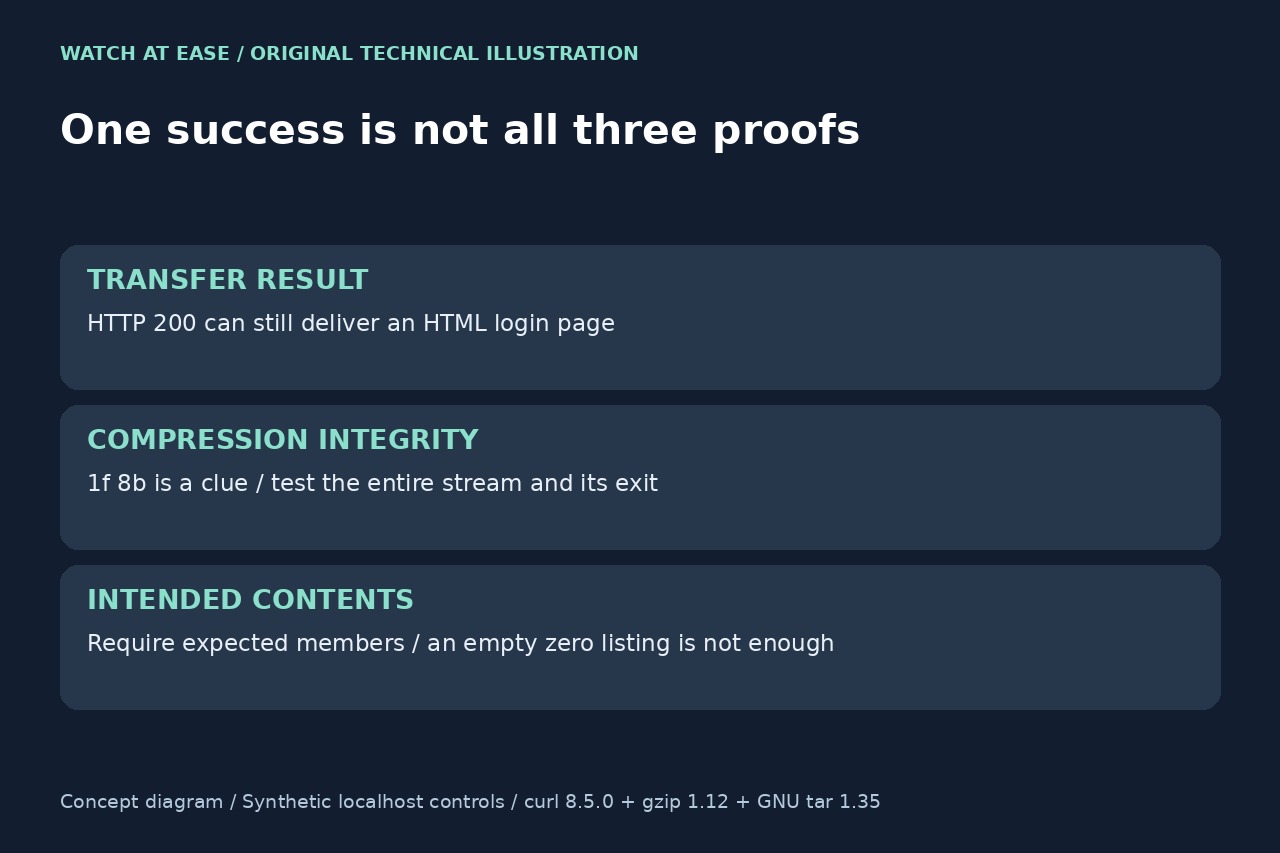
Separate three questions: did the request complete, is the saved compression stream intact, and are the required files present? HTTP status, Content-Encoding, a familiar byte prefix and an extractor’s apparent success each answer only part of that investigation.
1. Retain one response before trying another extractor
Record the exact URL, curl version and original options, especially --compressed, -i, redirects and any pipe. For a controlled comparison, use a new empty directory you own. Replace the example URL below, retain headers separately and wait for curl’s final status. The first-position -q ignores curl’s default configuration file; this comparison deliberately omits --compressed. These are Linux shell commands, not PowerShell syntax. ```sh url='https://publisher.example/exact-asset' curl -q -fLsS -D headers.txt -o download.bin \ -w 'http=%{http_code}\nurl=%{url_effective}\n' "$url" curl_status=$? printf 'curl_exit=%s\n' "$curl_status" file download.bin od -An -tx1 -N16 download.bin ```
Check the final response in the redirect chain, not just the first header block. -f helps reject HTTP failures, but a login or error page can return 200. Content-Type is also a clue rather than proof. Do not mix -i headers into the body, overwrite the original sample, paste private response headers publicly or pipe the uncertain bytes straight into an installer.
2. Determine which gzip layer, if any, remains
curl’s --compressed handles HTTP content coding. A .gz artifact may separately be the payload, so decoding can leave either regular tar bytes or another gzip layer depending on what the server supplied. Crucially, headers saved with -D remain unchanged after decoding. A retained Content-Encoding: gzip therefore does not prove that the local file still needs gunzip.
Compare file identification with the first bytes. RFC 1952 specifies 1f 8b for a gzip member, but a matching prefix cannot validate its full stream. If the trusted sample is identified as gzip, run gzip -t download.bin and inspect its final result. HTML requires fixing the authorized download route; verified regular tar requires a tar reader. Renaming, force flags or changing -o to -O cannot transform wrong bytes into the intended artifact.
3. Use the controlled cases to interpret your evidence
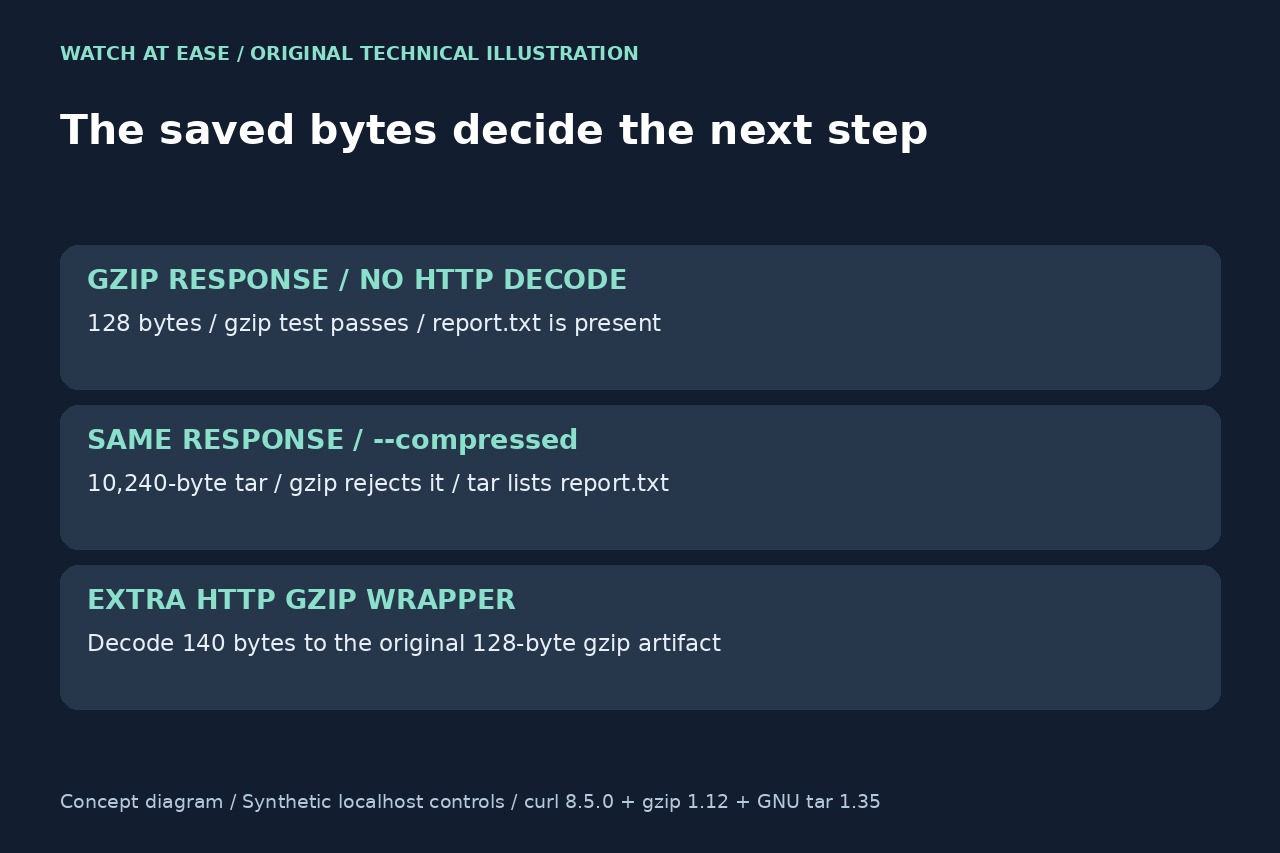
We served seven synthetic localhost responses and tested nine response/option combinations with curl 8.5.0, gzip 1.12 and GNU tar 1.35 on Linux. All returned HTTP 200 and curl exit 0. A 128-byte gzip containing report.txt passed gzip testing. Serving those same bytes with Content-Encoding: gzip and using --compressed instead saved a 10,240-byte regular tar: gzip rejected it, but tar listed report.txt. An extra HTTP gzip wrapper decoded back to the original 128-byte artifact, confirmed by SHA-256.
The negative controls matter. HTML failed gzip despite HTTP 200. A changed CRC and a missing trailer retained the gzip prefix but failed the integrity test; tar printed report.txt before ultimately failing. A valid gzip of ordinary text passed gzip testing but failed tar. The undecoded 140-byte double wrapper even produced an empty tar listing with exit 0 in this installed version. That unexpected result is why a zero alone cannot certify the intended contents; it is not a promise about every tar release.
4. Verify the intended artifact, then choose the repair
Match any publisher-provided checksum or signature against the exact artifact and byte layer it describes. The decoded regular tar and its gzip package have different hashes even when they represent the same files. A locally computed hash alone records identity; it does not establish a trusted publisher. Preserve the response and options if the expected checksum’s scope is unclear rather than recompressing until something appears to match.
For a trusted candidate, inspect tar -tf download.bin, wait for its final exit and compare the listing with required filenames and the intended release or architecture. Reject an empty list when files are expected, and reject partial names followed by an error. Obtain a fresh authorized copy for HTML or corrupt data; select the appropriate reader for a verified tar or gzip layer. Only then unpack to a new destination and test the required files. A fresh directory protects prior output, but is not a sandbox for an untrusted archive.