Tech · PRACTICAL GUIDE
Syncthing says “folder marker missing”? Verify the path before recreating .stfolder
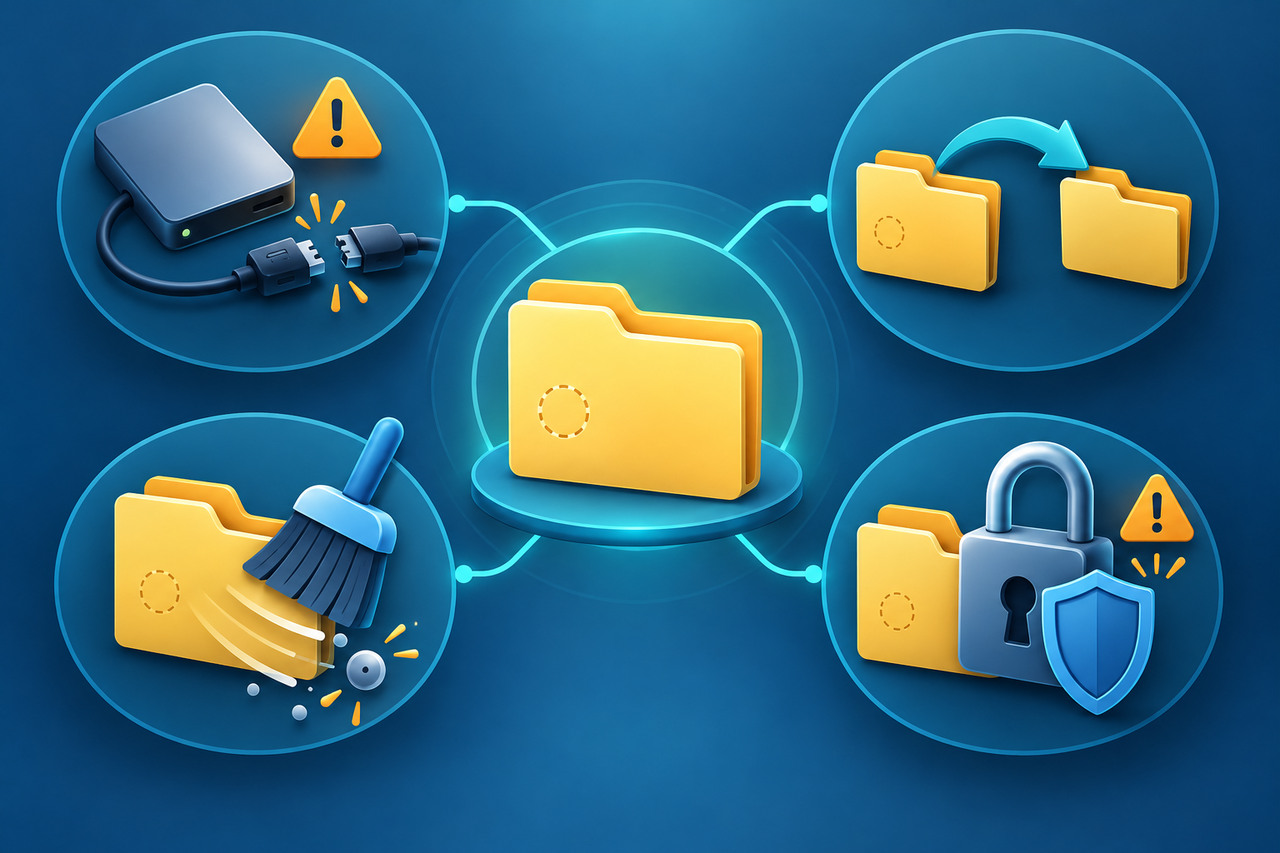
The warning is a safety stop, not a prompt to rebuild a hidden folder blindly. Use this read-only preflight to distinguish an unmounted drive, a moved path, cleanup deletion and a permission failure before you let synchronization resume.

A missing `.stfolder` is intentionally disruptive. Syncthing uses the marker to decide whether a configured folder is present and readable; without it, an unplugged drive or failed mount could otherwise look like a directory in which every file was deleted.
The safest first move is therefore not to create the marker. Freeze changes on the affected endpoint, identify the exact device and configured path, and prove that the expected directory tree is present before making any write.
This guide turns the official recovery branches into one cause-first worksheet. It cannot restore bytes that are already gone, and it does not turn synchronization into backup.
1. Understand what the stop is protecting
Syncthing’s official FAQ says the usual marker is `.stfolder`. The program checks for it so an unmounted filesystem, removed USB drive or other missing storage is not mistaken for a deliberate deletion of all files. When the marker disappears, the folder stops syncing until the marker returns.
That second sentence matters: once the marker returns, local absences can be synchronized as deletions. A marker is therefore not a harmless cache entry. Treat the warning as a request to verify the storage boundary.
2. Freeze the risky state and identify the reporting endpoint
Do not delete the folder from multiple devices, recreate `.stfolder`, rescan, or accept a new share yet. Avoid editing files in the affected tree while you investigate. If another device still has a complete copy, keep it online only as a reference until you understand the failing endpoint; make a separate backup if the data matters.
Record four identifiers from the device that actually shows the error: device name, folder label and Folder ID, configured folder path, and folder type such as Send & Receive, Send Only or Receive Only. In container or NAS setups, record both the path visible inside the container and its host-side mapping. A marker visible on one computer does not prove that the destination reporting the error can see its own marker.
3. Build a no-write evidence sheet
Use one row for the affected endpoint. Suggested columns are reporting device, Folder ID, configured path, expected storage device or mount, mount currently present, expected top-level children visible, approximate item count or known sentinel files, `.stfolder` visible, Syncthing service user, parent-directory writable, recent log message, and chosen recovery branch.
The gate is simple: if you cannot prove that the configured path points to the intended storage and that the expected child tree is present, do not recreate the marker. A newly created empty directory at the old mountpoint is not the original dataset, even if the path string looks correct.
4. Branch A: the drive or parent mount is absent
If the expected disk, USB drive, network share or parent filesystem is not mounted, restore that storage first. Verify the volume identity or mount target, not merely that a directory with the same name exists. Then confirm several expected child folders and files before allowing Syncthing to see the marker again.
Do not solve an absent mount by creating `.stfolder` in the empty mountpoint. That defeats the safety check and can make the missing tree look like deliberate deletion. If the mount keeps failing, leave the Syncthing folder stopped and fix the storage or mount service separately.
5. Branch B: the complete folder was moved or renamed
If the entire dataset, including its marker, was intentionally moved, the official FAQ gives two safe routes: move it back to the configured location, or remove the folder from Syncthing on the affected device and add it again at the new path. Do this only after the folder is in sync elsewhere and the new location contains the complete expected tree.
Removing a folder from the Syncthing UI is not the same as deleting its files from disk, but read every confirmation on your installed version. Re-add the original Folder ID only when you intend to reconnect the same shared folder. Confirm the local path before accepting a remote offer; auto-accept or a wrapper can otherwise choose a default destination that is not the path you audited.
6. Branch C: every expected file is present but only the marker is gone
Cleaner utilities sometimes remove the empty `.stfolder`, especially on mobile devices. This is the narrow case in which recreating the marker can be appropriate: the configured path is correct, the intended storage is mounted, and the expected children are present. The official FAQ recommends recreating `.stfolder` and adding a dummy file inside it, or exempting the marker from the cleaner.
Pause the cleaner first. Create the marker only on the endpoint whose audited tree is complete, then watch the next scan before changing anything else. If the tree is unexpectedly empty or incomplete, stop; do not use marker recreation to force past uncertainty.
7. Branch D: Syncthing cannot create or read the marker
Logs that say `Failed to create folder marker`, `permission denied`, or show the wrong destination path point to access rather than cleanup. Check which operating-system account runs Syncthing and whether it can traverse every parent directory and write inside the exact destination. On a containerized NAS, test the path as the container sees it and verify the host mapping; write access on the source device does not grant write access at the destination.
On Windows, Controlled Folder Access can block marker creation in protected folders. One complete Syncthing forum case was resolved by allowing the Syncthing executable, but do not apply that exception blindly: first confirm that the log names the protected path and that Syncthing is the trusted executable you installed. On Linux or NAS systems, correct ownership, group or container mapping for the intended service account rather than running the whole application as an unrestricted administrator.
8. If the cause is still unclear, re-add only on the failing device
The official FAQ’s uncertainty route is to remove the folder from Syncthing on the affected device and re-add it at the same verified location. This resets that device’s database state for the folder and treats it as new, so its files will be merged with remote devices. That is a controlled recovery only when you have already verified the local tree and preserved a backup of important data.
Do not remove the folder from every device at once. Keep a known-good copy and write down the original Folder ID. After re-adding, compare the item count and several sentinel files before declaring the folder healthy. If the offered folder lands in a default path, cancel and correct the local path rather than letting a fresh empty destination participate.
9. Verify recovery without pretending sync is backup
A successful recovery has three checks: the error is gone on the endpoint that reported it, the configured path and Folder ID match the evidence sheet, and representative files agree across devices after the scan settles. Review recent changes for unexpected deletions before resuming normal edits.
Syncthing’s documentation says it is not a great backup application because modifications and deletions propagate. Versioning can reduce some recovery risk, but it does not replace an independent backup. Preserve at least one separate copy before risky path, mount or permission changes, and keep the evidence sheet with the date and exact action that restored the folder.