Tech · PRACTICAL GUIDE
Only Some Nintendo Switch Screenshots Moved to Switch 2? Check Both Storage Locations First
If only part of your old Nintendo Switch album appeared on Switch 2, preserve the old console and card, then check whether the missing media is still on the old microSD card and import it separately.
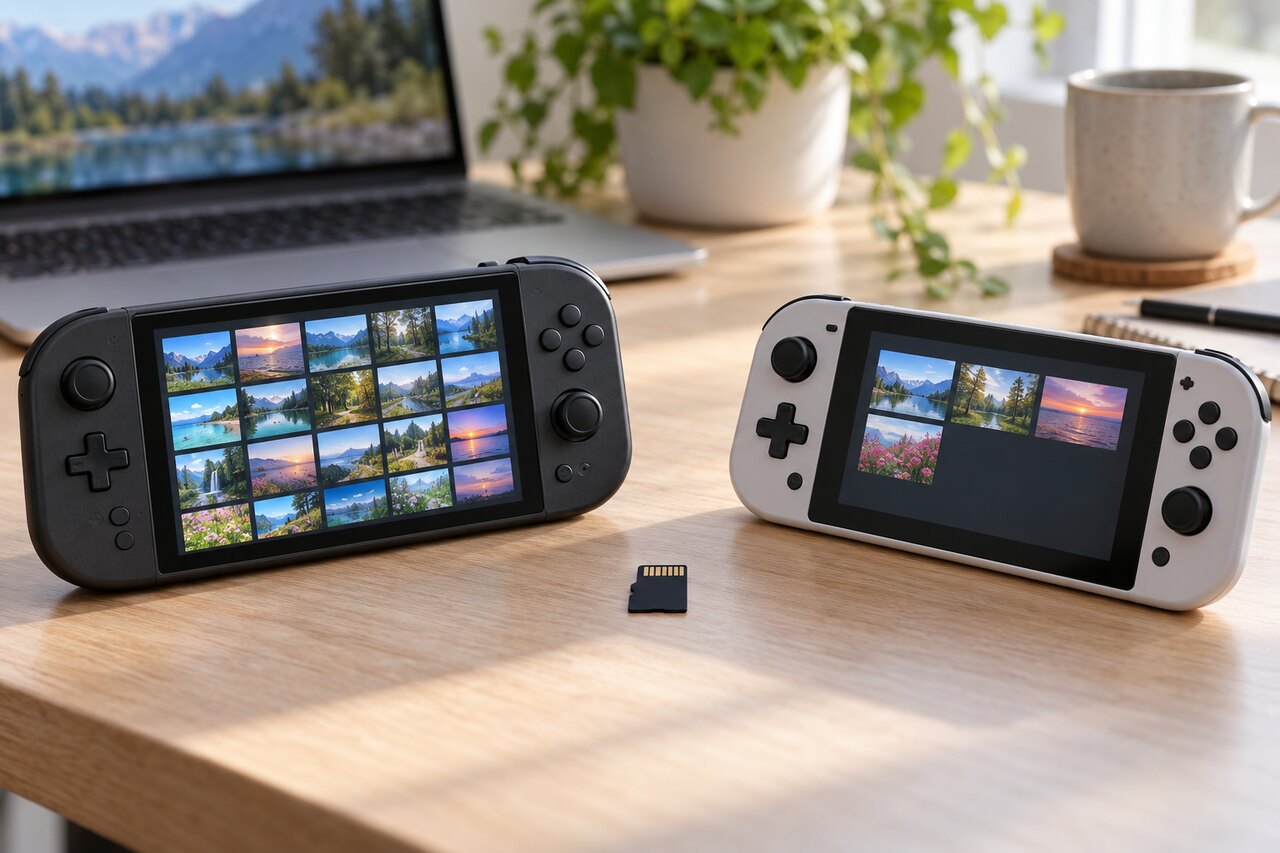
If only some of your old screenshots or videos appeared on Nintendo Switch 2, do not initialize the old console or format its microSD card. The missing files may not have failed to transfer at all: the old album can be split between the original Switch's system memory and its microSD card, and card-based media may need a separate import after the main system transfer.
Keep the old console and card unchanged until you can open representative files on Switch 2 and verify a second copy on a computer or phone.
First, identify which copy is missing
A system transfer and an album import are related but separate paths.
- Media saved in the original Switch's system memory can be included when you choose **Transfer Album Data** during the Switch-to-Switch 2 transfer. - Media saved on the original Switch's microSD card may require you to insert that card temporarily into Switch 2 and import its album data into Switch 2 system memory. - Games and save data follow different rules. Seeing your games or saves on Switch 2 does not prove that every screenshot and video moved.
On the original Switch, open **Album** and check several dates or games that are missing on Switch 2. Then open **System Settings > Data Management > Manage Screenshots and Videos** and note whether media is in system memory, on the microSD card, or both. Do not move or delete anything yet.
Preserve the old microSD card before importing
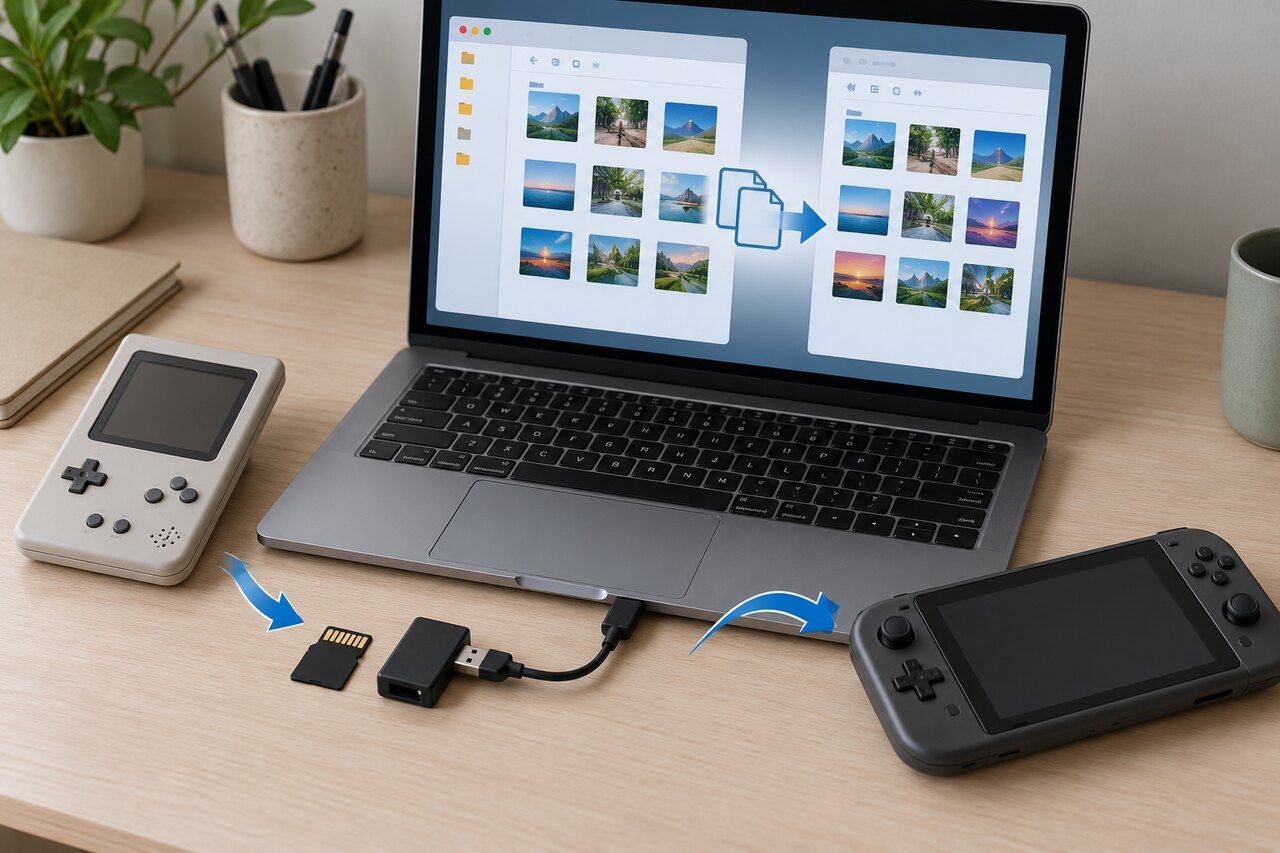
If a computer with a compatible card reader is available, make a file-level backup of the old card before changing it. Copy the entire **Nintendo/Album** folder to a new folder on the computer. Open several old and recent files from that copied folder to verify that the backup is readable.
This computer copy is a safety backup. Do not rename or reorganize files on the original card before the Switch 2 import, and do not assume that copying edited files back later will make them reappear inside a console Album.
If you do not have a card reader, leave the card in the original Switch until you are ready to follow Nintendo's supported import step.
Import old-card media into Switch 2
Nintendo's current instructions say that screenshots and videos on a microSD card used with an original Switch can be imported into Switch 2 system memory.
1. Fully power off both consoles. 2. Remove the microSD card from the original Switch. 3. Insert that old card into Switch 2. 4. On Switch 2, open **System Settings > Data Management > Manage Screenshots and Videos**. 5. Choose **Import From a Nintendo Switch Console's microSD Card** when the option appears. 6. Let the import finish without removing the card or powering off the console. 7. Open **Album** on Switch 2 and check files from several dates, games, and users.
A standard microSD card from the original Switch is not normal expandable storage for Switch 2. Nintendo says Switch 2 uses microSD Express for games and new media storage; the older card is accepted here only to import original-Switch screenshots and videos into system memory.
If you plan to keep using expandable storage on Switch 2, remove the old card after import and use a compatible microSD Express card for normal storage.
If the old card was not the missing branch
If the missing items were stored in the original Switch's system memory, confirm whether **Transfer Album Data** was selected during the original system-transfer flow. Do not factory-reset Switch 2 merely to repeat setup while the only confirmed copy is still on the source console.
Instead:
1. Back up the missing media from the original Switch to a computer with the console's supported USB copy function, or copy it from the old card if that is where the files live. 2. Verify the exported files independently. 3. Record both console models and system versions, whether the transfer was local or server-based, whether **Transfer Album Data** was selected, and which storage location still contains the missing files. 4. Contact Nintendo Support before erasing the source console if Switch 2 still lacks system-memory items that should have been included.
An export to a computer preserves the media even if it does not rebuild the Switch 2 Album automatically.
Do not confuse the Nintendo Switch App with a full migration backup
Switch 2 can upload screenshots and videos to the Nintendo Switch App and copy media to a computer by USB. Those features are useful for preserving files already on Switch 2.
They are not proof that the complete old album migrated. App limits and retention can also make it unsuitable as the only archive. Download important files to permanent storage and verify the local copies.
When the transfer is actually complete
Treat the job as complete only when files from the oldest and newest expected dates appear on Switch 2, screenshots and videos from more than one game open normally, media from old system memory and the old card is accounted for, a separate computer or phone copy opens correctly, and the Switch 2 still shows the imported files after a restart.
Only then should you consider initializing, trading in, or giving away the original Switch, or formatting its old microSD card.
Stop and contact Nintendo if the last copy is at risk
Stop troubleshooting and contact Nintendo Support if the old console no longer recognizes the card, the card import reports an error, files are visible but will not open, or the missing media existed only in source system memory and the transfer did not bring it over.
If the original console was already initialized and the old card is unavailable or unreadable, the options are much narrower. A completed system-transfer screen, a Nintendo Account, game-save cloud data, or the presence of games on Switch 2 does not by itself recreate screenshots and videos that were never imported or backed up.