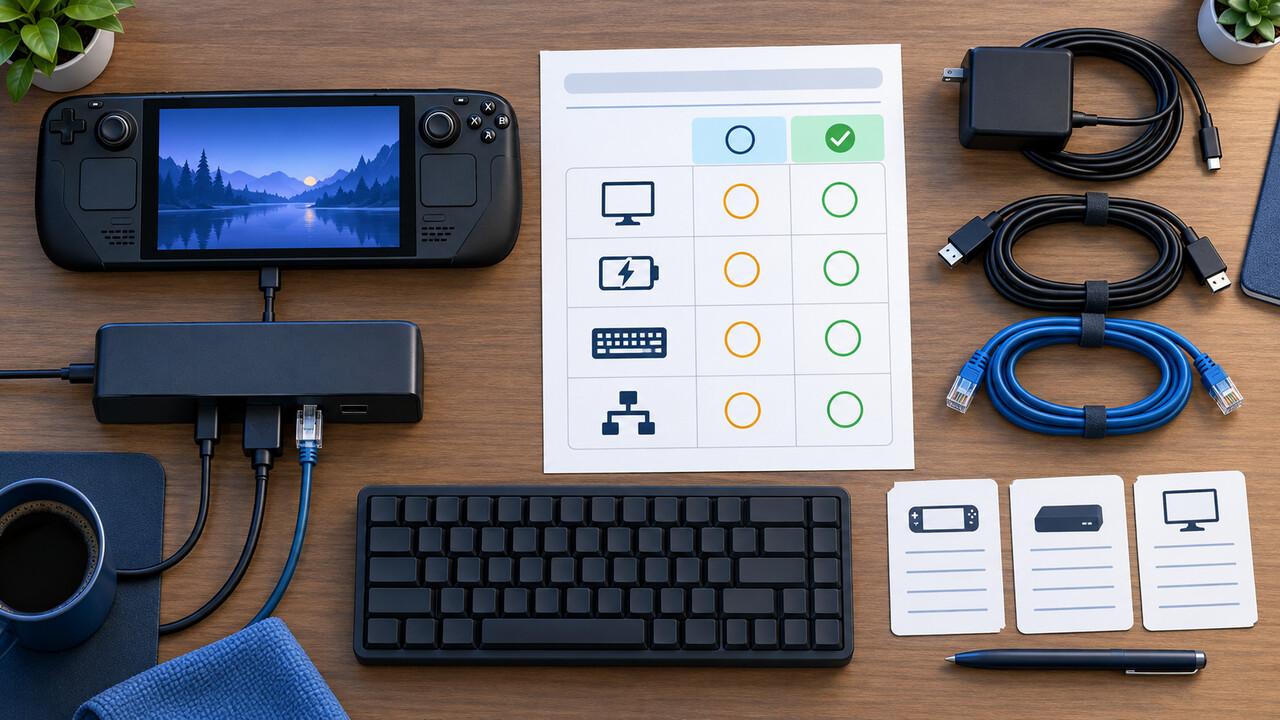
Technology · PRACTICAL GUIDE
Steam Deck Dock works unplugged but fails with power? Map the failing path before resets
If a Steam Deck dock works without its power supply but loses display, Ethernet, USB or charging when power is attached, preserve that reversal. A two-state matrix can separate a display-only branch from a dock-wide power or USB-C path before you erase settings or replace hardware.
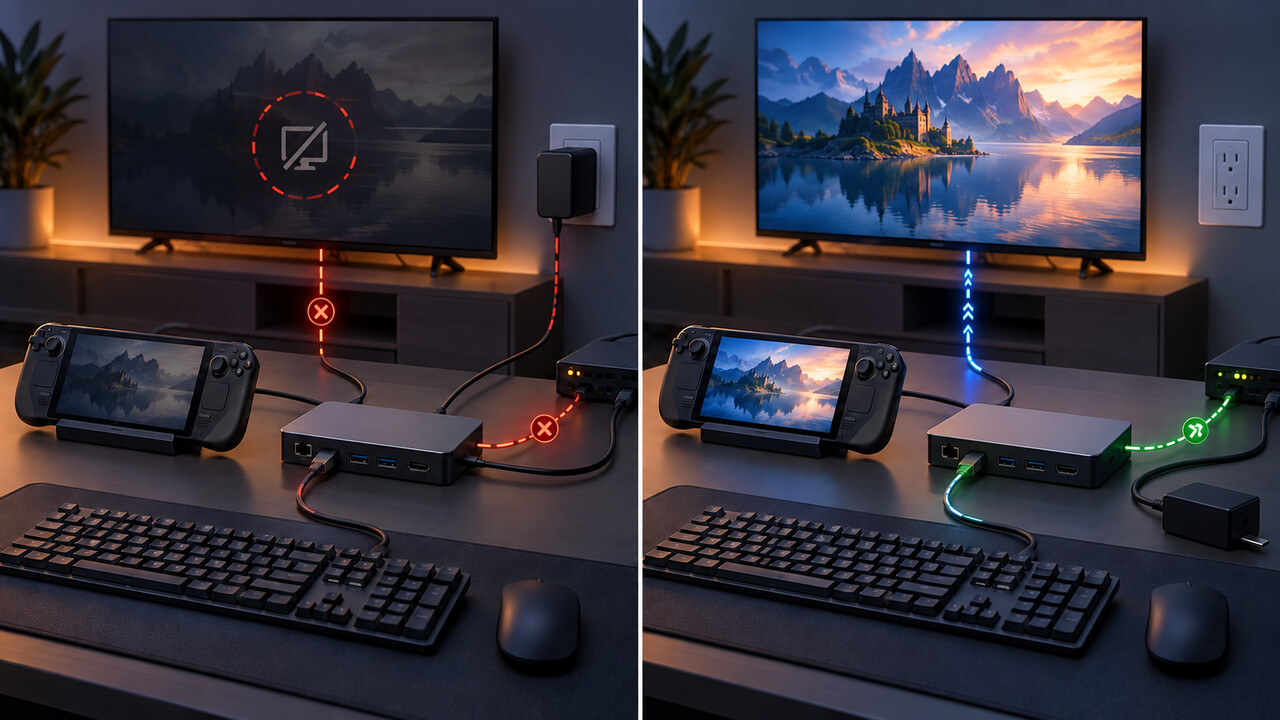
A dock that works only when its power supply is disconnected is not behaving like a simple dead dock. The change in power state is evidence. Record what happens to the external display, Deck charging indicator, one simple USB device and Ethernet in both states before repeatedly unplugging cables or resetting the Deck.
Valve says its official Dock can operate without its own power supply, although USB throughput is reduced. That makes an unpowered test legitimate for observation, but not proof that the charger, dock firmware or SteamOS is the root cause. Separate owner reports show the same reversal can appear as a display-only failure or as Ethernet and USB trouble, so one workaround should not be generalized to every setup.
The process below stays non-destructive. It uses Valve's update, full dock reset, conservative display mode and cross-test guidance, while adding one missing step: preserve a powered-versus-unpowered function matrix that can be handed to Steam Support.
1. Record the setup before changing it
Write down whether the Deck is LCD or OLED, the SteamOS channel and version, the dock model, the power supply model and wattage, and the display path. A path should name every hop, for example: official Dock HDMI → direct HDMI cable → TV HDMI 2. If an adapter, receiver, switch, capture card or KVM is present, record it rather than treating the chain as direct.
If the official Dock shows a firmware update prompt, complete it while the Deck and power supply are connected as Valve directs. Do not flash unofficial firmware or firmware intended for a different dock. If no firmware version is visible, write “not visible” instead of guessing.
Choose one low-complexity USB device, such as a wired keyboard, and one known Ethernet cable if available. Do not use a storage device whose data matters as the test peripheral. Save work on the Deck and fully shut it down before rebuilding the connection.
2. Establish a simple powered baseline
Disconnect extra USB devices, storage, controllers, Ethernet, receivers, switches and adapters. Connect one display directly to the dock with a known-good native cable. For the official Dock, prefer direct HDMI-to-HDMI or native DisplayPort-to-DisplayPort while isolating the problem. Valve warns that passive DisplayPort-to-HDMI adapters are unsupported; an active adapter adds a separate branch and should not be the baseline.
Connect a known-good USB-C Power Delivery supply to the dock, select the exact TV or monitor input manually, connect the Deck and boot it. Note whether the Deck's internal screen stays on or goes black, whether the external display shows an image, and whether the charging indicator appears.
After the display observation, attach the simple USB device and then Ethernet, one at a time. Record whether each works. Do not add the rest of the setup yet.
3. Fill the powered-versus-unpowered matrix
Shut the Deck down again. Fully disconnect the Deck from the dock and remove dock power. Wait at least 10 seconds so the dock is not still powered through the Deck; Valve's full-reset instruction requires disconnecting both because the Dock can draw power from the Deck.
Reconnect the same display path and the Deck, but leave the dock power supply disconnected. Repeat the same four observations. Because unpowered operation can reduce USB throughput, record a USB device as “detected but limited” if that is what you observe rather than forcing a yes/no answer.
Use this table as a worksheet. “Works” means the function was actually observed in that state; a lit TV input, link light or charging icon alone should not be upgraded to a result it did not prove.
Function | Dock powered | Dock unpowered | What changed? | Smallest next cross-test External display | Works / no signal / not detected | Works / no signal / not detected | Only video changed, or several functions changed? | Direct native cable, another input/display, conservative mode Deck charging | Charging / not charging / unknown | Not applicable or Deck powers dock | Did charging fail only through the dock? | Same PSU directly to Deck, then through dock Simple USB device | Detected / absent / limited | Detected / absent / limited | Does USB follow the power reversal? | One low-power keyboard, no storage or hub Ethernet | Link and traffic / no link / link without traffic | Link and traffic / no link / link without traffic | Does Ethernet fail with the same power state? | Known cable and router port; compare another host or dock
4. Interpret the pattern without claiming a root cause
If charging, USB and Ethernet continue to work while only the external display fails, stay in the display branch. Confirm the input, try a different direct cable and display port, remove all adapters and intermediate equipment, and use SteamOS External Display Safe Mode or a conservative resolution and refresh rate. A black Deck screen can mean the display was detected even though the picture failed; it does not prove the dock is dead.
If display, USB and Ethernet all change together when dock power is attached, preserve that dock-wide pattern. Test the same power supply directly on the Deck, then through the dock. Repeat with no peripherals and one direct display path. If possible, cross-test the dock with another host that supports display output, or the Deck with another known-good dock. These comparisons narrow the failing path; they do not prove which controller or firmware component is at fault.
If display works through direct HDMI or native DisplayPort but fails only through an adapter, keep the adapter as its own branch. A detailed SteamOS issue shows an active DisplayPort-to-HDMI path can be detected while producing no signal and can affect other outputs on a specific firmware/OS combination. That report is evidence to test the direct path, not a universal diagnosis for every adapter.
If nothing works in either state, return to connector seating, Deck USB-C function, dock reset and another host/dock cross-test. Valve's battery-storage-mode step belongs later, when no display or USB peripherals work and another USB-C device works through the dock. Follow Valve's exact current instructions; do not substitute a factory reset or OS reimage.
5. Treat unplug-and-replug as a test, not a cure
Some owners report that connecting the Deck while the dock is unpowered and then reconnecting power restores display or Ethernet temporarily. That sequence is useful because it exposes a state-dependent failure. It is not proof that the power supply is defective, that HDMI-CEC is the cause, or that a firmware bug is confirmed.
If the sequence restores service, add the exact order and result to the matrix. Then restart once and repeat the original powered baseline. A result that survives one cable order but fails after sleep, restart or redocking should be reported as intermittent rather than “fixed.”
6. Build a support-ready evidence bundle
Before opening a support ticket, include the Deck model, SteamOS channel/version, dock and power-supply models, display make/model, cable and adapter path, and the completed four-function matrix. State whether the Deck charged directly from the same supply, whether the dock worked with another host, and whether the Deck worked with another dock.
Report the smallest reproducible sequence, for example: “Direct HDMI works with dock PSU removed; with the same cable and input, connecting dock power removes video while USB keyboard remains available.” Separate observations from conclusions. Do not call it an MST, PD or firmware failure unless logs or Valve support establish that for the exact setup.
Stop testing and disconnect power if a connector is damaged, unusually hot, smells burnt or arcs. Otherwise, the goal is not to try every forum fix. It is to give support a repeatable state change and the cross-tests needed to decide whether the next step is display configuration, cable or adapter replacement, dock service, or Deck service.
What this guide does not claim
This guide does not promise one fix for all Steam Deck docks. It does not establish that every powered-only failure shares a cause, and it does not treat user reports as Valve-confirmed diagnoses. It also does not require opening the Dock, flashing unofficial firmware, erasing the Deck, or reinstalling SteamOS.
A completed matrix is the deliverable: it preserves the exact difference between powered and unpowered states, directs the next supported cross-test, and prevents a temporary cable-order workaround from being mistaken for a permanent repair.
Frequently asked questions
Can the official Steam Deck Dock work without its charger? Valve says yes, but USB throughput is reduced. Use the unpowered state for observation and comparison, not as proof that the charger is the cause.
Should I start with battery storage mode? No. Start with the simple chain, full dock reset, conservative display checks and cross-tests. Valve places battery storage mode under the no-display-or-peripherals path after comparison with another USB-C device.
Does a black Deck screen mean the TV should have a picture? Not necessarily. In Gaming Mode the Deck screen normally turns black when an external display is connected. The external link may still fail to show the selected mode.
If unplugging dock power restores the display, is the dock fixed? No. Record the sequence as a reproducible state change, reconnect power, restart and retest. Temporary recovery is useful evidence but not a confirmed repair.