Technology · PRACTICAL GUIDE
Steam Deck dock says no signal? Audit the display path before resetting anything
A no-signal message does not prove the dock is dead. Record which part of the display path still works, change one variable at a time, and keep mode-specific fixes on the correct branch.
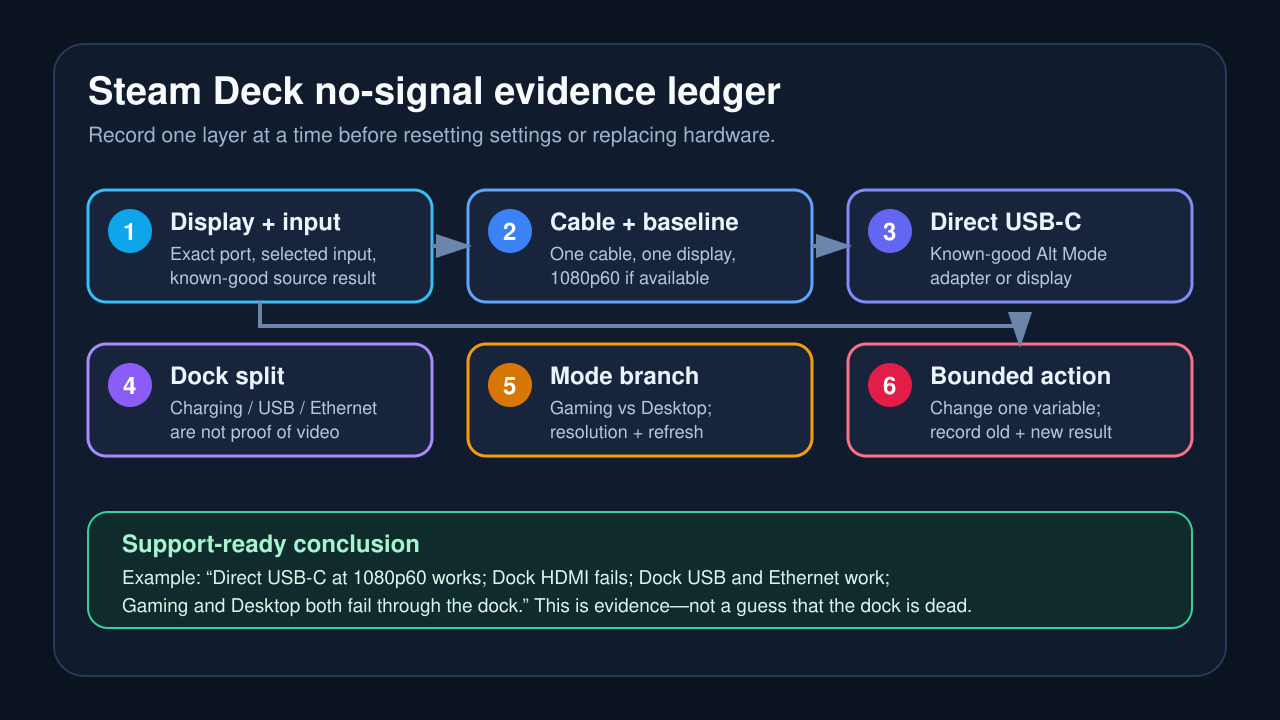
A TV or monitor that says ‘No Signal’ tells you only that it is not receiving a usable video stream on the selected input. It does not identify the failed part. The Steam Deck may still charge, the dock’s USB devices may still work, and the display path may still fail. The quickest safe route is therefore not a long reset ritual. It is a short evidence ledger that separates the display, cable, direct USB-C output, dock video path, and SteamOS display mode before you change saved settings.
Valve’s official Dock specification provides the capability baseline: the Dock has DisplayPort 1.4 and HDMI 2.0 outputs, USB-C power-delivery passthrough, and support up to 4K at 60 Hz or 1440p at 120 Hz. Those are maximum capabilities, not proof that a particular cable, adapter, monitor mode, or current software state has negotiated correctly. Use them to rule out impossible expectations, then test the actual path in front of you.
This workflow is preservation-first. It starts with observations and reversible substitutions. It does not begin by deleting display configuration, reflashing firmware, opening the Deck, or buying a replacement dock. If a test changes the symptom, record both the old and new result before moving on.
Build the no-signal ledger before touching settings
Write down the Deck model and SteamOS channel/version; dock or adapter model; power supply; dock output in use; cable; display model and selected input; whether the same cable and input work with another source; whether the dock still charges the Deck; whether USB or Ethernet devices enumerate; whether a direct USB-C video adapter works; and whether the symptom differs between Gaming Mode and Desktop Mode.
For each mode, record whether the external display is detected, whether it is enabled, and the requested resolution and refresh rate. Do not write ‘dock works’ merely because power or a USB keyboard works. Power, USB data, and DisplayPort Alt Mode share a connector but are separate evidence lines.
Take one phone photo of the monitor input label and one screenshot or note of the Deck’s display settings while the symptom is present. If you later contact Valve, the dock vendor, or the monitor vendor, this baseline prevents the case from collapsing into ‘sometimes black.’
Pass 1: prove the display input and cable
On the TV or monitor, select the exact HDMI or DisplayPort input used by the Deck. Auto-input switching can choose the wrong port or remain on a recently active device. Disconnect other video sources for this test so the display has only one candidate path.
Test the same input and cable with a known-good source at a conservative mode such as 1080p at 60 Hz. A successful test proves only that this display input and cable can carry that source’s signal; it does not prove every bandwidth, HDR, VRR, or adapter combination. A failed known-good test keeps the Deck and dock out of the next step until the display or cable problem is resolved.
If you change the cable, change only the cable. Do not also change the dock output, power supply, resolution, and monitor input. Multiple changes can make the picture return without telling you which link mattered.
Pass 2: compare direct USB-C video with the dock path
If you have a known-good USB-C video adapter or monitor that supports DisplayPort Alt Mode, connect it directly to the Steam Deck and use the same display, input, cable, and conservative mode where possible. This is a control test, not a permanent recommendation.
If direct video works while the dock’s HDMI or DisplayPort path does not, the evidence points toward the dock, its power/firmware state, its captive cable, or its video-output negotiation. It does not prove the dock is physically dead. If direct video and the dock path both fail, keep the Deck-side output, saved mode, cable/display combination, and USB-C port in the investigation.
A detailed SteamOS issue demonstrates why this split matters: reporters documented cases where Ethernet and USB functions enumerated while the external video link failed. Treat that as evidence that the symptom is technically possible, not as proof that your unit has the same low-level failure.
Pass 3: separate Gaming Mode from Desktop Mode
Boot once into Gaming Mode and once into Desktop Mode without changing hardware. Record whether the external display is detected, enabled, or black in each. If both modes fail in the same way, do not jump straight to a KDE-only repair. If Desktop Mode can enable the display but Gaming Mode remains black, keep the problem on the mode-selection branch.
A gamescope issue records exactly that branch: the monitor was detected and could be enabled in Desktop Mode, while Gaming Mode remained black. The requested 2560×1440 at 165 Hz mode became part of the investigation, and a 60 Hz branch changed the result. That case does not justify editing configuration files on every Deck. It does justify recording the requested resolution and refresh rate before a reset.
Where the SteamOS display interface is visible, select a conservative supported mode such as 1920×1080 at 60 Hz, then test again. Change one variable at a time. If the interface exposes External Display Safe Mode, record whether it changes the result. Disable HDR or VRR only as a temporary, reversible branch when the setting is available and the baseline has already been saved.
Pass 4: use the dock reset sequence as a branch, not a diagnosis
If direct USB-C video works, the display/cable control passed, and both SteamOS modes fail only through the dock, a dock power-state reset is a reasonable bounded branch. Fully shut down the Deck, undock it, disconnect power and peripherals from the dock, wait, then reconnect one display path and power before docking the Deck and booting. Record the exact order and result.
Community guides report variations of this sequence, including a full shutdown from Desktop Mode while docked and a clean boot after waiting. These reports can be useful, but they do not establish one universal cause. If the picture returns, retest after one normal shutdown and after reconnecting only the peripherals you actually use. A one-time recovery is not the same as a stable repair.
Update the Deck and, for the official Dock, apply any offered dock firmware update through SteamOS before concluding that replacement is required. Do not interrupt a firmware update, and do not install unofficial firmware or random scripts as a troubleshooting shortcut.
Keep KScreen repair on the Desktop-only branch
A current Desktop Mode guide documents a case where Gaming Mode worked but Desktop Mode showed no signal until KDE Plasma’s saved KScreen state was regenerated. That is a narrow clue. Use it only after your ledger shows a Desktop-Mode-only problem and the external display is otherwise known to work.
Before changing KScreen state, back up the existing folder rather than deleting it blindly. Note whether the folder exists and save the current display layout if the interface is usable. Then make one reversible change, reboot Desktop Mode, and compare against the recorded baseline. If both Gaming and Desktop modes fail, or direct USB-C video also fails, a KScreen reset is poorly matched to the evidence.
Do not copy terminal commands from an answer without checking that the path exists and understanding what will be moved. Missing configuration is evidence too. Preserve it in the ledger instead of creating or deleting files merely to make a recipe run.
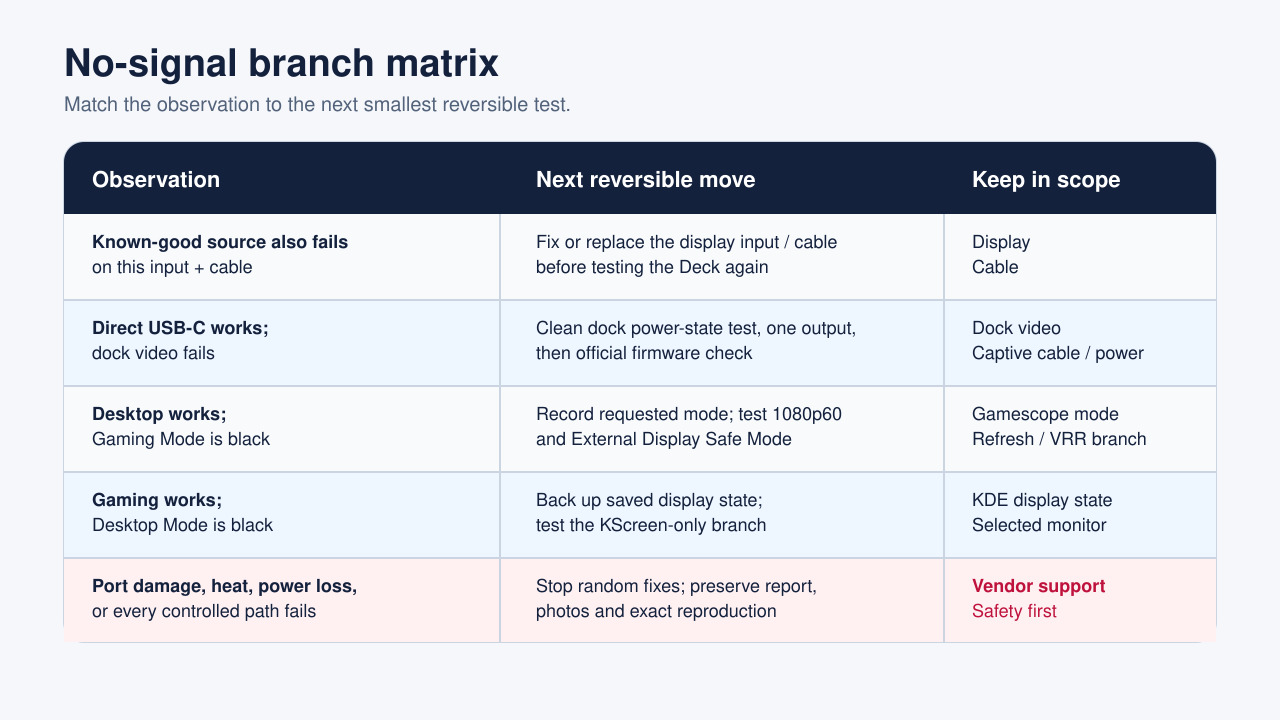
Read the result as a branch matrix
Known-good source fails on the same display input and cable: stop troubleshooting the Deck and fix the display input or cable first. Known-good source passes, direct USB-C video passes, but the dock fails: keep the case on the dock power, firmware, captive cable, or dock video-output branch. Direct USB-C and dock video both fail while another device works: keep the Deck USB-C video path and SteamOS mode state in scope.
Desktop Mode works but Gaming Mode fails: capture the requested mode, safe-mode result, and gamescope-session evidence before resetting unrelated settings. Gaming Mode works but Desktop Mode fails: back up saved KDE display state and test that narrow branch. Both modes detect the monitor but it remains black: test a conservative resolution and refresh rate before any destructive reset.
Charging or USB works but video fails: do not call the whole dock healthy. Record the split because it narrows the case. Nothing on the dock works: retest with the correct power supply, one peripheral, and a direct Deck connection before assuming a display-only fault.
Stop random fixes and escalate with evidence
Stop and contact support if the USB-C port is loose or damaged, the dock or cable becomes unusually hot, you smell overheating, power repeatedly disconnects, or a firmware update fails. Also escalate when the symptom reproduces across two known-good displays or cables, direct USB-C video fails, and conservative modes fail in both Gaming and Desktop modes.
Your support bundle should include Deck model and SteamOS version; dock/adapter and power supply; display and input; known-good cable/source result; direct USB-C result; dock charging/USB/Ethernet status; Gaming-versus-Desktop result; selected resolution and refresh rate; safe-mode result; exact reset order tried; and photos or logs captured while the failure was present.
Advanced logs can help a vendor or knowledgeable support agent, but they are not a license to declare your hardware defective from one message. Preserve a SteamOS System Report when available. If you inspect logs, quote the relevant time window and pair it with the physical test that produced it. The goal is a reproducible branch, not a collection of alarming lines.
A useful final note is the smallest configuration that works: for example, direct USB-C at 1080p60 works; Dock HDMI at 1080p60 fails; Dock USB and Ethernet work; Gaming and Desktop both fail through the dock. That statement gives support far more information than ‘my dock is broken’ and prevents you from repeating the same tests.