Technology · PRACTICAL GUIDE
Samsung Secure Folder Empty After Smart Switch Says Complete? Protect the Old Phone First
If Smart Switch says Secure Folder transferred but the new Galaxy is empty, do not reset the old phone. Verify the source, retry once safely, and use the right fallback.
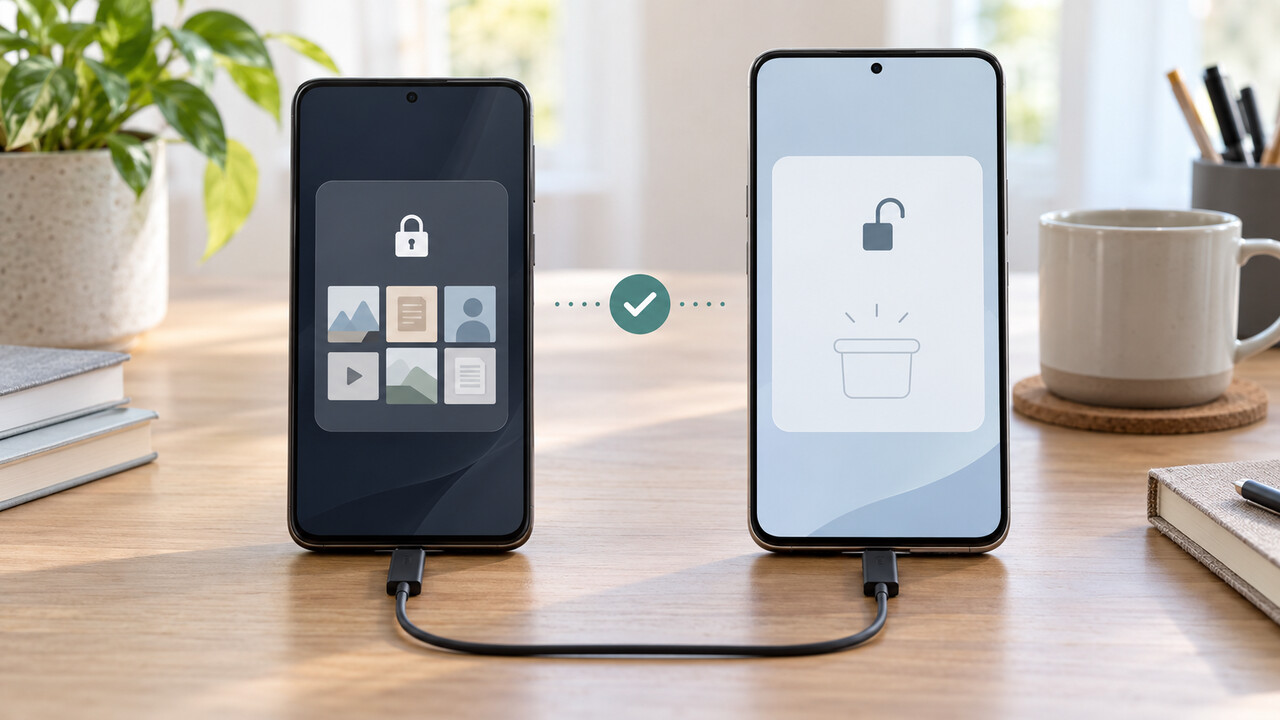
If Smart Switch says the transfer completed but Secure Folder on your new Galaxy is empty, treat the transfer as unverified. Do not reset, trade in, erase, or remove Secure Folder from the old phone. First confirm that the files still open inside Secure Folder on the old device. Then update Smart Switch, initialize Secure Folder on the new phone if it has not been set up, and perform one clean retry with the old Secure Folder unlocked and Secure Folder explicitly selected under Apps. If the destination is still empty but the old copy remains accessible, move critical files out of Secure Folder temporarily, transfer them separately, and move them into Secure Folder on the new phone.
The exact labels can vary by Galaxy model, One UI version, carrier and region. These steps apply when the old Galaxy still works and you are moving to another supported Galaxy with current Samsung Secure Folder and Smart Switch behavior. They cannot make an erased or inaccessible source phone readable.
First, decide which situation you are in
Open Secure Folder on the old phone before changing anything.
- If the old Secure Folder still contains the files and you can unlock it, you have a recoverable source. Continue with the controlled retry below. - If the old Secure Folder opens but is empty too, stop. Do not clear Secure Folder data, uninstall it, reset the phone, or experiment with developer options. Record both phone models, One UI versions, Secure Folder and Smart Switch versions, and the transfer result, then contact Samsung Support. - If the old phone works but you cannot unlock Secure Folder, Smart Switch cannot complete the protected-content approval described in Samsung’s transfer instructions. Use only the account or lock-recovery choices offered on that device; otherwise contact Samsung before resetting anything. - If the old phone has already been erased, lost, or made inaccessible, check whether Secure Folder offers Restore from backup for a backup created in the past. Samsung says new Secure Folder backup creation is no longer supported, although an older backup may still be restorable. The reviewed Samsung pages do not provide a self-service recovery path from a Smart Switch completion result alone.
Why “transfer complete” is not enough
A matching size in Smart Switch history is evidence only of what Smart Switch reported processing. It does not prove that the destination files are present or openable.
Secure Folder is a protected environment, not an ordinary photo album. Samsung’s own transfer instructions end by telling you to open Secure Folder on the new phone and verify its contents. Smart Switch may finish the overall operation while protected content still needs destination setup, an unlock approval, restoration processing, or a separate retry.
Keep the old phone until the new Secure Folder passes a real file check. Do not use the transfer screen as the only proof.
Prepare one clean retry
1. On the old phone, open Secure Folder and spot-check several important files. Include at least one recent item, one older item, and more than one file type. 2. Keep the old phone charged, unlocked, and available. Do not remove Secure Folder. 3. Update Smart Switch and Secure Folder on both phones. Install pending system updates if the phones offer them. 4. On the new phone, complete the initial Secure Folder setup if it has not been initialized. Samsung’s support page does not state that this is universally required, but multiple users report that Secure Folder became selectable or restored correctly only after destination setup and unlock. 5. Use a reliable data cable if possible. Samsung also supports wireless transfer, but a cable removes one variable after a misleading result. 6. Open Smart Switch. On the old phone choose Send data; on the new phone choose Receive data. 7. Choose Custom rather than assuming Everything included the protected content. 8. Expand Apps, select Secure Folder or the Secure Folder content shown, and approve every unlock or access prompt on the old phone. Samsung notes that the old phone must be unlocked when an Everything transfer includes Secure Folder. 9. Start the transfer and leave both phones connected until Smart Switch finishes processing. 10. Open Secure Folder on the new phone and allow any restoration or re-encryption processing to finish.
Now open representative files. Check actual photos, videos, documents, and notes—not just thumbnails or folder names.
If they open, continue to the completion checklist. If Secure Folder is still empty, do not repeat the same transfer indefinitely.
If the clean retry still leaves Secure Folder empty
When the old phone still contains an accessible copy, use a preservation fallback for the files that matter most.
Samsung documents a Move out of Secure Folder command in My Files. A moved item becomes an ordinary-storage copy and is temporarily outside Secure Folder protection. Use this route only on devices you control, keep the transfer local where practical, and remove the staging copies after verification.
1. On the old phone, open Secure Folder and then My Files. 2. Select a small test set first. 3. Choose More, then Move out of Secure Folder. 4. Confirm the test files appear in ordinary internal storage. 5. Transfer those files to the new phone with a direct cable, Smart Switch ordinary-file transfer, a trusted computer, or encrypted removable storage. 6. On the new phone, open the transferred files before moving them. 7. Move the verified files into Secure Folder on the new phone. 8. Delete temporary ordinary-storage copies only after the protected copies open correctly. 9. Repeat in manageable batches for the remaining content.
For highly sensitive material, avoid a consumer cloud upload unless you deliberately chose that service and understand its security. A direct cable or controlled encrypted local storage keeps the exposure narrower.
When to stop and contact Samsung
Stop self-service attempts if:
- Secure Folder is empty on both phones; - the old device cannot unlock or approve access; - the new phone repeatedly reports the expected transferred size but remains empty after one clean cable retry; - files appear corrupted or cannot be opened; - the new Secure Folder asks for a password you do not know; - the only remaining evidence is a Smart Switch history screen or completion receipt.
Give Samsung Support the old and new phone models, One UI versions, Secure Folder and Smart Switch versions, connection method, approximate content size, whether the old folder still opens, and screenshots of the transfer result that do not reveal private content.
Do not do these things while the old copy is unverified
- Do not factory-reset or trade in the old phone. - Do not uninstall or remove Secure Folder. - Do not clear Secure Folder storage or app data. - Do not enable experimental backup switches from forum comments. - Do not accept matching gigabytes in Smart Switch history as proof that files are usable. - Do not leave sensitive temporary files in ordinary storage longer than necessary.
Samsung’s general Smart Switch troubleshooting may suggest clearing Smart Switch cache or data for a transfer that failed to complete. That is different from clearing Secure Folder data. Preserve and verify the protected source before trying a generic app reset.
Completion checklist before erasing the old phone
The migration is complete only when you can:
- unlock Secure Folder on the new phone after a restart; - open several recent and old photos or videos; - open documents and notes, not just their thumbnails; - confirm the expected folder structure and approximate item counts; - confirm there is no remaining restoration or processing notification; - verify that temporarily moved files are back inside Secure Folder; - remove temporary unprotected copies from ordinary storage; - repeat the check after one more reboot.
Keep the old phone protected and offline, if practical, until this checklist passes. A Smart Switch success screen starts the verification; it does not replace it.