Tech · PRACTICAL GUIDE
Ring Devices Missing After You Switch Phones? Check the Account and Location Before Setup
A finished phone transfer does not prove that Ring restored the account, Location, owner role or shared permissions. Check those server-side paths before resetting or setting up hardware.
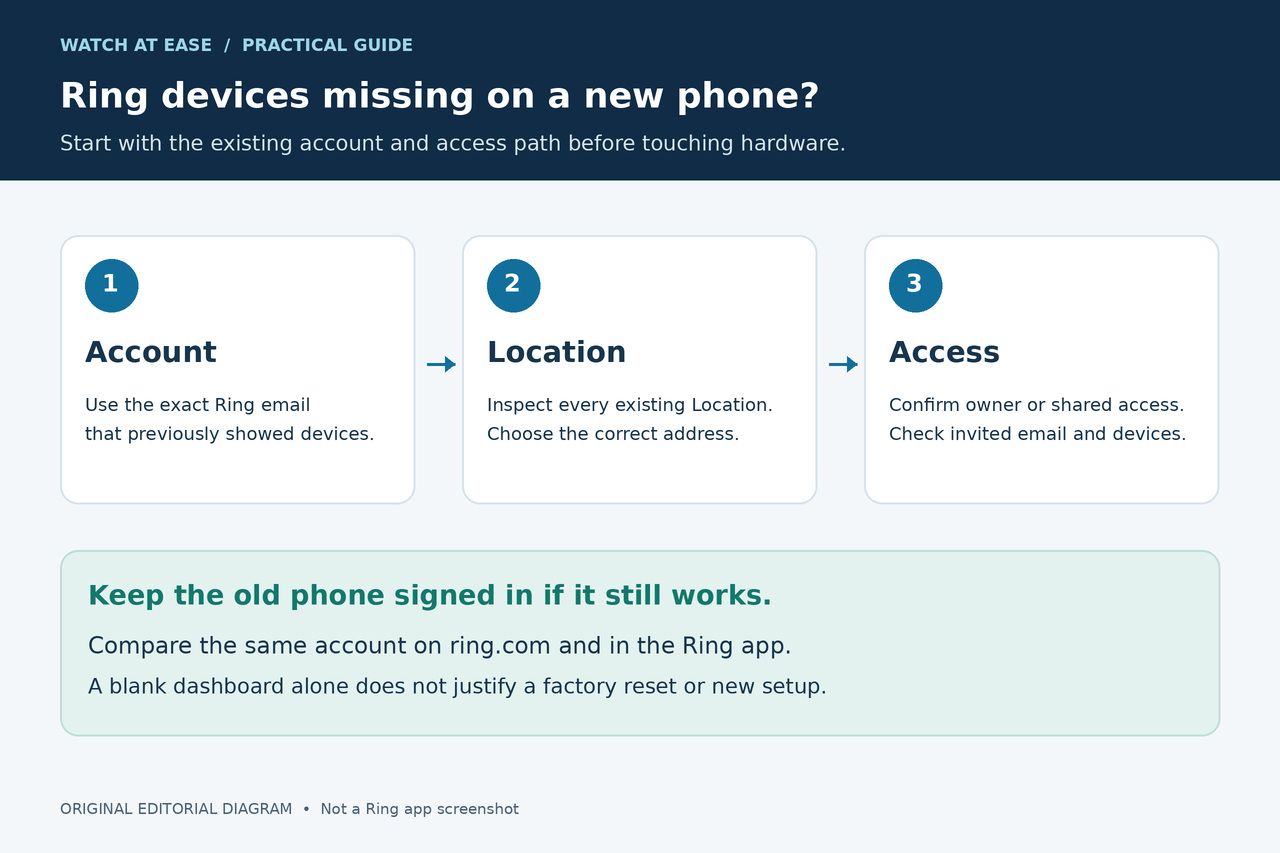
If the Ring app is empty on a new phone, do not reset the doorbell or camera and do not create a new Location yet. A phone migration can copy the app without copying a non-Google account and all of its data. Sign in with the exact Ring email that previously showed the devices, switch to the correct Location, determine whether you are the Location Owner or a Shared User, and compare the app with ring.com. Only attempt hardware setup after Ring Support confirms that the device is not already attached to another owner account.
Keep the old phone signed in if it still works. The safe sequence is account, browser view, Location, role and invitation, then app troubleshooting. If both the app and ring.com are empty, preserve identifiers and ask Support to locate the owner attachment before setup.
A successful phone transfer is not a Ring ownership transfer
A carrier migration, Android copy, iPhone Quick Start or restored app icon can make the phone look finished while Ring still needs its own account sign-in. Google says Android setup copies apps and certain app data but not accounts other than Google Accounts and their data.
The Ring doorbell, camera or alarm is not recovered by copying the app. Reconnect the app to the existing Ring account, Location and permissions. Keep the old phone signed in if possible; do not remove devices, delete Locations, transfer ownership or factory-reset hardware while that path is uncertain.
1. Verify the exact Ring account
Open Account Management in Ring and record the full email. Compare it with the old phone, earlier Ring emails and subscription receipts. Ring says that an account-creation prompt is a reason to verify the same email used for the original Ring account.
Do not rely on autofill alone. A second email, alias treated as another login, or Shared User account can sign in successfully yet show an empty dashboard. Enter the intended address manually and use Ring's normal password recovery instead of creating another account.
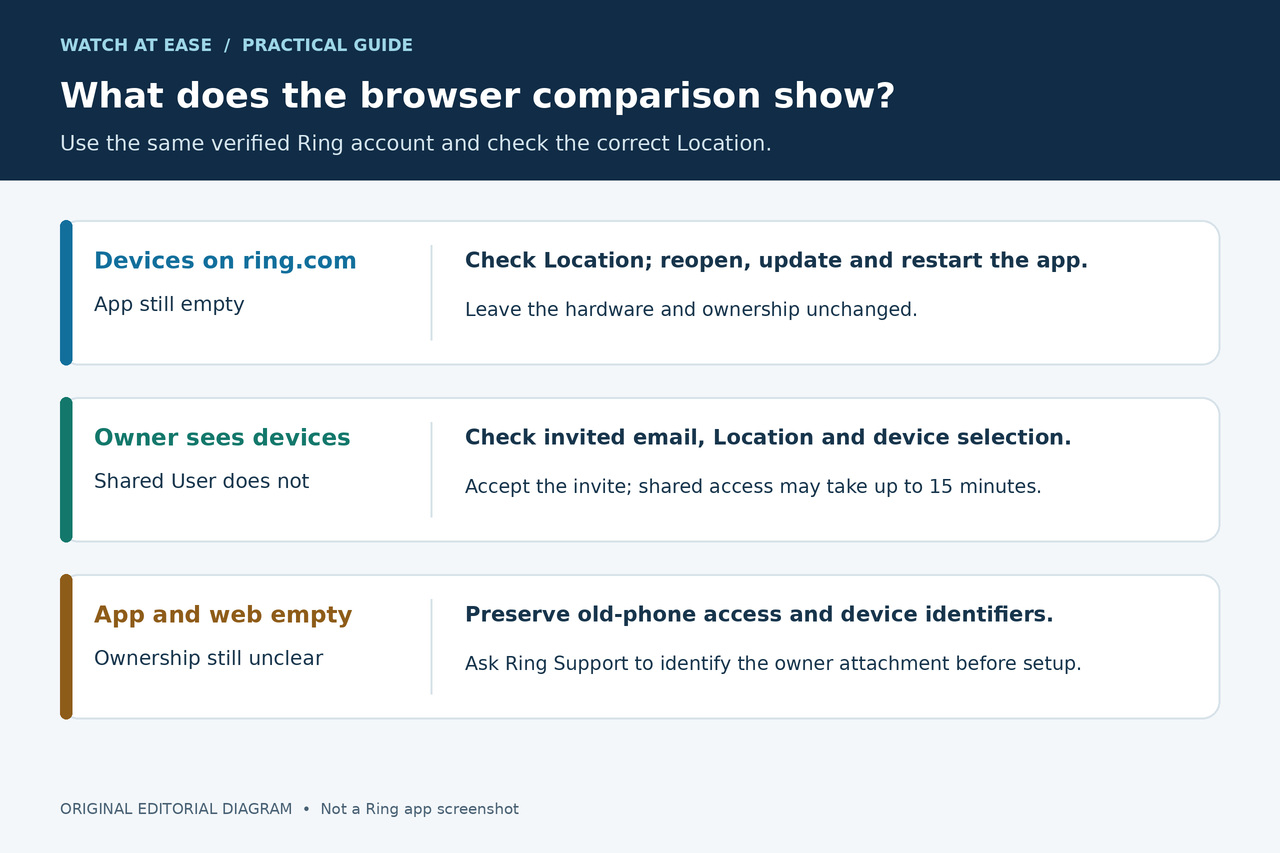
Sign in at ring.com with the same address. If the web view has devices but the app does not, the account still has them and the remaining problem is the app, selected Location or local session. If the web view is empty too, continue with Location and role checks before touching hardware.
2. Switch to every existing Location before creating one
Ring Locations group devices by physical address. Tap the Location name or arrow at the top of the dashboard, inspect every existing Location and select the address that originally held the missing devices.
An empty new Location does not mean the devices were erased. Do not add a duplicate address as a test. Ring says changes are specific to a Location and devices must be removed or reassigned before a Location can be deleted.
If the devices return under the expected Location, open Live View or another non-destructive control for one representative device, then reopen the app to confirm the Location remains selected.
3. Decide whether you are the Location Owner or a Shared User
The email that worked on the old phone may have been invited access rather than the owner account. Ring lets a Shared User view the Location Owner in Location Settings.
Shared access is per Location and per device, so a user can see one address or only part of a device set. Ask the owner to verify the exact invited email, Location and device selection.
If an invite is pending, expired or tied to another email, the owner should cancel the stale invite and send a new one to the address used on the new phone. Accept it through email and Received Invites. Ring says shared access can take up to 15 minutes to appear; do not create more accounts while waiting.
4. If ring.com has the devices but the app is empty
Leave the hardware alone. Select the correct Location, fully close and reopen Ring, install the current app update and restart the phone.
Ring currently says its app requires iOS 17 or later or Android 9 or later. On a supported phone, sign out and back in with the verified email. Reinstall only after the account and web view are confirmed; Ring notes that you must sign in again. A VPN can be disabled temporarily only as a permitted diagnostic, then restored.
This branch succeeds when the same verified account and Location show the devices in ring.com and the updated app. No reset, removal or new setup is required.
5. If both the app and ring.com are empty, stop before setup
An empty web account is an account-side clue, not proof that the hardware is unconfigured. Check the old phone and record the email, Location name, device names, MAC IDs or serial numbers available from the app, label, packaging or purchase record.
In a 2025 case, Ring responders checked email, ring.com and Locations, then recommended Support use MAC IDs to identify the account. That is safer than repeated setup attempts that can collide with an existing owner attachment.
Tell Support which branch you completed: the old phone still has devices; the owner sees them but a Shared User does not; both app and web are empty under the original email; or no visible account remains and you have identifiers. Never post passwords or verification codes.
6. What not to do
Do not factory-reset solely because the new dashboard is blank. Do not remove a device, delete its Location, cancel a working subscription or begin ownership transfer until the owner account is identified. Do not keep creating Ring accounts with alternate emails.
A hardware reset may later be appropriate for a confirmed setup or connectivity problem, but it cannot repair a wrong account, wrong Location or missing permission. Follow model-specific setup only after Support confirms the device is no longer attached to another owner account.
7. Completion and failure branches
Recovery is complete when the intended devices appear under the correct Location in the Ring app and ring.com, and one representative device opens without changing ownership or resetting hardware. For a Shared User, the owner's name, accepted invite and expected device permissions should also be present.
If web works but the supported updated app never does, report an app/session issue with phone model, OS, Ring app version and verified account and Location. If the owner sees devices but the Shared User does not, repair the invitation and device selection. If neither app nor web shows devices, keep the old phone and identifiers and ask Support to locate the owner attachment. Stop before setup until that is clear.