Culture/Entertainment · PRACTICAL GUIDE
Peacock Offline Downloads: Laptop Limits and Premium Plus Checks
A laptop cannot use Peacock’s official downloads. Before paying for Premium Plus, check your exact viewing need—and know what to do if the app will not open saved episodes offline.
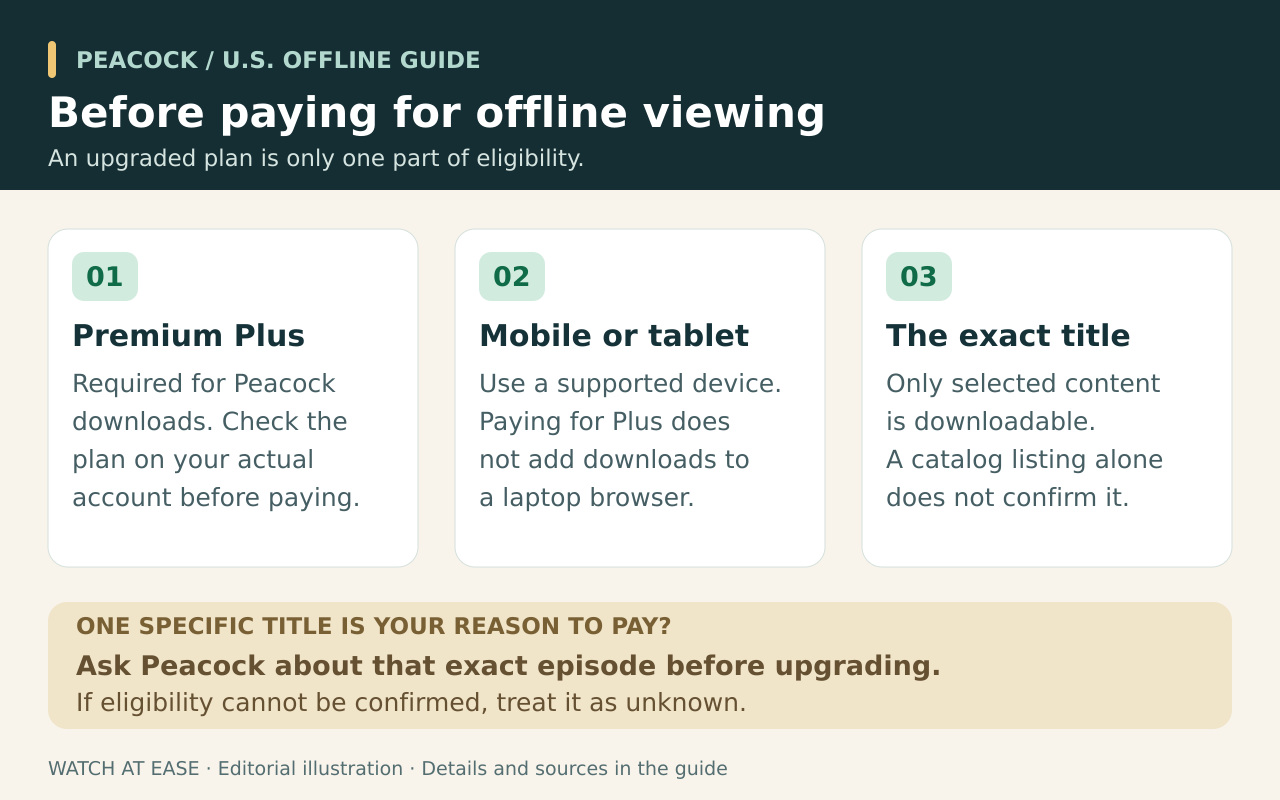
No. For U.S. Peacock subscribers, official offline downloads are for selected titles on supported phones and tablets with Premium Plus. Its supported laptop browsers are for online viewing; buying Premium Plus does not add laptop downloads.
The more useful decision is whether the particular episode you want can be saved on the device you will take. This guide separates what you can establish before upgrading from what you must confirm in the app, then explains how to handle an offline access problem without immediately deleting your downloads.
Before upgrading for one show, check this
A title being available to stream does not establish that it can be downloaded. Peacock’s plan and offline-help pages promise selected content, and the pages reviewed for this guide do not provide a complete, current list of downloadable episodes. An old forum answer about a favorite series is not a guarantee for today’s season or episode.
If one show is your only reason to upgrade, write down its exact title, season and episode, your device model and your travel date. Use Peacock’s help contact page to ask whether that item is currently downloadable with Premium Plus on that device. For example: “I want season 2, episode 3 of [title] offline on [device]. Can you confirm eligibility before I upgrade?” This is a suggested question, not a promise that support can confirm it.
If you already see a download control in your app, inspect the exact item rather than a general series page. If eligibility remains unclear before purchase, treat it as unconfirmed. Do not buy an upgrade solely on the assumption that a streaming listing or another subscriber’s past download guarantees the episode you need.
Confirm the download on the device you will take
After confirming Premium Plus, check that your phone or tablet is supported. The general device list also includes computers and televisions, but that does not make those devices eligible for downloads. Use the mobile or tablet app, then open the exact movie or episode and look for its Download icon.
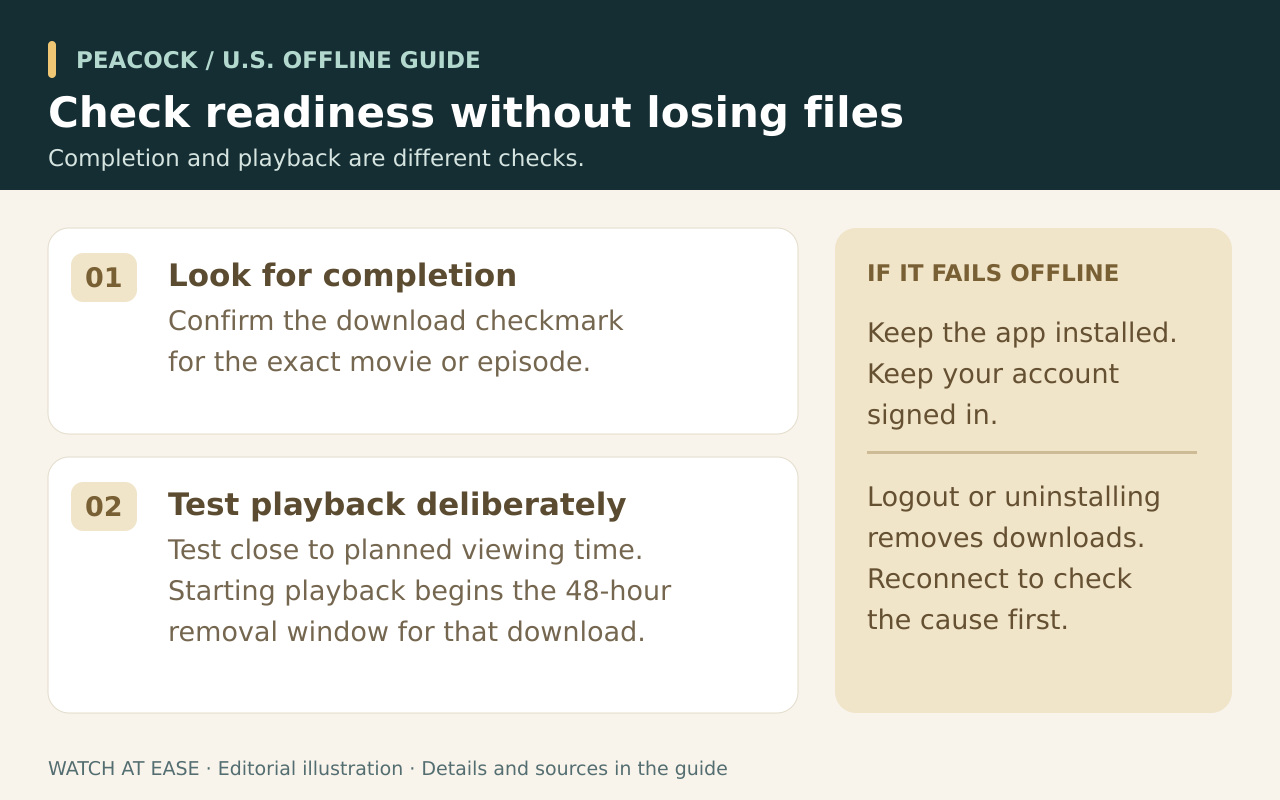
In Peacock’s documented supported setup, no Download icon means the item is not available to download at that time. If the icon is present, start the download and wait for its progress indicator to become a checkmark. A title appearing in your watchlist, or a download still in progress, is not the same as a completed copy.
While you still have time and connectivity to resolve problems, disconnect briefly and reopen Peacock. Its help page says the app should open Downloads; choose the series and then the saved episode. A short playback test is our practical suggestion, not a test performed for this article. Starting playback begins the 48-hour window, so do not test a title days before you intend to finish it.
If the app will not open your downloads offline
First distinguish two failures: the app cannot reach Downloads, or it reaches Downloads but one saved item will not play. Record which happens and the exact error message. The official offline instructions describe access to Downloads without a connection; they do not say that every offline app-opening failure has one known fix.
Try closing and reopening the app, then restarting the device. These are Peacock’s general troubleshooting steps; they are not a verified cure for every offline download problem. If the app opens, select the saved episode from Downloads rather than trying to stream it from search.
Do not jump to signing out or reinstalling while you are offline: Peacock explicitly says both remove downloaded content. Its general playback checklist also suggests clearing app data and reinstalling, but that checklist is not a download-preservation procedure. Defer destructive resets until you can reconnect and replace the saved items; this precaution follows from the published removal warning.
If reopening and restarting do not help, reconnect when possible and contact Peacock through the Technical Assistance or Video Playback category. Provide the device and app versions, exact title and episode, completed-download status, whether the failure occurs only offline, and the error text. Ask for a step that preserves downloads before following a reset instruction. We did not reproduce this fault on a device, and cannot promise recovery while you remain offline.
When the item is missing or another download is blocked
If another download is blocked, check account-wide downloads and free storage. Peacock permits 25 saved items across devices. Some content also has a separate per-account limit of 10 downloads; deleting a different episode does not remove that item’s download-count restriction.
Unwatched copies last up to 30 days, or less if the title leaves Peacock. Starting playback begins a 48-hour window. An expired copy needs to be downloaded again while connected, if still eligible; the published rules provide no offline renewal method.
For departure, confirm the exact episodes have finished saving and remain within their viewing window. If your only device is a laptop, plan for connected viewing. If an essential episode remains ineligible or the app cannot open it offline after the checks above, arrange another viewing option rather than relying on an unverified workaround.