Technology · PRACTICAL GUIDE
node-gyp cannot find Python? Prove the interpreter path before reinstalling
Trace the exact npm child process, node-gyp copy, Python selector and compatibility gate before changing aliases, reinstalling toolchains or forcing a global configuration.

“Python works in my terminal” and “node-gyp can use that Python” are different claims. The safe fix begins by proving the exact npm child process, node-gyp copy, executable selector and compatibility gate.
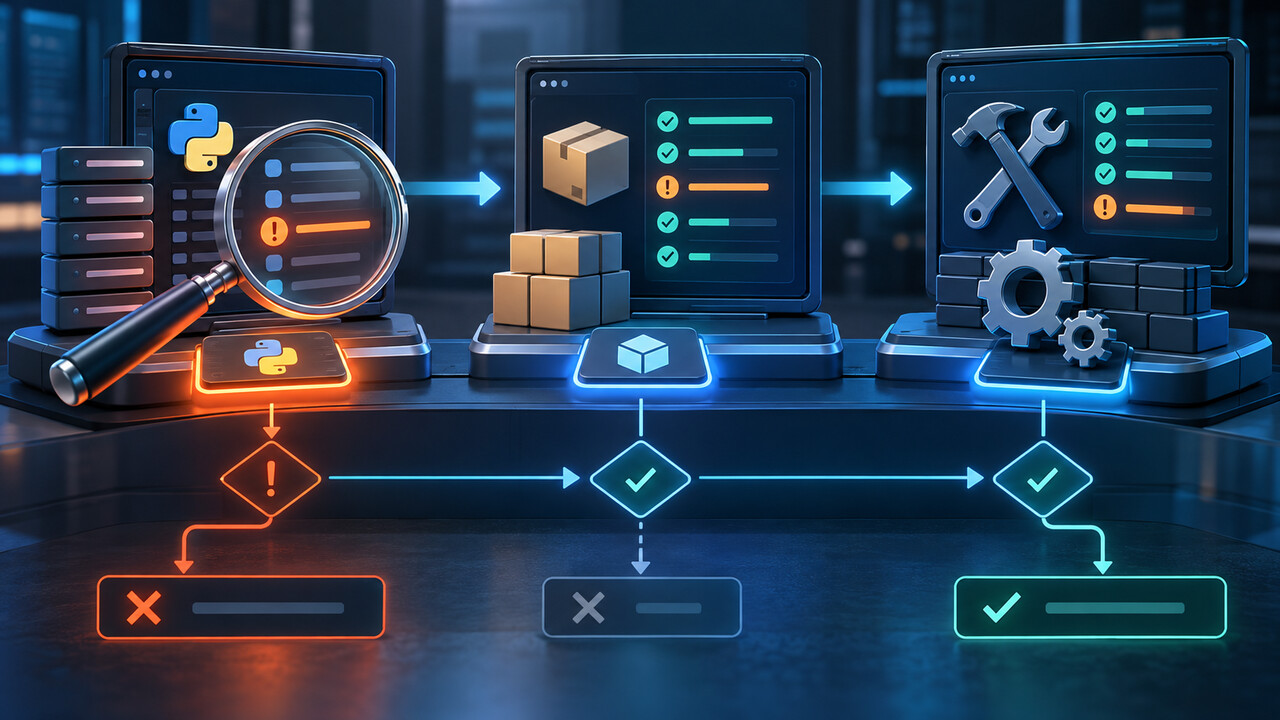
This guide follows the first failing stage from interpreter discovery to version acceptance and then to the separate native toolchain, so each change is narrow and reversible.
Freeze the first failure and the exact install context
Save the complete npm output from the first gyp ERR! find Python line through the final command, current working directory, Node version, npm version and node-gyp version. Record whether the failure came from npm install, npm ci, a package install script, a container build or CI. Later compiler messages are different failures, so start with the first causal line rather than the last npm summary.
Also preserve the command path printed in the log. A working python3 command in an interactive terminal proves only that one shell can resolve it; it does not prove that npm's child process uses the same PATH, user, environment or node-gyp copy.
Prove which Node, npm and node-gyp actually ran
In the failing context, capture node -p "process.execPath", node --version, npm --version and the gyp info lines that name the node-gyp version and command path. Check npm config get node_gyp and the relevant package install script. A binding.gyp file can make npm invoke node-gyp automatically even when you never typed node-gyp yourself.
Do not assume npm install -g node-gyp changed the copy used by the failed install. Official node-gyp maintenance documentation explains that some npm versions bundle an internal copy, while project dependencies and package-manager shims can provide others. Treat the path in the actual log as the authority.
Test Python from the same child-process environment
From the same terminal, container layer, service account or CI step, run command -v python3 (or where.exe python on Windows), then execute the returned absolute path with -c "import sys; print(sys.executable); print(sys.version)". Compare that path with npm_config_python, PYTHON and NODE_GYP_FORCE_PYTHON. Interactive aliases and shell functions may never be visible to npm's spawned process.
node-gyp documents four explicit selectors: --python, npm_config_python, PYTHON and NODE_GYP_FORCE_PYTHON. The force variable stops further searching when its target is incompatible, so a stale value can be worse than no value. Use py --list-paths on Windows to obtain real executables instead of guessing a Store alias.
Match the interpreter to the node-gyp version
A Python executable can exist and still be rejected. Current node-gyp documentation states that Python 3.12 or newer requires node-gyp 10 or newer. Compare the interpreter version with the node-gyp version from the failing log, not a different global installation.
If the log finds an old or unsupported Python first, remove the stale selector or point the failing process to a supported absolute executable. Upgrade the package manager or dependency chain only when you understand which node-gyp copy it will change. Do not install Python 2 merely because an old community answer says so.
Separate discovery from the next build-tool failure
Re-run once with verbose logging after Python selection succeeds. If find Python disappears and the first error moves to make, MSBuild, a compiler, headers, binding.gyp or native source code, the interpreter problem is solved. Continue from the new first failure instead of repeatedly reinstalling Python.
On Unix, node-gyp requires a supported Python, make and a C/C++ compiler. On Windows it requires a supported Python and the appropriate Visual C++ build environment. Third-party runtimes such as Electron may also need their own headers. These are separate branches, not proof that Python selection failed.
Apply one narrow, reversible selector
Prefer an absolute interpreter path in the failing context: pass --python when you directly invoke node-gyp, or set npm_config_python for the npm install step. Use PYTHON only when that broader environment contract is intentional. Reserve NODE_GYP_FORCE_PYTHON for a verified compatible executable because it disables fallback searching.
Remove stale project, user, global or CI values before layering another workaround. npm documents that npm_config_ environment variables become configuration parameters and that project, user and global npmrc files are distinct scopes. Record which scope you changed and avoid machine-wide edits when one job needs the override.
Verify the original install and keep rollback evidence
Repeat the exact original npm command in the exact original context. Confirm the verbose log names the intended Python executable and compatible node-gyp version, then verify the native module loads or its test passes. A successful node-gyp configure alone does not prove the package's compiled addon works at runtime.
Record the old and new selector values, the node-gyp path, interpreter path, versions, npmrc or CI scope and the command that removes the override. Clear temporary npm_config_python, PYTHON or NODE_GYP_FORCE_PYTHON values after the intended build if they should not govern unrelated projects.