Technology · PRACTICAL GUIDE
Nest Keeps Changing the Temperature With Auto-Schedule Off? Check What Changed It Before Resetting Anything
Turning off Auto-Schedule stops new schedule learning on supported older Nest models. An existing schedule, Eco, a timed hold, Seasonal Savings, a Home automation, Nest Renew, a utility event or Safety Temperature can still change the target or start the system.
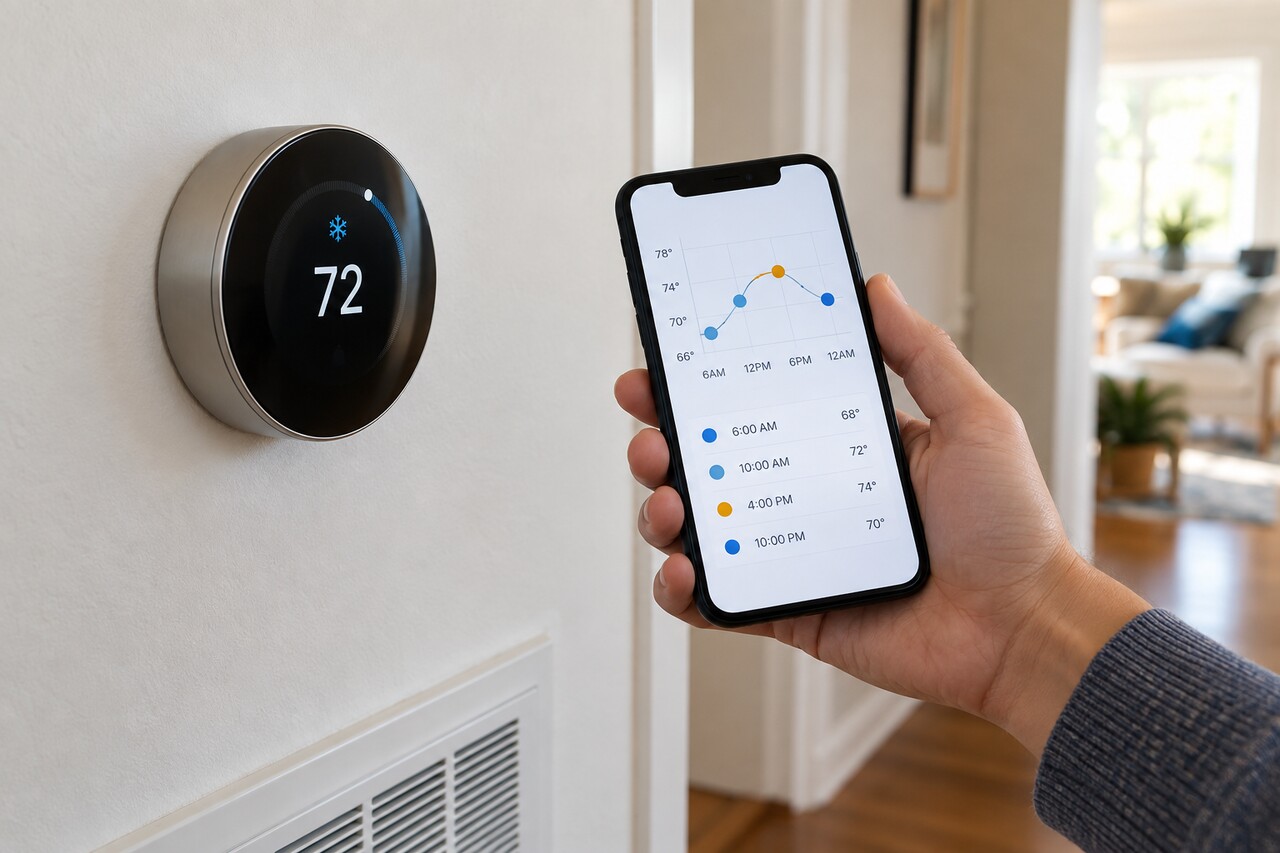
Auto-Schedule is not a master switch for every automatic Nest behavior. On Nest Thermostat E and Nest Learning Thermostat (3rd gen or earlier), turning it off stops the thermostat from learning new schedule entries. It does not delete the schedule already stored. Nest Thermostat (2020) does not use Auto-Schedule, and Nest Learning Thermostat (4th gen) uses Smart Schedule instead.
Other controls remain independent: Eco and presence, Seasonal Savings, Google Home automations, Nest Renew Energy Shift, utility demand-response programs, another home member, and Safety Temperature. Any one of them can explain an unexpected change.
Do not factory-reset first. Record when the change happened and any label or icon, then compare Energy History with Google Home Activity. Once you identify the likely actor, change only that control and verify the next matching event.
This guide uses current US Google Home and Nest controls. Menus vary by thermostat model, account migration, installed system, app version and region. Energy programs depend on location, utility and enrollment.
First decide what actually changed
Separate these two symptoms:
1. The target setpoint moved—for example, 72°F became 76°F. Continue with this guide. 2. The target stayed the same, but the HVAC started early, short-cycled, ran continuously or behaved opposite to the selected mode. Skip to “Probably HVAC, not automation.”
In Google Home, open Favorites or Devices > Climate > your thermostat > Energy dashboard. For models managed in the Nest app, open the thermostat > History and choose the day. Energy History records system runtime; supported Nest views can also identify contributors such as a manual change, Eco, schedule or weather.
Then open Google Home Activity and filter by device, event and date around the same time. Activity can show thermostat adjustments, device states and routines that ran. It may not name every cause, so also keep any thermostat or app label—for example Seasonal Savings or ENERGY RUSH HOUR.
Same time every day: inspect the existing schedule
Turning Auto-Schedule off does not erase learned entries. Google says that with Auto-Schedule off, a manual ring change lasts only until the next scheduled change.
Open the schedule for the active Heat, Cool or Heat • Cool mode and inspect the next event after the time you changed the temperature. Edit or delete that event. If old learned entries are widespread, use the model-specific Schedule reset instead of a factory reset.
Model check: - Nest Thermostat and Nest Learning Thermostat (4th gen): use the Google Home app. - Nest Learning Thermostat (3rd gen or earlier) and Nest Thermostat E: the Nest app still provides full controls; the Home app can control them after account migration, but schedule options differ by model.
Proof of fix: make one manual change and let the former scheduled event time pass. The target should stay where you intended.
Manual change expires: use a real Hold when the model supports it
A normal ring or app adjustment is not necessarily a hold. Google’s Hold feature is available only on Nest Thermostat and Nest Learning Thermostat (4th gen).
In Google Home, open the thermostat > Hold temperature, select the current temperature or a preset, choose an end time and start the hold. Google currently allows a non-Eco preset to be held for up to 24 hours. Eco can use no end time and remain held until you end it.
Nest Thermostat E and Nest Learning Thermostat (3rd gen or earlier) do not have this same Hold control. On those models, edit the schedule when you need a manual temperature to survive the next event.
Proof of fix: Google Home shows the hold as active and the target survives the next scheduled event.
Change follows arrival or departure: check Eco and presence
Eco switching is separate from Auto-Schedule. Presence-based automations or Home/Away Assist can move the thermostat into or out of Eco when the home is judged empty or occupied.
Check Activity first, then review which phones and devices participate in presence sensing. A disabled phone location setting, the wrong home, an obsolete device or a household member’s phone can change the result. Correct the bad input, adjust Eco temperatures or disable automatic Eco switching only if a fixed schedule is more important for your household.
Safety Temperature remains separate even if an Eco heating or cooling limit is Off.
Yellow gear or Seasonal Savings banner: review the campaign
Seasonal Savings can make small schedule adjustments after you enable it. During an active campaign, Google may show a yellow gear with a leaf, a Seasonal Savings banner and gold rings around changed temperatures in History.
In Google Home, open Climate > Schedules > View changes in the Seasonal Savings banner. You can keep the changes, edit the schedule or leave Seasonal Savings through thermostat Settings > Temperature preferences > Seasonal savings.
Important: Google says that if you opt out or turn Seasonal Savings off, you cannot opt back in until it becomes available the next season.
Proof of fix: at the next relevant schedule window, no new Seasonal Savings adjustment appears.
ENERGY RUSH HOUR or an energy-program change: check enrollment outside Auto-Schedule
Nest Renew Energy Shift and Rush Hour Rewards are separate from Auto-Schedule.
Energy Shift can make small setpoint changes for short intervals to prioritize cleaner or cheaper electricity. In the Nest Renew portal, review Settings > Energy Shift Settings; Google says you can change its preferences or turn the applicable Energy Shift option off.
Rush Hour Rewards can automatically pre-adjust or change heating and cooling during a utility event. Google shows an event notice and may display PRE-COOLING, PRE-HEATING or ENERGY RUSH HOUR, then returns to the regular schedule after the event.
Check the Nest Renew portal, Google Home energy or rebate-program settings, your utility account, and any rebate or demand-response provider you joined. Event override and permanent unenrollment rules vary by operator, so follow the exact program terms rather than assuming Auto-Schedule controls them.
Completion means the enrollment setting matches your intent and the next comparable event behaves accordingly.
A routine or another home member changed it
Google Home automations can set thermostat state or temperature, and home members with app access can make changes remotely. Activity can show thermostat adjustments and routines that started.
Inspect Automations and the home-member list. Disable only the routine that matches the timestamp, or remove access that is no longer needed. A lock on the thermostat display should not be treated as proof that no authorized app user changed it.
Heating or cooling starts while mode is Off: preserve Safety Temperature by default
Safety Temperature can turn heating or cooling on when the room reaches a configured limit even if the thermostat is set to Off. Google says heating protection is on by default; available limits depend on region and installed equipment.
Check thermostat Settings > Temperature preferences > Safety Temperatures in Google Home, or the model-specific Safety Temperature setting in the Nest app or on the thermostat.
Do not disable this protection merely to make Off literal. Consider frozen pipes, pets, plants, occupants and extreme weather. Google says a Safety Temperature event generates a phone notification plus a Nest app message or Google Home Feed event when the home is online.
If the system runs far from the configured limit and there is no corresponding event, investigate equipment or wiring instead.
Equipment starts early but the target did not move
Early-On or True Radiant can start the HVAC before a scheduled time so the home reaches the target on time. That is different from a changed setpoint.
If the target remains unchanged, review the applicable Early-On or True Radiant setting instead of troubleshooting Auto-Schedule.
Safe one-change-at-a-time sequence
1. Record the exact time, time zone, old and new target, and any label or icon. 2. Confirm whether the target moved or only the equipment behavior changed. 3. Read Energy History and Google Home Activity around that time. 4. Check the active mode’s schedule. 5. On supported models, check Hold and its end time. 6. Check Eco, presence and Google Home automations. 7. Check Seasonal Savings. 8. Check Nest Renew, Rush Hour Rewards and utility or rebate programs. 9. Check Safety Temperature before changing Off-mode protection. 10. Change one cause, wait through the next matching event and review History or Activity again.
Changing one variable at a time preserves both diagnosis and safety protection.
Probably HVAC, not automation
If the target stays put but the equipment behaves incorrectly, watch for heating while the thermostat calls for cooling, rapid cycling, a continuous fan or compressor, Delayed or Starts in messages, wiring errors, or operation that does not correspond to a thermostat call.
Follow Google’s exact error-code or HVAC troubleshooting guidance. If equipment overheats, rapidly cycles, smells hot or runs opposite the selected mode, shut off HVAC power at the service switch or breaker if you can do so safely and contact a qualified technician. Do not use a factory reset to work around a suspected wiring or equipment fault.
Still unexplained
Collect the thermostat model and software version, app used, exact timestamp and time zone, before-and-after target, label photos, Energy History, Activity, active-mode schedule, automations, home members and every energy or utility program tied to the address.
Give that evidence to Google support. If an energy-program label appeared, also contact the utility or program operator and ask which service issued the adjustment. A factory reset can remove local settings without resolving an account-side or utility-side control, so it is a last step after evidence is captured—not a diagnostic shortcut.