Technology · PRACTICAL GUIDE
Merge Teams Attendance Reports into One Workbook
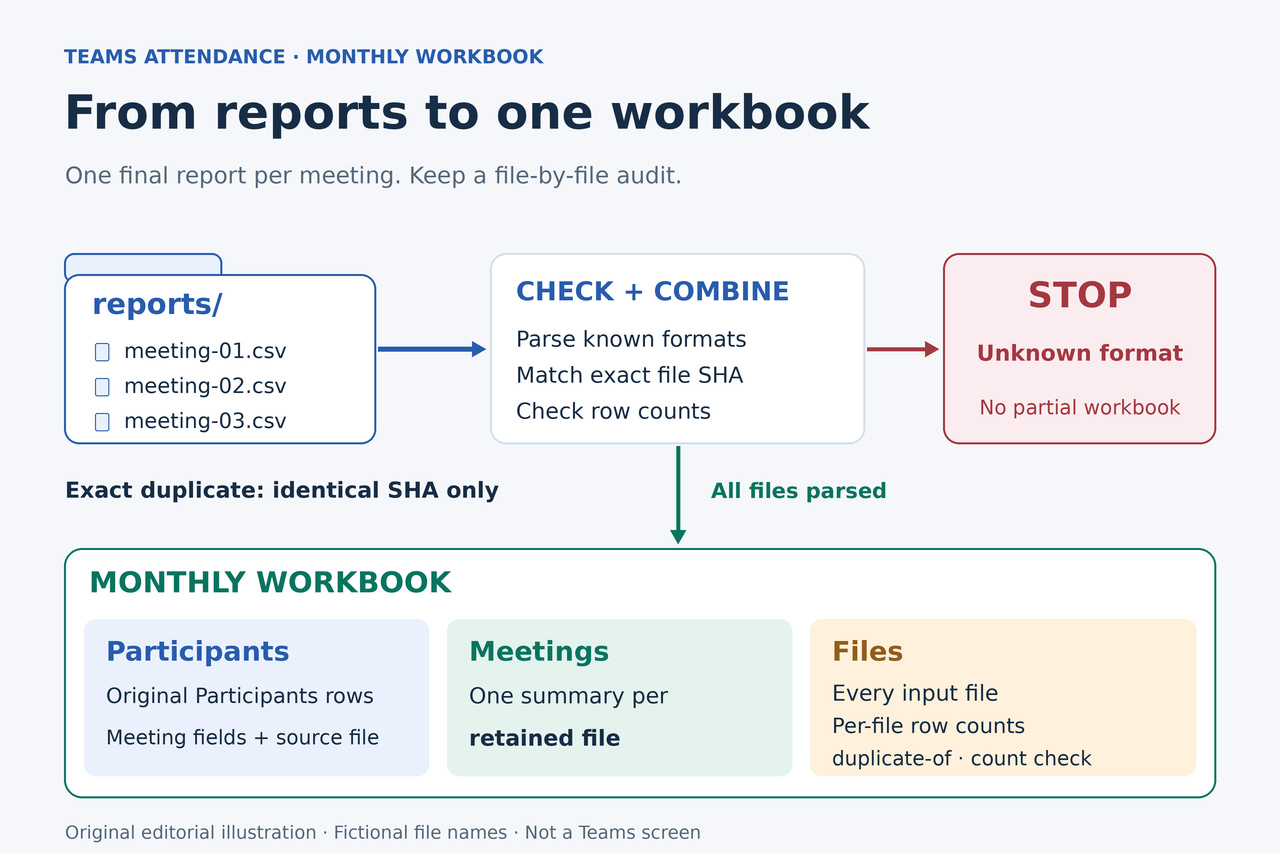
Combine a folder of English Teams attendance CSVs while keeping attendee names, meeting details, original durations and a record of every input file.
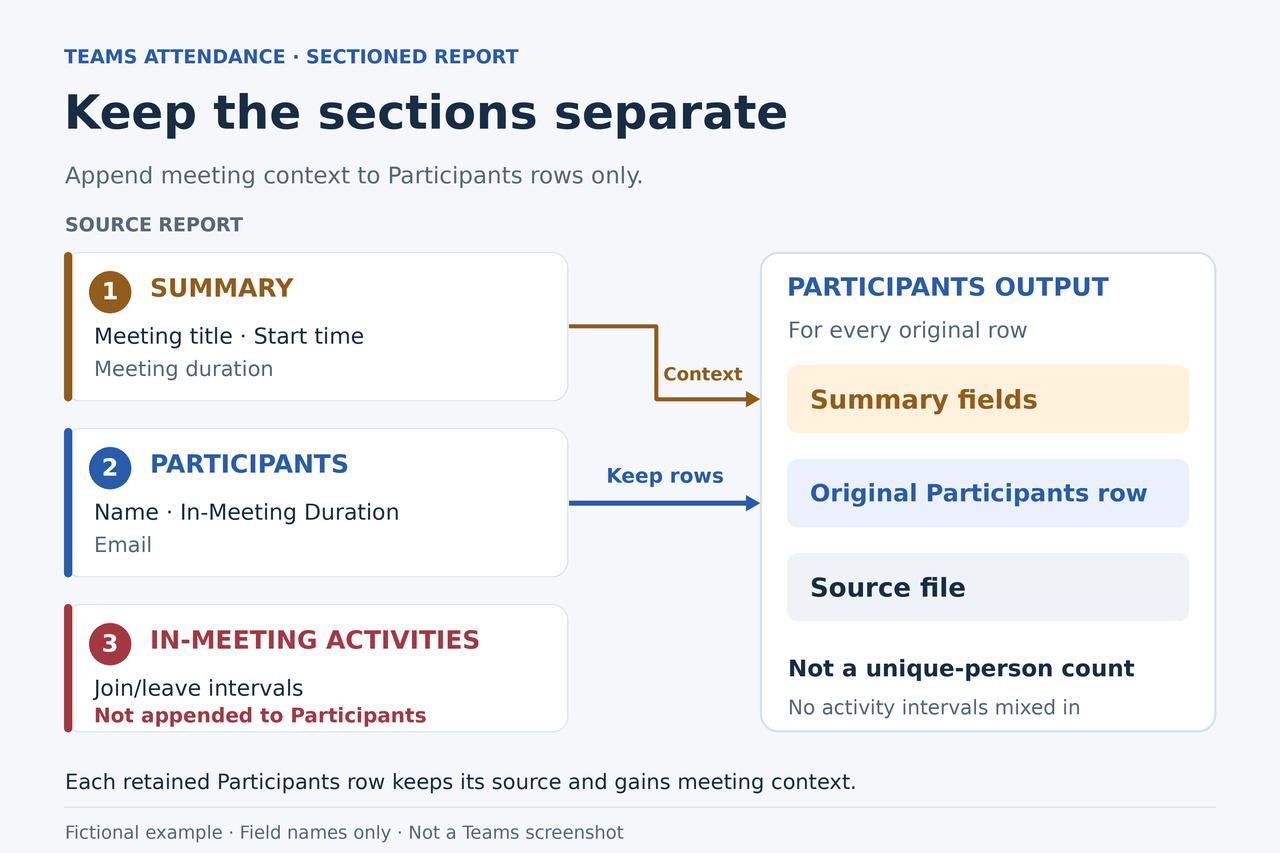
To combine these reports, take each report’s Participants table and attach that report’s Summary fields before joining the rows. The converter below does this for a folder of supported English Teams CSV files and creates one workbook with Participants, Meetings and Files sheets.
The result keeps names, original join and leave values, attendance durations and source filenames together. It also creates audit.json with the original participant and summary values, so you can check the workbook against its inputs. You need Python 3.11 or a newer supported version and a desktop terminal; the converter processes the downloaded files on your computer.
Check that your reports match this layout
Open one report as text, or inspect it without saving changes. This version expects three section labels in order: 1. Summary, 2. Participants and 3. In-Meeting Activities. The layout was checked against an independently published original report; it is a defined input format, not a promise that every Teams export has the same structure.
Summary must contain Meeting title, Attended participants, Start time, End time, Meeting duration and Average attendance time. Their order may vary, and additional summary fields are retained. Meeting title may be empty; the other five required values must be present.
The Participants header must contain exactly these seven fields, in this order: Name, First Join, Last Leave, In-Meeting Duration, Email, Participant ID (UPN), Role. Email and Participant ID (UPN) may be empty. The remaining required participant values must be present.
The Activities header must contain exactly these six fields, in this order: Name, Join Time, Leave Time, Duration, Email, Role. The converter checks this section’s structure but does not append its interval rows to Participants. It supports UTF-8 and UTF-16 files with a byte-order mark, plus UTF-8 without one, with tabs, commas or semicolons when the complete structure matches.
Put the intended reports in one folder
Create a working folder named Teams-Month and a subfolder named reports. Put the CSV files you intend to combine directly inside reports. Subfolders are not searched. Keep the downloaded originals; opening and resaving them in a spreadsheet application can change dates, encoding or other values before the converter sees them.
Choose one final report for each intended meeting occurrence. Microsoft provides separate reports for recurring meeting instances. If you still need a file and have organizer or coorganizer access, open the past meeting chat, select Attendance and download its CSV. Use the post-meeting report when assembling the month.
The file selection defines the batch. Two reports of the same meeting can have different contents, so a different file fingerprint does not establish a different session. The converter will not decide which revision of a report you meant to keep.
Download and run the converter
Install a supported Python 3 version from https://www.python.org/downloads/ if needed. On Windows, open PowerShell; on macOS, open Terminal. Change to your Teams-Month working folder with cd followed by its full path in quotes. For example, replace the example path in cd "C:\path\to\Teams-Month" on Windows or cd "/path/to/Teams-Month" on macOS.
Check the interpreter before continuing: run python --version on Windows or python3 --version on macOS. It should report Python 3.11 or newer. If the command is missing, finish the official installation and reopen the terminal; a missing interpreter is separate from a report-format error.
On Windows, download the version 1 helper with this PowerShell command. It saves the source file; it does not run it:
Invoke-WebRequest -UseBasicParsing -Uri "https://watchatease.com/guide-tools/merge-teams-attendance-v1.py" -OutFile "merge-teams-attendance-v1.py"
On macOS, download the same file with:
curl --fail --location "https://watchatease.com/guide-tools/merge-teams-attendance-v1.py" --output "merge-teams-attendance-v1.py"
After the download succeeds, run the following command on Windows. The reports folder must already exist, and month-output must not exist:
python "merge-teams-attendance-v1.py" "reports" --output-dir "month-output"
On macOS, run:
python3 "merge-teams-attendance-v1.py" "reports" --output-dir "month-output"
Success creates teams-attendance.xlsx and audit.json inside month-output and prints the number of participant rows, retained reports and exact-copy files skipped. Open the workbook to inspect it. For a later run, choose a new output name such as month-output-2; the helper refuses to replace an existing directory. It needs no additional Python packages and makes no network requests while processing your reports.
Read the three workbook sheets
Participants is the combined detail table. Its first seven columns retain the original participant fields. Source file and Source SHA256 identify the input report, followed by columns beginning Summary: that carry that report’s meeting information. Filter Source file to see one report, or filter Name or Email to inspect entries across the selected reports.
Meetings contains one row per retained report, with its source, participant-row count, count comparison and Summary values. Its row count is a count of retained report files. It becomes a useful meeting list after you have selected one report for each intended occurrence.
Files accounts for every input CSV, including exact copies. Status is included or exact_duplicate_skipped; Duplicate of identifies the retained file for a copy. Participants rows and Activities rows excluded let you see how the two sections were handled. Count check compares the Summary’s Attended participants value with the number of Participants rows when the value is plain decimal digits.
audit.json records the same file inventory, counts and workbook fingerprint, plus retained_reports containing the original Participants rows and ordered Summary key/value pairs. Keep it with the original CSVs. It provides a direct record of the input values if a spreadsheet application later changes a cell or normalizes line endings when saving.
Check the batch before using its totals
First, count the CSV files directly in reports and compare that number with the Files sheet and input_file_count in audit.json. Every intended file should have an entry. Exact copies count in Files, but they contribute no additional Participants or Meetings rows.
Next, filter Files for included and add its Participants rows values after converting those count cells to numbers in a separate working copy, or use participant_rows_written in audit.json. That total should equal the number of data rows in Participants, excluding the header. All workbook cells are initially text to preserve their values.
For each included source, compare its Summary fields and a participant entry with the original report. In particular, check the name, In-Meeting Duration and the associated meeting start value. A blank meeting title remains blank, so Source file is useful context.
If Count check says DIFFERS, the workbook still opens and retains the data, but the discrepancy needs inspection in that source report. Matching counts establish that the two counts agree; they do not verify that every row represents a different person or that the source report is complete.
Keep dates, durations and repeated names in context
A value such as 3/04/24 remains that exact text. The converter does not guess whether it means March 4 or April 3. Establish the export’s date convention before doing date arithmetic in a separate analysis copy, and keep the original-valued columns available.
In-Meeting Duration is retained as reported. The helper does not subtract First Join from Last Leave, sum activity intervals, apply an attendance threshold or calculate certification hours. Those are additional calculations with their own assumptions; the workbook supplies the underlying report fields.
Rows are not merged by name, email or Participant ID (UPN). The same display name may occur in different entries, and an empty email remains empty. Across sessions, a person may properly appear more than once.
Microsoft documents limits in the underlying reports, including omissions for people never admitted from the lobby and for view-only attendees. Consolidating downloaded files cannot restore information absent from them. Use the workbook as an organized version of those reports, with their limits.
If a file is rejected
An unsupported header, missing section, malformed quoted field, required blank value or unreadable file produces an error identifying the affected filename. The converter checks the batch before creating output; it does not silently skip a rejected CSV and label the remaining data complete.
Check the named file against the three-section layout above. If it was accidentally resaved or damaged, use a fresh original export if one is available. Keep reports from another product or a different layout outside this input folder. Avoid renaming an unfamiliar column merely to make validation pass, because a similar label may describe different data.
If your genuine report uses another language or structure, this helper does not support it. A Power Query transformation adapted to that actual layout is an alternative. Microsoft’s folder-combination documentation explains how to apply a sample-file transformation to every matching file and retain its source name.
An output-directory error means choosing a new destination, while a missing-Python error means fixing the interpreter installation. Neither is a reason to alter report contents. Retain the error and source file until the relevant issue is resolved.
When another workflow is a better fit
Tom Riha’s existing Power Automate walkthrough extracts Participants when a report is uploaded and can suit an ongoing upload workflow. Authorized administrators can also use reporting or audit-data workflows to collect meeting information. The method here starts with the report folder you already have and provides its consolidated workbook in one run.
The converter follows the stated format and writes literal text cells. Its checks use fictional reports, including quoted names, blank identity fields, multiple encodings, repeated files and failure cases. This does not amount to a test in your Teams tenant or a guarantee that every spreadsheet program preserves every string when resaving. Keep the original CSVs and the raw-value audit as the reference.