Tech · PRACTICAL GUIDE
Kindle Highlights Missing on a New Device? Preserve Them Before You Sync or Reset
If an old Kindle or app still shows the missing annotations, treat it as the last good copy. Export or copy those notes before changing Sync, signing out, reinstalling, deleting a book, or resetting the device.
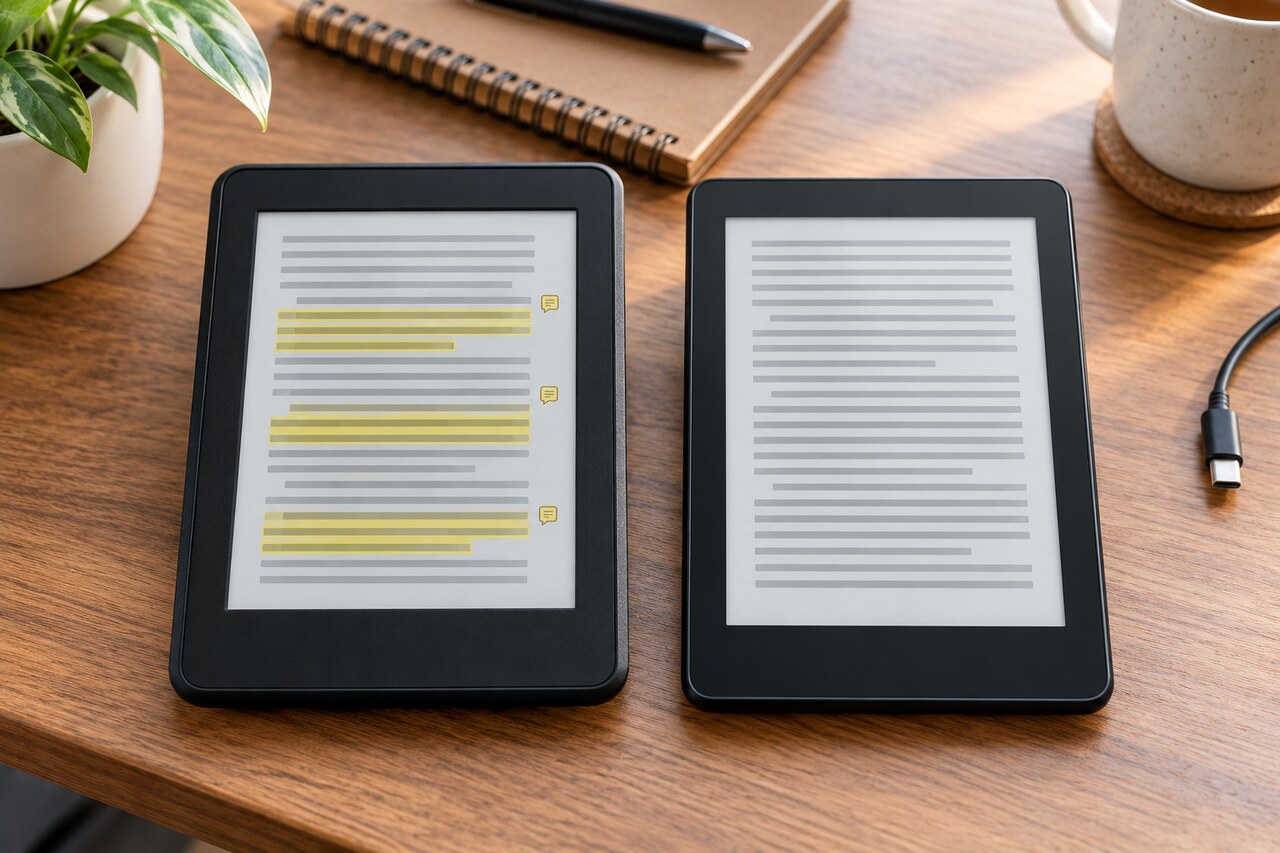
If your Kindle books appear on the new device but older notes and highlights do not, do not reset or deregister the old device yet. First preserve every surviving copy you can see. Then determine whether the book came from the Kindle Store, Send to Kindle, or a USB transfer, because those paths do not back up annotations in the same way.
For a US Amazon account, check the book on the old device or app, its Annotation Notebook, and the web notebook at https://read.amazon.com/notebook. If the old device has the only complete copy, export the book’s notebook or copy My Clippings.txt before you change Sync or erase anything. Once you have an external copy, you can test Sync without risking your only evidence.
This guide covers text highlights and typed notes. Handwritten Kindle Scribe annotations have different device and export limits. It also cannot recreate annotations that no longer exist on any device, app, web notebook, export, or backup.
Market/version note: US English account flow; Amazon Kindle help and 2024 Kindle user guide checked 2026-10-03. Menu names can differ by device/app. Kindle Legacy app support ended 2026-06-30.
Start with preservation, not troubleshooting
The safest order is:
1. Stop making destructive changes. 2. Find the most complete surviving copy. 3. Save that copy outside Kindle. 4. Identify the book’s source and Amazon account. 5. Test Sync only after preservation. 6. Escalate with precise evidence if the cloud copy exists but the new device will not load it.
This order matters because “the book is present” does not prove that its annotations were backed up. Amazon’s current Sync help says notes and highlights are saved to Amazon’s servers when Sync is working, but it also warns that annotations made while Sync was off may be lost when the setting is turned back on.
If the old Kindle or app still shows the missing notes, temporarily keeping that device offline until you export them is a precaution, not an Amazon recovery requirement. The point is to avoid changing the last good copy before you have a separate record.
Step 1: Inventory every place the annotations might still exist
Check the following locations without deleting, reinstalling, deregistering, or factory-resetting anything.
The old Kindle or Kindle app
Open the affected book and open its Annotation Notebook. On current e-readers, tap near the top of the page to show the reading toolbar, then select the notebook icon. In mobile apps, open the book and look for Annotations or the notebook icon.
Record what you see:
- Are all older annotations present? - Are only newer annotations present? - Does the old device have more than the new one? - Is the affected content a Kindle Store book or a personal document? - Are the missing items typed highlights/notes or handwritten Scribe notes?
Kindle for Web
For Kindle Store books on a US account, sign in to https://read.amazon.com/notebook with the same Amazon account used on the devices. Other Amazon marketplaces can use their own Kindle for Web domain.
If the missing annotations appear online, that is strong evidence that a cloud copy still exists. Save an external copy before further troubleshooting. The web notebook does not show every content type: personal documents, USB-sideloaded files, and books tied to a different marketplace may be absent even when local annotations still exist.
An emailed or shared notebook
If the old app or e-reader can still open the book’s notebook, use its Share or Export option and email the annotations to yourself. Amazon’s current Kindle user guide describes email export from the book’s notebook. An export protects the words and locations even if the new device never restores them inside the book.
Amazon says Export/Share can be unavailable while Sync is off. Do not enable Sync just to unlock export before preserving the only copy. Copy My Clippings.txt if accessible; otherwise manually copy or photograph the visible annotations and their book locations for your own records. If an email export requires reconnecting an offline device, make that offline copy first. These are preservation precautions, not a guaranteed Amazon restore method.
My Clippings.txt on an e-reader
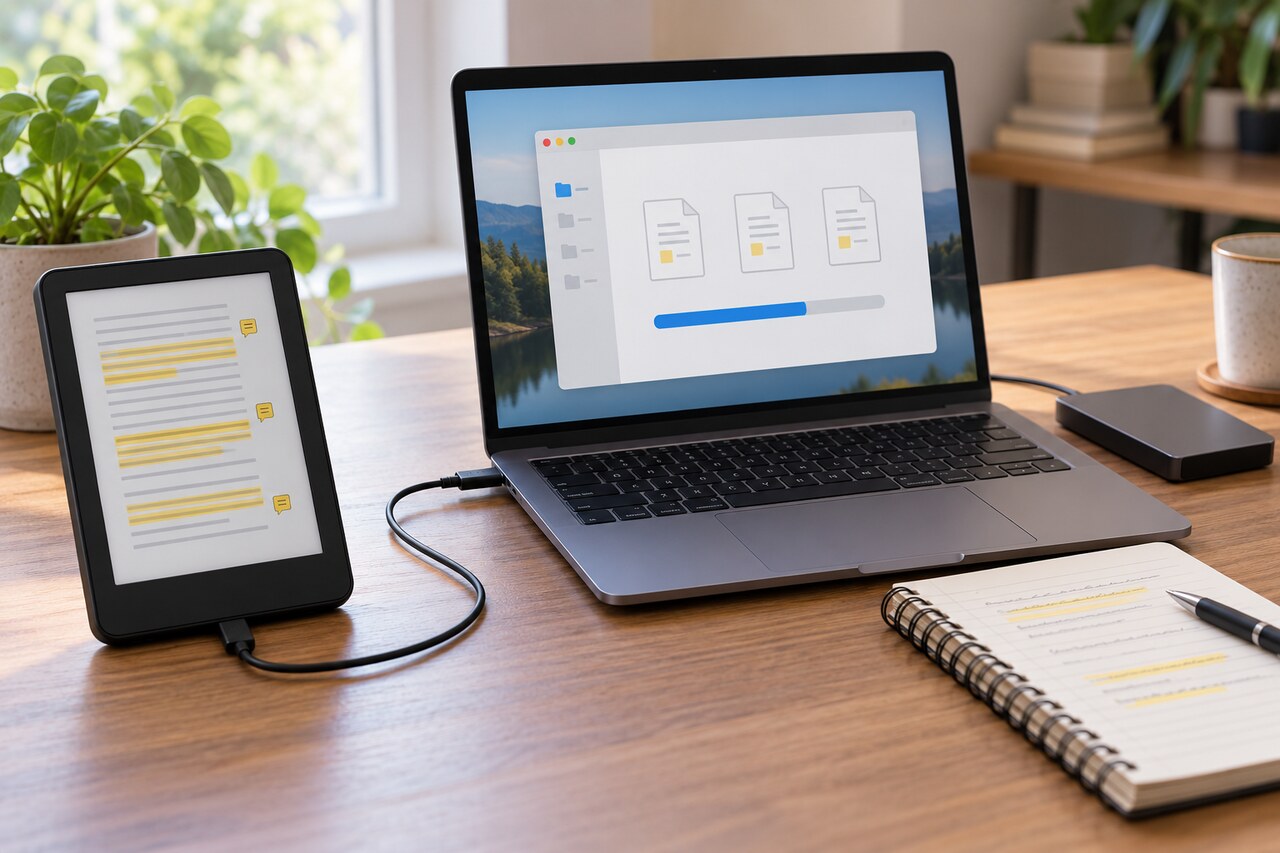
For an e-reader that exposes its storage, connect it to a computer and copy the file named My Clippings.txt from the documents folder. Keep the original file unchanged and make a second working copy.
On some recent Kindles and Kindle Scribe, macOS needs Amazon’s USB File Manager in the Send to Kindle app. My Clippings.txt is a device-local log. It can preserve highlights, notes, and bookmarks recorded on that Kindle, including material that is not in the web notebook.
Do not confuse preservation with restoration: copying My Clippings.txt to a computer saves readable annotation text, but it does not reliably reattach those highlights to passages inside the book on a new device. It can also omit text after a publisher’s clipping limit, so compare it with the book’s own notebook when possible.
Step 2: Identify how the book reached the old device
The recovery path depends on the source.
Kindle Store book
A purchased or borrowed Kindle Store book should use Amazon’s cloud Sync when the device has internet access, Sync is enabled, and both devices are registered to the same Amazon account.
Confirm the exact account on both devices. Seeing the same book title is not enough if one app is signed into a different account or marketplace. Then check whether the annotations appear in the relevant Kindle for Web notebook.
- If the web notebook has the missing annotations, preserve them and proceed to a controlled Sync test. - If the old device has them but the web notebook does not, preserve the old-device copy first. Do not assume a later Sync will upload them safely. - If neither location has them, check other registered apps and previous exports before concluding they are gone.
Document sent through Send to Kindle
Amazon's user guide says personal documents converted to Kindle format, saved to the library, and used with Sync on can synchronize notes, highlights, bookmarks and reading position across supported devices. That does not mean they appear in the store-book web notebook. Readwise's limitation concerns its web-notebook import route; it is not proof that Send to Kindle annotations can never sync between devices.
Open the document on the old device or app and preserve its notebook with Share when available, or with the offline copying method above. On the new device, check Docs or All as well as Books. Confirm library archiving and the supported format before testing Sync.
File copied by USB
A USB-sideloaded file and its local annotation data should be treated as local. Amazon’s user guide says personal content transferred directly to the old Kindle must be moved manually, and USB-transferred files are not stored in the cloud.
Before resetting, returning, or trading in the old Kindle:
1. Copy the original book or document file if the device exposes it. 2. Copy My Clippings.txt. 3. Export the book’s notebook if the option is available. 4. Verify the copied files open on the computer.
Sync cannot recreate a local file or annotation log that was never uploaded.
Step 3: Run a controlled Sync test
Only do this after the most complete annotation set exists outside Kindle.
1. Confirm both devices use the same Amazon account. 2. Connect the old and new devices to a stable internet connection. 3. On each device, confirm Sync is enabled. 4. On the old device, open the affected book and verify the preserved annotations are still present. 5. Use Sync or Sync and Check for Items. 6. Leave the device connected long enough to finish. 7. On the new device, sync, open the same book, and check its Annotation Notebook. 8. Recheck Kindle for Web for a Kindle Store book.
Do not create or delete test annotations in the affected passage. If you need a test, add a clearly labeled temporary highlight on an unimportant page after your backup, then verify whether it appears across surfaces.
A restart is different from a factory reset. Amazon says a normal restart does not erase books or clippings. Its user guide says factory reset removes downloaded and transferred content and should be selected only when Kindle Customer Service instructs you; back up any personal documents you want to keep first.
Step 4: Interpret the result — Cloud copy is complete, new device is incomplete
The annotations are probably not permanently lost. Save the cloud copy, then collect:
- old and new device models, - app or firmware versions, - Amazon marketplace, - whether the content is a store book or personal document, - book title, - the approximate date range of missing annotations, - screenshots showing the complete web/old-device notebook and incomplete new-device notebook, - the date and result of the manual Sync test.
Contact Amazon Customer Service with that packet. Ask them to investigate a device-specific annotation download or Sync problem. Do not lead with a factory reset when the cloud copy is known to be complete.
Old device is complete, cloud copy is incomplete
Treat the old device as the recovery source. Export the notebook and copy My Clippings.txt if available. Keep the old device unchanged until you have verified the external copies.
You can still test Sync after preservation, but do not promise that Amazon can reconstruct annotations that never reached its servers.
Web notebook and old device show different subsets
Preserve both. Export the web notebook and the old-device notebook separately, and copy My Clippings.txt. Label each file with the device and date. A merged archive is useful for reading and reference, but it is not proof that every annotation can be restored in place on the new device.
Only My Clippings.txt survives
You can recover the text, book title, location, and timestamp data present in that file. You usually cannot use it to recreate the original in-book highlight state automatically on a new Kindle. Keep the file as the authoritative surviving record.
No copy survives anywhere
If the annotations are absent from the old device, all registered apps, the correct Kindle for Web marketplace, emailed exports, My Clippings.txt, and other backups, there may be nothing left to restore. Amazon’s own warning about annotations created while Sync was off means cloud recovery is not guaranteed.
Support may still check the account, but a truthful guide should not promise recovery from a nonexistent local or cloud copy.
What not to do before preservation
Avoid these actions while one device still has the missing annotations:
- factory-resetting or deregistering the old Kindle, - uninstalling the only app that still shows the notes, - removing or permanently deleting the affected book, - toggling Sync off and on without first exporting, - assuming My Clippings.txt will repopulate highlights inside the book, - trading in or returning the old device before verifying backups.
These steps are not all guaranteed to erase cloud data, but they can remove the last local evidence or make the state harder to diagnose.
You are finished when one of these outcomes is true
Recovery is complete when: - the older annotations are visible in the affected book on the new device and match the preserved copy, or - the annotations cannot be restored in place, but you have a verified external export containing the surviving notes and highlights, or - Amazon Support has a precise device/account/content packet and you have preserved the last good copy while they investigate, or - you have checked every plausible location and documented that no surviving copy exists, so you can stop repeating destructive troubleshooting.
The key is to separate two goals: preserving the words you wrote and restoring them inside the Kindle book. The first may still be possible even when the second is not.