Tech · PRACTICAL GUIDE
KiCad 3D models missing after a move? Change only what is broken
Inventory the copied project and library, distinguish configuration changes from file edits, and check the full footprint viewer, PCB view and STEP output before retiring the old model folder.
When a move or upgrade leaves a KiCad model missing, first identify the dependency that broke: a configured root, a path stored in a footprint, or the model file itself. Work from a copy and choose the smallest change that restores the intended model.
A board keeps its own footprint instances, so a corrected library footprint does not immediately correct existing placements. Those board copies are also different from actual 3D files embedded inside a design. The workflow below separates these cases before you edit, then checks the views and export that you need.
1. Copy the design and define the scope
Close KiCad and copy the project, custom footprint library and model folders. Keep the original folders intact at this stage. Record the KiCad version, operating system, old and new roots, project location, relevant path-variable values and whether another project uses the same models.
List the copied project and library folders you intend to inspect. Include both the library .kicad_mod files and the .kicad_pcb files containing placed footprints. For affected parts, record the board reference, library footprint and expected model body. This gives later checks a defined target instead of assuming that every footprint is supposed to have a model.
2. Build a bounded candidate inventory
In a POSIX shell, run the command below from a working folder containing the two copies. Replace the placeholder directory names and choose unused report filenames. The command reads the selected design files and writes reports outside the scanned folders.
rg --no-config --hidden --no-ignore --json --multiline --glob '*.kicad_mod' --glob '*.kicad_pcb' '\(model\s+"' -- ./project-copy ./library-copy > ../kicad-model-matches.jsonl 2> ../kicad-model-scan-errors.txt
Read the JSON match records and their path, line_number, lines and submatches fields; several tokens can share one record. Open each candidate file to inspect the complete model reference. JSON preserves filename boundaries, including embedded newlines; do not split these records at colons. This is a text search, not a KiCad parser or a model-path resolver.
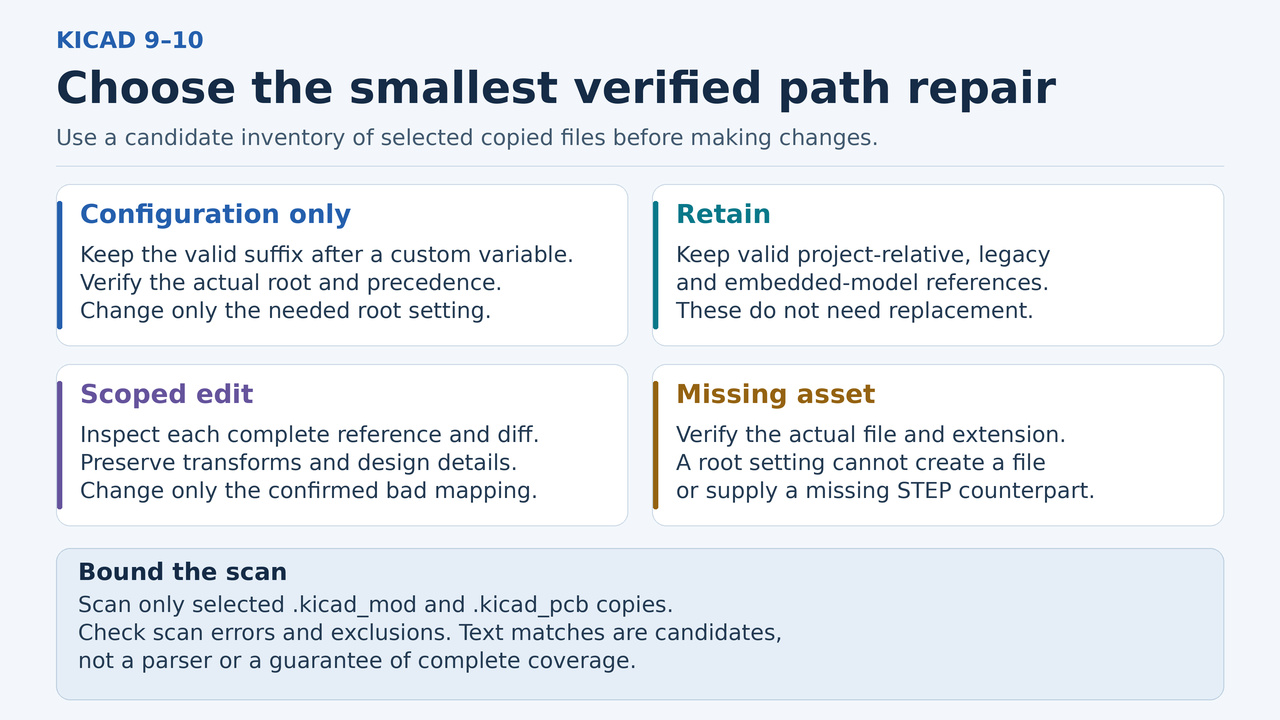
Hidden and ignored folders are included, and the pattern can find inline or multiline model tokens. Directory symlinks are not followed; binary files, archives and other extensions are outside the stated coverage. Add any other copied library roots explicitly and review scan errors. Exit 0 means matches, 1 means no matches and 2 means an error; none establishes complete coverage. A bounded Linux test with ripgrep 15.2.0 found the intended synthetic candidates and left input hashes unchanged. No KiCad GUI, save/reopen or STEP export was executed for this article.
3. Choose a change for each reference
Shared custom variable: if ${MY_3DMODELS}/Connectors/part.step still has the right suffix, check the file under the new root. Change only MY_3DMODELS in Preferences → Configure Paths when that is sufficient. For a new shared root, use a distinct name and a direct absolute folder value. An externally defined variable takes precedence and appears read-only here; adjust its actual source. KIPRJMOD is the exception described below.
Project-relative reference: retain a working ${KIPRJMOD}/models/part.step reference and carry its models directory with the project. KIPRJMOD follows the project folder and cannot be overridden. A bare ../ path needs its actual context checked in the affected views; choose an explicit project or shared root only when that existing relative reference is unsuitable.
Legacy variable or embedded file: do not mechanically replace KICAD6 with KICAD10. First check any explicit old setting, the documented fallback and the actual target file. Preserve a working reference. Likewise, keep a valid kicad-embed:// reference and check the corresponding embedded-file entry in the board or footprint that owns it; it is not part of an external root replacement.
Unresolved external path or missing asset: record the intended file and the smallest necessary edit. A new root cannot create a missing model or turn a .wrl reference into an available .step file. Confirm the real filename, extension and required export format before choosing a replacement. Keep the inventory decision for each affected reference: configuration only, retain, edit, or missing file to resolve.
4. Edit only the references that need it
For a confirmed bad external path, change the selected model entry in the copied design or review a narrowly scoped text edit. Replace an old root only where the mapping beneath it is verified. Preserve the filename, extension, offset, scale and rotation unless a separate correction is intended; inspect the complete diff for unrelated changes or damaged syntax.
Check the corresponding library footprint and each affected board instance. KiCad's Compare Footprint with Library tool can reveal their differences. Update Footprints from Library is a broader synchronization operation and can alter a customized board footprint; use it only when those changes are intended. A path repair should not silently replace custom pads, graphics or other design properties.
5. Restart and check all three outputs
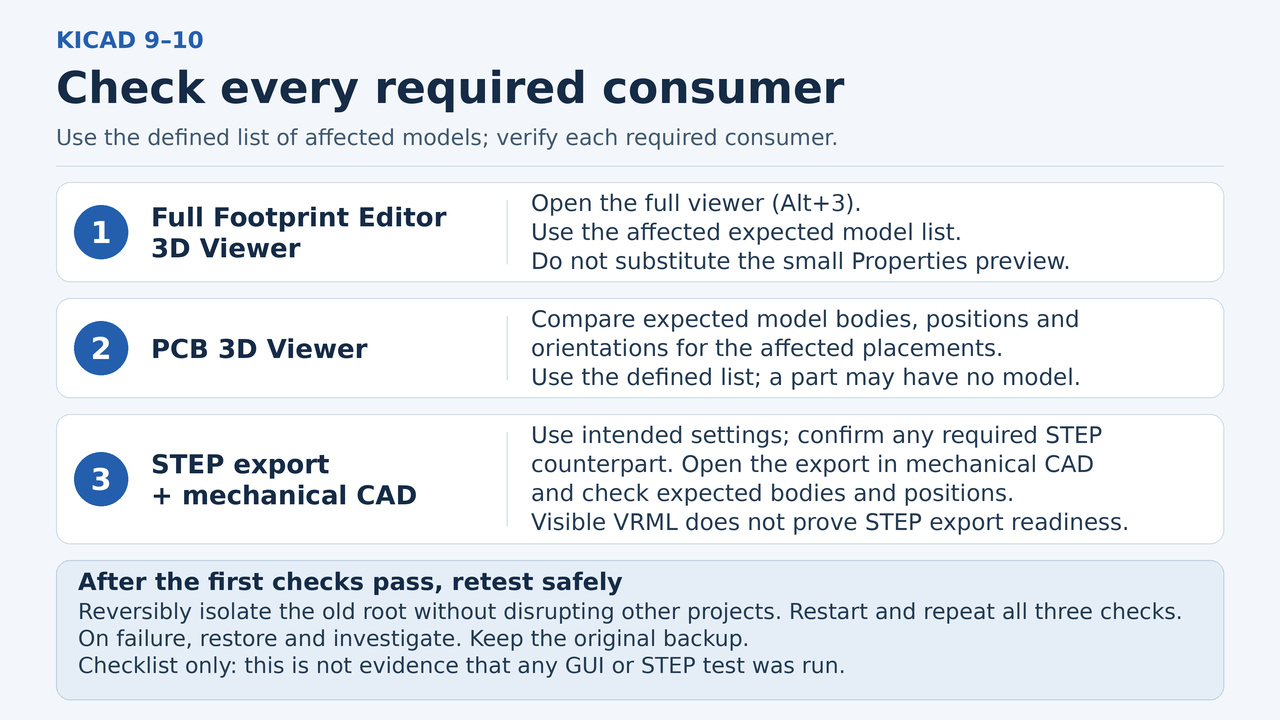
After changing path configuration, quit and restart KiCad. Open each affected library footprint in the full Footprint Editor 3D Viewer, normally Alt+3. The small preview in Footprint Properties is useful while editing, but it is not this full-view check. Then open the copied board in the PCB 3D Viewer and compare affected placements, orientation and model bodies with your checklist.
Export the copied board to STEP with component export enabled and the intended component selection and exclusion settings. VRML .wrl models are not included directly in STEP output; the exporter can use a suitably named STEP counterpart when Substitute similarly named models is enabled. Confirm that the required counterpart exists rather than assuming a visible VRML preview proves export readiness.
Open the exported STEP in the mechanical CAD tool that will consume it and compare the expected bodies and positions. Record which footprint view, board view and export passed. A reported relative-path problem in one viewer is a reason to check that consumer separately, not evidence that every installation has the same defect.
6. Prove the old root is no longer required
Once the copied design passes, temporarily make the old external model folder unavailable to this test. Use a reversible rename only when it will not disrupt other projects; otherwise use an isolated test environment. Quit KiCad, reopen the copied project, repeat the candidate scan and repeat all three output checks. Review the remaining references against the chosen layout; valid legacy, project-relative or embedded references are not failures just because they remain.
If a model disappears, a file fails to open or the diff exceeds the intended changes, restore the old location and resolve that entry before continuing. Keep the original backup through the next design review. Repeat the relevant checks after another machine, library or KiCad-version change. Plugin-managed assets, different package layouts and versions outside KiCad 9–10 need their own scope assessment.