Technology · PRACTICAL GUIDE
Joplin notes are visible but notebooks are missing: check Trash before restoring a backup
Separate a deleted notebook, a missing parent and a genuinely incomplete JEX backup before importing another copy.
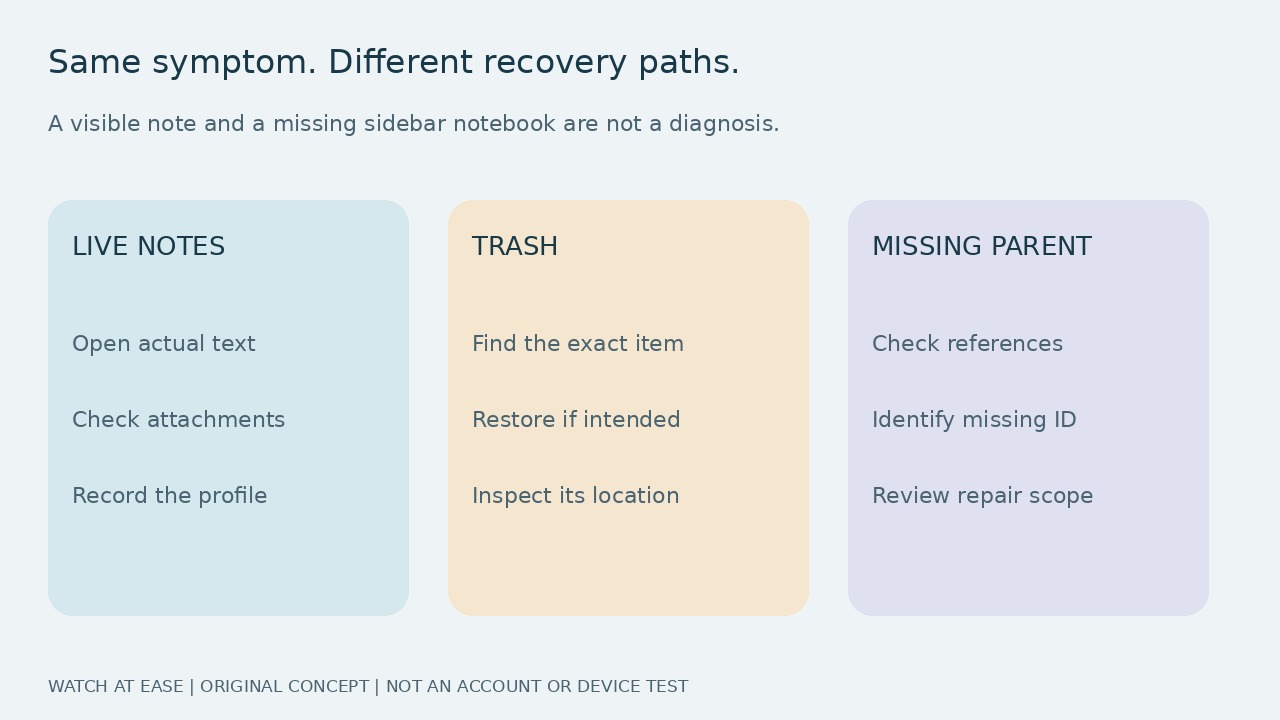
Can you open a Joplin note in All notes while its notebook has vanished from the sidebar? That symptom alone does not tell you whether the note is deleted, its parent notebook is missing or your backup is incomplete.
One reader found their supposedly missing backup notes in Trash. A separate September 2026 report involved surviving notes with a missing parent notebook. The recovery choices differ. This documentation-based guide offers checks before repair, not a tested recovery of your account.
1. Preserve the evidence before changing the library
Record the desktop and mobile versions, active profile, sync target, missing notebook names and a few affected note titles. Keep current backup sets unchanged. If another device may still hold the missing content, disconnect it from the internet before opening Joplin: the project's recovery guidance warns that syncing can propagate deletion.
Check All notes and open known affected notes. Verify their actual text and attachments rather than relying on a total count. Do not empty Trash, clear a sync target or repeatedly import a JEX while the cause remains unclear. A visible note is evidence of surviving content, not proof that its notebook structure or backup is intact.
2. Restore from Trash only when the affected item is there
Expand Trash and look for the exact notebook or note. Joplin's current documentation says notebook restoration also restores its sub-notebooks and notes. A restored note returns to its original notebook; if that notebook no longer exists, it goes to the root collection and is accessible through All notes.
After restoring an item that you intend to keep, inspect its location and content again. Do not assume every sidebar disappearance is a Trash problem: in the September report, the reader checked Trash and the missing notebooks were not there. A repair that worked for another reader is not a diagnosis of your collection.
3. A missing parent needs a structural check, not another import
If content survives but its notebook is absent from Trash and the sidebar, a missing parent is one possible cause. The independent Orphaned note repair tool documents a scan for notes or notebooks referencing a nonexistent parent_id. Its results show the missing notebook ID and referencing-item counts; it excludes notes in the virtual Conflicts notebook. Review its current documentation and preserve backups before considering a write action.
The developer describes Recreate notebook as creating a root notebook with that missing ID and a Recovered Notebook name. It cannot recover the original parent position; you must rebuild the appropriate hierarchy manually. This is not a way to reconstruct deleted note text. No relevant scan result, or uncertainty about the affected IDs, is a reason to stop and seek support with redacted examples, not to recreate arbitrary notebooks.
4. Test the backup separately and accept specific outcomes
For a JEX backup, use a separate unsynced test profile to inspect its contents rather than importing repeatedly into the live collection. The Backup plugin documents File → Switch profile → Create new Profile, then File → Import → JEX. Check affected text, attachments and notebook relationships. Its documentation warns that imports add new items, separate JEX files can lose cross-file note links, and JEX does not preserve revision history.
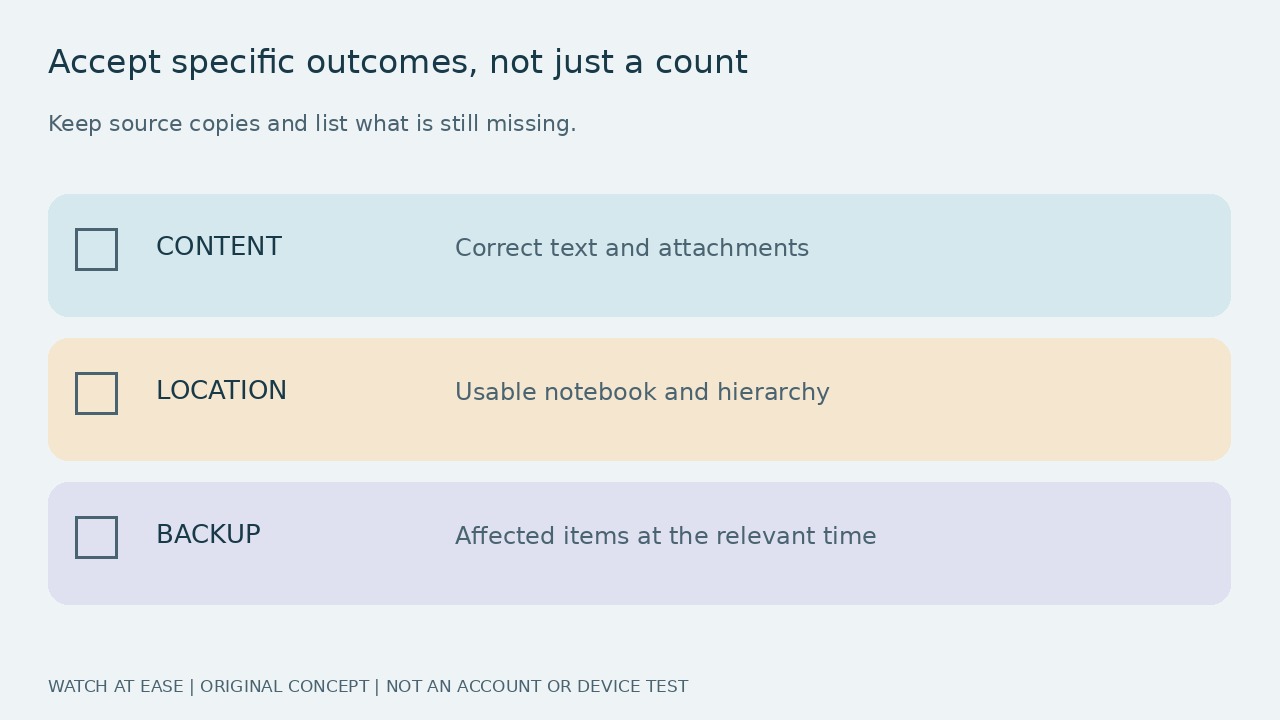
A backup test that lacks a note does not establish that the live note is gone or that Trash content is covered. Compare the relevant backup time and actual affected items. Accept restored content, usable notebook location and backup coverage as separate results. Keep unresolved omissions listed and preserve source copies; returning a notebook to the sidebar alone is not complete recovery.