Technology · PRACTICAL GUIDE
Jellyfin subtitles out of sync? Test the file, client, and playback path before retiming
A subtitle that drifts only after a seek, resume, direct stream, or transcode may not be a bad subtitle file. Preserve the original, test the same three dialogue cues across local and Jellyfin playback, and record the path that creates the mismatch before you edit anything.
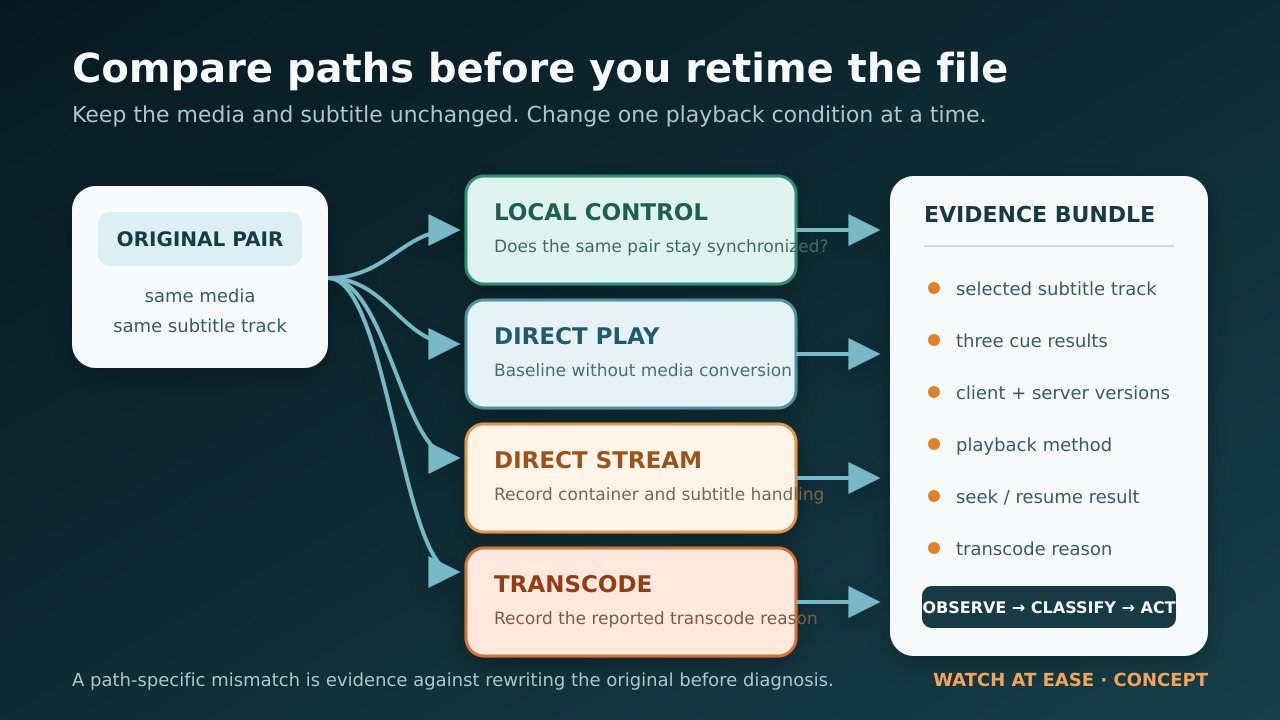
Do not begin by retiming or replacing the only copy of a subtitle. The visible symptom—words appearing early or late—can come from at least three different paths: a fixed delay in the subtitle, timing that drifts against this exact cut of the video, or a Jellyfin playback path that diverges after a seek, resume, direct stream, or transcode.
Jellyfin’s current codec documentation explains that subtitle format and client/container support can cause subtitles to be converted or burned into video, which can change the playback path. Separate Jellyfin issue reports also document cases where direct play stays synchronized but transcoding does not, and where resume or direct stream shifts the video clock relative to the same timestamp.
The goal of this guide is not to name one universal bug. It is to keep the original files unchanged while you test the same known dialogue cues in a local player and in Jellyfin, record the exact selected track and playback method, and choose the smallest next action supported by the pattern.
1. Freeze the evidence before you touch the subtitle
Make a copy of any external subtitle file and leave the original media container unchanged. If the subtitle is embedded, record the track’s language, title, format and position in the track list. If several tracks have similar labels, temporarily note the exact one selected in Jellyfin; a test of one SRT says nothing about a different embedded SRT, ASS, PGS or other track.
Record the media filename, runtime and release or cut if known. A subtitle can match the nominal frame rate yet still drift because the video contains a different studio logo, recap, edit or runtime. Do not assume that matching “23.976” or another frame-rate label proves that the subtitle belongs to this exact cut.
Write down the Jellyfin server version, client name and version, device, and whether the problem occurs from a fresh start, after a seek, after resume, or throughout playback. This snapshot gives every later result a stable context.
2. Choose three dialogue cues you can identify exactly
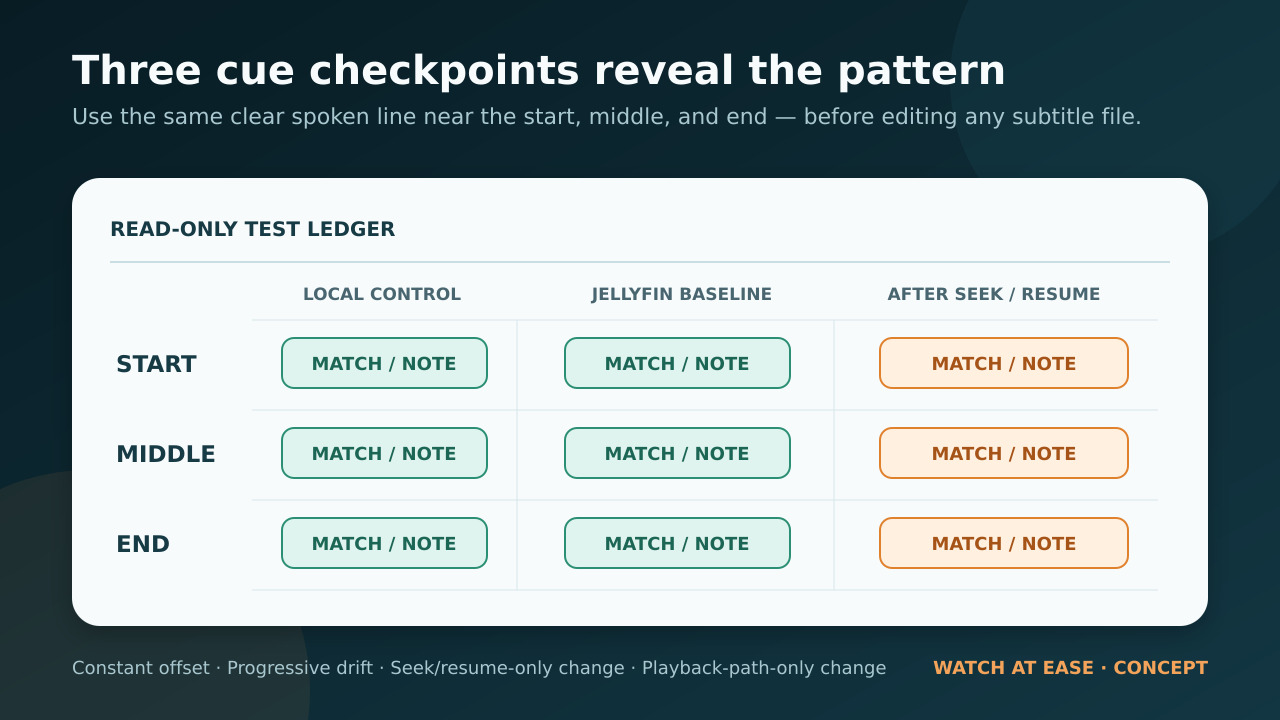
Pick one short spoken line near the beginning, one near the middle and one near the end. For each cue, record the words, the video timestamp where the sound begins, and whether the subtitle appears early, late or together with the speech. Use repeatable dialogue rather than music, a scene change, or a subtitle that spans several sentences.
The three points reveal the shape of the error. If every cue is early or late by about the same amount, the pattern is a fixed offset. If the first cue is close but the gap grows toward the end, the subtitle timing or cut is drifting. If all three cues are correct until you seek or resume, keep that as a separate playback-state result rather than calling the file bad.
Use the same three cues for every row in the matrix. Changing scenes between clients makes the comparison harder to interpret.
3. Establish a local-file baseline
Open the exact media file and exact subtitle track or copied external subtitle in a reliable local player such as VLC. Start from the beginning, then check the middle and end cues without editing the subtitle. Record whether the offset is fixed, grows, or stays synchronized.
If the same fixed offset or progressive drift appears in local playback, the evidence follows the subtitle-file branch. Jellyfin may still expose it differently, but there is no reason yet to blame a Jellyfin client or transcode clock.
If local playback remains synchronized at all three cues, preserve that result. It is the control you need before testing direct play, direct stream or transcode in Jellyfin.
4. Build the Jellyfin playback-path matrix
Play the same item in the simplest Jellyfin client available and open Playback Info. Record whether Jellyfin reports Direct Play, Direct Stream or Transcoding, the stated transcode reason, and the selected subtitle format. Jellyfin’s documentation notes that unsupported subtitle handling can convert the subtitle or burn it into video; do not infer the actual path from the filename alone.
Complete one row from a cold start. Then seek to the middle cue, seek to the end cue, stop playback, and resume at a saved position. If practical, repeat on one second client without changing the source files. Keep each row independent.
Use this worksheet: Path | Client and version | Playback method | Subtitle track/format | Start cue | Middle cue | End cue | After seek | After resume | Audio also shifted? Local file | local player/version | local | exact track | early/on/late | early/on/late | early/on/late | result | result | yes/no Jellyfin baseline | client/version | direct play/direct stream/transcode | exact track | result | result | result | result | result | yes/no Jellyfin comparison | second client or one changed path | method | exact track | result | result | result | result | result | yes/no
Change only one variable for the comparison. Switching the client, subtitle track, container preference and quality limit at the same time can produce a different result without identifying which path mattered.
5. Classify the pattern before choosing a fix
Fixed everywhere: the same subtitle is early or late by roughly the same amount in local playback and every Jellyfin path. A session offset can confirm the size of the delay, but it does not modify the file. If you want a permanent correction, retime a copy and keep the original.
Drift everywhere: the gap grows between the beginning and end in the local player as well as Jellyfin. The subtitle probably does not match the exact cut or timing scale. Replace it with a release-matched subtitle or rescale a copy only after confirming the first and last cues.
Good locally, bad only when transcoding or direct streaming: preserve the source subtitle. Jellyfin issues document examples where direct play stays synchronized while a transcoded or direct-stream path does not. Capture Playback Info, the exact transcode reason and logs rather than rewriting a subtitle that passed the control test.
Good from a fresh start, bad after seek or resume: record the seek target or saved position and whether audio, video and subtitles disagree. A reported Jellyfin resume case showed that the frame at a nominal timestamp could differ from VLC, which makes a subtitle-looking problem part of the playback clock.
Bad only on one client: repeat the exact track and cues on another client, then keep the client and server versions in the report. Do not convert or replace the whole library on the strength of one client result.
6. Apply the smallest bounded next action
For a fixed file offset, use the player’s temporary subtitle delay to confirm the amount. If the copy will be reused, shift the copied subtitle with a tool that preserves the original. For progressive drift, obtain a subtitle matched to the exact release or rescale a copy against verified beginning and ending cues.
For a Jellyfin-only path, first update only through supported Jellyfin and client channels, then reproduce the matrix. A reported community workaround that changes the preferred HLS container can be used as a one-variable comparison if that setting exists on your client, but it is not a universal fix and should not be presented as one.
If changing the client or forcing a different supported playback path makes the same untouched subtitle synchronize, keep both rows. That comparison is more useful to support than a claim that transcoding itself is always broken.
Stop before deleting caches, replacing media, rewriting embedded tracks, clearing the library or mass-retiming subtitles. None of those actions is required to establish which path owns the mismatch.
7. Create a support-ready evidence bundle
Include the Jellyfin server version, client and device versions, media container and runtime, audio/video/subtitle formats, the exact selected subtitle track, Playback Info, transcode reason, and the completed cue matrix. State whether the original pair stayed synchronized in local playback.
Write one minimal reproduction sequence, such as: “Start from zero in Web client X; all three cues align. Seek to the middle cue while Playback Info shows audio transcode and video copy; subtitles become late while audio remains aligned. The same untouched file and SRT stay aligned in VLC and in client Y using Direct Play.”
Attach only the relevant server or FFmpeg log window and remove private paths, usernames, tokens and unrelated history before sharing. Separate observations from conclusions: “fails after resume on this path” is evidence; “Jellyfin always corrupts subtitles” is not.
The matrix is the deliverable even when no immediate fix is known. It prevents a good subtitle from being rewritten and gives maintainers the versions, path and repeatable transition needed to compare against current issues.
What this guide does not claim
It does not claim that every subtitle mismatch is a Jellyfin bug, that every transcode causes drift, or that one container setting fixes all clients. The cited GitHub pages are detailed user-submitted issue reports, not proof of a single confirmed root cause across current releases.
It also does not require destructive library maintenance or editing the only subtitle copy. Its purpose is to identify the narrowest evidence-backed branch before you retime, replace, report or wait for a supported software fix.
Frequently asked questions
Why does subtitle format matter if the words are correct? The client and container may not support the selected format directly. Jellyfin may convert it or burn it into video, changing the playback path. Record the actual method in Playback Info instead of guessing.
Does a matching frame rate prove the subtitle fits my file? No. Different cuts can add or remove logos, recaps or scenes while keeping the same nominal frame rate. Compare known dialogue near the beginning, middle and end.
Should I retime the subtitle if it is wrong only after seeking? Not before the control test. If the untouched pair is synchronized locally and from a cold start but fails only after seek or resume, preserve the file and document the playback-state branch.
Can I use a community workaround that changes the HLS container? As a controlled comparison, if the setting exists and you record both results. Do not call it a universal repair or replace your evidence with the workaround.
What if audio is also out of sync? Record which pair disagrees: subtitle versus speech, speech versus picture, or both. A playback-clock or stream-timestamp problem can look like a subtitle problem, so include that observation in the matrix and support report.