Tech · PRACTICAL GUIDE
Messages Missing on a New iPhone While iCloud Says Paused? Preserve the Old Phone First
Before erasing the old iPhone, separate an active restore from paused Messages in iCloud and post-transfer indexing, then verify the new phone has a complete copy.
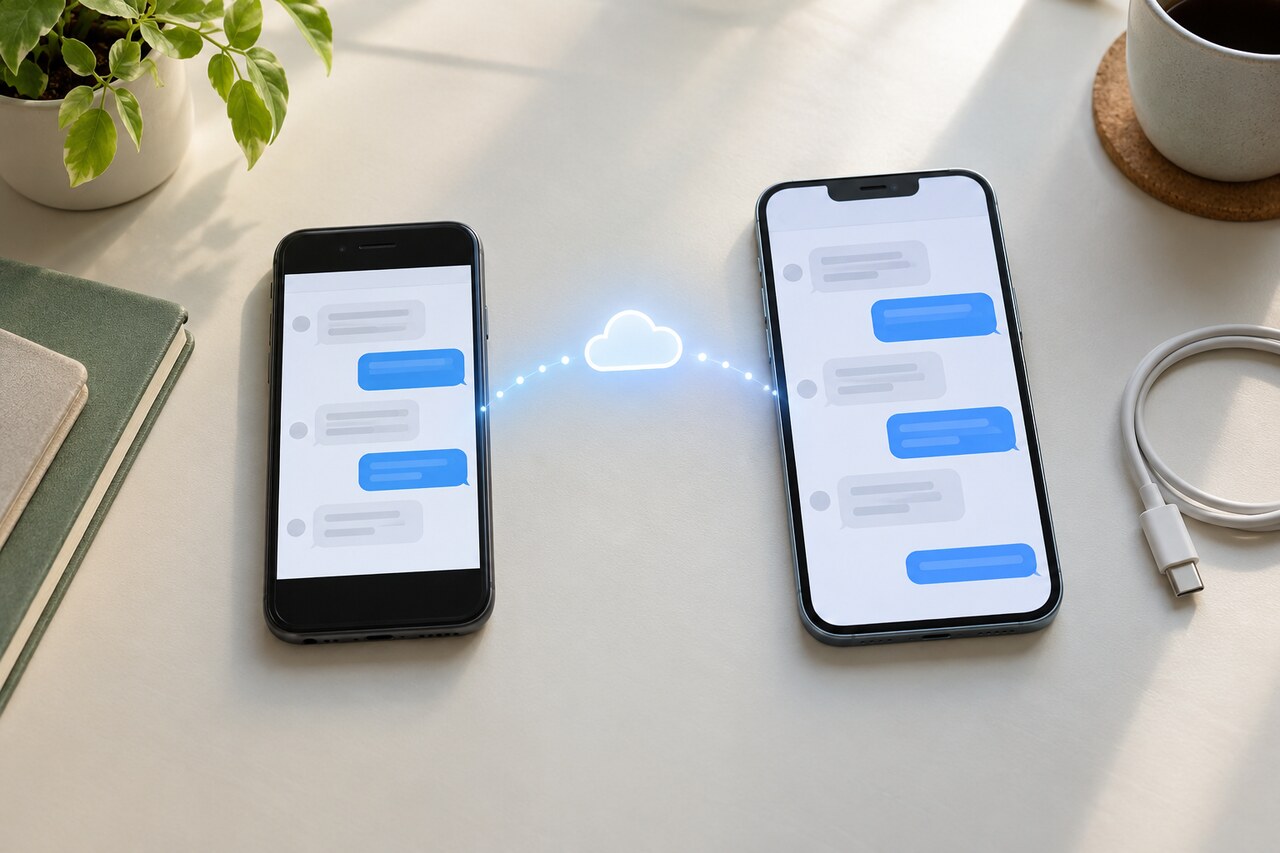
Do not erase, trade in, or reset the old iPhone yet. First find out whether the new iPhone is still restoring, Messages in iCloud is still downloading history, or the conversations are present while photos and links are still being indexed. Keep the old phone unchanged until you can verify a complete copy elsewhere.
This guide applies to current iPhone and iPad software. Apple can rename or move a Settings item between releases or regions, but the decision order stays the same: preserve, identify the active process, use the least disruptive fix, then verify the result.
First, preserve the fullest copy
Open several old conversations on both phones. Check an early conversation, a recent conversation, a thread with photos or links, and any message you cannot afford to lose. Note which phone has the most complete version.
If the old phone has anything the new phone does not, leave it signed in, do not erase it, and do not toggle Messages in iCloud off. Do not sign out of the Apple Account or start another restore just to see whether it helps. Apple advises backing up current data on a computer before trying an alternate restore. Keeping the old phone intact also gives Apple Support a working comparison if synchronization fails.
1. The iCloud restore is still running
On the new iPhone, open Settings, tap your name, choose iCloud, then iCloud Backup. Apple says a message there shows when the device is still being restored.
If a restore is active, leave the new iPhone connected to power and Wi-Fi. Do not begin a second restore. Apps and other information can finish at different times, and Messages can follow one of two paths: if Messages in iCloud was enabled, message history downloads from iCloud after setup; if it was not enabled, the history can be part of the device backup.
The practical test is simple: if the restore status is still active and older conversations continue to appear, wait. Recheck the same sample conversations later instead of changing sync settings mid-restore.
2. The restore is done, but Messages in iCloud is paused or still downloading
Confirm that both phones use the same Apple Account. On the new iPhone, go to Settings, tap your name, choose iCloud, then Messages. Depending on the software version, you may see “Use on this iPhone,” “Sync Now,” or a status inside Messages.
Use the non-destructive checks first:
1. Connect the new iPhone to reliable Wi-Fi and power. 2. Turn off Low Power Mode temporarily. 3. Check that the iPhone and iCloud both have usable free storage. 4. If the phone is hot, let it cool. 5. Tap Sync Now if it is available, then give the phone time while connected.
A pause that clears and returns can mean a condition is still blocking background work. Fix power, network, storage, or temperature before considering account changes. Do not sign out of iCloud or switch Messages in iCloud off while the old phone is your only complete copy.
3. Conversations are present, but photos, links, or search results are missing
That pattern points more strongly to indexing than to lost conversation history. Apple says Messages content transferred to a new device can take up to a few days to finish indexing, and keeping the device locked and connected to Wi-Fi or Ethernet helps.
Wait before treating missing attachments as deleted. Test an old thread by opening it directly rather than relying only on search or the conversation details view. If the text is there but shared photos and links are still filling in, keep the new phone on power and network and recheck later.
Apple also documents turning “Use on this iPhone” off and back on to restart indexing. Treat that as a later step, not the first one: use it only after the restore has finished and after you have preserved the fullest copy. If the old phone contains unique messages, stop before toggling and get Apple Support guidance.
4. The old phone has conversations that neither iCloud nor the new phone has
This is the stop condition. Do not erase the old phone.
First confirm whether Messages in iCloud was enabled on the old phone. If it was off, the missing history may belong to a device backup rather than the cloud message store. Apple’s restore guidance says to protect current data on a computer before trying a different backup. An alternate restore can replace the current contents of the new phone, so it should not be used as a casual test.
Record the old and new device models, software versions, Apple Account, restore status, available device and iCloud storage, the wording of any pause message, and examples of missing date ranges. Then contact Apple Support while the old phone remains intact.
A safe order of operations
Use this order and stop as soon as the problem is resolved:
1. Preserve the old phone and compare representative conversations. 2. Check whether iCloud Backup reports an active restore. 3. Confirm the same Apple Account and the Messages in iCloud setting. 4. Correct power, Wi-Fi, storage, and temperature conditions; use Sync Now if offered. 5. If texts are present but attachments or search are incomplete, allow up to a few days for indexing. 6. Only after preservation and a finished restore, consider Apple’s indexing restart step. 7. If unique history exists only on the old phone, stop and contact Apple before any sign-out, reset, toggle, or alternate restore.
Restarting the new iPhone is reasonable after the non-destructive checks, but a restart is not proof that the history is safely stored. The proof is that the expected conversations and attachments are visible on the new phone or protected in a verified backup.
How to know you are finished
Do not judge completion from one recent thread. Verify:
- an older conversation and a recent conversation; - a thread with photos, links, or other attachments; - search results for a known old phrase or contact; - that the restore, sync, or indexing status has cleared or remains stable after a normal restart.
Only erase or trade in the old iPhone after the new phone contains the representative history you expect and you have a current backup you trust. If progress has stopped after the restore is complete, the phone has had sustained power and Wi-Fi, storage is available, and indexing has had time to finish, keep the old phone intact and escalate to Apple Support.