Tech · PRACTICAL GUIDE
Immich Live Photo download gives a still: check the pair before changing metadata
Remote playback, matching file identifiers and a saved image prove different things. Check the original pair and the restored Photos item before treating a still-only download as a repaired backup.
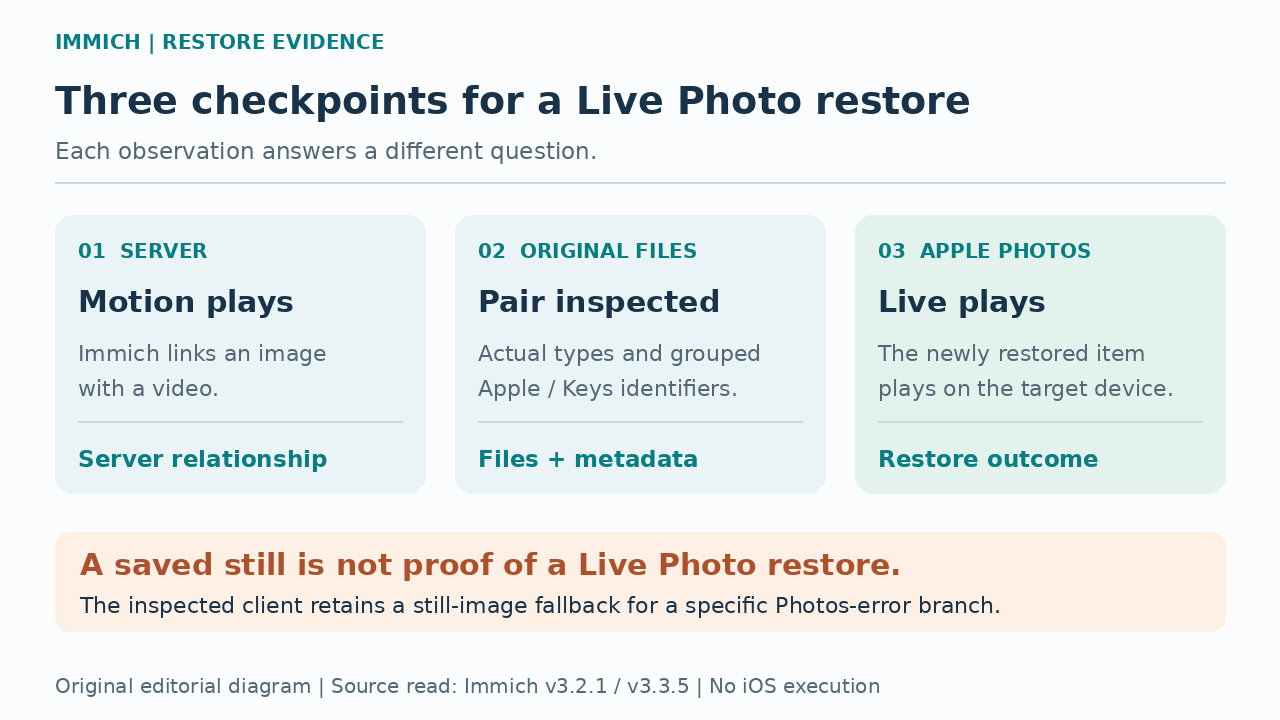
If a Live Photo moves in Immich but the newly saved item in Apple Photos is only a still, the Live Photo restore is not yet verified. Keep the original files. First establish that the still and companion video are available, inspect their actual file types and relevant identifiers, then check the restored item in Photos. Changing a UUID is not the first step.
There is a specific reason to keep those checks separate. In the Immich mobile save service we inspected at v3.2.1 and v3.3.5, one Photos-error branch attempts to save only the still image and treats a non-null static result as success. That is source-code evidence of a fallback, not proof that it caused your result or that every completion message comes from that return value.
A server link, a file pair and a restored Live Photo are different evidence
Immich can associate an image with a video and play that motion in its own viewer. That answers a server-side question. Having two downloaded files answers a preservation question. Seeing the new item behave as a Live Photo in Apple Photos answers the restore question you actually care about. None of those observations should silently stand in for the next.
Apple documents an association between the movie's content identifier and metadata in the corresponding still image's Exif MakerNote. Immich's own link is a database relationship. Relinking two assets in Immich therefore is not, by itself, evidence that their embedded Apple metadata has changed or that Photos can accept the pair.
Preserve the original resources and record the failing route
Work on copies of the original still and its companion video from your archive or an original-file download. Keep them together in a separate folder. If the export produced only a still, first locate the corresponding original video; a screenshot, preview or newly named .MOV file cannot replace missing motion bytes. Do not alter files inside Immich's managed storage to try a repair.
Record the Immich server version, mobile app version, iOS version and whether the result came from mobile Save, a web download or another export. Note whether the source began as an Apple Live Photo or an Android motion photo. This guide examines the Apple restore question; it does not promise that a cross-platform motion-photo conversion will work.
Inspect file types and identifier groups without writing anything
With ExifTool installed, run `exiftool -ver`, then `exiftool -a -G1 -s -FileType -ContentIdentifier "photo.JPG" "photo.MOV"`, replacing the two quoted paths with your copies. These options read metadata. Keep the output's file boundaries and group labels. A filename ending in .MOV is not a substitute for the file-type result.
For the iPhone samples we examined, the still exposed [Apple] ContentIdentifier and the movie exposed [Keys] ContentIdentifier. Compare those values. Do not substitute ImageUniqueID, a filename UUID or an unrelated XMP value merely because it looks similar. If a group is absent, multiple values conflict or the tool cannot read the file, record that uncertainty instead of declaring the pair valid.
Two real failure samples show why one metadata recipe is insufficient
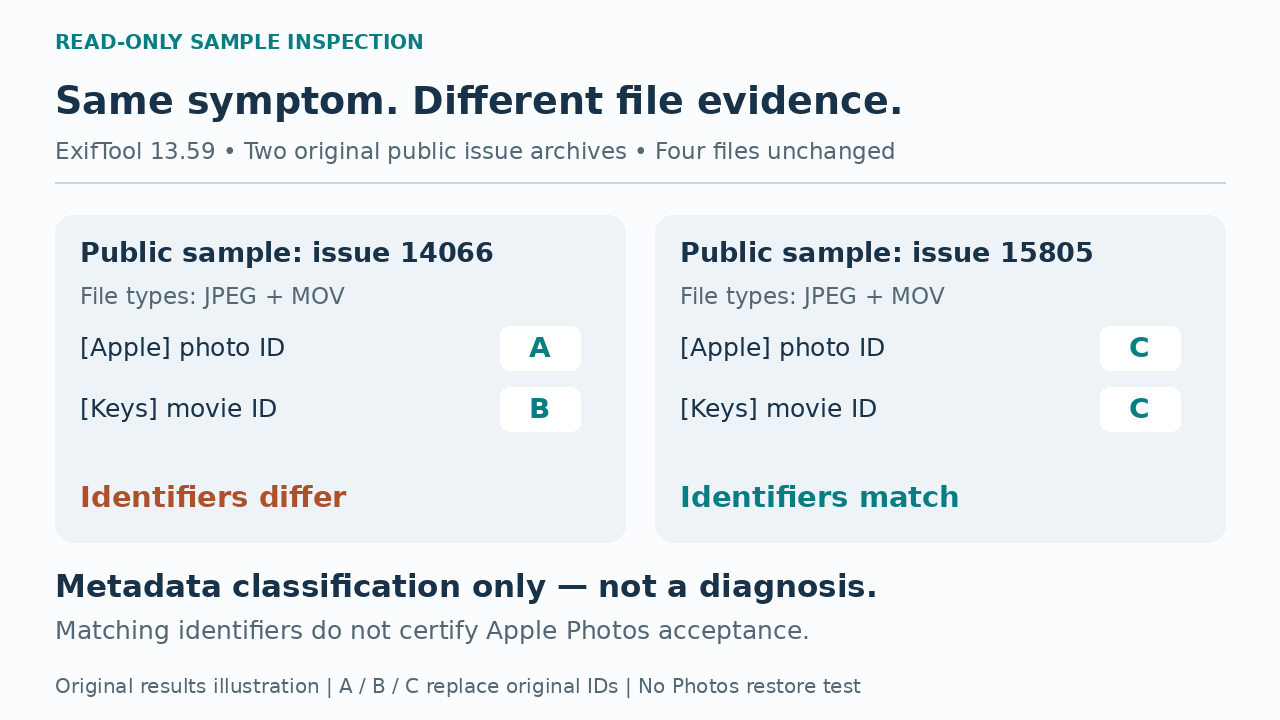
We inspected the public JPEG/MOV archives attached to Immich issues 14066 and 15805 with ExifTool 13.59. Both contained a JPEG and a MOV. The Apple/Keys content identifiers differed in the first pair and matched in the second. SHA-256 checks before and after the read-only inspection confirmed that all four files were unchanged.
Those results classify the supplied files; they do not diagnose the original failures. Issue 14066 also included a missing-task-record error. Issue 15805 was explicitly covered by a later fix for an incorrect video-download URL. We did not run iOS or macOS restoration, and a correct server-exported pair does not prove what bytes an earlier mobile download delivered.
Choose the next action from the evidence you actually have
If the video is missing, unreadable or actually another image, recover the intended original resource before attempting pairing. If the relevant identifiers are missing or differ, return to the source archive and export history to establish which still and video belong together. A shared basename or similar capture time is a clue, not permission to overwrite identifiers on arbitrarily selected files.
If the relevant identifiers match, stop treating UUID replacement as a universal repair. Preserve that pair and investigate the delivery and Photos-save path. Existing repair tools can copy an identifier between files, but that does not certify the video, its remaining metadata or Apple's acceptance. A failed restore with matching identifiers is a reason to collect better evidence, not to keep rewriting the same value.
Separate historical client fixes from the still-image fallback
Two established client fixes matter here. PR22708 corrected a video request that used the still image's URL. PR29952 corrected how completed Live Photo download tasks were grouped and how callbacks interacted. They show why a delivery problem can exist independently of a source pair's identifiers. Neither patch proves the cause of every later still-only report.
The inspected v3.2.1/v3.3.5 save code still catches an error whose code starts with PHPhotosErrorDomain, tries saveImageWithFile, and returns whether that static save produced an asset. We have not traced that boolean to every UI status. The useful conclusion is narrower: transfer progress and a saved still are insufficient evidence of a complete Live Photo restore. Record versions and retest one protected example after a supported update, rather than applying an old patch blindly.
Verify the newly restored item in Apple Photos
Inspect the item created by this restore, rather than an older working copy that was already in the library. On iPhone, Apple's current instructions place Live Photos under Photos → Collections → Media Types → Live Photos; open the item and press and hold to play it. If Photos still offers Live controls, check whether the effect was switched off before concluding the motion is missing.
A MOV that plays separately is useful preserved material, but it does not establish that Photos restored one Live Photo. Keep the originals until the intended device and workflow pass this check. Do not delete the only working copy merely to create a clean test; use an existing failed example with separately preserved resources or an isolated test destination when available.
Keep a completion record that does not overstate recovery
For the example you tested, retain the versions, export route, two file types, whether the relevant identifiers matched, and the actual Photos playback result. A useful support report can distinguish “original video missing,” “both resources retained, restore unverified,” and “restored and played on this device.” Include the exact error if one appeared, without assuming that an absent error proves a Live save.
This procedure narrows the next decision; it does not recover absent video frames or certify every matching pair. Its practical endpoint is an honest restore result and preserved source material. Server playback alone should not be the reason to discard the remaining copy of a Live Photo you still need to restore.