Technology · PRACTICAL GUIDE
Which HDMI Cable Do You Need for 4K at 120Hz?
Use a certified 48Gbps Ultra High Speed HDMI cable for 4K/120—but check the source, TV input and enhanced setting before replacing anything.
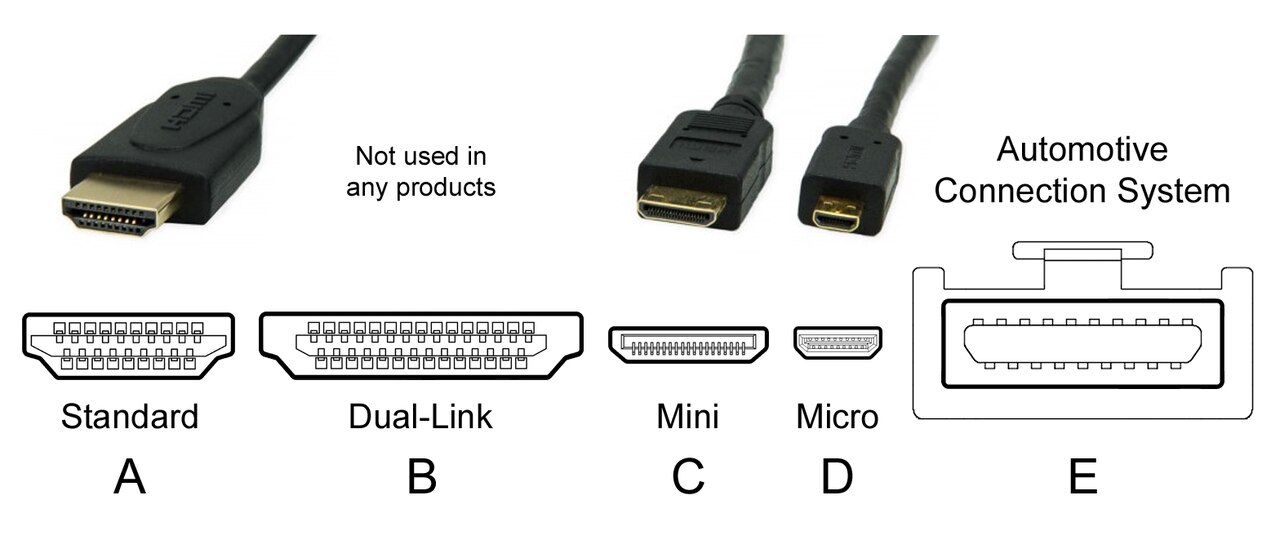
Use a certified Ultra High Speed HDMI cable when your target is 4K at 120Hz. HDMI Licensing Administrator says that cable class is designed for systems up to 48Gbps. A Premium High Speed cable is certified for 18Gbps and is a practical fit for 4K at 60Hz with HDR, but not the full 4K/120 target.
A new cable cannot create 120Hz on its own. The console or PC output, the selected TV input, the panel and the per-input settings must all support the mode. The fastest fix is to test that chain in order instead of buying another cable first.
Choose by certified bandwidth, not marketing words
HDMI LA says Ultra High Speed HDMI cables support system configurations up to 48Gbps and carry an official certification label. That is the straightforward class for a PS5, Xbox Series X or gaming PC intended to send 4K at 120Hz. Look for the certification label rather than relying only on words such as “8K,” “gaming” or a decorative finish.
Premium High Speed HDMI cables are tested for the full 18Gbps bandwidth. HDMI LA lists 4K/60 and HDR among that program’s uses. Tom’s Guide reaches the same buying decision: 18Gbps suits HDMI 2.0-era 4K/60 use, while 48Gbps is the safer choice for HDMI 2.1 features such as 4K/120.
Check the output device and the exact TV port
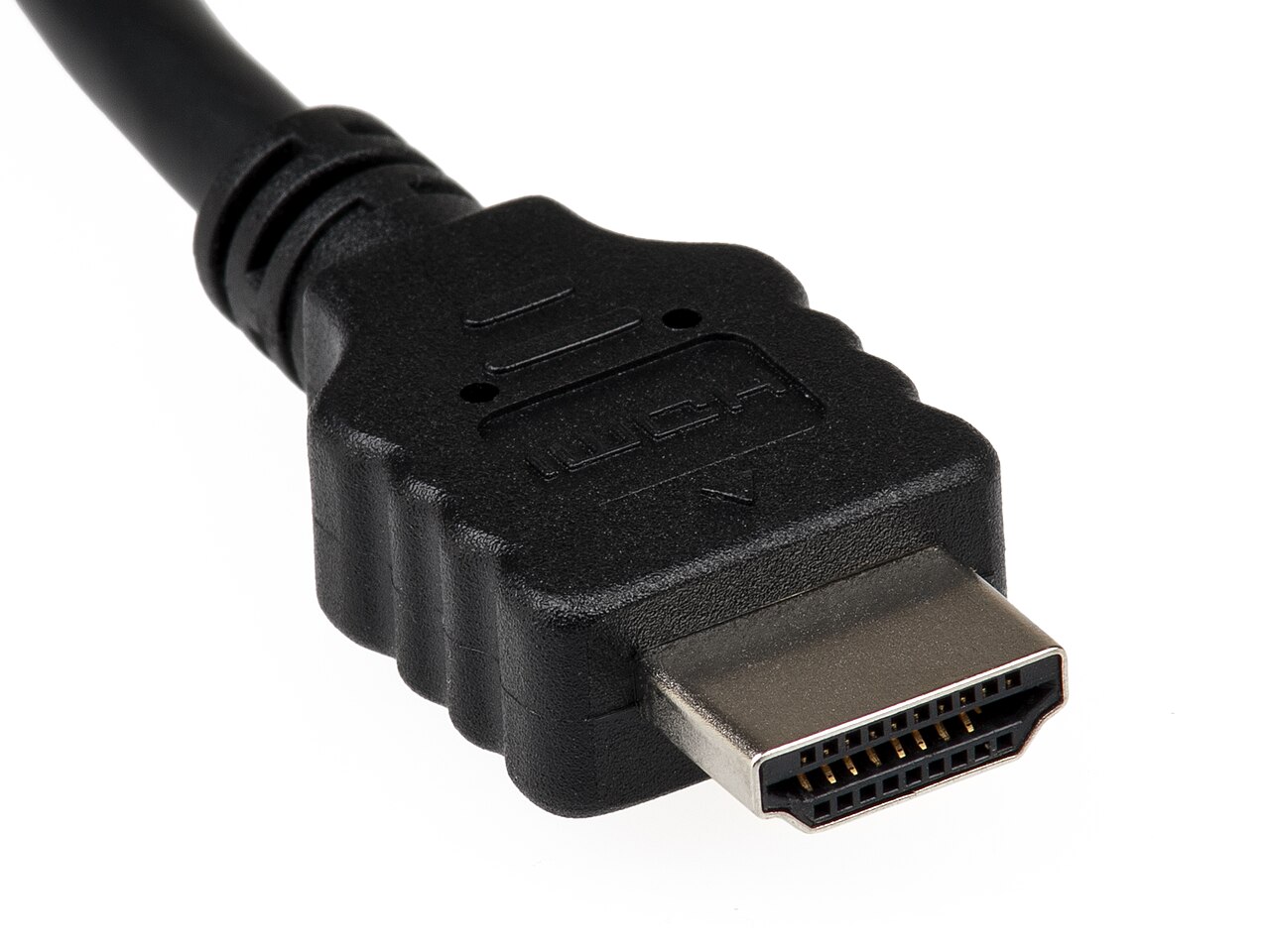
Check the exact source device and TV model for 4K at 120Hz, not merely a 120Hz or HDMI 2.1 label. The refresh rate must be supported at the required resolution. PlayStation recommends the PS5-supplied cable or an Ultra High Speed alternative; its 120Hz output also depends on a compatible game. On a PC, the display refresh rate and the game’s rendered frame rate are separate measurements.
Use the TV manual to identify the input that explicitly accepts 4K/120. Some TVs support it on only certain inputs, and one may also serve ARC/eARC audio. A 120Hz or 144Hz label without a resolution is a clue to investigate, not proof of 4K/120 support.
Use this five-step troubleshooting order
1) Confirm that the exact source and display support 4K/120. 2) Connect the source directly to the TV input whose manual explicitly lists that mode. 3) Enable the high-bandwidth input setting required by that model. 4) Test the console’s supplied suitable cable or another certified Ultra High Speed cable. 5) Select the supported resolution and refresh rate, then verify both together.
Temporarily remove receivers, switches, capture devices and adapters. If a direct connection works and reconnecting an intermediary fails, investigate that device and its second cable before buying another main cable. For flickering, change one output setting at a time and restore the desired mode afterward. A stable lower resolution is a diagnostic result, not confirmation that 4K/120 works.
Know what certification proves
Certification verifies the cable class and tested model; it does not certify the TV, GPU, receiver or game. HDMI LA also tests individual product lengths because longer cables can behave differently. For a long run, verify the exact length and test the final installed path instead of assuming a short-cable result will carry over.
Once a cable reliably carries the requested digital signal, precious-metal plating does not improve picture detail. Tom’s Guide advises matching bandwidth and build quality to the equipment rather than paying for decorative claims. The useful purchase is the least expensive certified cable that meets the required bandwidth and length.
Verify the result before buying another cable
On PS5, open Settings > Screen and Video > Video Output. Sony recommends Resolution Auto or 2160p and Video Transfer Rate Auto for 4K/120 troubleshooting; enable 120 Hz Output and use a supported game. Check Current Video Output Signal while that game is running. A 60Hz game or menu alone is not a useful test of whether the 4K/120 link works. Lowering Video Transfer Rate to -1 or -2 may limit 4K/120, so it is not a final setting for proving that target.
On Windows 11, open Settings > System > Display > Advanced display and select the TV. Confirm that the displayed resolution and refresh rate are both the intended values. Microsoft warns that choosing a refresh rate marked with an asterisk can change the resolution. If the existing cable delivers a stable 4K/120 signal, keep it. If the required mode is missing, verify the exact device specifications and input settings before spending; if the chain supports it but the direct connection remains unstable, test another certified cable. These checks identify the next component to investigate; they do not guarantee a repair.