Technology · PRACTICAL GUIDE
Google Drive has two different copies after a new PC? Reconcile edits before you sync
My Drive and Computers can hold different work. Build a copy-by-copy record before reconnecting folders or choosing which file wins.
A new computer shows a project in My Drive and another under Computers, yet neither contains every recent edit. Do not merge the whole folders first. Preserve the accessible copies, then decide one file pair at a time. Synchronization can distribute changes; it cannot decide which sentence, formula or photo edit you intended to keep.
1. Preserve three locations before choosing a winner
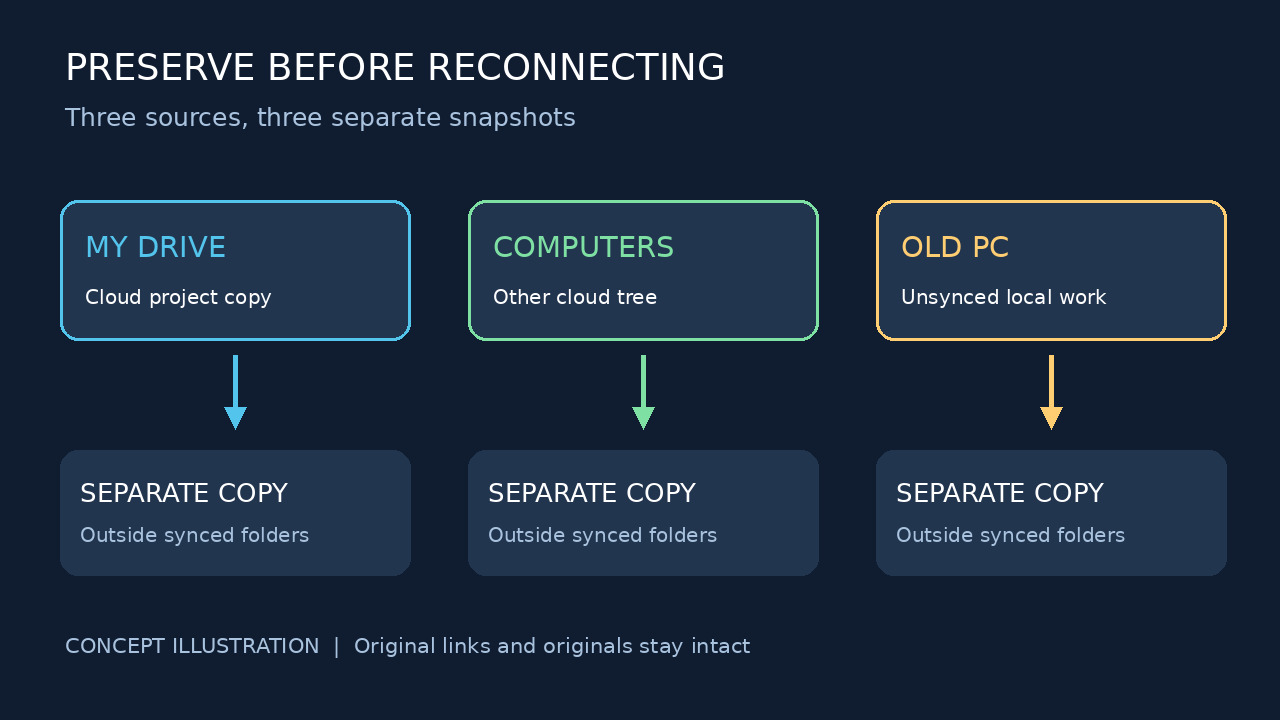
Stop editing this project on both computers and ask collaborators to pause too. Record the signed-in account, both cloud folder paths and any old-PC local folder. Use Drive for desktop's pause control while investigating; do not reset the app, clear its cache or disconnect the streaming account. Google warns that disconnecting removes offline streamed files. If the old PC holds unsynced work, copy those readable local files first to a folder or external disk outside every configured sync location.
Download accessible uploaded files from each cloud tree into separate unsynced folders named MyDrive-snapshot and Computers-snapshot. Do not drag one cloud tree into the other. Open several downloaded files, including a recent important edit, before treating the snapshot as usable. Native Google Docs, Sheets and Slides need their own exports and original browser links; an export is a content copy, not the original sharing and version-history record. If either copy cannot be opened or downloaded, stop reconciliation and resolve access first.
2. Make a decision row for each conflicting pair
For each pair, write one row: relative folder path, both original links, file type, the important content found in each, chosen destination and unresolved differences. Drive activity includes moves and renames as well as edits, so a recent timestamp is a clue, not a winner. For a document, inspect the changed passages; for a spreadsheet, check the affected formulas and sheets; for a photo or video, open the actual rendition. Matching names and sizes alone do not settle the decision.
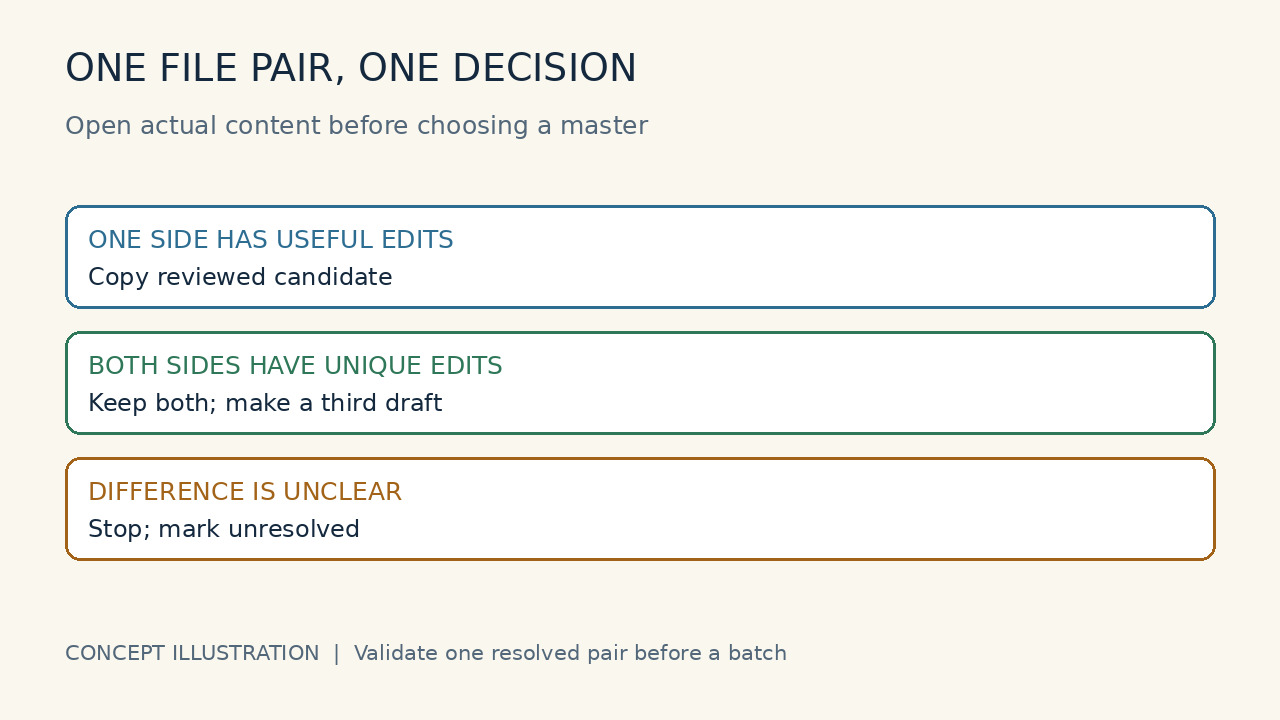
Use three decisions. If only one side has unique useful work, copy that version into a separate proposed-master folder and record where it came from. If both contain unique edits, retain both and create a third reconciled draft using the relevant application; do not overwrite either original. If you cannot tell, mark the row unresolved and leave both untouched. This worksheet is an editorial workflow for making the decision visible, not a Google automatic-merge feature.
3. Preserve versions differently for files and Google documents
For an uploaded PDF, Word file, image or other ordinary file, open the original in Drive and use Manage versions to download an important prior version. Keep forever can preserve a selected revision. Google's help says an unpinned older version may disappear after 30 days or 100 newer versions. Preserve a needed revision before replacing content; these are versions of that particular file, not a combined history for every similarly named copy.
For a native Google document, open each original browser link and inspect its version history if you have editing permission. Copy an earlier version when you need its content without restoring over the current document. Two documents with similar names may represent separate work; keep their links and access needs in the worksheet. If both have useful changes, reconcile in a third draft and ask the people who use the original links to review the destination. Do not assume exporting and re-uploading retains either original history.
4. Validate one pair before reconnecting the project
Choose one resolved, low-risk pair first. Put the reviewed master in its intended My Drive project location, keeping the snapshots and both originals. Resume synchronization and check the actual content from the web and new computer after sync finishes. Verify a specific recent sentence, formula or media edit, not merely a green icon or file count. If you see two copies, an unexpected rename or missing work, pause again and return to that row; do not continue the bulk migration.
Once the trial is correct, handle the remaining resolved rows in small batches. Shared links may still point to an original copy, so confirm the chosen destination with collaborators before retiring anything. This guide deliberately ends with a validated master and retained originals; deletion is a separate decision. It does not recover inaccessible data from an erased old PC or promise that two Computers device identities will merge. Current Drive can stream or mirror My Drive, and Google states that differing contents can be kept as two files when switching to mirroring—reconfiguration is not a content review.