Technology · PRACTICAL GUIDE
Google Docs comments say “Missing content” in Word? Separate hidden text from conversion loss
Keep the originals, inspect Word’s two comment views and Reviewing Pane, then verify the exact thread before treating a conversion as lost feedback.
A comment box that says “Missing content” after a Word–Google Docs–Word round trip does not establish that the text has been deleted. Microsoft documents unsupported content in modern comment boxes; separately, a resolved discussion can disappear from the contextual view while remaining in the list. These cases need different checks.
This documentation-based workflow covers current Word for Microsoft 365 on Windows and Mac and Google Docs on a computer. It is a preservation and diagnosis procedure, not an account-tested repair or a promise to recover damaged conversion data. Keep the original Word file and the live Google document.
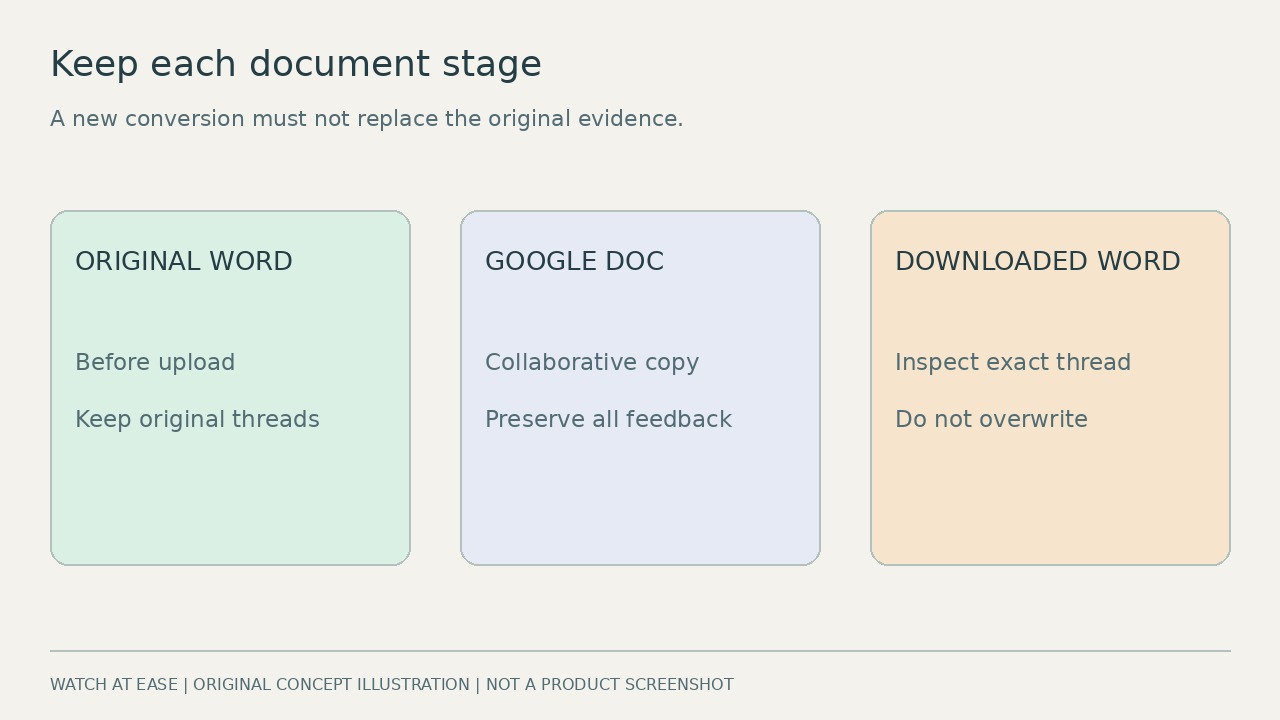
1. Preserve the three stages before changing settings
Keep the Word file from before upload, the Google document used for collaboration and the downloaded Word file as separately named records. Add dates and a short description of each stage. Do not replace the original with another conversion, delete problem threads or accept all tracked edits as a troubleshooting shortcut. Those operations change the evidence you need to compare.
If you have permission, use File → Make a copy in Google Docs and choose Copy comments and suggestions; include resolved items when offered. Inspect that copy before relying on it. A Google copy, a DOCX download and an account export are separate operations. Google lists open and resolved comments and suggestions among exported Docs data, but that does not guarantee a particular DOCX will display every item identically.
2. Check view state before diagnosing lost feedback
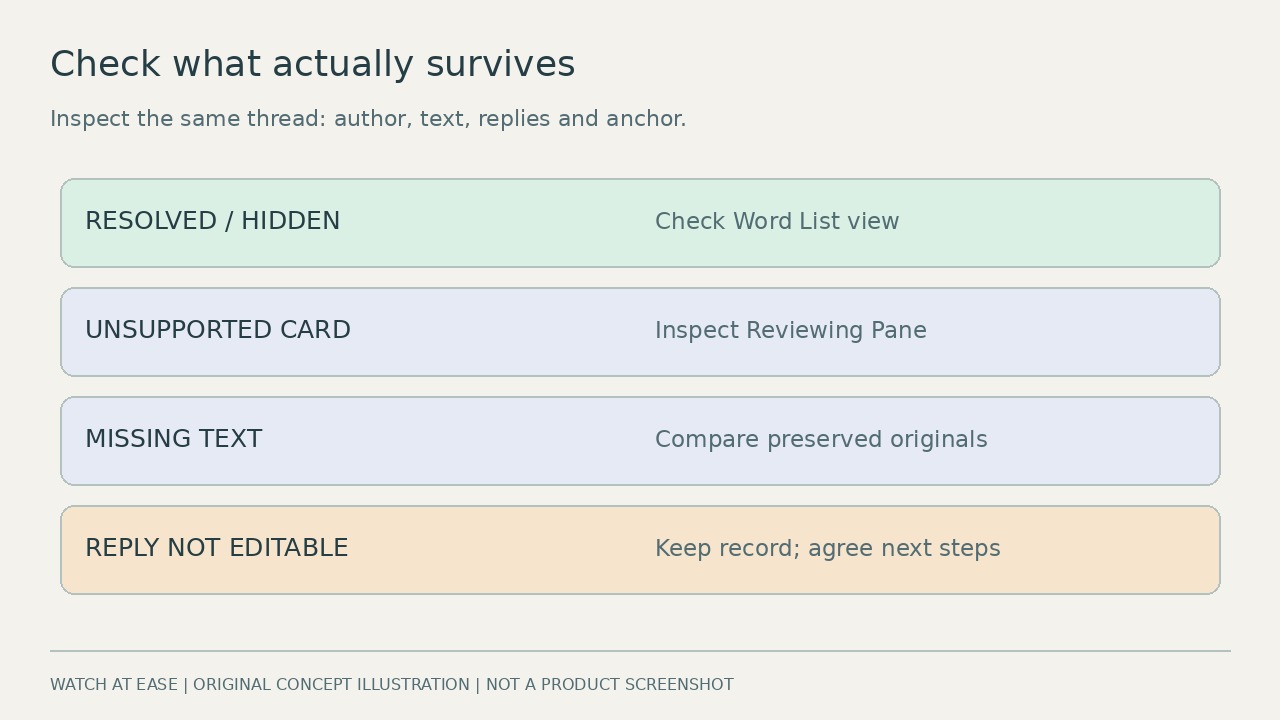
In current Word, open Review → Show Comments and select List, or use the Comments button. Contextual view shows active discussions near their text; List includes active and resolved discussions. Select the thread and check the highlighted passage. Finding a resolved thread here explains why it was absent from the contextual margin; reopening it changes its status, so do not do that merely to make an archive look complete.
For the specific unsupported-content warning, open Review → Reviewing Pane on a working copy. Microsoft says some unsupported formatting and objects may be visible there when Track Changes is on. Tables, equations, shapes and fields are not supported inside modern comment boxes. Inspect existing content; avoid typing into the document or changing other authors’ comments during diagnosis. This check may expose text, but it does not establish that replies remain editable.
3. Compare the exact thread, not just a comment count
Choose an affected thread in the Google document and record its quoted passage or nearby heading, author, status, main text and replies. Check the same thread in the pre-upload Word file if it existed then, and in the downloaded file’s List and Reviewing Pane. Include one unaffected thread as a comparison. An equal count can conceal missing replies or a comment attached to the wrong paragraph.
Write down what actually differs: “resolved and visible in List”, “text visible only in Reviewing Pane”, “text absent from both inspected views” or “reply cannot be edited”. If the original has a table in the comment and Word’s card omits it, retain the original representation. If ordinary text is absent too, do not infer that it is recoverable merely because the warning mentions unsupported content. A small sample diagnoses those threads, not the entire document.
4. Stop when conversion loss remains unresolved
If you can read the feedback but cannot continue its discussion, keep the original thread as the record and agree with collaborators where future replies belong. A separately labelled transcription can preserve readable feedback, but it does not restore the original authorship, timestamps, anchors or reply history. Never present a newly typed comment as the original reviewer’s comment.
If content is still missing, record Word’s platform and build, the conversion sequence, exact warning and affected thread location, and seek Microsoft or your organization’s authorized support. Share a redacted copy only through an approved channel. Keep the originals while investigating. Turning modern comments off, repeatedly downloading or printing to PDF is not a verified universal fix; inspect any resulting file before handing it over.